# QuestionPunk documentation
> The QuestionPunk product overview, pricing, comparisons and help articles in one file. The linked index is https://www.questionpunk.com/llms.txt.
---
# QuestionPunk: Easy surveys that can interview.
Canonical page: https://www.questionpunk.com/
Unlimited surveys and responses on the free plan. Add an AI interviewer that asks your respondents why, by text or voice. Free includes up to 5,000 AI text follow-ups a month.
No sign-up to try · No credit card required.
Start free: https://app.questionpunk.com?form=signUp
## Follow-up questions, asked while the respondent is still there.
On the questions you choose, the AI interviewer asks a follow-up about what the respondent just said, by text or voice. You decide how far it probes. Quotes pulled into your report are checked against the real responses and link back to them.
- **Probing depth:** Move on quickly, probe as standard, or stay and dig. You set it per question.
- **Fraud flags:** Fast typing, pasted answers, speeding and straight-lining are flagged automatically.
- **Text follow-ups included:** Up to 5,000 AI text follow-ups a month on Free and 15,000 on Pro, on the standard models, using no credits.
- **130+ languages:** Respondents answer in their language, by voice in 25 of them. You read in yours.
- **Your choice of model:** Pick the model for each text interview: 163 on Pro, 3 on Free.
- **Voice interviews:** Respondents talk to the AI in their browser. No app download needed.
## Works with the tools you already use
- **Import from:** Qualtrics, SurveyMonkey, Google Forms. Paste a survey link, upload a Qualtrics .qsf file, or upload responses as a CSV.
- **Recruit participants:** QuestionPunk Panel. Order up to 10,000 participants per study from the Share tab.
- **Send to:** Google Sheets, Slack. Each completed response adds a row to Google Sheets, and Slack can post when one arrives. Download CSV or Excel anytime.
## From one sentence to a full report. In five steps.
Describe the study, refine the draft, test it on AI respondents, launch it and read the analysis without leaving QuestionPunk.
1. **Describe.** One plain-English sentence about what you want to learn.
2. **Refine.** Edit questions and prompts, pick the AI model, tune follow-ups.
3. **Test.** Run 5 AI respondents through it first, or up to 500, paid in AI credits.
4. **Launch.** Share a link, embed it, or recruit through QuestionPunk Panel.
5. **Analyze.** Themes, quotes and a written report. Export the responses to CSV or Excel.
## Run your study on AI respondents. 5 by default, up to 500.
Test with AI runs 5 AI respondents through your study by default, or up to 500. Read their transcripts and fix confusing questions before a real participant sees them.
## Test your designs. See which one people prefer, and why.
Run pairwise concept tests, AI-moderated discussions and rating scales in one study.
See how concept testing works: https://www.questionpunk.com/features/concept-testing
## Test your build. With people or AI personas.
An AI moderator runs each session with real people, who share their screen and think aloud. Before that, AI personas can try the same tasks on your preview link in a real browser, started from a chat in Claude or ChatGPT through our connector.
See how usability testing works: https://www.questionpunk.com/features/moderated-usability-testing
## Recruiting, fraud flags and exports, in the same tool.
Write the study, recruit, interview and analyze in one tool.
- **Fraud detection:** Fast typing, pasted answers, speeding and straight-lining are flagged automatically, and the flags export with your data.
- **Recruitment:** Pick your audience with demographic filters, and we recruit and pay participants through QuestionPunk Panel.
- **1,800+ templates:** Informed consent, SLA check-ins, trade show feedback, onboarding studies. Pick one, edit, launch.
- **Multi-language:** Respondents answer in their language. You read reports in yours.
- **Exports your data:** Export to CSV or Excel, or pull responses as JSON through the REST API.
## Everything in QuestionPunk. Grouped by what you're doing.
40+ question types, text in 130+ languages, voice in 25, and 1,800+ templates.
### Research methods
- [AI text interviews with adaptive follow-ups](https://www.questionpunk.com/support/ai-how-it-works)
- [Voice interviews in the browser, with optional audio, video or screen recording](https://www.questionpunk.com/support/ai-audio-interviews)
- [AI-moderated usability tests with screen sharing](https://www.questionpunk.com/features/moderated-usability-testing)
- [Figma prototype tests with start and goal screens](https://www.questionpunk.com/support/usability-testing)
- [Concept tests with pairwise comparisons, AI-moderated discussion and rating scales](https://www.questionpunk.com/features/concept-testing)
- [AI focus groups with synthetic personas](https://www.questionpunk.com/support/focus-groups)
- [Diary studies with recurring waves](https://www.questionpunk.com/support/diary-studies)
- [Repeat a section for each row of an uploaded data table, for product and ad tests](https://www.questionpunk.com/support/repeat-from-data)
- [Quizzes with scored answers and a pass mark](https://www.questionpunk.com/support/quizzes)
- [Packaging design from dieline templates](https://www.questionpunk.com/support/packaging-design)
- [Test with AI on 3 to 500 synthetic respondents before launch](https://www.questionpunk.com/support/synthetic-testing)
### Question types (40+)
- [Multiple choice, rating, opinion scale, NPS, slider, matrix, ranking, dropdown, numeric, date](https://www.questionpunk.com/support/survey-design-question-types)
- [Van Westendorp and Gabor-Granger pricing](https://www.questionpunk.com/support/survey-design-question-types)
- [MaxDiff, conjoint analysis, Kano, constant sum, distribution builder](https://www.questionpunk.com/support/survey-design-question-types)
- [Card sorting, heatmap click, five-second test, text highlight](https://www.questionpunk.com/support/survey-design-question-types)
- [Vignette experiments, list experiments, wiki surveys](https://www.questionpunk.com/support/survey-design-question-types)
- [File upload, photo, audio and video recording, signature, payment, consent](https://www.questionpunk.com/support/survey-design-question-types)
- [Addresses suggested as people type, limited to the countries you choose](https://www.questionpunk.com/support/survey-design-question-types)
- [LinkedIn, Google, email and phone verification](https://www.questionpunk.com/support/survey-design-question-types)
- [AI interview by text or voice, usability test, AI image generation](https://www.questionpunk.com/support/survey-design-question-types)
- [Find a time, a poll over dates and times](https://www.questionpunk.com/support/survey-design-question-types)
- [Book a time with Calendly, Cal.com or SavvyCal inside the survey](https://www.questionpunk.com/support/survey-design-question-types)
### Build
- [Draft a study from a one-sentence goal](https://www.questionpunk.com/support/ai-generate-survey)
- [Import Qualtrics .qsf, XLSForm, PDF, Word and plain text](https://www.questionpunk.com/support/import-existing-study)
- [1,800+ templates](https://www.questionpunk.com/templates)
- [Display logic, branching and skip rules](https://www.questionpunk.com/support/survey-design-logic-branching)
- [Piping into questions, option labels, link and redirect URLs, and carry-forward](https://www.questionpunk.com/support/carry-forward)
- [Help text under any question](https://www.questionpunk.com/support/survey-design-rich-text-media)
- [Quotas and response limits per segment](https://www.questionpunk.com/support/quotas-response-limits)
- [Survey flow canvas](https://www.questionpunk.com/support/survey-flow-canvas)
- [Chat, Sequential or Traditional survey mode](https://www.questionpunk.com/support/survey-modes)
- [Question Bank for saved questions](https://www.questionpunk.com/support/save-and-reuse-questions)
- [Version history and restore](https://www.questionpunk.com/support/version-history)
- [AI survey review with a grade before you publish](https://www.questionpunk.com/support/survey-review-tool)
- [Comment on questions, then revise the draft with that feedback](https://www.questionpunk.com/support/ai-generate-survey)
- [Translation into 130+ languages, with review](https://www.questionpunk.com/support/translations)
- [Logo, colors and fonts](https://www.questionpunk.com/support/custom-branding)
- [Free courses on survey design and AI research methods](https://www.questionpunk.com/support/learn-courses)
### Launch and recruit
- [Share link, embed or popup](https://www.questionpunk.com/support/embed-and-share)
- [Password-protected surveys](https://www.questionpunk.com/support/embed-and-share)
- [Finish-later links, and editing answers after submitting](https://www.questionpunk.com/support/embed-and-share)
- [QR codes](https://www.questionpunk.com/support/qr-codes)
- [Recruit through QuestionPunk Panel, up to 10,000 participants per study](https://www.questionpunk.com/support/integrations-prolific)
- [Screening questions with paid screen-outs for panel recruits](https://www.questionpunk.com/support/integrations-prolific)
- [Participant lists](https://www.questionpunk.com/support/audiences)
- [Scheduled open and close times](https://www.questionpunk.com/support/survey-scheduling)
- [Offline collection on a field device](https://www.questionpunk.com/support/collect-responses-offline)
- [Respondent incentives](https://www.questionpunk.com/support/respondent-incentives)
- [Tracking pixels and conversion events](https://www.questionpunk.com/support/tracking-pixels)
- [A personal AI result for each respondent at the end](https://www.questionpunk.com/support/ai-result)
- [A confirmation email to each respondent, with their answers](https://www.questionpunk.com/support/notifications)
- [Minimize IP and location data](https://www.questionpunk.com/support/anonymous-mode)
- [Import responses from CSV or Excel](https://www.questionpunk.com/support/import-responses)
### Analyze and report
- [Themes, sentiment and summaries per question](https://www.questionpunk.com/support/ai-insights)
- [Chat with your results](https://www.questionpunk.com/support/view-report)
- [Qualitative coding with codebooks, intercoder reliability and .qdpx export](https://www.questionpunk.com/support/qualitative-analysis)
- [Descriptives, correlation, regression, k-means segmentation, PCA and Cronbach's alpha](https://www.questionpunk.com/support/quantitative-analysis)
- [Banner tables and weighting, with coded themes as rows](https://www.questionpunk.com/support/banner-tables-and-weighting)
- [A written report as PDF or Word, with verified quotes](https://www.questionpunk.com/support/view-report)
- [Reports that compare the arms of an A/B design](https://www.questionpunk.com/support/view-report)
- [Screened-out responses counted apart from completes](https://www.questionpunk.com/support/view-report)
- [PowerPoint slides](https://www.questionpunk.com/support/ppt-generation)
- [Fraud flags for fast typing, pasting, speeding and straight-lining](https://www.questionpunk.com/support/fraud-detection)
- [CSV and Excel exports with the fraud flags, JSON through the API](https://www.questionpunk.com/support/data-exports-exporting-results)
### Connect
- [Slack and Microsoft Teams notifications](https://www.questionpunk.com/support/integrations-slack)
- [Google Sheets](https://www.questionpunk.com/support/integrations-google-sheets)
- [WordPress block](https://www.questionpunk.com/support/integrations-wordpress)
- [GitHub, for concept images](https://www.questionpunk.com/support/integrations-github)
- [Zapier and Make through webhooks](https://www.questionpunk.com/support/integrations-zapier-make)
- [Webhooks for survey, response, recruitment and panel events](https://www.questionpunk.com/support/webhooks)
- [REST API with an OpenAPI spec](https://www.questionpunk.com/support/api-access)
- [MCP server for Claude and ChatGPT](https://www.questionpunk.com/support/connect-ai-assistant)
- [Team members and roles](https://www.questionpunk.com/support/account-team-seats)
## Need something custom? Talk to a researcher.
If you're planning a large rollout, running academic research, or want a walkthrough on your own study, book a 30-minute call. We'll walk through your use case live.
Book a demo: https://www.questionpunk.com/book-demo
## Unlimited surveys and responses. AI text follow-ups included.
| Plan | Price, billed monthly | Price, billed yearly | Responses | AI credits per month |
|---|---|---|---|---|
| Free | Free | Free | Unlimited | 3,000 ($3.00 of AI usage) |
| Pro | $29 per month | $288 per year ($24 per month) | Unlimited | 25,000 ($25.00 of AI usage) |
| Business | $79 per month | $780 per year ($65 per month) | Unlimited | 50,000 ($50.00 of AI usage) |
| Enterprise | Custom | Custom | Unlimited | Custom AI use, sized to your organization |
Plans, prices and AI credits in Markdown: https://www.questionpunk.com/pricing.md
## Frequently asked. Straight answers.
### How does the AI interview work, and how much control do I have?
Text interviews end after a set number of follow-ups (0 to 10), when the AI judges it has enough, or at a time limit. Voice interviews run on a time limit. For text interviews, Pro offers 163 models from Anthropic, OpenAI, Google, xAI, Meta, Mistral, DeepSeek and others; Free has 3. You can read the interviewer's full prompt and add your own sections to it. On Business and Enterprise, each response also records the exact prompt and models that interview ran on.
### Can people answer by text, voice or video?
Text and voice, even in the same study. Respondents type, or talk to an AI voice interviewer in their browser. You can also record their camera or ask them to share their screen. Nobody has to install an app.
### What question types do you support?
More than 40. Standard ones (multiple choice, opinion scale, slider, rating, ranking, matrix, dropdown) plus research methods such as MaxDiff, conjoint analysis, concept testing, Van Westendorp pricing, vignette and list experiments, constant sum, distribution builder, card sorting, heatmap click and text highlight. Plus AI types: AI interview, voice interview, usability test and AI image generation.
### Can I run my study in multiple languages?
Yes. Auto-translation is built in for 130+ languages, and voice interviews run in 25 of them. Run one study live in many languages at once; respondents pick theirs and the AI follows up in the same one.
### Can I build branching and conditional logic?
Yes. Skip questions, branch on most answer types, and route respondents down different paths based on what they said earlier.
### Can it match our brand?
Logo, colors and a font style. Share a link, embed it on your site, or open it in a popup.
### How do I get real respondents?
Pick your audience in the app, and we handle recruitment and payment through QuestionPunk Panel. You can also share a public link or embed the survey on any site.
### What does the AI report give me back?
Themes, sentiment, quotes and segment breakdowns, plus a written report you can export as PDF, Word or PowerPoint. Quotes pulled out in the report are checked against the real responses, and link back to the response when they match one exactly.
### Who owns the data, and what does it cost?
You own your data. Export responses to CSV or Excel, or get them as JSON through the REST API, and delete your account whenever you want. Every plan includes unlimited surveys and responses, under fair use, and as many team members as you need. AI text follow-ups on the standard models use no credits. The Free plan includes AI themes for about 300 open-ended answers a month, shows QuestionPunk branding on your surveys and needs no credit card. Pro costs $29 a month, or $288 a year billed yearly, raises AI credits to 25,000 a month (3,000 on Free), and adds every AI model and no QuestionPunk branding. Enterprise pricing is custom. You can cancel a paid plan anytime. Business costs $79 a month, or $780 a year billed yearly, and adds a record on each response of the exact prompt and models that interview ran on, 50,000 AI credits a month and the lowest prices on QuestionPunk Panel recruiting.
## More for AI agents
- [Site index for AI agents](https://www.questionpunk.com/llms.txt)
- [Pricing in Markdown](https://www.questionpunk.com/pricing.md)
- [Help articles in Markdown](https://www.questionpunk.com/support/llms.txt)
- [API and MCP access](https://www.questionpunk.com/support/api-access.md)
- [Comparisons with other survey tools](https://www.questionpunk.com/compare)
---
# QuestionPunk pricing
Canonical page: https://www.questionpunk.com/pricing
Prices are in US dollars. Every plan, Free included, has unlimited team members, and no plan is priced per seat.
## Plans
| Plan | Price, billed monthly | Price, billed yearly | Responses | AI credits per month |
|---|---|---|---|---|
| Free | Free | Free | Unlimited | 3,000 ($3.00 of AI usage) |
| Pro | $29 per month | $288 per year ($24 per month) | Unlimited | 25,000 ($25.00 of AI usage) |
| Business | $79 per month | $780 per year ($65 per month) | Unlimited | 50,000 ($50.00 of AI usage) |
| Enterprise | Custom | Custom | Unlimited | Custom AI use, sized to your organization |
Every plan has unlimited surveys and responses, under fair use, and shows every response it collects. Plans differ in AI credits, AI models, daily AI chat edits, branding and support.
### Free
For trying QuestionPunk on a real study.
- Unlimited surveys and responses
- AI themes for about 300 open-ended answers a month
- QuestionPunk branding on your surveys
- Templates and report export
- Unlimited team members
- Take payments in surveys, with a 2% QuestionPunk fee
- 3,000 AI credits per month
- 20 AI chat edits per day
- No credit card required
### Pro
For surveys under your own brand, and for studies that need every AI model and more credits.
- Everything in Free
- All AI models, and 100 AI messages a day in the builder (20 on Free)
- No QuestionPunk branding
- Premium PowerPoint reports
- Priority support
- 25,000 AI credits a month (3,000 on Free)
- No QuestionPunk fee on survey payments, and lower prices on QuestionPunk Panel recruiting
- 100 AI chat edits per day
- $29 per month billed monthly, or $288 per year billed yearly
### Business
For research a client, an ethics board or a manager will review.
- Everything in Pro
- On each response, see the exact prompt and models that interview ran on
- 50,000 AI credits a month (25,000 on Pro)
- Lowest prices on QuestionPunk Panel recruiting
- $79 per month billed monthly, or $780 per year billed yearly
- Coming soon, not available yet: Delete responses automatically after a set time; Approve or reject each response; A PDF of every response, with your branding
### Enterprise
For organizations with many teams, security reviews or high volumes. Contracts from $6,000 a year.
- Everything in Business
- Custom pricing and contract
- Custom AI use, sized to your organization
- Unlimited AI messages in the builder
- Dedicated support and onboarding
- Book a call: https://www.questionpunk.com/book-demo
## Everything below is on the Free plan.
- **Branching, piping and quotas:** Send people down different paths based on earlier answers, carry an answer into a later question, and close a group once it has enough people.
- **Link, embed, popup or QR code:** Send a link, put the survey on your site inline or as a popup, or print a QR code.
- **API, webhooks and MCP:** A REST API, webhooks, and an MCP server that lets Claude or ChatGPT build surveys and read the results.
- **40+ question types:** Usability tests with screen sharing, concept tests, MaxDiff, conjoint and card sorting, next to multiple choice, rating and the other standard types.
- **AI interviews by text or voice:** The AI asks follow-up questions about each answer. Text follow-ups on the standard models use no credits; voice interviews use your monthly AI credits.
- **Test with AI:** AI respondents take your survey before real people do, so you can read their answers and fix a question before launch. Runs use AI credits.
- **130+ languages, voice in 25:** Run one study in many languages at once. Respondents pick theirs and the AI follows up in it.
- **Reports and exports:** Export responses to Excel or CSV, and AI reports to PDF, Word or PowerPoint. AI analysis uses credits; Free has enough for a small study.
## AI credits
- A real respondent's text interview follow-ups on the standard models are included on every plan and use no credits.
- AI credits pay for voice interviews, AI interviews on premium models, Test with AI runs and AI analysis.
- Drafting and editing a survey with AI does not use credits. The AI chat editor has a daily edit limit instead (above, per plan).
- Text AI usage is charged by model and token count. Voice interviews are charged per minute by model, with a 30-second minimum.
- 1,000 credits equal $1.00 of AI usage. The app shows balances as a number of credits.
- Responses are unlimited and do not use AI credits.
- The monthly credit allowance resets to the plan amount every month. Unused monthly credits do not carry over.
- More credits can be bought at any time on the Billing page in the app. Bought credits do not expire. Monthly credits are used first.
- A per-survey AI budget cap can pause AI features for new respondents when the cap is reached: https://www.questionpunk.com/support/ai-budget-cap.md
- Paid participant recruitment is available through QuestionPunk Panel.
## Billing
- Upgrades take effect immediately.
- Cancel or downgrade from Settings > Billing in the app.
- Plan details: https://www.questionpunk.com/support/account-manage-subscription.md
## How to start
- Free: sign up at https://app.questionpunk.com?form=signUp. No card is needed.
- Pro: sign up, then choose Pro under Settings > Billing.
- Business: sign up, then choose Business under Settings > Billing.
- Enterprise or a demo: book a 30-minute call at https://www.questionpunk.com/book-demo.
- AI agents: ask the user before you sign them up, change a plan or buy credits.
## More
- [Product overview in Markdown](https://www.questionpunk.com/index.md)
- [Site index for AI agents](https://www.questionpunk.com/llms.txt)
- [API and MCP access](https://www.questionpunk.com/support/api-access.md)
---
# QuestionPunk vs Qualtrics
Canonical page: https://www.questionpunk.com/compare/qualtrics
Qualtrics is the enterprise experience-management incumbent. QuestionPunk is the AI-native alternative: AI voice and text interviews, self-serve pricing, and a study you can build and field the same afternoon.
## The short answer
If you run an enterprise XM program, with brand trackers across dozens of markets, procurement reviews and dedicated admins, Qualtrics is built for that, and switching away is rarely worth it. If what you need is depth on open ends, with an AI interviewer that follows up on any answer and no annual contract, QuestionPunk gets you fielding today. You can bring your Qualtrics surveys with you: QuestionPunk reads .qsf files question by question.
## Where QuestionPunk wins
### AI-led interviews, text and voice
Any open end can become a spoken interview. Respondents talk to an AI interviewer in the browser, with nothing to install, and it follows up on what they said, in 25 languages. Text interviews work the same way.
### Direct .qsf import
Upload a Qualtrics .qsf export and QuestionPunk reads it question by question. The questions and answer options arrive ready to edit.
### Self-serve, published pricing
A free plan with unlimited surveys and responses. Pro is $29/mo, or $24/mo billed annually, with unlimited surveys and responses, more AI credits and no branding. Upgrade on the website. No quote cycle.
### Pressure-test before you field
Test with AI runs AI respondents through your study, and an automated methodology review flags leading wording and ordering problems before a real person sees it.
## Where Qualtrics wins
### Enterprise scale and governance
Brand administrators, single sign-on and admin controls built for large organizations.
### The breadth of the XM suite
Customer experience, employee experience and market research under one roof.
### Advanced quantitative tooling
Stats iQ, conjoint, and a services team that can run the analysis for you.
### Established panel and services ecosystem
Integrated human panels and synthetic audiences, plus an implementation partner network.
## Pricing
On qualtrics.com in October 2026, a self-serve plan is $420 a month, billed annually ($5,040 a year), for 1,000 responses shared across its users; larger programs are quoted through sales. The free account is capped at 500 responses.
Published prices and no sales process: every plan has unlimited surveys and responses, AI text follow-ups are included on the free plan, and Enterprise is quoted only if you need it.
- Free: $0. Free, with unlimited surveys and responses. No credit card.
- Pro: $29/mo billed monthly, or $24/mo billed annually ($288/yr). 25,000 AI credits a month. Team members are free on every plan.
- QuestionPunk plans in Markdown: https://www.questionpunk.com/pricing.md
## Feature by feature
| Feature | QuestionPunk | Qualtrics |
|---|---|---|
| AI voice interviews | Yes | Not listed |
| Intelligent follow-up questions | Yes | Yes |
| Full prompt transparency | Yes | Not listed |
| Custom AI interviewer personalities | Yes | Not listed |
| AI-powered survey creation | Yes | Limited |
| Multi-language support | Yes | Paid plans |
| Panel integration | Yes | Yes |
| Video & audio responses | Yes | Paid plans |
| Advanced question types | Yes | Paid plans |
| Skip logic | Yes | Yes |
| Randomization for experiments | Yes | Yes |
| Unlimited responses | Yes | Quote-based |
| Free tier | Unlimited surveys and responses | 500 responses |
| Synthetic respondent simulation | Yes | Premium |
| AI-powered survey review | Yes | Paid plans |
| Custom branding removal | Pro plan | Paid plans |
| Custom styling & themes | Yes | Yes |
“Not listed” means we could not find the feature on the competitor’s own pricing or help pages when we checked in October 2026.
## Looking for a Qualtrics alternative?
Teams usually look for a Qualtrics alternative to get out of procurement cycles, annual contracts and features they never use. If your open ends need follow-up questions and your team wants to field studies without an admin layer, QuestionPunk covers the whole loop: the AI drafts the survey, asks the follow-ups and writes the first report.
## Frequently asked questions
### Is QuestionPunk a good Qualtrics alternative?
For self-serve research teams, yes: you get MaxDiff, Van Westendorp, conjoint and matrix questions, display logic, quotas, recruiting through QuestionPunk Panel and AI interviews without an enterprise contract. For company-wide XM programs with heavy governance requirements, Qualtrics remains the safer fit.
### Can I import my Qualtrics surveys into QuestionPunk?
Yes. Export your survey as a .qsf file and import it from the home screen or the AI builder chat. QuestionPunk reads it question by question, so the questions and answer options arrive ready to edit and launch.
### How does pricing compare?
Qualtrics publishes one self-serve plan, $5,040 a year for 1,000 responses, and quotes larger programs through sales. QuestionPunk publishes its prices ($29/mo, or $24/mo billed annually) and has a free plan, so you can build, test and field a study before paying anything.
### Does Qualtrics have AI voice interviews?
Qualtrics has real AI here: Conversational Feedback asks one or two AI follow-up questions on open text answers, and Experience Agents can act on feedback directly. We could not find a live AI voice interviewer on Qualtrics’ site in October 2026; its moderated user testing runs with human moderators. QuestionPunk runs voice interviews with a choice of interviewer personalities, and you can read the full prompt the interviewer uses.
## More comparisons
- [QuestionPunk vs SurveyMonkey](https://www.questionpunk.com/compare/surveymonkey.md)
- [QuestionPunk vs Typeform](https://www.questionpunk.com/compare/typeform.md)
- [QuestionPunk vs Google Forms](https://www.questionpunk.com/compare/google-forms.md)
- [QuestionPunk vs Microsoft Forms](https://www.questionpunk.com/compare/microsoft-forms.md)
- [QuestionPunk vs Tally](https://www.questionpunk.com/compare/tally.md)
- [QuestionPunk vs Jotform](https://www.questionpunk.com/compare/jotform.md)
- [QuestionPunk vs Fillout](https://www.questionpunk.com/compare/fillout.md)
- [QuestionPunk vs Paperform](https://www.questionpunk.com/compare/paperform.md)
- [QuestionPunk vs Wufoo](https://www.questionpunk.com/compare/wufoo.md)
- [QuestionPunk vs Cognito Forms](https://www.questionpunk.com/compare/cognito-forms.md)
- [QuestionPunk vs Formstack](https://www.questionpunk.com/compare/formstack.md)
- [QuestionPunk vs Zoho Survey](https://www.questionpunk.com/compare/zoho-survey.md)
- [QuestionPunk vs QuestionPro](https://www.questionpunk.com/compare/questionpro.md)
- [QuestionPunk vs Alchemer](https://www.questionpunk.com/compare/alchemer.md)
- [QuestionPunk vs LimeSurvey](https://www.questionpunk.com/compare/limesurvey.md)
- [QuestionPunk vs Maze](https://www.questionpunk.com/compare/maze.md)
- [QuestionPunk vs Outset](https://www.questionpunk.com/compare/outset.md)
- [QuestionPunk vs Listen Labs](https://www.questionpunk.com/compare/listen-labs.md)
- [QuestionPunk vs TheySaid](https://www.questionpunk.com/compare/theysaid.md)
---
# QuestionPunk vs SurveyMonkey
Canonical page: https://www.questionpunk.com/compare/surveymonkey
Is SurveyMonkey free? Its Basic plan is, but it limits each survey to 10 questions and lets you view only a limited number of responses per survey. Paid plans start at $39/mo, billed annually ($468 a year). QuestionPunk’s free plan has unlimited surveys and responses, and includes AI text follow-ups, voice interviews and an automatic report.
## The short answer
SurveyMonkey is a safe, familiar choice for straightforward feedback forms. Respondents already recognize the brand, and it has benchmarks and integrations built up over many years. QuestionPunk is built for teams who need the reasons behind the numbers: any open end can turn into an AI interview, spoken or typed, fraud flags catch rushed respondents, and the report drafts itself. If your surveys keep coming back with three-word answers, that is the problem QuestionPunk was built to fix.
## Where QuestionPunk wins
### Follow-ups on any open end
The AI probes vague answers the way a researcher would: “cheaper” becomes “cheaper than what, by how much, for which plan?”
### Voice AI interviews
Respondents talk instead of type, in the browser with nothing to install, and the AI interviewer adapts to each answer in real time.
### Research methods included
MaxDiff, Van Westendorp pricing, constant sum, and matrix and slider questions, on every plan.
### Pressure-test before you field
Test with AI and an automated survey review catch problems before launch.
## Where SurveyMonkey wins
### Brand recognition and familiarity
Respondents and stakeholders know it, which lowers friction for simple feedback collection.
### Benchmark data
Global and industry benchmarks, on every plan.
### Breadth of integrations
200+ native integrations, plus thousands more through Zapier.
### Mature team features
Shared assets, team libraries, and enterprise admin controls at higher tiers.
## Pricing
SurveyMonkey figures from its US pricing pages, October 2026. Its paid plans charge $0.15 for each response over the plan’s limit.
Every plan has unlimited surveys and responses, nothing is priced per seat, and AI interviews, text follow-ups and analysis are part of every plan, not add-ons.
| | QuestionPunk | SurveyMonkey |
|---|---|---|
| Billed monthly | $29/mo (Unlimited surveys and responses) | $149/mo (Standard Monthly: 1,000 responses a month) |
| Billed annually | $288/yr ($24/mo, unlimited surveys and responses) | $468/yr (Advantage Annual: $39/mo, 15,000 responses a year) |
| A team of three | $288/yr (Pro for the owner; colleagues join free and share the team's surveys) | $1,080/yr (Team Advantage: $30 per user a month, billed annually, 3-user minimum, 50,000 responses a year) |
| Free plan | $0 (Unlimited surveys and responses, no credit card) | $0 (Basic: 10 questions per survey, limited responses) |
Billed monthly, QuestionPunk Pro costs about a fifth of SurveyMonkey’s Standard plan, with no response limit. Billed annually, it costs $178 a year less than Advantage, which stops at 15,000 responses a year.
- Free: $0. Free, with unlimited surveys and responses. No credit card.
- Pro: $29/mo billed monthly, or $24/mo billed annually ($288/yr). 25,000 AI credits a month. Team members are free on every plan.
- QuestionPunk plans in Markdown: https://www.questionpunk.com/pricing.md
## Feature by feature
| Feature | QuestionPunk | SurveyMonkey |
|---|---|---|
| AI voice interviews | Yes | Not listed |
| Intelligent follow-up questions | Yes | Not listed |
| Full prompt transparency | Yes | Not listed |
| Custom AI interviewer personalities | Yes | Not listed |
| AI-powered survey creation | Yes | Yes |
| Multi-language support | Yes | Premium |
| Panel integration | Yes | Yes |
| Video & audio responses | Yes | Not listed |
| Advanced question types | Yes | Yes |
| Skip logic | Yes | Paid plans |
| Randomization for experiments | Yes | Premium |
| Unlimited responses | Yes | Enterprise |
| Free tier | Unlimited surveys and responses | 10 questions, limited responses |
| Synthetic respondent simulation | Yes | Not listed |
| AI-powered survey review | Yes | Yes |
| Custom branding removal | Pro plan | Premium |
| Custom styling & themes | Yes | Paid plans |
“Not listed” means we could not find the feature on the competitor’s own pricing or help pages when we checked in October 2026.
## Looking for a SurveyMonkey alternative?
Teams usually go looking for a SurveyMonkey alternative when response caps, per-seat pricing, or shallow answers start to hurt. QuestionPunk’s bet is that the answer quality problem is the one worth solving: AI follow-ups ask for the reason behind a short answer, fraud flags catch speeding, straight-lining and pasted answers, and the AI report means the depth doesn’t cost you analysis time.
## Frequently asked questions
### Is SurveyMonkey free?
SurveyMonkey has a free Basic plan. It limits each survey to 10 questions and lets you view only a limited number of responses per survey, even if you collect more; SurveyMonkey shows your exact limit after you sign up. QuestionPunk Free has unlimited surveys and responses, and you see every response, with no credit card. The free plan includes the AI builder and AI text follow-ups, plus voice interviews and reports within a monthly allowance of AI credits.
### How much does SurveyMonkey cost?
On SurveyMonkey’s US pricing pages in October 2026, individual plans start at $39 a month billed annually ($468 a year, 15,000 responses a year), or $149 a month billed monthly (1,000 responses a month). Team plans start at $30 per user per month, billed annually, with a 3-user minimum. QuestionPunk Pro is $29 a month, or $24 a month billed annually ($288 a year), with unlimited surveys and responses, and colleagues join at no cost on any plan.
### Is QuestionPunk a good SurveyMonkey alternative?
If you mainly run quick internal polls, SurveyMonkey (or even Google Forms) is fine. If you run research, such as customer discovery, UX studies or pricing work, QuestionPunk adds AI interviews by voice or text, fraud checks on every completed response and an automatic report, on every plan.
### Can I move my SurveyMonkey surveys over?
Yes. After you sign up, paste the full link to your live SurveyMonkey survey (surveymonkey.com/r/…) into the AI builder, and it rebuilds the questions, options and structure for you to edit. You can also paste the questions or upload a Word or PDF file. Qualtrics .qsf files import directly.
### Does SurveyMonkey have AI interviews?
SurveyMonkey’s AI features, as its help center lists them in October 2026, build surveys, analyze results and flag poor-quality responses. We could not find AI interviews or voice answers there. QuestionPunk runs text and voice interviews that ask follow-up questions based on what each respondent says.
## More comparisons
- [QuestionPunk vs Qualtrics](https://www.questionpunk.com/compare/qualtrics.md)
- [QuestionPunk vs Typeform](https://www.questionpunk.com/compare/typeform.md)
- [QuestionPunk vs Google Forms](https://www.questionpunk.com/compare/google-forms.md)
- [QuestionPunk vs Microsoft Forms](https://www.questionpunk.com/compare/microsoft-forms.md)
- [QuestionPunk vs Tally](https://www.questionpunk.com/compare/tally.md)
- [QuestionPunk vs Jotform](https://www.questionpunk.com/compare/jotform.md)
- [QuestionPunk vs Fillout](https://www.questionpunk.com/compare/fillout.md)
- [QuestionPunk vs Paperform](https://www.questionpunk.com/compare/paperform.md)
- [QuestionPunk vs Wufoo](https://www.questionpunk.com/compare/wufoo.md)
- [QuestionPunk vs Cognito Forms](https://www.questionpunk.com/compare/cognito-forms.md)
- [QuestionPunk vs Formstack](https://www.questionpunk.com/compare/formstack.md)
- [QuestionPunk vs Zoho Survey](https://www.questionpunk.com/compare/zoho-survey.md)
- [QuestionPunk vs QuestionPro](https://www.questionpunk.com/compare/questionpro.md)
- [QuestionPunk vs Alchemer](https://www.questionpunk.com/compare/alchemer.md)
- [QuestionPunk vs LimeSurvey](https://www.questionpunk.com/compare/limesurvey.md)
- [QuestionPunk vs Maze](https://www.questionpunk.com/compare/maze.md)
- [QuestionPunk vs Outset](https://www.questionpunk.com/compare/outset.md)
- [QuestionPunk vs Listen Labs](https://www.questionpunk.com/compare/listen-labs.md)
- [QuestionPunk vs TheySaid](https://www.questionpunk.com/compare/theysaid.md)
---
# QuestionPunk vs Typeform
Canonical page: https://www.questionpunk.com/compare/typeform
Does Typeform have a free plan? Yes, with 10 responses a month across all your forms. Paid plans start at $39/mo, or $28/mo billed annually, for 100 responses a month. QuestionPunk’s free plan has unlimited surveys and responses, and includes AI text follow-ups, voice interviews and an automatic report.
## The short answer
Typeform’s one-question-at-a-time design is pleasant to answer, and for lead-gen forms, quizzes and short feedback flows its polish is hard to beat. Its AI follow-ups are on its Growth, Talent and Enterprise plans, audio answers on Growth and Talent, and AI-moderated voice interviews come with Research Flow, sold through sales. QuestionPunk includes AI follow-ups and voice interviews on every plan, free included, along with MaxDiff and Van Westendorp questions. Choose by what you are collecting: leads and sign-ups, or answers you will make decisions on.
## Where QuestionPunk wins
### Follow-ups on every plan
The AI probes and clarifies open-ended answers like an interviewer, on the free plan too. Typeform’s Clarify with AI is on its Growth, Talent and Enterprise plans.
### Voice interviews
Respondents can speak instead of type, in any of 25 languages, with an AI interviewer that adapts in real time, on every plan.
### Research methods and recruiting
MaxDiff, price sensitivity, matrix questions and quotas on every plan, plus recruiting through QuestionPunk Panel inside the app.
### Analysis included
Themes, quotes and a written summary are generated for you, so you don’t export to a spreadsheet to work out what people said.
## Where Typeform wins
### Polished respondent experience
The one-question-at-a-time flow and design quality set the standard for form UX.
### Design and branding control
Beautiful themes and layouts that marketing teams are happy to put their name on.
### No-code ecosystem
500+ integrations through Zapier, for piping form fills into the rest of a marketing stack.
## Pricing
Free plan: 10 responses a month. Paid plans are priced by monthly responses and features. AI clarification questions are on its Growth, Talent and Enterprise plans, video and audio answers on Growth and Talent, and Research Flow is sold through sales.
Unlimited surveys and responses, AI interviews, voice and the AI report are on every plan, free included.
| | QuestionPunk | Typeform |
|---|---|---|
| Billed monthly | $29/mo (Unlimited surveys and responses) | $79/mo (Plus: 1,000 responses a month, 3 users) |
| Billed annually | $288/yr ($24/mo, unlimited surveys and responses) | $672/yr (Plus: $56/mo, 1,000 responses a month, 3 users) |
| Free plan | $0 (Unlimited surveys and responses, no credit card) | $0 (Free: 10 responses a month across all your forms) |
Typeform’s cheapest paid plan, Basic, costs $39/mo, or $28/mo billed annually, for 100 responses a month. QuestionPunk Free has no response limit, and Pro costs less than Plus, Typeform’s 1,000-response plan.
- Free: $0. Free, with unlimited surveys and responses. No credit card.
- Pro: $29/mo billed monthly, or $24/mo billed annually ($288/yr). 25,000 AI credits a month. Team members are free on every plan.
- QuestionPunk plans in Markdown: https://www.questionpunk.com/pricing.md
## Feature by feature
| Feature | QuestionPunk | Typeform |
|---|---|---|
| AI voice interviews | Yes | Quote-based |
| Intelligent follow-up questions | Yes | Premium |
| Full prompt transparency | Yes | Not listed |
| Custom AI interviewer personalities | Yes | Not listed |
| AI-powered survey creation | Yes | Yes |
| Multi-language support | Yes | Premium |
| Panel integration | Yes | Quote-based |
| Video & audio responses | Yes | Premium |
| Advanced question types | Yes | Yes |
| Skip logic | Yes | Yes |
| Randomization for experiments | Yes | Limited |
| Unlimited responses | Yes | Enterprise |
| Free tier | Unlimited surveys and responses | 10 responses/month |
| Synthetic respondent simulation | Yes | Not listed |
| AI-powered survey review | Yes | Limited |
| Custom branding removal | Pro plan | Premium |
| Custom styling & themes | Yes | Yes |
“Not listed” means we could not find the feature on the competitor’s own pricing or help pages when we checked in October 2026.
## Looking for a Typeform alternative?
People search for a Typeform alternative for two different reasons: price per response, or depth per response. QuestionPunk has no response limit, even on Free, and an AI interview gets the detail a static form misses. The automatic report turns it into a summary you can read the same day.
## Frequently asked questions
### Does Typeform have a free plan?
Yes. Typeform’s Free plan collects 10 responses a month across all your forms, with unlimited forms. Features such as Clarify with AI, file uploads and removing Typeform branding need a paid plan. QuestionPunk is free with unlimited surveys and responses, and no credit card. The free plan includes AI text follow-ups, plus voice interviews and reports within a monthly allowance of AI credits.
### How much does Typeform cost?
On typeform.com/pricing in October 2026, Basic is $39 a month (100 responses a month, 1 user), Plus is $79 (1,000 responses, 3 users) and Business is $129 (10,000 responses, 5 users), or $28, $56 and $91 a month billed annually. Its Talent and Growth plans cost more, and Enterprise is quoted through sales. QuestionPunk Pro is $29 a month, or $24 a month billed annually ($288 a year), with unlimited surveys and responses.
### Is QuestionPunk a good Typeform alternative?
For conversational data collection, yes, and the conversation is real: the AI asks follow-ups based on each answer. For lead-gen forms and quizzes where design polish is the priority, Typeform remains excellent.
### Can I recreate my Typeform surveys in QuestionPunk?
Paste your questions into the AI builder chat and it rebuilds the survey for you to edit. There is no direct Typeform file or link import.
### Does Typeform do AI follow-up questions?
Yes, on some plans. Typeform’s Clarify with AI asks up to two clarification questions after an open-ended text answer, on its Growth, Talent and Enterprise plans. QuestionPunk’s AI follow-ups and voice interviews are on every plan, including free.
### Which is better for UX research?
For most self-serve UX research, QuestionPunk: usability tasks with screen sharing, voice interviews, fraud flags and automatic qualitative analysis come on its published plans. Typeform’s research product, Research Flow, is sold through sales.
## More comparisons
- [QuestionPunk vs Qualtrics](https://www.questionpunk.com/compare/qualtrics.md)
- [QuestionPunk vs SurveyMonkey](https://www.questionpunk.com/compare/surveymonkey.md)
- [QuestionPunk vs Google Forms](https://www.questionpunk.com/compare/google-forms.md)
- [QuestionPunk vs Microsoft Forms](https://www.questionpunk.com/compare/microsoft-forms.md)
- [QuestionPunk vs Tally](https://www.questionpunk.com/compare/tally.md)
- [QuestionPunk vs Jotform](https://www.questionpunk.com/compare/jotform.md)
- [QuestionPunk vs Fillout](https://www.questionpunk.com/compare/fillout.md)
- [QuestionPunk vs Paperform](https://www.questionpunk.com/compare/paperform.md)
- [QuestionPunk vs Wufoo](https://www.questionpunk.com/compare/wufoo.md)
- [QuestionPunk vs Cognito Forms](https://www.questionpunk.com/compare/cognito-forms.md)
- [QuestionPunk vs Formstack](https://www.questionpunk.com/compare/formstack.md)
- [QuestionPunk vs Zoho Survey](https://www.questionpunk.com/compare/zoho-survey.md)
- [QuestionPunk vs QuestionPro](https://www.questionpunk.com/compare/questionpro.md)
- [QuestionPunk vs Alchemer](https://www.questionpunk.com/compare/alchemer.md)
- [QuestionPunk vs LimeSurvey](https://www.questionpunk.com/compare/limesurvey.md)
- [QuestionPunk vs Maze](https://www.questionpunk.com/compare/maze.md)
- [QuestionPunk vs Outset](https://www.questionpunk.com/compare/outset.md)
- [QuestionPunk vs Listen Labs](https://www.questionpunk.com/compare/listen-labs.md)
- [QuestionPunk vs TheySaid](https://www.questionpunk.com/compare/theysaid.md)
---
# QuestionPunk vs Google Forms
Canonical page: https://www.questionpunk.com/compare/google-forms
As quick to build as Google Forms, and free with unlimited surveys and responses. The AI also follows up on vague answers and writes up what people said.
## The short answer
For a lunch order, an RSVP or a quick internal pulse, Google Forms is the right tool: free, generous with responses and familiar. When you are making a decision on the results, its gaps show: no follow-up on vague answers, no check on rushed respondents, and, on a free account, analysis that stops at summary charts and a Sheet. QuestionPunk is built for that second case, with research question types, AI interviews and a report that writes itself.
## Where QuestionPunk wins
### Answers with depth
AI follow-ups turn one-line answers into usable detail; voice interviews go further still.
### Flags for rushed answers
Every completed response is checked for speeding, straight-lining, copy and paste, and typing patterns. Suspicious responses receive a low, medium or high flag; responses with no detected issue are unflagged. Google Forms checks only an answer’s format.
### Research methods built in
MaxDiff, price sensitivity, ranking, matrix questions, quotas, and display logic beyond basic section jumps.
### Analysis beyond a spreadsheet
Themes, quotes, charts, and a written summary generate automatically as responses arrive, on the free plan too.
## Where Google Forms wins
### Free, with room to grow
Up to 500,000 responses per form on a free Google account, and nothing to pay for everyday forms.
### Dead simple
Anyone who has used a Google product can build and share a form in minutes.
### Workspace integration
Responses land in Sheets automatically, inside the Google account your organization already uses.
### Gemini on paid plans
With Google Workspace Business Standard or higher, or Google AI Pro or Ultra, Gemini drafts a form from a prompt and summarizes and groups text answers.
## Pricing
Free with a Google account, up to 500,000 responses per form. Gemini in Forms (drafting a form from a prompt, summarizing and grouping text answers) needs a paid Google Workspace plan such as Business Standard, or a Google AI Pro or Ultra subscription.
Free covers the AI builder and AI text follow-ups, plus voice interviews and reports within a monthly allowance of AI credits, and keeps QuestionPunk branding on your surveys.
- Free: $0. Free, with unlimited surveys and responses. No credit card.
- Pro: $29/mo billed monthly, or $24/mo billed annually ($288/yr). 25,000 AI credits a month. Team members are free on every plan.
- QuestionPunk plans in Markdown: https://www.questionpunk.com/pricing.md
## Feature by feature
| Feature | QuestionPunk | Google Forms |
|---|---|---|
| AI voice interviews | Yes | No |
| Intelligent follow-up questions | Yes | No |
| Full prompt transparency | Yes | No |
| Custom AI interviewer personalities | Yes | No |
| AI-powered survey creation | Yes | Premium |
| Multi-language support | Yes | Not listed |
| Panel integration | Yes | Not listed |
| Video & audio responses | Yes | File upload only |
| Advanced question types | Yes | Limited |
| Skip logic | Yes | Limited |
| Randomization for experiments | Yes | Limited |
| Unlimited responses | Yes | 500k per form |
| Free tier | Unlimited surveys and responses | 500k per form |
| Synthetic respondent simulation | Yes | Not listed |
| AI-powered survey review | Yes | Not listed |
| Custom branding removal | Pro plan | Not listed |
| Custom styling & themes | Yes | Limited |
“Not listed” means we could not find the feature on the competitor’s own pricing or help pages when we checked in October 2026.
## Looking for a Google Forms alternative?
If you are outgrowing Google Forms, it is usually because the answers stopped being useful: too short, too rushed, too hard to analyze. QuestionPunk keeps the speed (the AI builder drafts the survey for you, or rebuilds a public Google Form from its link) and adds AI interviews, fraud flags and analysis.
## Frequently asked questions
### What is a good free alternative to Google Forms?
It depends on the job. For simple forms that need lots of free responses, Google Forms itself is hard to beat. If you want something similar to Google Forms that also follows up on vague answers, runs voice interviews, and writes up the results, QuestionPunk is free with unlimited surveys and responses, and no credit card.
### Is QuestionPunk free like Google Forms?
Yes, with unlimited surveys and responses, free, with no credit card. The free plan includes the AI builder and AI text follow-ups, plus voice interviews and reports within a monthly allowance of AI credits. Google Forms is free with up to 500,000 responses per form. QuestionPunk has no response limit on any plan, and Pro ($29/mo, or $24/mo billed annually) adds more AI credits, every AI model and no branding.
### Does Google Forms have AI?
On paid plans, yes. With Google Workspace Business Standard or higher, or a Google AI Pro or Ultra subscription, Gemini can draft a form from a prompt and summarize and group text answers after they arrive. It does not ask respondents follow-up questions while they answer, and it does not run voice interviews. QuestionPunk does both, on its free plan too.
### When should I stick with Google Forms?
Internal polls, sign-ups, RSVPs, and anything where the stakes are low and the questions are simple. It is the fastest tool for those jobs.
### When should I switch to QuestionPunk?
When you will make a decision based on the results: customer discovery, UX research, pricing studies, academic work. AI interviews, fraud flags and automatic analysis change what the data can tell you.
### Can I import a Google Form?
Yes, if the form is public. After you sign up, start a new survey and paste the form’s full link (docs.google.com/forms/d/…) into the box that asks what you want to learn. The AI builder reads the questions and rebuilds them, keeping your wording, as a survey you can edit; it may add sections and an intro. It can’t read forms that require a Google sign-in, or forms.gle short links. You can also paste your questions in as text.
## More comparisons
- [QuestionPunk vs Qualtrics](https://www.questionpunk.com/compare/qualtrics.md)
- [QuestionPunk vs SurveyMonkey](https://www.questionpunk.com/compare/surveymonkey.md)
- [QuestionPunk vs Typeform](https://www.questionpunk.com/compare/typeform.md)
- [QuestionPunk vs Microsoft Forms](https://www.questionpunk.com/compare/microsoft-forms.md)
- [QuestionPunk vs Tally](https://www.questionpunk.com/compare/tally.md)
- [QuestionPunk vs Jotform](https://www.questionpunk.com/compare/jotform.md)
- [QuestionPunk vs Fillout](https://www.questionpunk.com/compare/fillout.md)
- [QuestionPunk vs Paperform](https://www.questionpunk.com/compare/paperform.md)
- [QuestionPunk vs Wufoo](https://www.questionpunk.com/compare/wufoo.md)
- [QuestionPunk vs Cognito Forms](https://www.questionpunk.com/compare/cognito-forms.md)
- [QuestionPunk vs Formstack](https://www.questionpunk.com/compare/formstack.md)
- [QuestionPunk vs Zoho Survey](https://www.questionpunk.com/compare/zoho-survey.md)
- [QuestionPunk vs QuestionPro](https://www.questionpunk.com/compare/questionpro.md)
- [QuestionPunk vs Alchemer](https://www.questionpunk.com/compare/alchemer.md)
- [QuestionPunk vs LimeSurvey](https://www.questionpunk.com/compare/limesurvey.md)
- [QuestionPunk vs Maze](https://www.questionpunk.com/compare/maze.md)
- [QuestionPunk vs Outset](https://www.questionpunk.com/compare/outset.md)
- [QuestionPunk vs Listen Labs](https://www.questionpunk.com/compare/listen-labs.md)
- [QuestionPunk vs TheySaid](https://www.questionpunk.com/compare/theysaid.md)
---
# QuestionPunk vs Microsoft Forms
Canonical page: https://www.questionpunk.com/compare/microsoft-forms
As quick to build as Microsoft Forms, and you can sign in with your Microsoft account. Unlike Microsoft Forms, the AI follows up on vague answers, can run your survey as a voice interview, and writes up what people said.
## The short answer
For a team poll, an event sign-up or a quiz inside Microsoft 365, Microsoft Forms is the right tool: already paid for, familiar, and wired into Excel and Teams. The moment you are making a decision on the results, its gaps show: no follow-up on vague answers, and, without a Copilot license, analysis that ends at a summary chart and an Excel sheet. QuestionPunk is built for that second case: research question types, AI interviews, fraud checks on every completed response and a report that writes itself.
## Where QuestionPunk wins
### Answers with depth
AI follow-ups turn one-line answers into usable detail; voice interviews go further still.
### Flags for rushed answers
Every completed response is checked for speeding, straight-lining, copy and paste, and typing patterns. Suspicious responses receive a low, medium or high flag; responses with no detected issue are unflagged.
### Research methods built in
MaxDiff, price sensitivity, matrix questions, quotas, and display logic beyond basic branching.
### AI included, no extra license
The AI builder, follow-ups and written report are in every plan, including free. Copilot in Forms needs a Copilot license, or AI credits on a home plan.
## Where Microsoft Forms wins
### Included in Microsoft 365
Work and school plans already include it, with up to 5,000,000 responses per form.
### Excel and Teams built in
Responses open in Excel, and polls run inside Teams meetings and chats.
### Stays inside your tenant
Your IT team manages it from the Microsoft 365 admin center, alongside the rest of Microsoft 365.
## Pricing
Free with a personal Microsoft account, capped at 200 responses per form (1,000 on a paid personal account). Included in Microsoft 365 work and school plans, with up to 5,000,000 responses per form. Copilot in Forms needs a Copilot license, or AI credits on a home plan.
Every plan has unlimited surveys and responses. Free includes the AI builder, AI text follow-ups, voice interviews and reporting; Pro adds more AI credits, every AI model and no branding.
- Free: $0. Free, with unlimited surveys and responses. No credit card.
- Pro: $29/mo billed monthly, or $24/mo billed annually ($288/yr). 25,000 AI credits a month. Team members are free on every plan.
- QuestionPunk plans in Markdown: https://www.questionpunk.com/pricing.md
## Feature by feature
| Feature | QuestionPunk | Microsoft Forms |
|---|---|---|
| AI voice interviews | Yes | No |
| Intelligent follow-up questions | Yes | No |
| Full prompt transparency | Yes | No |
| Custom AI interviewer personalities | Yes | No |
| AI-powered survey creation | Yes | Add-on |
| Multi-language support | Yes | Manual translation |
| Panel integration | Yes | Not listed |
| Video & audio responses | Yes | File upload only |
| Advanced question types | Yes | Limited |
| Skip logic | Yes | Basic branching |
| Randomization for experiments | Yes | Limited |
| Unlimited responses | Yes | 200 free, 5M on work plans |
| Free tier | Unlimited surveys and responses | 200 responses per form |
| Synthetic respondent simulation | Yes | Not listed |
| AI-powered survey review | Yes | Add-on |
| Custom branding removal | Pro plan | Not listed |
| Custom styling & themes | Yes | Limited |
“Not listed” means we could not find the feature on the competitor’s own pricing or help pages when we checked in October 2026.
## Looking for a Microsoft Forms alternative?
If you are outgrowing Microsoft Forms, it is usually because the answers stopped being useful: too short, too rushed, too hard to analyze. QuestionPunk keeps the speed (the AI builder drafts the survey for you, or rebuilds your existing questions when you paste them in) and adds AI interviews, fraud flags and analysis.
## Frequently asked questions
### What is a good free alternative to Microsoft Forms?
It depends on the job. For quick polls inside a Microsoft 365 organization, Microsoft Forms itself is hard to beat. If you want something as quick to build that also follows up on vague answers, runs voice interviews, and writes up the results, QuestionPunk is free with unlimited surveys and responses, and no credit card.
### Can I sign in with my Microsoft account?
Yes. Choose "Sign up with Microsoft" to create your account with your Microsoft sign-in.
### When should I stick with Microsoft Forms?
Internal polls, quizzes, sign-ups, and anything where the stakes are low, the questions are simple, and the data has to stay inside your Microsoft 365 tenant.
### When should I switch to QuestionPunk?
When you will make a decision based on the results: customer discovery, UX research, pricing studies, academic work. AI interviews, fraud flags and automatic analysis change what the data can tell you.
### Can I bring over a Microsoft Form?
Yes. Start a new survey and paste your questions in as text. The AI builder rebuilds them as a QuestionPunk survey for you to edit.
## More comparisons
- [QuestionPunk vs Qualtrics](https://www.questionpunk.com/compare/qualtrics.md)
- [QuestionPunk vs SurveyMonkey](https://www.questionpunk.com/compare/surveymonkey.md)
- [QuestionPunk vs Typeform](https://www.questionpunk.com/compare/typeform.md)
- [QuestionPunk vs Google Forms](https://www.questionpunk.com/compare/google-forms.md)
- [QuestionPunk vs Tally](https://www.questionpunk.com/compare/tally.md)
- [QuestionPunk vs Jotform](https://www.questionpunk.com/compare/jotform.md)
- [QuestionPunk vs Fillout](https://www.questionpunk.com/compare/fillout.md)
- [QuestionPunk vs Paperform](https://www.questionpunk.com/compare/paperform.md)
- [QuestionPunk vs Wufoo](https://www.questionpunk.com/compare/wufoo.md)
- [QuestionPunk vs Cognito Forms](https://www.questionpunk.com/compare/cognito-forms.md)
- [QuestionPunk vs Formstack](https://www.questionpunk.com/compare/formstack.md)
- [QuestionPunk vs Zoho Survey](https://www.questionpunk.com/compare/zoho-survey.md)
- [QuestionPunk vs QuestionPro](https://www.questionpunk.com/compare/questionpro.md)
- [QuestionPunk vs Alchemer](https://www.questionpunk.com/compare/alchemer.md)
- [QuestionPunk vs LimeSurvey](https://www.questionpunk.com/compare/limesurvey.md)
- [QuestionPunk vs Maze](https://www.questionpunk.com/compare/maze.md)
- [QuestionPunk vs Outset](https://www.questionpunk.com/compare/outset.md)
- [QuestionPunk vs Listen Labs](https://www.questionpunk.com/compare/listen-labs.md)
- [QuestionPunk vs TheySaid](https://www.questionpunk.com/compare/theysaid.md)
---
# QuestionPunk vs Tally
Canonical page: https://www.questionpunk.com/compare/tally
Tally and QuestionPunk both have a free plan with unlimited responses under fair use. Tally is a form builder with payments, signatures and file uploads. QuestionPunk asks AI follow-up questions on open answers, runs voice interviews and writes up what people said.
## The short answer
Pick Tally for forms that do a job: sign-ups, orders, payments, applications. Its free plan covers unlimited forms and submissions, and Pro adds branding removal and team workspaces for $29 a month. Pick QuestionPunk when the answers are the point: the AI asks a follow-up when an answer is vague, respondents can answer out loud, and the results come back as themes and quotes. Both free plans have unlimited responses, so the choice comes down to what you are collecting.
## Where QuestionPunk wins
### AI follow-ups on open answers
Turn on follow-ups for an open question and the AI asks about the answer the respondent just gave. On the standard models they use no AI credits, on Free too.
### Voice interviews
Respondents can answer out loud in any of 25 languages while an AI interviewer asks follow-ups. Voice minutes come out of your monthly AI credits.
### Research methods and analysis
MaxDiff, price sensitivity and quotas, fraud flags on every completed response, and a report with themes and quotes.
## Where Tally wins
### Unlimited submissions for free
Tally’s free plan includes unlimited forms and submissions within its fair use guidelines, plus payments, signatures and file uploads up to 10 MB.
### Flat price, unlimited members
Pro is $29 a month, or $288 a year, and you can invite unlimited team members.
### Integrations on the free plan
Google Sheets, Notion, Airtable, Zapier, Make and webhooks are all on the free plan.
## Pricing
On tally.so/pricing in October 2026: Free has unlimited forms and submissions within fair use, with Tally branding. Pro is $29 a month, or $24 a month billed yearly ($290 a year), with unlimited team members. Business is $89 a month, or $74 a month billed yearly.
Every plan has unlimited surveys and responses, under fair use. Free includes AI text follow-ups and 3,000 AI credits a month for voice interviews and analysis; Pro adds every AI model, 25,000 credits a month and no branding.
| | QuestionPunk | Tally |
|---|---|---|
| Billed monthly | $29/mo (Pro: unlimited surveys and responses, 25,000 AI credits a month) | $29/mo (Pro: unlimited submissions and team members) |
| Billed annually | $288/yr (Pro: $24/mo, unlimited surveys and responses) | $290/yr (Pro: $24/mo) |
| Free plan | $0 (Unlimited surveys and responses, no credit card) | $0 (Unlimited forms and submissions, within fair use) |
Tally Pro and QuestionPunk Pro both cost $29 a month. Billed yearly, Tally Pro is $290 and QuestionPunk Pro is $288. Both free plans have unlimited responses. The difference is what the price buys: Tally Pro removes branding and adds team workspaces, and QuestionPunk Pro removes branding and adds AI credits for voice interviews and analysis. QuestionPunk team members cost nothing on any plan, including Free.
- Free: $0. Free, with unlimited surveys and responses. No credit card.
- Pro: $29/mo billed monthly, or $24/mo billed annually ($288/yr). 25,000 AI credits a month. Team members are free on every plan.
- QuestionPunk plans in Markdown: https://www.questionpunk.com/pricing.md
## Feature by feature
| Feature | QuestionPunk | Tally |
|---|---|---|
| AI voice interviews | Yes | Not listed |
| Intelligent follow-up questions | Yes | Not listed |
| Full prompt transparency | Yes | Not listed |
| Custom AI interviewer personalities | Yes | Not listed |
| AI-powered survey creation | Yes | Yes |
| Multi-language support | Yes | Limited |
| Panel integration | Yes | Not listed |
| Video & audio responses | Yes | File upload only |
| Advanced question types | Yes | Yes |
| Skip logic | Yes | Yes |
| Randomization for experiments | Yes | Limited |
| Unlimited responses | Yes | Yes |
| Free tier | Unlimited surveys and responses | Unlimited responses |
| Synthetic respondent simulation | Yes | Not listed |
| AI-powered survey review | Yes | Not listed |
| Custom branding removal | Pro plan | Paid plans |
| Custom styling & themes | Yes | Yes |
“Not listed” means we could not find the feature on the competitor’s own pricing or help pages when we checked in October 2026.
## Looking for a Tally alternative?
If your Tally forms have started doing research work, such as a customer interview, a churn study or a concept test, QuestionPunk keeps surveys and responses unlimited and free, and adds AI follow-up questions. Voice interviews and analysis use the AI credits each plan includes every month.
## Frequently asked questions
### Is Tally free?
Yes. Tally’s free plan includes unlimited forms and submissions within its fair use guidelines; its fair use page gives 50,000 submissions a month, sustained, as an example of heavy use. Removing Tally branding needs Pro. QuestionPunk Free also has unlimited surveys and responses under fair use, with AI text follow-ups included and no credit card.
### How much does Tally Pro cost?
On tally.so in October 2026, Pro is $29 a month, or $290 a year billed yearly, and Business is $89 a month. Both are flat prices with unlimited team members. QuestionPunk Pro is $29 a month or $288 a year, and team members are free on every QuestionPunk plan, Free included.
### Does Tally ask AI follow-up questions?
We did not find it on Tally’s pages when we checked in October 2026. Tally’s AI builds and edits forms in the editor. QuestionPunk’s AI asks respondents follow-up questions while they answer.
### Can I move a Tally form to QuestionPunk?
Copy the questions out of Tally and paste them into the AI builder chat after you sign up. It rebuilds them as a survey you can edit. There is no direct Tally import.
## More comparisons
- [QuestionPunk vs Qualtrics](https://www.questionpunk.com/compare/qualtrics.md)
- [QuestionPunk vs SurveyMonkey](https://www.questionpunk.com/compare/surveymonkey.md)
- [QuestionPunk vs Typeform](https://www.questionpunk.com/compare/typeform.md)
- [QuestionPunk vs Google Forms](https://www.questionpunk.com/compare/google-forms.md)
- [QuestionPunk vs Microsoft Forms](https://www.questionpunk.com/compare/microsoft-forms.md)
- [QuestionPunk vs Jotform](https://www.questionpunk.com/compare/jotform.md)
- [QuestionPunk vs Fillout](https://www.questionpunk.com/compare/fillout.md)
- [QuestionPunk vs Paperform](https://www.questionpunk.com/compare/paperform.md)
- [QuestionPunk vs Wufoo](https://www.questionpunk.com/compare/wufoo.md)
- [QuestionPunk vs Cognito Forms](https://www.questionpunk.com/compare/cognito-forms.md)
- [QuestionPunk vs Formstack](https://www.questionpunk.com/compare/formstack.md)
- [QuestionPunk vs Zoho Survey](https://www.questionpunk.com/compare/zoho-survey.md)
- [QuestionPunk vs QuestionPro](https://www.questionpunk.com/compare/questionpro.md)
- [QuestionPunk vs Alchemer](https://www.questionpunk.com/compare/alchemer.md)
- [QuestionPunk vs LimeSurvey](https://www.questionpunk.com/compare/limesurvey.md)
- [QuestionPunk vs Maze](https://www.questionpunk.com/compare/maze.md)
- [QuestionPunk vs Outset](https://www.questionpunk.com/compare/outset.md)
- [QuestionPunk vs Listen Labs](https://www.questionpunk.com/compare/listen-labs.md)
- [QuestionPunk vs TheySaid](https://www.questionpunk.com/compare/theysaid.md)
---
# QuestionPunk vs Jotform
Canonical page: https://www.questionpunk.com/compare/jotform
Jotform’s free plan takes 100 submissions a month across 5 forms, and Bronze is $39 a month for 1,000. QuestionPunk’s free plan has unlimited surveys and responses, and its AI asks follow-up questions on open answers.
## The short answer
Jotform is the broader form tool: payment forms and e-signatures, an AI form generator, and AI Agents that answer people over chat, web voice and phone. For intake forms, orders and applications it covers more ground. QuestionPunk is narrower and built for research: the AI asks follow-up questions inside the survey, respondents can answer by voice, and the results come back as themes, quotes and a written report. Surveys and responses are unlimited on every QuestionPunk plan; Jotform caps responses by plan.
## Where QuestionPunk wins
### Unlimited surveys and responses on every plan
No monthly cap on Free or Pro, under fair use. Jotform Free allows 100 submissions a month.
### Follow-ups inside the survey
Turn on AI follow-ups for any open question and the AI asks about the answer the respondent just gave. On the standard models they use no AI credits.
### Analysis included
Themes, quotes and a written report, exported as PDF or Word, with fraud flags on every completed response.
## Where Jotform wins
### Payments and signatures
Payment submissions and signed documents are included on every plan, with monthly allowances set by plan.
### AI Agents across channels
Its AI Agents answer by chat, web voice call and phone, with monthly quotas on every plan, Free included.
### Free AI form generator
Jotform says its AI Form Generator is free to use, with no usage limits on AI support.
## Pricing
On jotform.com/pricing in October 2026: Starter is free with 5 forms, 100 submissions a month and Jotform branding. Bronze is $39 a month, or $34 a month billed annually, for 25 forms and 1,000 submissions a month. Silver is $49 or $39, Gold $129 or $99, and Enterprise is quoted. Bronze, Silver and Gold are single-user plans.
Every plan has unlimited surveys and responses, under fair use. Free includes AI text follow-ups and 3,000 AI credits a month for voice interviews and analysis; Pro adds every AI model, 25,000 credits a month and no branding.
| | QuestionPunk | Jotform |
|---|---|---|
| Billed monthly | $29/mo (Pro: unlimited surveys and responses, 25,000 AI credits a month) | $39/mo (Bronze: 1,000 submissions a month, 1 user) |
| Billed annually | $24/mo (Pro, $288 a year: unlimited surveys and responses) | $34/mo (Bronze: 1,000 submissions a month, 1 user) |
| Free plan | $0 (Unlimited surveys and responses, no credit card) | $0 (Starter: 100 submissions a month, 5 forms) |
QuestionPunk Pro costs less than Jotform Bronze, $29 a month against $39, and has no response cap where Bronze allows 1,000 submissions a month. QuestionPunk Free has no response cap either.
- Free: $0. Free, with unlimited surveys and responses. No credit card.
- Pro: $29/mo billed monthly, or $24/mo billed annually ($288/yr). 25,000 AI credits a month. Team members are free on every plan.
- QuestionPunk plans in Markdown: https://www.questionpunk.com/pricing.md
## Feature by feature
| Feature | QuestionPunk | Jotform |
|---|---|---|
| AI voice interviews | Yes | Not listed |
| Intelligent follow-up questions | Yes | Via AI Agents |
| Full prompt transparency | Yes | Not listed |
| Custom AI interviewer personalities | Yes | Via AI Agents |
| AI-powered survey creation | Yes | Yes |
| Multi-language support | Yes | Yes |
| Panel integration | Yes | Not listed |
| Video & audio responses | Yes | Via widgets |
| Advanced question types | Yes | Yes |
| Skip logic | Yes | Yes |
| Randomization for experiments | Yes | Yes |
| Unlimited responses | Yes | Enterprise |
| Free tier | Unlimited surveys and responses | 100 submissions/month |
| Synthetic respondent simulation | Yes | Not listed |
| AI-powered survey review | Yes | Not listed |
| Custom branding removal | Pro plan | Paid plans |
| Custom styling & themes | Yes | Yes |
“Not listed” means we could not find the feature on the competitor’s own pricing or help pages when we checked in October 2026.
## Looking for a Jotform alternative?
If submission caps are getting in the way, or your forms keep returning one-line answers, QuestionPunk has no response cap on any plan, and its AI follow-ups ask for the reason behind a short answer. For payment forms and e-signatures, Jotform remains the better fit.
## Frequently asked questions
### Is Jotform free?
Yes. Jotform’s Starter plan is free with 5 forms, 100 submissions a month, 500 stored submissions in total, and Jotform branding. QuestionPunk Free has unlimited surveys and responses under fair use, with AI text follow-ups included and no credit card.
### How much does Jotform cost?
On jotform.com in October 2026, Bronze is $39 a month or $34 a month billed annually (1,000 submissions a month), Silver $49 or $39 (2,500), and Gold $129 or $99 (10,000). Enterprise is quoted. QuestionPunk Pro is $29 a month or $288 a year, with unlimited surveys and responses.
### Does Jotform ask AI follow-up questions?
In its AI Agents, yes: Jotform’s survey agent templates adapt their questions to earlier answers. We did not find AI follow-ups inside standard Jotform forms. In QuestionPunk, AI follow-ups work on any open question in a survey.
### Can I move a Jotform form to QuestionPunk?
Copy the questions out of Jotform and paste them into the AI builder chat after you sign up. It rebuilds them as a survey you can edit. There is no direct Jotform import.
## More comparisons
- [QuestionPunk vs Qualtrics](https://www.questionpunk.com/compare/qualtrics.md)
- [QuestionPunk vs SurveyMonkey](https://www.questionpunk.com/compare/surveymonkey.md)
- [QuestionPunk vs Typeform](https://www.questionpunk.com/compare/typeform.md)
- [QuestionPunk vs Google Forms](https://www.questionpunk.com/compare/google-forms.md)
- [QuestionPunk vs Microsoft Forms](https://www.questionpunk.com/compare/microsoft-forms.md)
- [QuestionPunk vs Tally](https://www.questionpunk.com/compare/tally.md)
- [QuestionPunk vs Fillout](https://www.questionpunk.com/compare/fillout.md)
- [QuestionPunk vs Paperform](https://www.questionpunk.com/compare/paperform.md)
- [QuestionPunk vs Wufoo](https://www.questionpunk.com/compare/wufoo.md)
- [QuestionPunk vs Cognito Forms](https://www.questionpunk.com/compare/cognito-forms.md)
- [QuestionPunk vs Formstack](https://www.questionpunk.com/compare/formstack.md)
- [QuestionPunk vs Zoho Survey](https://www.questionpunk.com/compare/zoho-survey.md)
- [QuestionPunk vs QuestionPro](https://www.questionpunk.com/compare/questionpro.md)
- [QuestionPunk vs Alchemer](https://www.questionpunk.com/compare/alchemer.md)
- [QuestionPunk vs LimeSurvey](https://www.questionpunk.com/compare/limesurvey.md)
- [QuestionPunk vs Maze](https://www.questionpunk.com/compare/maze.md)
- [QuestionPunk vs Outset](https://www.questionpunk.com/compare/outset.md)
- [QuestionPunk vs Listen Labs](https://www.questionpunk.com/compare/listen-labs.md)
- [QuestionPunk vs TheySaid](https://www.questionpunk.com/compare/theysaid.md)
---
# QuestionPunk vs Fillout
Canonical page: https://www.questionpunk.com/compare/fillout
Fillout’s free plan takes 1,000 responses a month with unlimited seats, and Starter is $19 a month for 2,000. QuestionPunk’s free plan has unlimited surveys and responses, and its AI asks follow-up questions on open answers.
## The short answer
Fillout is a flexible form builder with a large free plan and flat pricing with unlimited seats, and it handles payments, scheduling and PDF generation. It is built for operational forms. QuestionPunk is for research: AI follow-ups on open answers, voice interviews, MaxDiff and price sensitivity questions, and a report with themes and quotes. Fillout has unlimited seats on every plan; QuestionPunk has no response cap on any plan.
## Where QuestionPunk wins
### No response cap
Unlimited surveys and responses on Free and Pro, under fair use. Fillout’s unlimited responses start on Business, $75 a month billed annually.
### AI follow-ups
Turn on follow-ups for an open question and the AI asks about the answer the respondent just gave. On the standard models they use no AI credits.
### Voice interviews with follow-ups
An AI interviewer listens to the spoken answer and asks a follow-up in real time, in 25 languages.
## Where Fillout wins
### Unlimited seats on every plan
One flat fee per plan, with no per-seat charges, Free included.
### 1,000 free responses a month
The free plan includes unlimited forms, conditional logic, payments, scheduling and PDF generation.
### Voice recordings with transcription
A voice recording field collects audio answers; automatic transcription is on Business and Enterprise.
## Pricing
On fillout.com/pricing in October 2026: Free has 1,000 responses a month. Starter is $19 a month, or $15 a month billed annually ($180 a year), for 2,000. Pro is $49, or $40 billed annually, for 5,000 and removes branding. Business, $75 a month billed annually, has unlimited responses. Every plan has unlimited seats.
Every plan has unlimited surveys and responses, under fair use. Free includes AI text follow-ups and 3,000 AI credits a month for voice interviews and analysis; Pro adds every AI model, 25,000 credits a month and no branding.
| | QuestionPunk | Fillout |
|---|---|---|
| Billed monthly | $29/mo (Pro: unlimited surveys and responses, 25,000 AI credits a month) | $19/mo (Starter: 2,000 responses a month) |
| Billed annually | $288/yr (Pro: $24/mo, unlimited surveys and responses) | $180/yr (Starter: $15/mo, 2,000 responses a month) |
| Free plan | $0 (Unlimited surveys and responses, no credit card) | $0 (1,000 responses a month, unlimited seats) |
Fillout Starter costs less than QuestionPunk Pro, and Fillout’s free plan takes 1,000 responses a month. QuestionPunk Free has no response cap, and Pro, at $24 a month billed annually, costs less than Fillout Business, its unlimited-response plan, at $75 a month billed annually.
- Free: $0. Free, with unlimited surveys and responses. No credit card.
- Pro: $29/mo billed monthly, or $24/mo billed annually ($288/yr). 25,000 AI credits a month. Team members are free on every plan.
- QuestionPunk plans in Markdown: https://www.questionpunk.com/pricing.md
## Feature by feature
| Feature | QuestionPunk | Fillout |
|---|---|---|
| AI voice interviews | Yes | Not listed |
| Intelligent follow-up questions | Yes | Not listed |
| Full prompt transparency | Yes | Not listed |
| Custom AI interviewer personalities | Yes | Not listed |
| AI-powered survey creation | Yes | Yes |
| Multi-language support | Yes | Premium |
| Panel integration | Yes | Not listed |
| Video & audio responses | Yes | Audio only |
| Advanced question types | Yes | Yes |
| Skip logic | Yes | Yes |
| Randomization for experiments | Yes | Limited |
| Unlimited responses | Yes | Premium |
| Free tier | Unlimited surveys and responses | 1,000 responses/month |
| Synthetic respondent simulation | Yes | Not listed |
| AI-powered survey review | Yes | Not listed |
| Custom branding removal | Pro plan | Premium |
| Custom styling & themes | Yes | Paid plans |
“Not listed” means we could not find the feature on the competitor’s own pricing or help pages when we checked in October 2026.
## Looking for a Fillout alternative?
If you need a form that asks why, QuestionPunk’s AI asks a follow-up when an answer is vague, with no response cap on any plan. Voice interviews and the written report use the AI credits each plan includes every month.
## Frequently asked questions
### Is Fillout free?
Yes. Fillout’s free plan has unlimited forms and seats and 1,000 responses a month, with Fillout branding. QuestionPunk Free has unlimited surveys and responses under fair use, with AI text follow-ups included and no credit card.
### How much does Fillout cost?
On fillout.com in October 2026, Starter is $19 a month or $15 a month billed annually (2,000 responses a month), and Pro is $49 or $40 (5,000). Business, with unlimited responses, is $75 a month billed annually. QuestionPunk Pro is $29 a month or $288 a year, with unlimited surveys and responses.
### Does Fillout have AI features?
Yes: an AI form builder, AI steps in Workflows that summarize and tag submissions, and auto-translation on Business and Enterprise. We did not find AI that asks respondents follow-up questions during the form.
### Can I move a Fillout form to QuestionPunk?
Copy the questions out of Fillout and paste them into the AI builder chat after you sign up. It rebuilds them as a survey you can edit. There is no direct Fillout import.
## More comparisons
- [QuestionPunk vs Qualtrics](https://www.questionpunk.com/compare/qualtrics.md)
- [QuestionPunk vs SurveyMonkey](https://www.questionpunk.com/compare/surveymonkey.md)
- [QuestionPunk vs Typeform](https://www.questionpunk.com/compare/typeform.md)
- [QuestionPunk vs Google Forms](https://www.questionpunk.com/compare/google-forms.md)
- [QuestionPunk vs Microsoft Forms](https://www.questionpunk.com/compare/microsoft-forms.md)
- [QuestionPunk vs Tally](https://www.questionpunk.com/compare/tally.md)
- [QuestionPunk vs Jotform](https://www.questionpunk.com/compare/jotform.md)
- [QuestionPunk vs Paperform](https://www.questionpunk.com/compare/paperform.md)
- [QuestionPunk vs Wufoo](https://www.questionpunk.com/compare/wufoo.md)
- [QuestionPunk vs Cognito Forms](https://www.questionpunk.com/compare/cognito-forms.md)
- [QuestionPunk vs Formstack](https://www.questionpunk.com/compare/formstack.md)
- [QuestionPunk vs Zoho Survey](https://www.questionpunk.com/compare/zoho-survey.md)
- [QuestionPunk vs QuestionPro](https://www.questionpunk.com/compare/questionpro.md)
- [QuestionPunk vs Alchemer](https://www.questionpunk.com/compare/alchemer.md)
- [QuestionPunk vs LimeSurvey](https://www.questionpunk.com/compare/limesurvey.md)
- [QuestionPunk vs Maze](https://www.questionpunk.com/compare/maze.md)
- [QuestionPunk vs Outset](https://www.questionpunk.com/compare/outset.md)
- [QuestionPunk vs Listen Labs](https://www.questionpunk.com/compare/listen-labs.md)
- [QuestionPunk vs TheySaid](https://www.questionpunk.com/compare/theysaid.md)
---
# QuestionPunk vs Paperform
Canonical page: https://www.questionpunk.com/compare/paperform
Paperform’s free plan takes 30 submissions a month, and Pro is $59 a month, or $49 billed annually, with unlimited submissions. QuestionPunk’s free plan has unlimited surveys and responses, and asks AI follow-up questions on open answers.
## The short answer
Paperform bundles forms, e-signatures (Papersign) and workflows (Stepper) on every plan, with unlimited users and more than 4,000 integrations. For payments, bookings and contracts it is a polished all-in-one. QuestionPunk is built for research questions instead: AI follow-ups, voice interviews, MaxDiff and price sensitivity, fraud flags and a written report, with unlimited surveys and responses on the free plan.
## Where QuestionPunk wins
### Unlimited surveys and responses on Free
No response cap on Free or Pro, under fair use. Paperform Free stops at 30 submissions a month.
### AI follow-ups and voice
The AI asks about vague answers, and respondents can answer out loud in 25 languages.
### Research methods built in
MaxDiff, price sensitivity, matrix questions and quotas, plus fraud flags on every completed response.
## Where Paperform wins
### Forms, signatures and workflows
Papersign and Stepper come with every plan, so one account covers forms, signed documents and automations.
### 4,000+ integrations
Native integrations plus Zapier and Make, on every plan.
### Unlimited users
Seats are unlimited on every plan, and one seat covers forms, signatures and workflows.
## Pricing
On paperform.com/pricing in October 2026: Free has 30 submissions a month and a Paperform badge that cannot be turned off. Pro is $59 a month, or $49 a month billed annually, with unlimited submissions under fair use. Business is $149, or $124 billed annually. Enterprise is quoted.
Every plan has unlimited surveys and responses, under fair use. Free includes AI text follow-ups and 3,000 AI credits a month for voice interviews and analysis; Pro adds every AI model, 25,000 credits a month and no branding.
| | QuestionPunk | Paperform |
|---|---|---|
| Billed monthly | $29/mo (Pro: unlimited surveys and responses, 25,000 AI credits a month) | $59/mo (Pro: unlimited submissions, fair use) |
| Billed annually | $24/mo (Pro, $288 a year: unlimited surveys and responses) | $49/mo (Pro: unlimited submissions, fair use) |
| Free plan | $0 (Unlimited surveys and responses, QuestionPunk branding, no credit card) | $0 (30 submissions a month, Paperform badge) |
Paperform Pro and QuestionPunk Pro both have unlimited submissions under fair use. QuestionPunk Pro costs less, $29 a month against $59, and QuestionPunk Free has no response cap where Paperform Free stops at 30 a month.
- Free: $0. Free, with unlimited surveys and responses. No credit card.
- Pro: $29/mo billed monthly, or $24/mo billed annually ($288/yr). 25,000 AI credits a month. Team members are free on every plan.
- QuestionPunk plans in Markdown: https://www.questionpunk.com/pricing.md
## Feature by feature
| Feature | QuestionPunk | Paperform |
|---|---|---|
| AI voice interviews | Yes | Not listed |
| Intelligent follow-up questions | Yes | Not listed |
| Full prompt transparency | Yes | Not listed |
| Custom AI interviewer personalities | Yes | Not listed |
| AI-powered survey creation | Yes | Yes |
| Multi-language support | Yes | Manual translation |
| Panel integration | Yes | Not listed |
| Video & audio responses | Yes | File upload only |
| Advanced question types | Yes | Yes |
| Skip logic | Yes | Yes |
| Randomization for experiments | Yes | Limited |
| Unlimited responses | Yes | Paid plans |
| Free tier | Unlimited surveys and responses | 30 submissions/month |
| Synthetic respondent simulation | Yes | Not listed |
| AI-powered survey review | Yes | Not listed |
| Custom branding removal | Pro plan | Paid plans |
| Custom styling & themes | Yes | Yes |
“Not listed” means we could not find the feature on the competitor’s own pricing or help pages when we checked in October 2026.
## Looking for a Paperform alternative?
At 30 submissions a month, Paperform Free covers a pilot but not a full study. QuestionPunk Free has no response cap, and AI follow-ups on open answers are included. Voice interviews and the report use the free plan’s monthly AI credits.
## Frequently asked questions
### Is Paperform free?
Yes. Paperform’s free plan has unlimited forms and users, 30 submissions a month, and a Paperform badge that cannot be turned off. QuestionPunk Free has unlimited surveys and responses under fair use, with AI text follow-ups included and no credit card.
### How much does Paperform cost?
On paperform.com in October 2026, Pro is $59 a month or $49 a month billed annually, and Business is $149 or $124. Both have unlimited submissions under fair use, and Pro has a 7-day free trial. QuestionPunk Pro is $29 a month or $288 a year, with unlimited surveys and responses.
### Does Paperform have AI features?
Its AI creates a form from a description on every plan, and Report insights summarizes results on paid plans. We did not find AI follow-up questions for respondents.
### Can I move a Paperform form to QuestionPunk?
Copy the questions out of Paperform and paste them into the AI builder chat after you sign up. It rebuilds them as a survey you can edit. There is no direct Paperform import.
## More comparisons
- [QuestionPunk vs Qualtrics](https://www.questionpunk.com/compare/qualtrics.md)
- [QuestionPunk vs SurveyMonkey](https://www.questionpunk.com/compare/surveymonkey.md)
- [QuestionPunk vs Typeform](https://www.questionpunk.com/compare/typeform.md)
- [QuestionPunk vs Google Forms](https://www.questionpunk.com/compare/google-forms.md)
- [QuestionPunk vs Microsoft Forms](https://www.questionpunk.com/compare/microsoft-forms.md)
- [QuestionPunk vs Tally](https://www.questionpunk.com/compare/tally.md)
- [QuestionPunk vs Jotform](https://www.questionpunk.com/compare/jotform.md)
- [QuestionPunk vs Fillout](https://www.questionpunk.com/compare/fillout.md)
- [QuestionPunk vs Wufoo](https://www.questionpunk.com/compare/wufoo.md)
- [QuestionPunk vs Cognito Forms](https://www.questionpunk.com/compare/cognito-forms.md)
- [QuestionPunk vs Formstack](https://www.questionpunk.com/compare/formstack.md)
- [QuestionPunk vs Zoho Survey](https://www.questionpunk.com/compare/zoho-survey.md)
- [QuestionPunk vs QuestionPro](https://www.questionpunk.com/compare/questionpro.md)
- [QuestionPunk vs Alchemer](https://www.questionpunk.com/compare/alchemer.md)
- [QuestionPunk vs LimeSurvey](https://www.questionpunk.com/compare/limesurvey.md)
- [QuestionPunk vs Maze](https://www.questionpunk.com/compare/maze.md)
- [QuestionPunk vs Outset](https://www.questionpunk.com/compare/outset.md)
- [QuestionPunk vs Listen Labs](https://www.questionpunk.com/compare/listen-labs.md)
- [QuestionPunk vs TheySaid](https://www.questionpunk.com/compare/theysaid.md)
---
# QuestionPunk vs Wufoo
Canonical page: https://www.questionpunk.com/compare/wufoo
Wufoo’s free plan takes 100 entries a month across 5 forms, and Starter is $22 a month, or $16.25 billed annually, for 1,000. QuestionPunk’s free plan has unlimited surveys and responses, with AI follow-up questions on open answers.
## The short answer
Wufoo is a form builder with payments through Stripe, Square and PayPal on Professional and up, and flat plans that include up to 60 users. For order forms, registrations and simple data collection, it does the job. QuestionPunk is for when you need the reason behind an answer: AI follow-ups, voice interviews, research question types and a written report, with no response cap.
## Where QuestionPunk wins
### No response cap
Unlimited surveys and responses on Free and Pro, under fair use. Wufoo charges $0.05 for each entry over a paid plan’s limit.
### AI follow-ups and voice
The AI asks about vague answers, and respondents can answer out loud in 25 languages.
### AI builder chat and analysis
Paste your questions into the AI builder chat to rebuild them as a survey; when answers arrive, the AI groups them into themes and quotes, using your monthly AI credits.
## Where Wufoo wins
### Payments built in
Collect payments through Square, Stripe, PayPal and other gateways on Professional and up.
### Users included
Professional includes 5 users, Advanced 20 and Ultimate 60, at a flat account price.
### Theme Designer for everyone
Every user gets the Theme Designer and Theme Gallery, and you can link your own CSS.
## Pricing
On wufoo.com/pricing in October 2026: Free has 5 forms and 100 entries a month, and free forms are switched off once they pass the month’s limit. Starter is $22 a month, or $16.25 a month billed annually ($195 a year), for 1,000 entries. Professional is $45 or $33.25, Advanced $113 or $83.25, and Ultimate $286 or $210.25. Paid plans charge $0.05 for each entry over the limit.
Every plan has unlimited surveys and responses, under fair use. Free includes AI text follow-ups and 3,000 AI credits a month for voice interviews and analysis; Pro adds every AI model, 25,000 credits a month and no branding.
| | QuestionPunk | Wufoo |
|---|---|---|
| Billed monthly | $29/mo (Pro: unlimited surveys and responses, 25,000 AI credits a month) | $22/mo (Starter: 1,000 entries a month, 10 forms) |
| Billed annually | $288/yr (Pro: $24/mo, unlimited surveys and responses) | $195/yr (Starter: $16.25/mo, 1,000 entries a month) |
| Free plan | $0 (Unlimited surveys and responses, no credit card) | $0 (100 entries a month, 5 forms) |
Wufoo Starter costs less than QuestionPunk Pro, and charges $0.05 an entry past 1,000 a month. QuestionPunk has no response cap on either plan.
- Free: $0. Free, with unlimited surveys and responses. No credit card.
- Pro: $29/mo billed monthly, or $24/mo billed annually ($288/yr). 25,000 AI credits a month. Team members are free on every plan.
- QuestionPunk plans in Markdown: https://www.questionpunk.com/pricing.md
## Feature by feature
| Feature | QuestionPunk | Wufoo |
|---|---|---|
| AI voice interviews | Yes | Not listed |
| Intelligent follow-up questions | Yes | Not listed |
| Full prompt transparency | Yes | Not listed |
| Custom AI interviewer personalities | Yes | Not listed |
| AI-powered survey creation | Yes | Not listed |
| Multi-language support | Yes | Limited |
| Panel integration | Yes | Not listed |
| Video & audio responses | Yes | File upload only |
| Advanced question types | Yes | Limited |
| Skip logic | Yes | Yes |
| Randomization for experiments | Yes | Limited |
| Unlimited responses | Yes | No |
| Free tier | Unlimited surveys and responses | 100 entries/month |
| Synthetic respondent simulation | Yes | Not listed |
| AI-powered survey review | Yes | Not listed |
| Custom branding removal | Pro plan | Paid plans |
| Custom styling & themes | Yes | Yes |
“Not listed” means we could not find the feature on the competitor’s own pricing or help pages when we checked in October 2026.
## Looking for a Wufoo alternative?
If a form has to explain something, such as why customers left or how a price lands, QuestionPunk asks the follow-up question, with unlimited surveys and responses on the free plan. Spoken answers and the themes report use your monthly AI credits.
## Frequently asked questions
### Is Wufoo free?
Yes. Wufoo’s free plan has 5 forms, 100 entries a month and 10 fields per form, and forms are switched off for the rest of the month once they pass 100 entries. QuestionPunk Free has unlimited surveys and responses under fair use, with AI text follow-ups included and no credit card.
### How much does Wufoo cost?
On wufoo.com in October 2026, Starter is $22 a month or $16.25 a month billed annually (1,000 entries a month), Professional $45 or $33.25 (5,000), Advanced $113 or $83.25 (25,000), and Ultimate $286 or $210.25 (200,000). QuestionPunk Pro is $29 a month or $288 a year, with unlimited surveys and responses.
### Does Wufoo have AI features?
We did not find any on wufoo.com or its help pages in October 2026. QuestionPunk’s AI builder chat rebuilds your questions as a survey, and the AI asks follow-ups and analyzes the answers.
### Can I move a Wufoo form to QuestionPunk?
Copy the questions out of Wufoo and paste them into the AI builder chat after you sign up. It rebuilds them as a survey you can edit. There is no direct Wufoo import.
## More comparisons
- [QuestionPunk vs Qualtrics](https://www.questionpunk.com/compare/qualtrics.md)
- [QuestionPunk vs SurveyMonkey](https://www.questionpunk.com/compare/surveymonkey.md)
- [QuestionPunk vs Typeform](https://www.questionpunk.com/compare/typeform.md)
- [QuestionPunk vs Google Forms](https://www.questionpunk.com/compare/google-forms.md)
- [QuestionPunk vs Microsoft Forms](https://www.questionpunk.com/compare/microsoft-forms.md)
- [QuestionPunk vs Tally](https://www.questionpunk.com/compare/tally.md)
- [QuestionPunk vs Jotform](https://www.questionpunk.com/compare/jotform.md)
- [QuestionPunk vs Fillout](https://www.questionpunk.com/compare/fillout.md)
- [QuestionPunk vs Paperform](https://www.questionpunk.com/compare/paperform.md)
- [QuestionPunk vs Cognito Forms](https://www.questionpunk.com/compare/cognito-forms.md)
- [QuestionPunk vs Formstack](https://www.questionpunk.com/compare/formstack.md)
- [QuestionPunk vs Zoho Survey](https://www.questionpunk.com/compare/zoho-survey.md)
- [QuestionPunk vs QuestionPro](https://www.questionpunk.com/compare/questionpro.md)
- [QuestionPunk vs Alchemer](https://www.questionpunk.com/compare/alchemer.md)
- [QuestionPunk vs LimeSurvey](https://www.questionpunk.com/compare/limesurvey.md)
- [QuestionPunk vs Maze](https://www.questionpunk.com/compare/maze.md)
- [QuestionPunk vs Outset](https://www.questionpunk.com/compare/outset.md)
- [QuestionPunk vs Listen Labs](https://www.questionpunk.com/compare/listen-labs.md)
- [QuestionPunk vs TheySaid](https://www.questionpunk.com/compare/theysaid.md)
---
# QuestionPunk vs Cognito Forms
Canonical page: https://www.questionpunk.com/compare/cognito-forms
Cognito Forms’ free plan takes 100 entries a month, and Pro is $24 a month, or $19 billed annually, for 2,000. QuestionPunk’s free plan has unlimited surveys and responses, with AI follow-up questions on open answers.
## The short answer
Cognito Forms is built for forms that calculate and route: repeating sections, calculations, electronic signatures, and workflow and approvals, with unlimited forms and payments on every plan. For applications, orders and internal processes, it covers more than QuestionPunk does. QuestionPunk is built for feedback and research: AI follow-ups on open answers, voice interviews, ranking, MaxDiff and price sensitivity questions, and a written report, with no response cap.
## Where QuestionPunk wins
### No response cap
Unlimited surveys and responses on Free and Pro, under fair use. Cognito Forms caps entries on every plan below Enterprise.
### AI follow-ups and voice
The AI asks about vague answers, and respondents can answer out loud in 25 languages.
### Research question types
Ranking, matrix, MaxDiff and price sensitivity questions, quotas, and a report with themes and quotes.
## Where Cognito Forms wins
### Unlimited forms and payments
Every plan, Free included, has unlimited forms and payments through Square, Stripe or PayPal.
### Calculations and workflows
Calculations and repeating sections, electronic signatures on Pro, and workflow and approvals on Team.
### Low entry price
Pro is $19 a month billed annually, with 2,000 entries a month and no Cognito Forms branding.
## Pricing
On cognitoforms.com/pricing in October 2026: the free Individual plan has 100 entries a month and Cognito Forms branding. Pro is $24 a month, or $19 a month billed annually, for 2,000 entries a month. Higher plans add entries, users and workflow features, up to unlimited entries on Enterprise.
Every plan has unlimited surveys and responses, under fair use. Free includes AI text follow-ups and 3,000 AI credits a month for voice interviews and analysis; Pro adds every AI model, 25,000 credits a month and no branding.
| | QuestionPunk | Cognito Forms |
|---|---|---|
| Billed monthly | $29/mo (Pro: unlimited surveys and responses, 25,000 AI credits a month) | $24/mo (Pro: 2,000 entries a month) |
| Billed annually | $24/mo (Pro, $288 a year: unlimited surveys and responses) | $19/mo (Pro: 2,000 entries a month) |
| Free plan | $0 (Unlimited surveys and responses, no credit card) | $0 (Individual: 100 entries a month) |
Cognito Forms Pro costs less than QuestionPunk Pro, $24 a month against $29, for 2,000 entries a month. QuestionPunk has no response cap on Free or Pro.
- Free: $0. Free, with unlimited surveys and responses. No credit card.
- Pro: $29/mo billed monthly, or $24/mo billed annually ($288/yr). 25,000 AI credits a month. Team members are free on every plan.
- QuestionPunk plans in Markdown: https://www.questionpunk.com/pricing.md
## Feature by feature
| Feature | QuestionPunk | Cognito Forms |
|---|---|---|
| AI voice interviews | Yes | Not listed |
| Intelligent follow-up questions | Yes | Not listed |
| Full prompt transparency | Yes | Not listed |
| Custom AI interviewer personalities | Yes | Not listed |
| AI-powered survey creation | Yes | Yes |
| Multi-language support | Yes | Not listed |
| Panel integration | Yes | Not listed |
| Video & audio responses | Yes | File upload only |
| Advanced question types | Yes | Limited |
| Skip logic | Yes | Yes |
| Randomization for experiments | Yes | Not listed |
| Unlimited responses | Yes | Enterprise |
| Free tier | Unlimited surveys and responses | 100 entries/month |
| Synthetic respondent simulation | Yes | Not listed |
| AI-powered survey review | Yes | Not listed |
| Custom branding removal | Pro plan | Paid plans |
| Custom styling & themes | Yes | Yes |
“Not listed” means we could not find the feature on the competitor’s own pricing or help pages when we checked in October 2026.
## Looking for a Cognito Forms alternative?
If the answers you need are in people’s own words rather than structured fields, QuestionPunk asks a follow-up when an answer is vague, with unlimited surveys and responses on the free plan. Voice interviews and the written report use your monthly AI credits.
## Frequently asked questions
### Is Cognito Forms free?
Yes. Cognito Forms’ free Individual plan has unlimited forms, 100 entries a month, one user and Cognito Forms branding. QuestionPunk Free has unlimited surveys and responses under fair use, with AI text follow-ups included and no credit card.
### How much does Cognito Forms cost?
On cognitoforms.com in October 2026, Pro is $24 a month or $19 a month billed annually, for 2,000 entries a month. Higher plans add entries, users and features, with unlimited entries on Enterprise. QuestionPunk Pro is $29 a month or $288 a year, with unlimited surveys and responses.
### Does Cognito Forms have AI features?
It has an AI form generator that drafts a form from a prompt, and an MCP connector on paid plans. We did not find AI that asks respondents follow-up questions.
### Can I move a Cognito form to QuestionPunk?
Copy the questions out of Cognito Forms and paste them into the AI builder chat after you sign up. It rebuilds them as a survey you can edit. There is no direct Cognito Forms import.
## More comparisons
- [QuestionPunk vs Qualtrics](https://www.questionpunk.com/compare/qualtrics.md)
- [QuestionPunk vs SurveyMonkey](https://www.questionpunk.com/compare/surveymonkey.md)
- [QuestionPunk vs Typeform](https://www.questionpunk.com/compare/typeform.md)
- [QuestionPunk vs Google Forms](https://www.questionpunk.com/compare/google-forms.md)
- [QuestionPunk vs Microsoft Forms](https://www.questionpunk.com/compare/microsoft-forms.md)
- [QuestionPunk vs Tally](https://www.questionpunk.com/compare/tally.md)
- [QuestionPunk vs Jotform](https://www.questionpunk.com/compare/jotform.md)
- [QuestionPunk vs Fillout](https://www.questionpunk.com/compare/fillout.md)
- [QuestionPunk vs Paperform](https://www.questionpunk.com/compare/paperform.md)
- [QuestionPunk vs Wufoo](https://www.questionpunk.com/compare/wufoo.md)
- [QuestionPunk vs Formstack](https://www.questionpunk.com/compare/formstack.md)
- [QuestionPunk vs Zoho Survey](https://www.questionpunk.com/compare/zoho-survey.md)
- [QuestionPunk vs QuestionPro](https://www.questionpunk.com/compare/questionpro.md)
- [QuestionPunk vs Alchemer](https://www.questionpunk.com/compare/alchemer.md)
- [QuestionPunk vs LimeSurvey](https://www.questionpunk.com/compare/limesurvey.md)
- [QuestionPunk vs Maze](https://www.questionpunk.com/compare/maze.md)
- [QuestionPunk vs Outset](https://www.questionpunk.com/compare/outset.md)
- [QuestionPunk vs Listen Labs](https://www.questionpunk.com/compare/listen-labs.md)
- [QuestionPunk vs TheySaid](https://www.questionpunk.com/compare/theysaid.md)
---
# QuestionPunk vs Formstack
Canonical page: https://www.questionpunk.com/compare/formstack
Formstack has no free plan, only a 14-day trial, and Forms costs $99 a month, or $83 paid annually, for 1,000 submissions per form. QuestionPunk is free with unlimited surveys and responses, and Pro is $29 a month.
## The short answer
Formstack is a workflow suite: forms, document generation and e-signatures, Salesforce-native forms and more than 300 integrations, sold to teams that automate paperwork. For approvals and documents it covers more than QuestionPunk does. QuestionPunk is for research and feedback: AI follow-ups, voice interviews, research question types and analysis, with a free plan and with unlimited surveys and responses.
## Where QuestionPunk wins
### A free plan, unlimited surveys and responses
Start free with no card and no response cap. Formstack offers a 14-day trial and caps stored submissions per form.
### AI follow-ups and voice
The AI asks about vague answers, and respondents can answer out loud in 25 languages.
### Analysis included
Themes, quotes and a written report, with fraud flags on every completed response.
## Where Formstack wins
### Forms, documents and signatures
The Suite plan adds Documents and Sign: 250 document deliveries a month and unlimited e-signatures.
### 300+ integrations
Listed on the Forms plan.
### Salesforce-native forms
A separate Salesforce plan builds forms and documents inside Salesforce.
## Pricing
On formstack.com/pricing in October 2026: Forms is $99 a month, or $83 a month paid annually, for 1 builder user, 25 forms and 1,000 submissions per form. Suite is $299, or $250 paid annually. Salesforce and Enterprise plans are quoted. There is a 14-day free trial and no free plan.
Every plan has unlimited surveys and responses, under fair use. Free includes AI text follow-ups and 3,000 AI credits a month for voice interviews and analysis; Pro adds every AI model, 25,000 credits a month and no branding.
| | QuestionPunk | Formstack |
|---|---|---|
| Billed monthly | $29/mo (Pro: unlimited surveys and responses, 25,000 AI credits a month) | $99/mo (Forms: 1 builder user, 25 forms, 1,000 submissions per form) |
| Billed annually | $24/mo (Pro, $288 a year: unlimited surveys and responses) | $83/mo (Forms, paid annually) |
| Free plan | $0 (Unlimited surveys and responses, no credit card) | Trial (14-day free trial, no free plan) |
QuestionPunk Pro costs $29 a month against $99 for Formstack Forms, with unlimited responses instead of 1,000 stored submissions per form. QuestionPunk also has a free plan; Formstack has a 14-day trial.
- Free: $0. Free, with unlimited surveys and responses. No credit card.
- Pro: $29/mo billed monthly, or $24/mo billed annually ($288/yr). 25,000 AI credits a month. Team members are free on every plan.
- QuestionPunk plans in Markdown: https://www.questionpunk.com/pricing.md
## Feature by feature
| Feature | QuestionPunk | Formstack |
|---|---|---|
| AI voice interviews | Yes | Not listed |
| Intelligent follow-up questions | Yes | Not listed |
| Full prompt transparency | Yes | Not listed |
| Custom AI interviewer personalities | Yes | Not listed |
| AI-powered survey creation | Yes | Yes |
| Multi-language support | Yes | Manual translation |
| Panel integration | Yes | Not listed |
| Video & audio responses | Yes | File upload only |
| Advanced question types | Yes | Limited |
| Skip logic | Yes | Yes |
| Randomization for experiments | Yes | Not listed |
| Unlimited responses | Yes | Enterprise |
| Free tier | Unlimited surveys and responses | 14-day trial only |
| Synthetic respondent simulation | Yes | Not listed |
| AI-powered survey review | Yes | Not listed |
| Custom branding removal | Pro plan | Paid plans |
| Custom styling & themes | Yes | Yes |
“Not listed” means we could not find the feature on the competitor’s own pricing or help pages when we checked in October 2026.
## Looking for a Formstack alternative?
If you need surveys rather than paperwork, or a free plan to start on, QuestionPunk is free with unlimited surveys and responses, and AI follow-up questions. Voice interviews and analysis use the AI credits included each month.
## Frequently asked questions
### Does Formstack have a free plan?
No. Formstack offers a 14-day free trial of its Forms product, with no credit card required. QuestionPunk Free has unlimited surveys and responses under fair use, with AI text follow-ups included and no credit card.
### How much does Formstack cost?
On formstack.com in October 2026, Forms is $99 a month or $83 a month paid annually, for 1 builder user, 25 forms and 1,000 submissions per form. Suite is $299 or $250. Salesforce and Enterprise plans are quoted. QuestionPunk Pro is $29 a month or $288 a year, with unlimited surveys and responses.
### Does Formstack have AI features?
Formstack’s Generate with AI drafts a form from a prompt, and its Documents product generates documents with AI. We did not find AI follow-up questions for respondents.
### Can I move a Formstack form to QuestionPunk?
Copy the questions out of Formstack and paste them into the AI builder chat after you sign up. It rebuilds them as a survey you can edit. There is no direct Formstack import.
## More comparisons
- [QuestionPunk vs Qualtrics](https://www.questionpunk.com/compare/qualtrics.md)
- [QuestionPunk vs SurveyMonkey](https://www.questionpunk.com/compare/surveymonkey.md)
- [QuestionPunk vs Typeform](https://www.questionpunk.com/compare/typeform.md)
- [QuestionPunk vs Google Forms](https://www.questionpunk.com/compare/google-forms.md)
- [QuestionPunk vs Microsoft Forms](https://www.questionpunk.com/compare/microsoft-forms.md)
- [QuestionPunk vs Tally](https://www.questionpunk.com/compare/tally.md)
- [QuestionPunk vs Jotform](https://www.questionpunk.com/compare/jotform.md)
- [QuestionPunk vs Fillout](https://www.questionpunk.com/compare/fillout.md)
- [QuestionPunk vs Paperform](https://www.questionpunk.com/compare/paperform.md)
- [QuestionPunk vs Wufoo](https://www.questionpunk.com/compare/wufoo.md)
- [QuestionPunk vs Cognito Forms](https://www.questionpunk.com/compare/cognito-forms.md)
- [QuestionPunk vs Zoho Survey](https://www.questionpunk.com/compare/zoho-survey.md)
- [QuestionPunk vs QuestionPro](https://www.questionpunk.com/compare/questionpro.md)
- [QuestionPunk vs Alchemer](https://www.questionpunk.com/compare/alchemer.md)
- [QuestionPunk vs LimeSurvey](https://www.questionpunk.com/compare/limesurvey.md)
- [QuestionPunk vs Maze](https://www.questionpunk.com/compare/maze.md)
- [QuestionPunk vs Outset](https://www.questionpunk.com/compare/outset.md)
- [QuestionPunk vs Listen Labs](https://www.questionpunk.com/compare/listen-labs.md)
- [QuestionPunk vs TheySaid](https://www.questionpunk.com/compare/theysaid.md)
---
# QuestionPunk vs Zoho Survey
Canonical page: https://www.questionpunk.com/compare/zoho-survey
Zoho Survey’s free plan allows 10 questions and 100 responses per survey, and paid plans start at $7.42 a month billed annually. QuestionPunk’s free plan has unlimited surveys and responses, with AI follow-up questions on open answers.
## The short answer
Zoho Survey is inexpensive, with unlimited responses on its annual Plus, Pro and Enterprise plans, offline collection from Basic up, and translation into 90+ languages on Pro and Enterprise. For straightforward surveys on a small budget, it is a good fit. QuestionPunk adds what a standard survey tool leaves out: AI follow-ups on open answers, voice interviews, and a written report with themes and quotes.
## Where QuestionPunk wins
### Unlimited on Free and monthly too
No response cap on Free or on monthly Pro, under fair use. Zoho Free allows 100 responses per survey.
### AI follow-ups and voice
The AI asks about vague answers, and respondents can answer out loud in 25 languages.
### Analysis included
Themes, quotes and a written report, with fraud flags on every completed response.
## Where Zoho Survey wins
### Low entry price
Basic is $7.42 a month, billed annually, for 12,000 responses a year.
### Unlimited responses on annual plans
Plus, Pro and Enterprise billed annually have no response cap.
### Offline collection
Collect responses without an internet connection, including in kiosk mode, from Basic up.
## Pricing
On zoho.com/survey/pricing in October 2026: Free allows 10 questions and 100 responses per survey. Basic is $7.42 a month, billed annually only, for 12,000 responses a year. Plus is $35 a month, or $25 billed annually; Pro $49 or $35; Enterprise $109 or $75. Annual Plus, Pro and Enterprise have unlimited responses. Taxes are extra.
Every plan has unlimited surveys and responses, under fair use. Free includes AI text follow-ups and 3,000 AI credits a month for voice interviews and analysis; Pro adds every AI model, 25,000 credits a month and no branding.
| | QuestionPunk | Zoho Survey |
|---|---|---|
| Billed monthly | $29/mo (Pro: unlimited surveys and responses, 25,000 AI credits a month) | $35/mo (Plus, with a monthly response cap) |
| Billed annually | $24/mo (Pro, $288 a year: unlimited surveys and responses) | $25/mo (Plus: unlimited responses) |
| Free plan | $0 (Unlimited surveys and responses, no credit card) | $0 (10 questions and 100 responses per survey) |
Billed annually, QuestionPunk Pro costs less than Zoho Survey’s Plus and Pro: $24 a month against $25 and $35. All three include unlimited responses on annual billing, and QuestionPunk also has them on Free and on monthly billing.
- Free: $0. Free, with unlimited surveys and responses. No credit card.
- Pro: $29/mo billed monthly, or $24/mo billed annually ($288/yr). 25,000 AI credits a month. Team members are free on every plan.
- QuestionPunk plans in Markdown: https://www.questionpunk.com/pricing.md
## Feature by feature
| Feature | QuestionPunk | Zoho Survey |
|---|---|---|
| AI voice interviews | Yes | Not listed |
| Intelligent follow-up questions | Yes | Not listed |
| Full prompt transparency | Yes | Not listed |
| Custom AI interviewer personalities | Yes | Not listed |
| AI-powered survey creation | Yes | Yes |
| Multi-language support | Yes | Premium |
| Panel integration | Yes | Premium |
| Video & audio responses | Yes | File upload only |
| Advanced question types | Yes | Yes |
| Skip logic | Yes | Paid plans |
| Randomization for experiments | Yes | Paid plans |
| Unlimited responses | Yes | Annual paid plans |
| Free tier | Unlimited surveys and responses | 100 responses per survey |
| Synthetic respondent simulation | Yes | Not listed |
| AI-powered survey review | Yes | Not listed |
| Custom branding removal | Pro plan | Premium |
| Custom styling & themes | Yes | Yes |
“Not listed” means we could not find the feature on the competitor’s own pricing or help pages when we checked in October 2026.
## Looking for a Zoho Survey alternative?
If your surveys keep returning short answers nobody can act on, QuestionPunk asks the follow-up question, with unlimited surveys and responses on the free plan. Spoken answers in 25 languages and the themes report use your monthly AI credits.
## Frequently asked questions
### Is Zoho Survey free?
Yes. Zoho Survey’s free plan has unlimited surveys with 10 questions and 100 responses per survey, for one user. Skip logic and response exports start on Basic. QuestionPunk Free has unlimited surveys and responses under fair use, with AI text follow-ups included and no credit card.
### How much does Zoho Survey cost?
On zoho.com in October 2026, Basic is $7.42 a month billed annually. Plus is $35 a month or $25 billed annually, Pro $49 or $35, and Enterprise $109 or $75. Annual Plus, Pro and Enterprise have unlimited responses. QuestionPunk Pro is $29 a month or $288 a year, with unlimited surveys and responses on either billing.
### Does Zoho Survey have AI features?
Its AI Survey Creator drafts a survey from a description on every plan, Free included, and sentiment analysis is on Basic and up. We did not find AI follow-up questions for respondents.
### Can I move a Zoho survey to QuestionPunk?
Copy the questions out of Zoho Survey and paste them into the AI builder chat after you sign up. It rebuilds them as a survey you can edit. There is no direct Zoho Survey import.
## More comparisons
- [QuestionPunk vs Qualtrics](https://www.questionpunk.com/compare/qualtrics.md)
- [QuestionPunk vs SurveyMonkey](https://www.questionpunk.com/compare/surveymonkey.md)
- [QuestionPunk vs Typeform](https://www.questionpunk.com/compare/typeform.md)
- [QuestionPunk vs Google Forms](https://www.questionpunk.com/compare/google-forms.md)
- [QuestionPunk vs Microsoft Forms](https://www.questionpunk.com/compare/microsoft-forms.md)
- [QuestionPunk vs Tally](https://www.questionpunk.com/compare/tally.md)
- [QuestionPunk vs Jotform](https://www.questionpunk.com/compare/jotform.md)
- [QuestionPunk vs Fillout](https://www.questionpunk.com/compare/fillout.md)
- [QuestionPunk vs Paperform](https://www.questionpunk.com/compare/paperform.md)
- [QuestionPunk vs Wufoo](https://www.questionpunk.com/compare/wufoo.md)
- [QuestionPunk vs Cognito Forms](https://www.questionpunk.com/compare/cognito-forms.md)
- [QuestionPunk vs Formstack](https://www.questionpunk.com/compare/formstack.md)
- [QuestionPunk vs QuestionPro](https://www.questionpunk.com/compare/questionpro.md)
- [QuestionPunk vs Alchemer](https://www.questionpunk.com/compare/alchemer.md)
- [QuestionPunk vs LimeSurvey](https://www.questionpunk.com/compare/limesurvey.md)
- [QuestionPunk vs Maze](https://www.questionpunk.com/compare/maze.md)
- [QuestionPunk vs Outset](https://www.questionpunk.com/compare/outset.md)
- [QuestionPunk vs Listen Labs](https://www.questionpunk.com/compare/listen-labs.md)
- [QuestionPunk vs TheySaid](https://www.questionpunk.com/compare/theysaid.md)
---
# QuestionPunk vs QuestionPro
Canonical page: https://www.questionpunk.com/compare/questionpro
QuestionPro’s free plan allows 200 responses per survey, and Advanced is $99 per user a month, billed annually, for 25,000 responses a year. QuestionPunk’s free plan has unlimited surveys, responses and team members, and Pro is $29 a month.
## The short answer
QuestionPro is a full research suite: an in-product panel on every plan, conjoint and MaxDiff on Research Suite, synthetic responses and an AI survey review on paid plans, and a text AI interview in beta. For a research team with a procurement process and a per-seat budget, it covers more research methods than QuestionPunk does. QuestionPunk is self-serve and simpler to buy: unlimited surveys and responses on every plan, Pro at $29 a month, team members free on every plan, AI follow-ups on the free plan, and voice interviews in 25 languages.
## Where QuestionPunk wins
### Unlimited surveys and responses, no seats
No response cap on any plan, under fair use, and no charge for team members.
### Voice interviews
Respondents answer out loud in 25 languages while the AI asks follow-ups. QuestionPro lists voice interviews as planned.
### MaxDiff without a sales call
MaxDiff and price sensitivity questions are on every QuestionPunk plan, Free included.
## Where QuestionPro wins
### Panel inside the product
Buy respondents from the Audience product on every plan, Free included; Research Suite lists 22+ million respondents.
### Advanced research methods
Conjoint, MaxDiff and A/B testing on Research Suite, with up to 52 question types.
### AI review and synthetic data
Survey Score (in open beta) reviews question wording, and Synthetic Responses simulate data, on Advanced and up.
## Pricing
On questionpro.com/pricing in October 2026: Essentials is free with 200 responses per survey. Advanced is $99 per user a month, billed annually, for 25,000 responses a year. Team Edition is $83 per user a month, billed annually, for 5 or more users and 100,000 responses a year. Research Suite is quoted. No monthly-billed price is listed.
Every plan has unlimited surveys and responses, under fair use. Free includes AI text follow-ups and 3,000 AI credits a month for voice interviews and analysis; Pro adds every AI model, 25,000 credits a month and no branding.
| | QuestionPunk | QuestionPro |
|---|---|---|
| Billed monthly | $29/mo (Pro: unlimited surveys and responses, 25,000 AI credits a month) | Not listed (QuestionPro lists annual billing only) |
| Billed annually | $24/mo (Pro, $288 a year: unlimited surveys and responses) | $99/mo (Advanced, per user: 25,000 responses a year) |
| Free plan | $0 (Unlimited surveys and responses, no credit card) | $0 (Essentials: 200 responses per survey) |
For one person billed annually, QuestionPunk Pro is $24 a month against $99 for QuestionPro Advanced. QuestionPro charges per user; QuestionPunk does not.
- Free: $0. Free, with unlimited surveys and responses. No credit card.
- Pro: $29/mo billed monthly, or $24/mo billed annually ($288/yr). 25,000 AI credits a month. Team members are free on every plan.
- QuestionPunk plans in Markdown: https://www.questionpunk.com/pricing.md
## Feature by feature
| Feature | QuestionPunk | QuestionPro |
|---|---|---|
| AI voice interviews | Yes | Not listed |
| Intelligent follow-up questions | Yes | Beta |
| Full prompt transparency | Yes | Not listed |
| Custom AI interviewer personalities | Yes | Limited |
| AI-powered survey creation | Yes | Paid plans |
| Multi-language support | Yes | Premium |
| Panel integration | Yes | Yes |
| Video & audio responses | Yes | Quote-based |
| Advanced question types | Yes | Yes |
| Skip logic | Yes | Yes |
| Randomization for experiments | Yes | Premium |
| Unlimited responses | Yes | Not listed |
| Free tier | Unlimited surveys and responses | 200 responses per survey |
| Synthetic respondent simulation | Yes | Paid plans |
| AI-powered survey review | Yes | Paid plans |
| Custom branding removal | Pro plan | Add-on |
| Custom styling & themes | Yes | Paid plans |
“Not listed” means we could not find the feature on the competitor’s own pricing or help pages when we checked in October 2026.
## Looking for a QuestionPro alternative?
If per-seat pricing is the sticking point, or the AI interview you want is still in beta, QuestionPunk runs AI interviews by text or voice on every plan, publishes its prices and charges nothing for team members. Surveys and responses are unlimited; voice interviews use the monthly AI credits each plan includes.
## Frequently asked questions
### Is QuestionPro free?
Yes. QuestionPro’s Essentials plan is free with up to 10 surveys and 200 responses per survey; past that, you upgrade to see the data. QuestionPunk Free has unlimited surveys and responses under fair use, with AI text follow-ups included and no credit card.
### How much does QuestionPro cost?
On questionpro.com in October 2026, Advanced is $99 per user a month and Team Edition $83 per user a month for 5 or more users, both billed annually. Research Suite is quoted. QuestionPunk Pro is $29 a month or $288 a year. Every QuestionPunk plan, Free included, has unlimited surveys, responses and team members.
### Does QuestionPro run AI interviews?
In text, yes: its Interview (Chat) question asks follow-ups based on the answer. It is in beta, enabled through an account manager, and uses one QuestionPro AI credit per chat. Its blog lists voice and video interviews as planned. QuestionPunk runs AI interviews by text or voice on every plan.
### Can I move a QuestionPro survey to QuestionPunk?
Paste the questions into the AI builder chat, or upload the questionnaire as a PDF or Word file after you sign up. It rebuilds them as a survey you can edit.
## More comparisons
- [QuestionPunk vs Qualtrics](https://www.questionpunk.com/compare/qualtrics.md)
- [QuestionPunk vs SurveyMonkey](https://www.questionpunk.com/compare/surveymonkey.md)
- [QuestionPunk vs Typeform](https://www.questionpunk.com/compare/typeform.md)
- [QuestionPunk vs Google Forms](https://www.questionpunk.com/compare/google-forms.md)
- [QuestionPunk vs Microsoft Forms](https://www.questionpunk.com/compare/microsoft-forms.md)
- [QuestionPunk vs Tally](https://www.questionpunk.com/compare/tally.md)
- [QuestionPunk vs Jotform](https://www.questionpunk.com/compare/jotform.md)
- [QuestionPunk vs Fillout](https://www.questionpunk.com/compare/fillout.md)
- [QuestionPunk vs Paperform](https://www.questionpunk.com/compare/paperform.md)
- [QuestionPunk vs Wufoo](https://www.questionpunk.com/compare/wufoo.md)
- [QuestionPunk vs Cognito Forms](https://www.questionpunk.com/compare/cognito-forms.md)
- [QuestionPunk vs Formstack](https://www.questionpunk.com/compare/formstack.md)
- [QuestionPunk vs Zoho Survey](https://www.questionpunk.com/compare/zoho-survey.md)
- [QuestionPunk vs Alchemer](https://www.questionpunk.com/compare/alchemer.md)
- [QuestionPunk vs LimeSurvey](https://www.questionpunk.com/compare/limesurvey.md)
- [QuestionPunk vs Maze](https://www.questionpunk.com/compare/maze.md)
- [QuestionPunk vs Outset](https://www.questionpunk.com/compare/outset.md)
- [QuestionPunk vs Listen Labs](https://www.questionpunk.com/compare/listen-labs.md)
- [QuestionPunk vs TheySaid](https://www.questionpunk.com/compare/theysaid.md)
---
# QuestionPunk vs Alchemer
Canonical page: https://www.questionpunk.com/compare/alchemer
Alchemer’s self-serve plans start at $55 per user a month, or $315 per user a year, for 75,000 responses a year. QuestionPunk’s free plan has unlimited surveys, responses and team members, and Pro is $29 a month.
## The short answer
Alchemer is a survey platform with 400+ integrations, MaxDiff and conjoint on Full Access, and no overage charges when you pass a response limit. For teams that need advanced logic, piping and report exports, it is built for that work. QuestionPunk is newer and narrower: AI follow-ups built into every plan, voice interviews, automatic analysis, and team members free on every plan.
## Where QuestionPunk wins
### Follow-ups on every plan
AI follow-ups are part of every plan. On the standard models they use no AI credits, and no API key of your own.
### Voice interviews
Respondents answer out loud in 25 languages while the AI asks follow-ups.
### Not priced per seat
Team members cost nothing on any plan, including Free. Pro is $29 a month or $288 a year.
## Where Alchemer wins
### 400+ integrations
Alchemer lists 400+ systems and unlimited integrations at every tier.
### Research question types
MaxDiff, choice-based conjoint and card sorting on Full Access, with SPSS export.
### No overage charges
Passing a response limit prompts a plan review, with no overage charge.
## Pricing
On alchemer.com/plans-pricing in October 2026, prices are per user: Collaborator is $55 a month or $315 a year (75,000 responses a year), Professional $165 or $1,075 (100,000), and Full Access $275 or $1,895 (125,000), each for up to 3 users. Larger teams get a quote. Alchemer says it has a free plan with limited features and responses but does not list the limits.
Every plan has unlimited surveys and responses, under fair use. Free includes AI text follow-ups and 3,000 AI credits a month for voice interviews and analysis; Pro adds every AI model, 25,000 credits a month and no branding.
| | QuestionPunk | Alchemer |
|---|---|---|
| Billed monthly | $29/mo (Pro: unlimited surveys, responses and team members) | $55/mo (Collaborator, per user: 75,000 responses a year) |
| Billed annually | $288/yr (Pro: $24/mo, unlimited surveys and responses) | $315/yr (Collaborator, per user) |
| Free plan | $0 (Unlimited surveys and responses, no credit card) | Not listed (A free plan is offered; its limits are not published) |
Billed annually, QuestionPunk Pro costs less than Alchemer Collaborator for one person: $288 a year against $315. Alchemer’s price is per user, so three people pay $945 a year; QuestionPunk has no per-user price, and every plan has unlimited surveys and responses.
- Free: $0. Free, with unlimited surveys and responses. No credit card.
- Pro: $29/mo billed monthly, or $24/mo billed annually ($288/yr). 25,000 AI credits a month. Team members are free on every plan.
- QuestionPunk plans in Markdown: https://www.questionpunk.com/pricing.md
## Feature by feature
| Feature | QuestionPunk | Alchemer |
|---|---|---|
| AI voice interviews | Yes | Not listed |
| Intelligent follow-up questions | Yes | Own OpenAI key |
| Full prompt transparency | Yes | Not listed |
| Custom AI interviewer personalities | Yes | Not listed |
| AI-powered survey creation | Yes | Quote-based |
| Multi-language support | Yes | Manual translation |
| Panel integration | Yes | Premium |
| Video & audio responses | Yes | File upload only |
| Advanced question types | Yes | Yes |
| Skip logic | Yes | Yes |
| Randomization for experiments | Yes | Yes |
| Unlimited responses | Yes | Not listed |
| Free tier | Unlimited surveys and responses | Limits not listed |
| Synthetic respondent simulation | Yes | Not listed |
| AI-powered survey review | Yes | Not listed |
| Custom branding removal | Pro plan | Premium |
| Custom styling & themes | Yes | Yes |
“Not listed” means we could not find the feature on the competitor’s own pricing or help pages when we checked in October 2026.
## Looking for a Alchemer alternative?
If per-user pricing grows faster than your budget, or you want AI follow-ups without your own OpenAI key, QuestionPunk includes follow-ups on every plan, and team members are free, so the price does not change when a colleague joins. Voice interviews and analysis use the AI credits each plan includes every month.
## Frequently asked questions
### Does Alchemer have a free plan?
Alchemer says it offers a free plan with limited features and responses; its pricing page does not list the limits. It also has a 7-day free trial of paid plans with no card up front. QuestionPunk Free has unlimited surveys and responses under fair use, with AI text follow-ups included and no credit card.
### How much does Alchemer cost?
On alchemer.com in October 2026, prices are per user: Collaborator $55 a month or $315 a year, Professional $165 or $1,075, and Full Access $275 or $1,895, for up to 3 users. More users means a quoted Platform plan. QuestionPunk Pro is $29 a month or $288 a year, and team members are free on every plan.
### Does Alchemer ask AI follow-up questions?
Through its AI Smart Question integration, which needs your own OpenAI API key. Its Iris product lists AI follow-ups for select customers from Q4 2026. QuestionPunk’s follow-ups are built in and, on the standard models, use no AI credits.
### Can I move an Alchemer survey to QuestionPunk?
Paste the questions into the AI builder chat, or upload the questionnaire as a PDF or Word file after you sign up. It rebuilds them as a survey you can edit.
## More comparisons
- [QuestionPunk vs Qualtrics](https://www.questionpunk.com/compare/qualtrics.md)
- [QuestionPunk vs SurveyMonkey](https://www.questionpunk.com/compare/surveymonkey.md)
- [QuestionPunk vs Typeform](https://www.questionpunk.com/compare/typeform.md)
- [QuestionPunk vs Google Forms](https://www.questionpunk.com/compare/google-forms.md)
- [QuestionPunk vs Microsoft Forms](https://www.questionpunk.com/compare/microsoft-forms.md)
- [QuestionPunk vs Tally](https://www.questionpunk.com/compare/tally.md)
- [QuestionPunk vs Jotform](https://www.questionpunk.com/compare/jotform.md)
- [QuestionPunk vs Fillout](https://www.questionpunk.com/compare/fillout.md)
- [QuestionPunk vs Paperform](https://www.questionpunk.com/compare/paperform.md)
- [QuestionPunk vs Wufoo](https://www.questionpunk.com/compare/wufoo.md)
- [QuestionPunk vs Cognito Forms](https://www.questionpunk.com/compare/cognito-forms.md)
- [QuestionPunk vs Formstack](https://www.questionpunk.com/compare/formstack.md)
- [QuestionPunk vs Zoho Survey](https://www.questionpunk.com/compare/zoho-survey.md)
- [QuestionPunk vs QuestionPro](https://www.questionpunk.com/compare/questionpro.md)
- [QuestionPunk vs LimeSurvey](https://www.questionpunk.com/compare/limesurvey.md)
- [QuestionPunk vs Maze](https://www.questionpunk.com/compare/maze.md)
- [QuestionPunk vs Outset](https://www.questionpunk.com/compare/outset.md)
- [QuestionPunk vs Listen Labs](https://www.questionpunk.com/compare/listen-labs.md)
- [QuestionPunk vs TheySaid](https://www.questionpunk.com/compare/theysaid.md)
---
# QuestionPunk vs LimeSurvey
Canonical page: https://www.questionpunk.com/compare/limesurvey
LimeSurvey Cloud’s free plan takes 25 responses a month, and Basic is $39 a month for 1,000; its Community Edition is free if you host it yourself. QuestionPunk’s free plan has unlimited surveys and responses, hosted for you, with AI follow-up questions.
## The short answer
LimeSurvey is open source: host the Community Edition yourself for free, or pay for LimeSurvey Cloud. It has 30+ question types, quotas, randomization and exports to SPSS, R and Stata. If your surveys have to run on your own server, choose LimeSurvey. QuestionPunk is hosted and built around AI: build the survey in the AI builder chat, and the AI asks follow-ups on open answers, runs voice interviews and writes the report. Surveys and responses are unlimited on the free plan; voice and analysis use monthly AI credits.
## Where QuestionPunk wins
### Unlimited surveys and responses, nothing to host
No response cap on Free or Pro, under fair use. LimeSurvey’s free Cloud plan stops at 25 a month.
### AI follow-ups and voice
The AI asks about vague answers, and respondents can answer out loud in 25 languages.
### AI builder chat and analysis
Paste your questions or upload a PDF or Word file and the AI builder chat rebuilds the survey; when answers arrive, the AI groups them into themes and quotes, using your monthly AI credits.
## Where LimeSurvey wins
### Open source, self-hosted
The Community Edition is free and runs on your own infrastructure.
### Exports for statistics packages
Data exports to SPSS, R, Stata, CSV, Excel and PDF.
### 80+ languages
Surveys in more than 80 languages, with Google auto-translate on paid Cloud plans.
## Pricing
On limesurvey.org/pricing in October 2026, with checkout in euros: Basic is $39 a month billed monthly for 1,000 responses a month. Expert is $36 a month billed annually for 10,000 responses a year, and adds custom branding. Business is $67 a month billed annually. The free Cloud plan has 25 responses a month, and the self-hosted Community Edition is free.
Every plan has unlimited surveys and responses, under fair use. Free includes AI text follow-ups and 3,000 AI credits a month for voice interviews and analysis; Pro adds every AI model, 25,000 credits a month and no branding.
| | QuestionPunk | LimeSurvey |
|---|---|---|
| Billed monthly | $29/mo (Pro: unlimited surveys and responses, 25,000 AI credits a month) | $39/mo (Basic: 1,000 responses a month) |
| Billed annually | $24/mo (Pro, $288 a year: unlimited surveys and responses) | $36/mo (Expert: 10,000 responses a year) |
| Free plan | $0 (Unlimited surveys and responses, no credit card) | $0 (Cloud: 25 responses a month. Self-hosted Community Edition: free) |
QuestionPunk Pro costs less than LimeSurvey Cloud Basic, $29 a month against $39, and Basic stops at 1,000 responses a month. QuestionPunk has no response cap on Free or Pro; LimeSurvey’s free Cloud plan stops at 25 a month.
- Free: $0. Free, with unlimited surveys and responses. No credit card.
- Pro: $29/mo billed monthly, or $24/mo billed annually ($288/yr). 25,000 AI credits a month. Team members are free on every plan.
- QuestionPunk plans in Markdown: https://www.questionpunk.com/pricing.md
## Feature by feature
| Feature | QuestionPunk | LimeSurvey |
|---|---|---|
| AI voice interviews | Yes | Not listed |
| Intelligent follow-up questions | Yes | Not listed |
| Full prompt transparency | Yes | Not listed |
| Custom AI interviewer personalities | Yes | Not listed |
| AI-powered survey creation | Yes | Not listed |
| Multi-language support | Yes | Paid plans |
| Panel integration | Yes | Not listed |
| Video & audio responses | Yes | File upload only |
| Advanced question types | Yes | Yes |
| Skip logic | Yes | Yes |
| Randomization for experiments | Yes | Yes |
| Unlimited responses | Yes | Not listed |
| Free tier | Unlimited surveys and responses | 25 responses/month |
| Synthetic respondent simulation | Yes | Not listed |
| AI-powered survey review | Yes | Not listed |
| Custom branding removal | Pro plan | Premium |
| Custom styling & themes | Yes | Yes |
“Not listed” means we could not find the feature on the competitor’s own pricing or help pages when we checked in October 2026.
## Looking for a LimeSurvey alternative?
If you would rather not run a server, or the Cloud plan’s response limits arrive mid-study, QuestionPunk is hosted, has no response cap, and adds AI follow-ups. Voice interviews and the automatic report use your monthly AI credits.
## Frequently asked questions
### Is LimeSurvey free?
In two ways. The free LimeSurvey Cloud plan has every survey feature but 25 responses a month and one administrator. The Community Edition is free, open-source software that you host yourself. QuestionPunk Free is hosted for you, with unlimited surveys and responses under fair use and no credit card.
### How much does LimeSurvey Cloud cost?
On limesurvey.org in October 2026, Basic is $39 a month billed monthly (1,000 responses a month), Expert $36 a month billed annually (10,000 a year), and Business $67 a month billed annually (50,000 a year). Checkout is in euros. QuestionPunk Pro is $29 a month or $288 a year, with unlimited surveys and responses.
### Does LimeSurvey have AI features?
Its paid Cloud plans auto-translate surveys with Google Translate, and its site lists an AI beta as coming soon. We did not find an AI survey builder or AI follow-up questions in October 2026.
### Can I move a LimeSurvey survey to QuestionPunk?
Paste the questions into the AI builder chat, or upload the questionnaire as a PDF or Word file after you sign up. It rebuilds them as a survey you can edit. QuestionPunk does not read LimeSurvey’s own survey files.
## More comparisons
- [QuestionPunk vs Qualtrics](https://www.questionpunk.com/compare/qualtrics.md)
- [QuestionPunk vs SurveyMonkey](https://www.questionpunk.com/compare/surveymonkey.md)
- [QuestionPunk vs Typeform](https://www.questionpunk.com/compare/typeform.md)
- [QuestionPunk vs Google Forms](https://www.questionpunk.com/compare/google-forms.md)
- [QuestionPunk vs Microsoft Forms](https://www.questionpunk.com/compare/microsoft-forms.md)
- [QuestionPunk vs Tally](https://www.questionpunk.com/compare/tally.md)
- [QuestionPunk vs Jotform](https://www.questionpunk.com/compare/jotform.md)
- [QuestionPunk vs Fillout](https://www.questionpunk.com/compare/fillout.md)
- [QuestionPunk vs Paperform](https://www.questionpunk.com/compare/paperform.md)
- [QuestionPunk vs Wufoo](https://www.questionpunk.com/compare/wufoo.md)
- [QuestionPunk vs Cognito Forms](https://www.questionpunk.com/compare/cognito-forms.md)
- [QuestionPunk vs Formstack](https://www.questionpunk.com/compare/formstack.md)
- [QuestionPunk vs Zoho Survey](https://www.questionpunk.com/compare/zoho-survey.md)
- [QuestionPunk vs QuestionPro](https://www.questionpunk.com/compare/questionpro.md)
- [QuestionPunk vs Alchemer](https://www.questionpunk.com/compare/alchemer.md)
- [QuestionPunk vs Maze](https://www.questionpunk.com/compare/maze.md)
- [QuestionPunk vs Outset](https://www.questionpunk.com/compare/outset.md)
- [QuestionPunk vs Listen Labs](https://www.questionpunk.com/compare/listen-labs.md)
- [QuestionPunk vs TheySaid](https://www.questionpunk.com/compare/theysaid.md)
---
# QuestionPunk vs Maze
Canonical page: https://www.questionpunk.com/compare/maze
Maze’s free plan includes 1 study a month and 5 seats, and its AI-moderated interviews are on Enterprise, priced through sales. QuestionPunk runs AI interviews by voice or text on its free plan, and Pro is $29 a month.
## The short answer
Maze is a UX testing platform: prototype tests, live website and mobile tests, card sorting and tree testing, heatmaps, and a panel of more than 5 million participants. If your team tests designs every week, it covers methods QuestionPunk does not. Its AI-moderated interviews are on Enterprise plans. QuestionPunk focuses on surveys and interviews: AI follow-ups and voice interviews on every plan, MaxDiff and price sensitivity, and a written report, at a published price.
## Where QuestionPunk wins
### AI interviews on every plan
Voice and text AI interviews start on Free. Maze’s AI moderator is an Enterprise add-on.
### Unlimited studies and responses
No study or response cap on Free or Pro, under fair use. Maze Free allows 1 study a month.
### Published prices
Pro is $29 a month or $288 a year, with no sales call.
## Where Maze wins
### UX testing methods
Prototype, live website and mobile testing, plus card sorting and tree testing.
### Built-in panel
Recruit from more than 5 million participants, pay-per-use on Free; the Enterprise plan lists 7M+.
### Behavioral analytics
Path flows, heatmaps and clickstream data on every plan.
## Pricing
On maze.co/pricing in October 2026, viewed from the US: Free includes 1 study a month, 5 seats, prototype testing, surveys and pay-per-use panel credits. Enterprise has custom pricing through sales and includes AI-moderated interviews, unlimited seats and panel credits. Removing the Maze watermark needs Enterprise.
Every plan has unlimited surveys and responses, under fair use. Free includes AI text follow-ups and 3,000 AI credits a month for voice interviews and analysis; Pro adds every AI model, 25,000 credits a month and no branding.
- Free: $0. Free, with unlimited surveys and responses. No credit card.
- Pro: $29/mo billed monthly, or $24/mo billed annually ($288/yr). 25,000 AI credits a month. Team members are free on every plan.
- QuestionPunk plans in Markdown: https://www.questionpunk.com/pricing.md
## Feature by feature
| Feature | QuestionPunk | Maze |
|---|---|---|
| AI voice interviews | Yes | Enterprise |
| Intelligent follow-up questions | Yes | Enterprise |
| Full prompt transparency | Yes | Not listed |
| Custom AI interviewer personalities | Yes | Limited |
| AI-powered survey creation | Yes | Enterprise |
| Multi-language support | Yes | Manual translation |
| Panel integration | Yes | Yes |
| Video & audio responses | Yes | Enterprise |
| Advanced question types | Yes | Yes |
| Skip logic | Yes | Enterprise |
| Randomization for experiments | Yes | Limited |
| Unlimited responses | Yes | Not listed |
| Free tier | Unlimited surveys and responses | 1 study/month |
| Synthetic respondent simulation | Yes | Not listed |
| AI-powered survey review | Yes | Enterprise |
| Custom branding removal | Pro plan | Enterprise |
| Custom styling & themes | Yes | Limited |
“Not listed” means we could not find the feature on the competitor’s own pricing or help pages when we checked in October 2026.
## Looking for a Maze alternative?
If you want AI interviews without an Enterprise contract, or more than one study a month on a free plan, QuestionPunk runs AI-moderated text and voice interviews on Free, with unlimited studies and responses. Voice minutes come out of the monthly AI credits, and Pro is $29 a month.
## Frequently asked questions
### Is Maze free?
Maze has a free plan with 1 study a month and 5 seats, covering prototype testing, surveys and pay-per-use panel credits. AI-moderated interviews are not on it. QuestionPunk Free has unlimited surveys and responses under fair use, with AI text follow-ups included and no credit card.
### How much does Maze cost?
Viewed from the US in October 2026, maze.co/pricing lists Free and Enterprise, and Enterprise is priced through sales. QuestionPunk Pro is $29 a month or $288 a year.
### Does Maze run AI interviews?
Yes. Maze’s AI moderator runs audio interviews and asks follow-up questions in real time. It is an add-on to Enterprise plans. QuestionPunk’s AI interviews run by voice or text on every plan, Free included, with voice minutes paid from monthly AI credits.
### Can QuestionPunk do usability testing?
QuestionPunk runs AI-moderated usability sessions with screen sharing. For prototype click tests, heatmaps, card sorting and tree testing, Maze has dedicated tools.
## More comparisons
- [QuestionPunk vs Qualtrics](https://www.questionpunk.com/compare/qualtrics.md)
- [QuestionPunk vs SurveyMonkey](https://www.questionpunk.com/compare/surveymonkey.md)
- [QuestionPunk vs Typeform](https://www.questionpunk.com/compare/typeform.md)
- [QuestionPunk vs Google Forms](https://www.questionpunk.com/compare/google-forms.md)
- [QuestionPunk vs Microsoft Forms](https://www.questionpunk.com/compare/microsoft-forms.md)
- [QuestionPunk vs Tally](https://www.questionpunk.com/compare/tally.md)
- [QuestionPunk vs Jotform](https://www.questionpunk.com/compare/jotform.md)
- [QuestionPunk vs Fillout](https://www.questionpunk.com/compare/fillout.md)
- [QuestionPunk vs Paperform](https://www.questionpunk.com/compare/paperform.md)
- [QuestionPunk vs Wufoo](https://www.questionpunk.com/compare/wufoo.md)
- [QuestionPunk vs Cognito Forms](https://www.questionpunk.com/compare/cognito-forms.md)
- [QuestionPunk vs Formstack](https://www.questionpunk.com/compare/formstack.md)
- [QuestionPunk vs Zoho Survey](https://www.questionpunk.com/compare/zoho-survey.md)
- [QuestionPunk vs QuestionPro](https://www.questionpunk.com/compare/questionpro.md)
- [QuestionPunk vs Alchemer](https://www.questionpunk.com/compare/alchemer.md)
- [QuestionPunk vs LimeSurvey](https://www.questionpunk.com/compare/limesurvey.md)
- [QuestionPunk vs Outset](https://www.questionpunk.com/compare/outset.md)
- [QuestionPunk vs Listen Labs](https://www.questionpunk.com/compare/listen-labs.md)
- [QuestionPunk vs TheySaid](https://www.questionpunk.com/compare/theysaid.md)
---
# QuestionPunk vs Outset
Canonical page: https://www.questionpunk.com/compare/outset
Outset runs AI-moderated interviews by text, voice and video, with pricing through sales. QuestionPunk runs AI interviews by text or voice too, with a free plan and Pro at $29 a month.
## The short answer
Outset is an AI-moderated research platform with services attached: text, voice, video and voice-to-voice interviews in 40+ languages, up to 10 follow-ups per question, 25+ panel integrations, and research experts available as add-ons. For an enterprise research team that wants a managed partner, it is built for that. QuestionPunk covers the core loop (AI interviews by text in 130+ languages or voice in 25, follow-ups, panel recruitment and analysis) as a self-serve product with published prices and a free plan.
## Where QuestionPunk wins
### Free to start, published prices
Sign up free with no card. Pro is $29 a month or $288 a year, with no sales call.
### Read the prompt
See the full prompt behind each AI interview, edit the context and add your own sections.
### Pick the model
Choose the interviewer’s AI model. Pro includes every model we offer.
## Where Outset wins
### Video and voice-to-voice
Interviews by text, voice, video and voice-to-voice, with screen sharing.
### Panel reach
25+ native panel integrations, including Prolific and User Interviews.
### Research services
Outset researchers can set up projects, program guides and review analysis, as plan add-ons.
## Pricing
Outset does not publish prices. Its pricing page, checked in October 2026, offers custom plans and add-ons through a demo, and lists no free plan or trial.
Every plan has unlimited surveys and responses, under fair use. Free includes AI text follow-ups and 3,000 AI credits a month for voice interviews and analysis; Pro adds every AI model, 25,000 credits a month and no branding.
- Free: $0. Free, with unlimited surveys and responses. No credit card.
- Pro: $29/mo billed monthly, or $24/mo billed annually ($288/yr). 25,000 AI credits a month. Team members are free on every plan.
- QuestionPunk plans in Markdown: https://www.questionpunk.com/pricing.md
## Feature by feature
| Feature | QuestionPunk | Outset |
|---|---|---|
| AI voice interviews | Yes | Yes |
| Intelligent follow-up questions | Yes | Yes |
| Full prompt transparency | Yes | Not listed |
| Custom AI interviewer personalities | Yes | Yes |
| AI-powered survey creation | Yes | Yes |
| Multi-language support | Yes | Yes |
| Panel integration | Yes | Yes |
| Video & audio responses | Yes | Yes |
| Advanced question types | Yes | Yes |
| Skip logic | Yes | Yes |
| Randomization for experiments | Yes | Not listed |
| Unlimited responses | Yes | Not listed |
| Free tier | Unlimited surveys and responses | None listed |
| Synthetic respondent simulation | Yes | Yes |
| AI-powered survey review | Yes | Limited |
| Custom branding removal | Pro plan | Add-on |
| Custom styling & themes | Yes | Add-on |
“Not listed” means we could not find the feature on the competitor’s own pricing or help pages when we checked in October 2026.
## Looking for a Outset alternative?
If you want to run AI interviews this week without a procurement cycle, QuestionPunk is self-serve: sign up free, build the interview in the AI builder chat by pasting your questions or uploading a PDF or Word file, and launch. Voice interviews and analysis use the AI credits each plan includes.
## Frequently asked questions
### How much does Outset cost?
Outset does not publish prices. Its pricing page says plans are built around your team and research needs, with add-ons, and asks you to book a demo. QuestionPunk Pro is $29 a month or $288 a year, and Free costs nothing.
### Does Outset have a free plan?
Its pricing page lists none, as of October 2026. Its site does offer a demo interview to try. QuestionPunk Free has unlimited surveys and responses under fair use, with AI text follow-ups included and no credit card.
### Is QuestionPunk a good Outset alternative?
For self-serve AI interviews by text or voice, yes, with follow-ups, panel recruitment and analysis on published plans. For video interviews, managed recruitment and a research team on call, Outset offers more.
### Can I try an AI interview before signing up?
Yes. The voice demo on this page puts you in the participant’s seat for a three-minute interview, with no account needed.
## More comparisons
- [QuestionPunk vs Qualtrics](https://www.questionpunk.com/compare/qualtrics.md)
- [QuestionPunk vs SurveyMonkey](https://www.questionpunk.com/compare/surveymonkey.md)
- [QuestionPunk vs Typeform](https://www.questionpunk.com/compare/typeform.md)
- [QuestionPunk vs Google Forms](https://www.questionpunk.com/compare/google-forms.md)
- [QuestionPunk vs Microsoft Forms](https://www.questionpunk.com/compare/microsoft-forms.md)
- [QuestionPunk vs Tally](https://www.questionpunk.com/compare/tally.md)
- [QuestionPunk vs Jotform](https://www.questionpunk.com/compare/jotform.md)
- [QuestionPunk vs Fillout](https://www.questionpunk.com/compare/fillout.md)
- [QuestionPunk vs Paperform](https://www.questionpunk.com/compare/paperform.md)
- [QuestionPunk vs Wufoo](https://www.questionpunk.com/compare/wufoo.md)
- [QuestionPunk vs Cognito Forms](https://www.questionpunk.com/compare/cognito-forms.md)
- [QuestionPunk vs Formstack](https://www.questionpunk.com/compare/formstack.md)
- [QuestionPunk vs Zoho Survey](https://www.questionpunk.com/compare/zoho-survey.md)
- [QuestionPunk vs QuestionPro](https://www.questionpunk.com/compare/questionpro.md)
- [QuestionPunk vs Alchemer](https://www.questionpunk.com/compare/alchemer.md)
- [QuestionPunk vs LimeSurvey](https://www.questionpunk.com/compare/limesurvey.md)
- [QuestionPunk vs Maze](https://www.questionpunk.com/compare/maze.md)
- [QuestionPunk vs Listen Labs](https://www.questionpunk.com/compare/listen-labs.md)
- [QuestionPunk vs TheySaid](https://www.questionpunk.com/compare/theysaid.md)
---
# QuestionPunk vs Listen Labs
Canonical page: https://www.questionpunk.com/compare/listen-labs
Listen Labs runs AI-moderated interviews by voice, text and video, priced as a subscription plus credits, with a self-serve tier for smaller teams. QuestionPunk runs AI interviews by text or voice with a free plan and Pro at $29 a month.
## The short answer
Listen Labs is an AI interview platform: voice moderation in 40+ languages, automatic translation into 90+, MaxDiff inside interviews, and a connection to a recruiting network its docs put at 30M+ verified respondents. Smaller teams can use a self-serve tier; companies with more than 100 employees start through a demo and pilot. QuestionPunk is self-serve with published prices: text surveys with AI follow-ups in 130+ languages, voice interviews in 25, panel recruitment and analysis, free to start.
## Where QuestionPunk wins
### Free to start, published prices
Sign up free with no card. Pro is $29 a month or $288 a year, with no demo or pilot.
### Read the prompt
See the full prompt behind each AI interview, edit the context and add your own sections.
### Pick the model
Choose the interviewer’s AI model. Pro includes every model we offer.
## Where Listen Labs wins
### Language coverage
Voice moderation in 40+ languages, and automatic translation of guides and responses into 90+.
### Quant inside interviews
MaxDiff, ranking and matrix questions alongside AI-probed open answers.
### Recruiting network
Its docs describe 30M+ verified respondents across 45+ countries.
## Pricing
Listen Labs does not publish a price list. Its own pricing article, checked in October 2026, describes a subscription plus credits spent per recruited participant, a self-serve tier for smaller teams, and a demo and pilot for companies with more than 100 employees.
Every plan has unlimited surveys and responses, under fair use. Free includes AI text follow-ups and 3,000 AI credits a month for voice interviews and analysis; Pro adds every AI model, 25,000 credits a month and no branding.
- Free: $0. Free, with unlimited surveys and responses. No credit card.
- Pro: $29/mo billed monthly, or $24/mo billed annually ($288/yr). 25,000 AI credits a month. Team members are free on every plan.
- QuestionPunk plans in Markdown: https://www.questionpunk.com/pricing.md
## Feature by feature
| Feature | QuestionPunk | Listen Labs |
|---|---|---|
| AI voice interviews | Yes | Yes |
| Intelligent follow-up questions | Yes | Yes |
| Full prompt transparency | Yes | Limited |
| Custom AI interviewer personalities | Yes | Limited |
| AI-powered survey creation | Yes | Yes |
| Multi-language support | Yes | Yes |
| Panel integration | Yes | Yes |
| Video & audio responses | Yes | Yes |
| Advanced question types | Yes | Yes |
| Skip logic | Yes | Yes |
| Randomization for experiments | Yes | Limited |
| Unlimited responses | Yes | Not listed |
| Free tier | Unlimited surveys and responses | Not listed |
| Synthetic respondent simulation | Yes | Not listed |
| AI-powered survey review | Yes | Not listed |
| Custom branding removal | Pro plan | Not listed |
| Custom styling & themes | Yes | Yes |
“Not listed” means we could not find the feature on the competitor’s own pricing or help pages when we checked in October 2026.
## Looking for a Listen Labs alternative?
If you want to start interviewing today at a price you can see up front, QuestionPunk is self-serve: build the study in the AI builder chat from your own questions or a PDF or Word file, then run text or voice interviews. Voice and analysis use the monthly AI credits each plan includes.
## Frequently asked questions
### How much does Listen Labs cost?
Listen Labs does not publish prices. Its pricing article describes a subscription with credits that you spend per recruited participant, at rates that vary by audience. QuestionPunk Pro is $29 a month or $288 a year, and Free costs nothing.
### Does Listen Labs have a free plan?
Its pricing article mentions a self-serve tier for smaller teams but publishes no limits. QuestionPunk Free has unlimited surveys and responses under fair use, with AI text follow-ups included and no credit card.
### How many languages does each support?
Listen Labs’ docs list voice moderation in 40+ languages and translation into 90+. QuestionPunk runs text surveys in 130+ languages and voice interviews in 25.
### Is QuestionPunk a good Listen Labs alternative?
For self-serve AI interviews by text or voice, yes, with follow-ups, panel recruitment and analysis on published plans. For video interviews and a connection to a 30M+ recruiting network, Listen Labs offers more.
## More comparisons
- [QuestionPunk vs Qualtrics](https://www.questionpunk.com/compare/qualtrics.md)
- [QuestionPunk vs SurveyMonkey](https://www.questionpunk.com/compare/surveymonkey.md)
- [QuestionPunk vs Typeform](https://www.questionpunk.com/compare/typeform.md)
- [QuestionPunk vs Google Forms](https://www.questionpunk.com/compare/google-forms.md)
- [QuestionPunk vs Microsoft Forms](https://www.questionpunk.com/compare/microsoft-forms.md)
- [QuestionPunk vs Tally](https://www.questionpunk.com/compare/tally.md)
- [QuestionPunk vs Jotform](https://www.questionpunk.com/compare/jotform.md)
- [QuestionPunk vs Fillout](https://www.questionpunk.com/compare/fillout.md)
- [QuestionPunk vs Paperform](https://www.questionpunk.com/compare/paperform.md)
- [QuestionPunk vs Wufoo](https://www.questionpunk.com/compare/wufoo.md)
- [QuestionPunk vs Cognito Forms](https://www.questionpunk.com/compare/cognito-forms.md)
- [QuestionPunk vs Formstack](https://www.questionpunk.com/compare/formstack.md)
- [QuestionPunk vs Zoho Survey](https://www.questionpunk.com/compare/zoho-survey.md)
- [QuestionPunk vs QuestionPro](https://www.questionpunk.com/compare/questionpro.md)
- [QuestionPunk vs Alchemer](https://www.questionpunk.com/compare/alchemer.md)
- [QuestionPunk vs LimeSurvey](https://www.questionpunk.com/compare/limesurvey.md)
- [QuestionPunk vs Maze](https://www.questionpunk.com/compare/maze.md)
- [QuestionPunk vs Outset](https://www.questionpunk.com/compare/outset.md)
- [QuestionPunk vs TheySaid](https://www.questionpunk.com/compare/theysaid.md)
---
# QuestionPunk vs TheySaid
Canonical page: https://www.questionpunk.com/compare/theysaid
TheySaid runs AI user tests, interviews and surveys, with synthetic testers trained on your customer data and a free plan of 5 AI user tests and 50 AI surveys a month. QuestionPunk runs AI interviews by text or voice, with unlimited surveys and responses on Free and Pro at $29 a month.
## The short answer
TheySaid is built for product teams testing what they ship. Its launches finished first or second of the day on Product Hunt three times between 2024 and 2025. Synthetic testers trained on your customer data use your product on screen and think aloud, tests run when a Jira or Linear ticket reaches Design Done, and an MCP connection runs those tests from Claude. Its pricing page lists conditional logic, templates and the API under Enterprise, priced through sales; its survey pricing page puts the API on Team, from $499 a month. QuestionPunk Free includes branching, the API, webhooks and MCP for Claude and ChatGPT, with unlimited surveys and responses. AI interviews run by text in 130+ languages or by voice in 25.
## Where QuestionPunk wins
### Logic, quotas and the API on Free
Branching, piping and quotas, a link, embed, popup or QR code, and the REST API, webhooks and MCP for Claude and ChatGPT, with unlimited surveys and responses and no card needed.
### Published prices
Pro is $29 a month or $288 a year, with no sales call. Team members are free on every plan.
### Read the prompt
See the full prompt behind each AI interview, edit the context and add your own sections.
## Where TheySaid wins
### Synthetic testers on screen
Synthetic users trained on your customer data use your product, share their screen and think aloud. Its site says synthetic tests start at $1 each.
### Tests that start from a ticket
When a Jira, Linear, ClickUp or Monday.com ticket reaches Design Done, a test runs and the results land on the ticket.
### Website, prototype and app tests
Tests of websites, prototypes and iOS and Android apps, with screen and voice recorded and highlight clips cut from the sessions.
## Pricing
TheySaid’s pricing page, checked in October 2026, lists Free (5 AI user tests and 50 AI surveys a month, 1 workspace, 1 active test and a shareable link) and Enterprise at a custom price, billed annually; monthly billing costs 33% more. A separate survey pricing page lists Essential at $49 a month, Pro at $149 and Team from $499.
Every plan has unlimited surveys and responses, under fair use. Free includes AI text follow-ups and 3,000 AI credits a month for voice interviews and analysis; Pro adds every AI model, 25,000 credits a month and no branding.
- Free: $0. Free, with unlimited surveys and responses. No credit card.
- Pro: $29/mo billed monthly, or $24/mo billed annually ($288/yr). 25,000 AI credits a month. Team members are free on every plan.
- QuestionPunk plans in Markdown: https://www.questionpunk.com/pricing.md
## Feature by feature
| Feature | QuestionPunk | TheySaid |
|---|---|---|
| AI voice interviews | Yes | Beta |
| Intelligent follow-up questions | Yes | Yes |
| Full prompt transparency | Yes | Not listed |
| Custom AI interviewer personalities | Yes | Coming soon |
| AI-powered survey creation | Yes | Yes |
| Multi-language support | Yes | Yes |
| Panel integration | Yes | Add-on |
| Video & audio responses | Yes | Yes |
| Advanced question types | Yes | Limited |
| Skip logic | Yes | Enterprise |
| Randomization for experiments | Yes | Not listed |
| Unlimited responses | Yes | Capped by plan |
| Free tier | Unlimited surveys and responses | 5 tests, 50 surveys/month |
| Synthetic respondent simulation | Yes | Yes |
| AI-powered survey review | Yes | Not listed |
| Custom branding removal | Pro plan | Paid plans |
| Custom styling & themes | Yes | Paid plans |
“Not listed” means we could not find the feature on the competitor’s own pricing or help pages when we checked in October 2026.
## Looking for a TheySaid alternative?
If you mostly run interviews and surveys rather than usability tests, QuestionPunk gives you logic and the API without a sales call: sign up free, paste your questions or upload a PDF or Word file into the AI builder chat, run Test with AI to see how AI respondents answer, and launch.
## Frequently asked questions
### How much does TheySaid cost?
TheySaid’s Free plan costs nothing and includes 5 AI user tests and 50 AI surveys a month. Enterprise is priced through sales and billed annually, and a separate survey pricing page lists paid survey plans from $49 a month. QuestionPunk Pro is $29 a month or $288 a year.
### What does TheySaid’s free plan include?
5 AI user tests and 50 AI surveys a month, 1 workspace, 1 active test and a shareable link, with AI moderation and analysis. Its pricing page lists conditional logic, templates and the API under Enterprise. QuestionPunk Free has unlimited surveys and responses, with branching and the API included.
### Does QuestionPunk have synthetic testers like TheySaid?
Test with AI runs AI respondents through your survey before launch, so you can read their answers and fix a question first. TheySaid’s synthetic testers go further for product work: trained on your customer data, they use your product on screen and think aloud.
### Is QuestionPunk a good TheySaid alternative?
For AI interviews and surveys by text or voice, with logic, embeds and the API on a free plan, yes. For usability tests run by synthetic testers, or tests that start from a ticket, TheySaid offers more.
### Can I try an AI interview before signing up?
Yes. The voice demo on this page puts you in the participant’s seat for a three-minute interview, with no account needed.
## More comparisons
- [QuestionPunk vs Qualtrics](https://www.questionpunk.com/compare/qualtrics.md)
- [QuestionPunk vs SurveyMonkey](https://www.questionpunk.com/compare/surveymonkey.md)
- [QuestionPunk vs Typeform](https://www.questionpunk.com/compare/typeform.md)
- [QuestionPunk vs Google Forms](https://www.questionpunk.com/compare/google-forms.md)
- [QuestionPunk vs Microsoft Forms](https://www.questionpunk.com/compare/microsoft-forms.md)
- [QuestionPunk vs Tally](https://www.questionpunk.com/compare/tally.md)
- [QuestionPunk vs Jotform](https://www.questionpunk.com/compare/jotform.md)
- [QuestionPunk vs Fillout](https://www.questionpunk.com/compare/fillout.md)
- [QuestionPunk vs Paperform](https://www.questionpunk.com/compare/paperform.md)
- [QuestionPunk vs Wufoo](https://www.questionpunk.com/compare/wufoo.md)
- [QuestionPunk vs Cognito Forms](https://www.questionpunk.com/compare/cognito-forms.md)
- [QuestionPunk vs Formstack](https://www.questionpunk.com/compare/formstack.md)
- [QuestionPunk vs Zoho Survey](https://www.questionpunk.com/compare/zoho-survey.md)
- [QuestionPunk vs QuestionPro](https://www.questionpunk.com/compare/questionpro.md)
- [QuestionPunk vs Alchemer](https://www.questionpunk.com/compare/alchemer.md)
- [QuestionPunk vs LimeSurvey](https://www.questionpunk.com/compare/limesurvey.md)
- [QuestionPunk vs Maze](https://www.questionpunk.com/compare/maze.md)
- [QuestionPunk vs Outset](https://www.questionpunk.com/compare/outset.md)
- [QuestionPunk vs Listen Labs](https://www.questionpunk.com/compare/listen-labs.md)
---
# Create your first survey
Canonical page: https://www.questionpunk.com/support/create-your-first-survey
Build a survey, test it, and publish it for participants.
This article shows how to create a survey, add questions, test the respondent experience, review settings, and publish it.
Last reviewed: 2026-10-27
Time: 10-20 minutes
Level: Beginner
Audience: Product researchers, Marketers, UX teams, Students
## Before you start
Decide whether you want to start from AI, a template, a blank study, or an imported questionnaire. If you plan to share the survey, finish the draft and review settings first.
## Watch the walkthrough
[Create and preview a survey](https://www.questionpunk.com/support/videos/create-and-preview.mp4)
A navigation overview using actual English-interface demo screenshots, generated English narration, and English/Japanese captions. This is a narrated screenshot sequence, not a continuous recording. Examples are fictional.
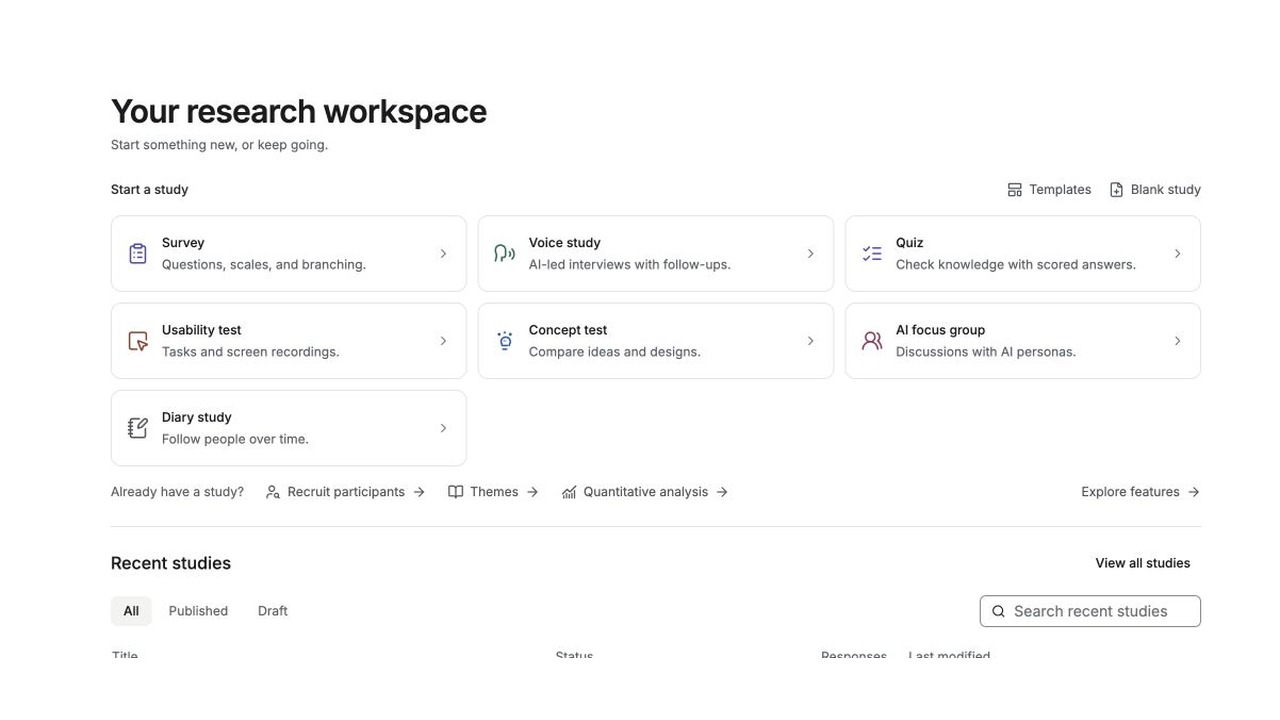
[English captions](https://www.questionpunk.com/support/videos/create-and-preview-2026-10.en.vtt)
[Japanese captions](https://www.questionpunk.com/support/videos/create-and-preview-2026-10.ja.vtt)
### Video transcript
From Home, choose Survey, or start from Templates or a Blank study. Describe what you want to learn and who you will ask, choose the respondent language, and create your draft. In Questions, review each question, answer choice, and respondent mode in the editor. Open Preview to test the survey on desktop and mobile. Preview answers are not saved as collected responses.
## Steps
### 1. Start a new survey
On Home, use the **Start a study** grid. Click the **Survey** tile and describe your research goal to generate a draft with AI. Or click **Templates** or **Blank study** above the grid to start from a ready-made study or an empty editor. To rebuild a Qualtrics export, PDF, or Word questionnaire, click **Survey**, then click **Import an existing study** below the description box.
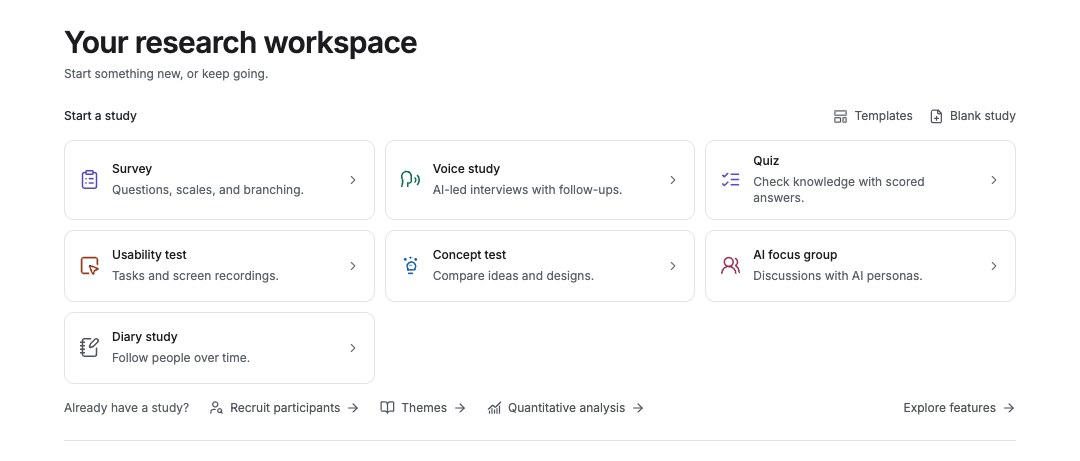
English interface · Study creation menu. Available methods can vary by account.
### 2. Add questions and blocks
In **Build → Questions**, add the question types you need and review their wording. In the classic desktop editor shown here, use **Whole survey** to read the cards together or **One question** to focus on one. Some accounts have a different card editor. Set the participant layout with **Respondents see**; see [survey modes](https://www.questionpunk.com/support/survey-modes) for where to find it in your editor.
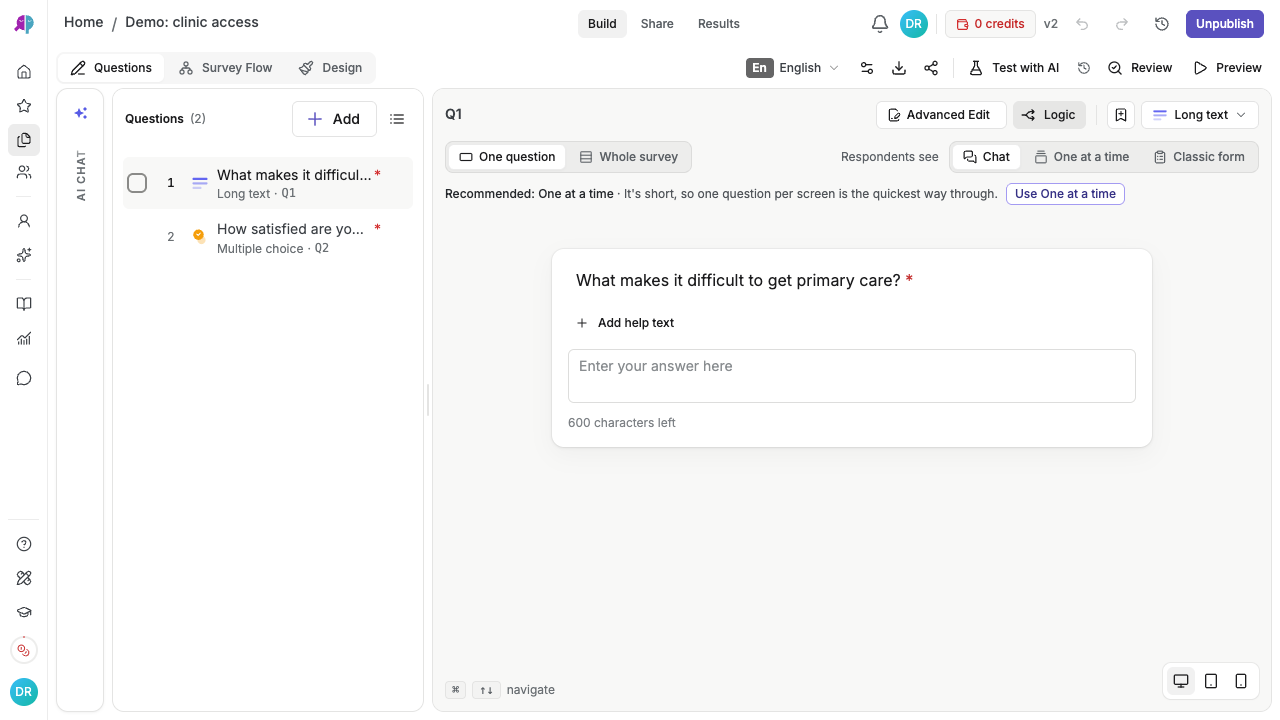
English interface · Classic editor with two demo questions. Whole survey changes the editor view; Respondents see changes the participant layout.
### 3. Preview and test
Open Preview to test the respondent experience. Check branching and follow-ups. Run a short pilot (5-20 respondents), or use [synthetic testing](https://www.questionpunk.com/support/synthetic-testing) to test your flow before you publish. Synthetic answers are for testing only. Do not treat them as evidence from real participants.
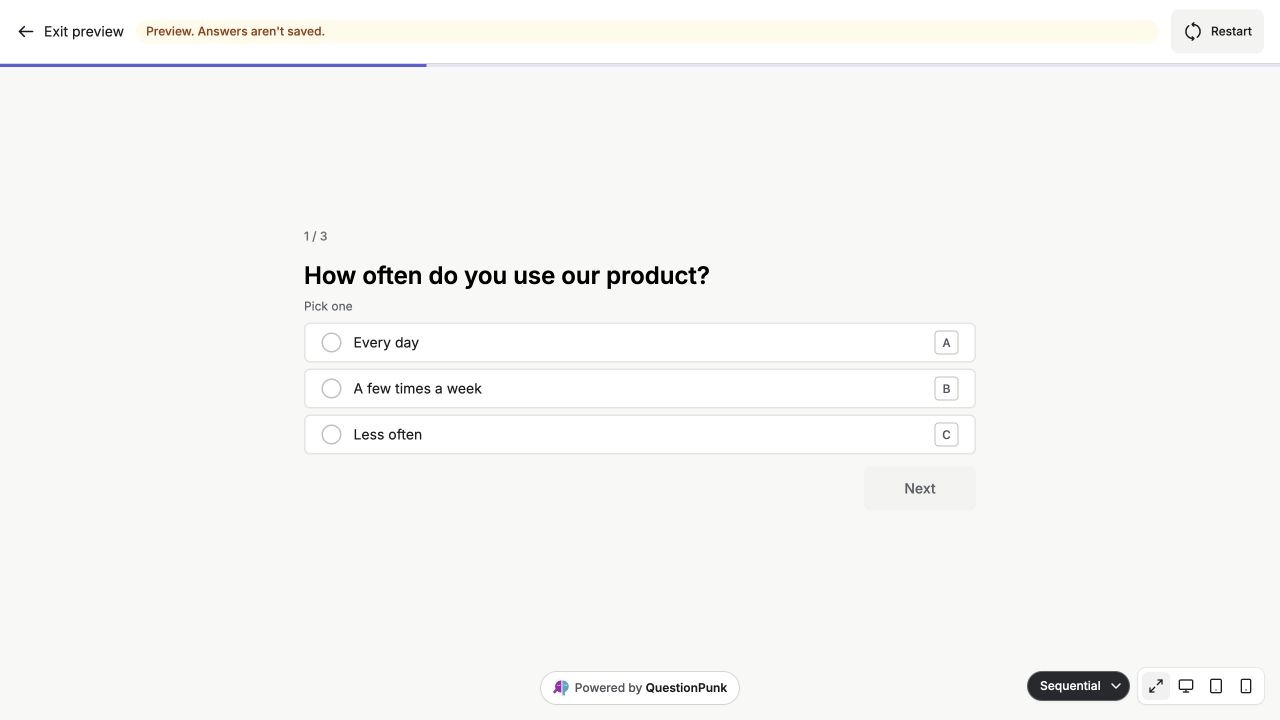
English interface · Actual Preview of a three-question demo in One at a time mode. Preview answers aren't saved as collected responses.
### 4. Review survey settings
Open **Survey settings** and review each area: **General** (title, description, languages, team), **Look** (progress bar, branding, button labels), **Who can respond** (schedule, password, browser restrictions, multiple submissions), **Limits & cost** (response limit, quotas, AI budget cap), **Responses** (diary studies, session resumption, respondent links, response emails), **When it ends** (redirect URL, closed message, quiz and AI results), **Privacy** (Minimize IP and location data, cookie consent), **Group tools** (Name draw for group gift exchanges), and **Integrations** (panel settings, Google Sheets, tracking pixels).
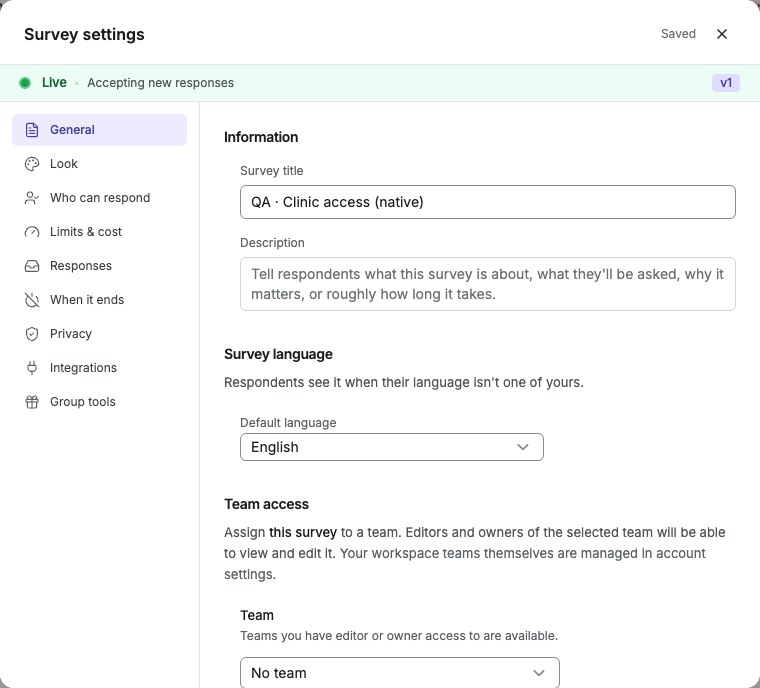
English interface · Survey settings → General tab.
### 5. Publish and monitor results
Click **Publish** in the top right. If you started as a guest, complete the offered sign-up or sign-in flow to keep the draft and continue. Review the publication confirmation, then click **Publish** again. Copy the participant link and send it to the people you want to invite. Choose **Share** at the top of the editor for [more distribution options](https://www.questionpunk.com/support/embed-and-share). Choose **Results** to monitor incoming responses.
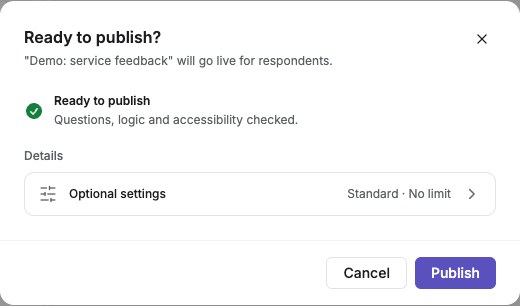
English interface · Demo study. Use the controls described in this step.
## Details
Start by picking a method from the **Start a study** grid on Home: Survey, Voice study, Quiz, Usability test, Concept test, AI focus group, or Diary study. Describe your research goal to generate a draft with AI, or click Templates or Blank study above the grid to start from a ready-made study or an empty editor.
In **Build**, add question blocks and choose types such as open-ended, multiple choice, scale, or AI interview. Use Preview to check the respondent flow.
Before you publish, review targeting and test each route through the survey. Synthetic respondents can help check flow and logic. Pilot with real people to check understanding, accessibility, and completion time.
## Examples
- A 5-question customer satisfaction mini-survey that uses a rating scale and one open-ended follow-up.
- An employee pulse check with conditional branching based on department.
## Check the result
You should have a published survey with a working participant link or another distribution method, and you should be able to watch responses in Results.
## If something goes wrong
If the participant link does not accept answers, check that you completed the publication confirmation. Preview is for testing; publish before inviting participants.
## Resources
- [Template gallery](https://www.questionpunk.com/templates)
- [AI survey generation](https://www.questionpunk.com/support/ai-generate-survey)
- [QuestionPunk University](https://www.questionpunk.com/support/learn-courses)
## Related articles
- [Choose a survey template](https://www.questionpunk.com/support/templates.md)
- [Send your survey to multiple people](https://www.questionpunk.com/support/embed-and-share.md)
- [Create a survey draft with AI](https://www.questionpunk.com/support/ai-generate-survey.md)
- [Import a Qualtrics .qsf, Word, or PDF survey](https://www.questionpunk.com/support/import-existing-study.md)
- [Learn with QuestionPunk University](https://www.questionpunk.com/support/learn-courses.md)
---
# Choose a survey template
Canonical page: https://www.questionpunk.com/support/templates
Templates help you set up common research projects faster.
Templates are pre-built survey flows for specific research goals, such as NPS, concept testing, and usability. They include suggested question types and AI interview questions that you can edit before you publish.
Last reviewed: 2026-10-27
Time: 5-10 minutes to choose and adapt
Level: Beginner
Audience: Researchers, Marketers
## Before you start
Know your research goal before you browse. It helps to decide whether you need NPS, concept testing, usability, or another template type.
## Watch the walkthrough
[Browse and customize a survey template](https://www.questionpunk.com/support/videos/use-templates.mp4)
A navigation overview using actual English-interface demo screenshots, generated English narration, and English/Japanese captions. This is a narrated screenshot sequence, not a continuous recording. Examples are fictional.
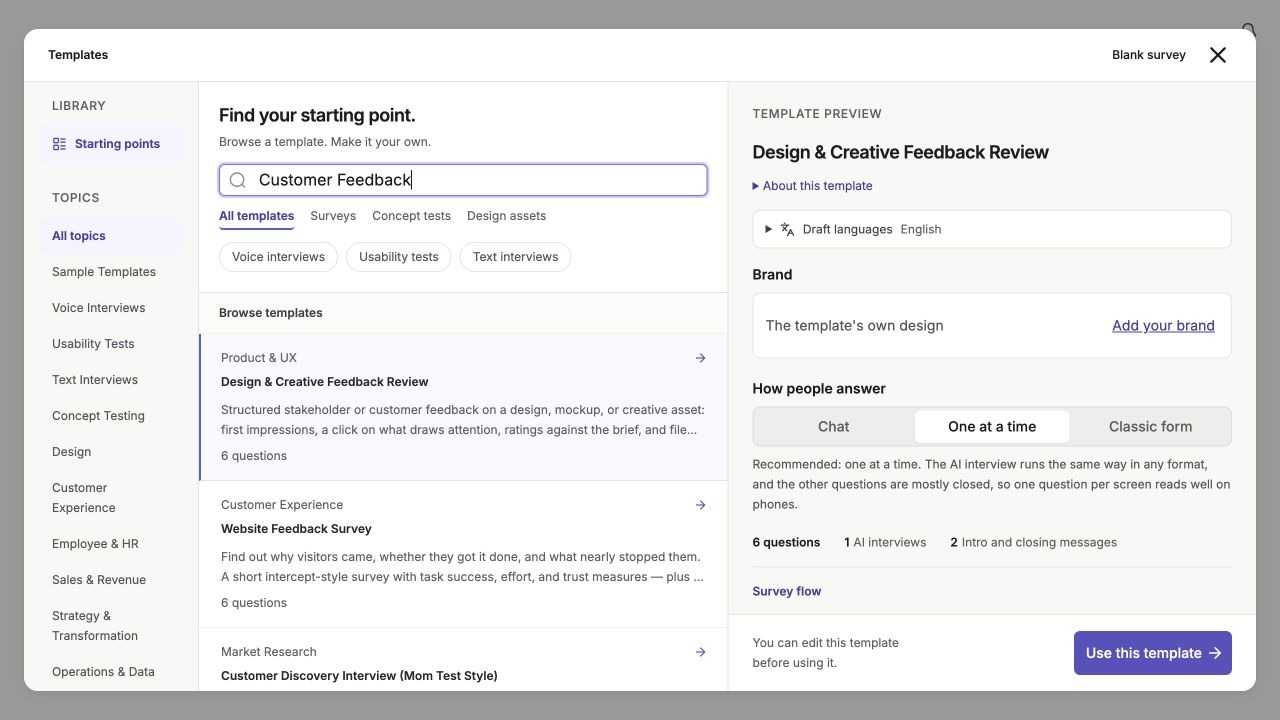
[English captions](https://www.questionpunk.com/support/videos/use-templates.en.vtt)
[Japanese captions](https://www.questionpunk.com/support/videos/use-templates.ja.vtt)
### Video transcript
From Home, open Templates to browse starting points and preview their descriptions, languages, and questions. Click Use this template, then customize the wording, choices, and logic in Questions and test in Preview before publishing.
## Steps
### 1. Browse templates by category
From Home, click **Templates** above the Start a study grid. Filter by template type or topic.
### 2. Preview the template flow
Review the survey flow, question count, AI interviews, and available languages, or step through the interactive live survey preview on public template pages before clicking **Use this template**.
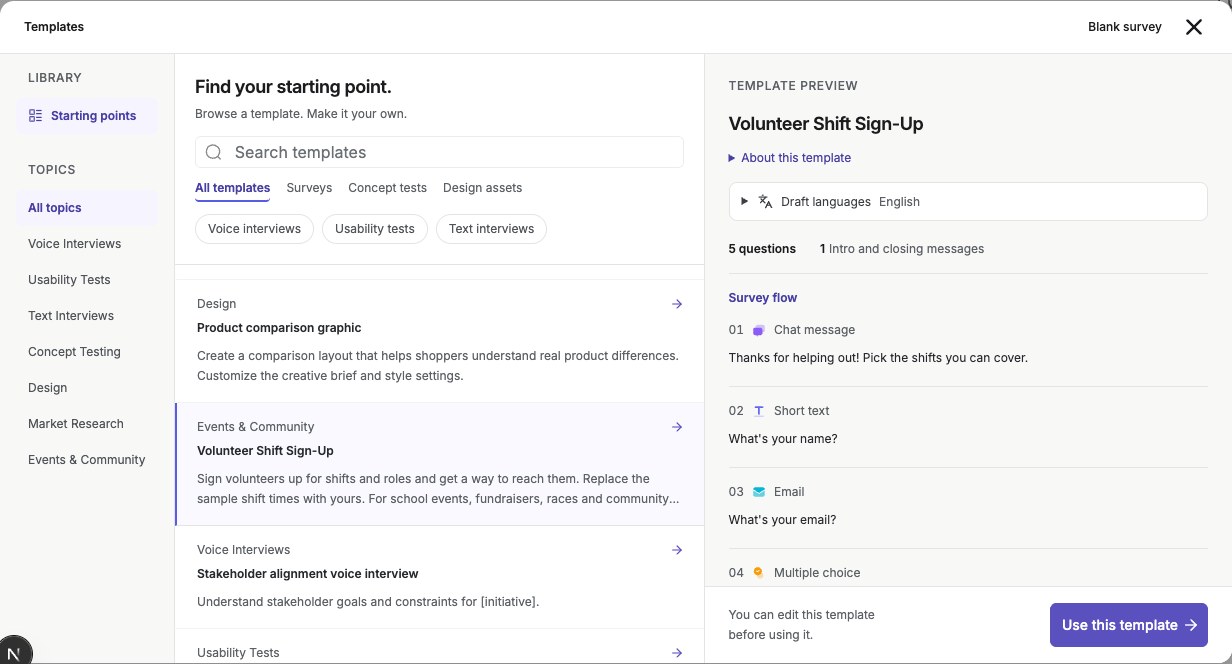
English interface · Review the template description, languages, and questions before choosing Use this template.
### 3. Customize the template
Edit the text. Add or remove questions. Adjust branching rules. Change the AI personality to match your brand.
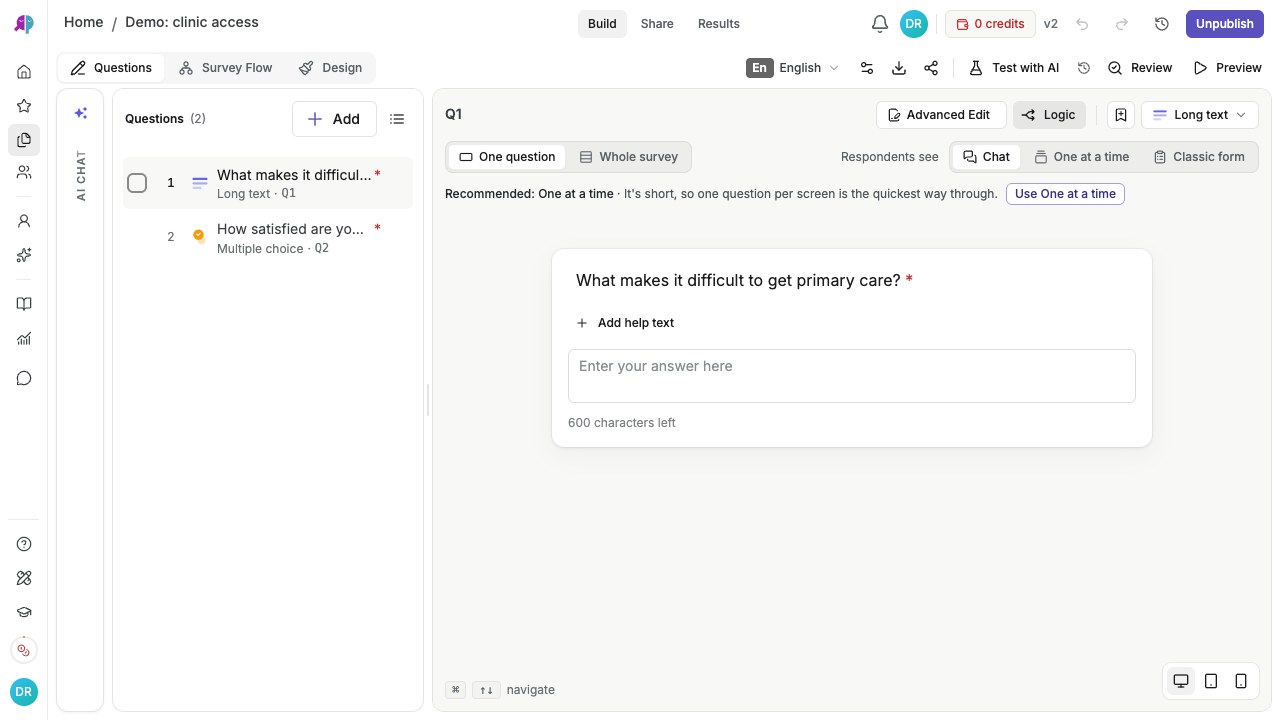
English interface · Fictional demo questionnaire. This screen does not show participant findings.
### 4. Run a pilot
Test the flow with a short pilot. Refine labels and examples. Use synthetic testing to check the flow quickly, but treat synthetic answers only as simulations for testing.

English interface · Actual Preview of a three-question demo in One at a time mode. Preview answers aren't saved as collected responses.
## Details
Browse templates to find a starting point that fits your research goal. Templates include recommended question types and suggested logic.
You can customize any template. Edit questions, add branching, or change the AI personality to fit your brand.
Tip: Start with a template, run a short pilot, and improve wording and follow-up questions based on pilot responses.
**Forms for organizers:** the Events & Community templates cover sign-up sheets, sign-in sheets, guest books, address collection and similar group forms. Most of them have a printable sheet on the public template page (the **printable** version, English only): questions become columns, choices become check boxes, and a limited-spot option becomes numbered lines. Print it or save it as a PDF from the browser's print dialog.
**Office lunch vote:** the Office lunch vote template lets you paste a menu link or upload a PDF or photo of a menu. AI lists the dishes it finds, and you tick and edit them into the ballot, then set when voting closes. On Results, the lunch order card shows the winner and how many meals and trays to order for each dish, with dietary needs and notes. Check the dishes and prices against the menu before you order.
**Continue template setup after sign-up:** if a template asks setup questions before sending you to sign up, finish in the same browser and profile. Its setup answers, language, and mode can be carried into your draft for up to 24 hours when browser storage is available. An email sign-in link may open in another tab of that same browser. If the saved setup expired, storage was cleared or blocked, or the answers could not be applied, the plain template may open instead. Review the created draft before publishing; another browser or device does not carry this pending setup.
## Examples
- NPS template
- Usability test template (moderated style)
## Check the result
You should have a template selected and adapted so the survey flow, questions, and AI interviews match your study.
## If something goes wrong
If a template does not fit, preview another category or topic and compare the included flow and question count before you customize it.
## Related articles
- [Create your first survey](https://www.questionpunk.com/support/create-your-first-survey.md)
- [Design surveys for better responses](https://www.questionpunk.com/support/survey-design-best-practices.md)
---
# Create a survey draft with AI
Canonical page: https://www.questionpunk.com/support/ai-generate-survey
Generate an editable survey draft from a research goal, then review the questions and flow.
QuestionPunk can create a full survey from a plain-language description. Describe what you want to learn, and the AI drafts a survey with suitable question types, order, and follow-up logic. You can then edit it before publishing.
Last reviewed: 2026-10-27
Time: 2-5 minutes
Level: Beginner
Audience: Researchers, Product teams, Marketers, Students
## Before you start
Start from the Home page **Start a study** grid. Prepare a short description of your research goal so the AI can generate a better draft.
## Watch the walkthrough
[Create and preview a survey](https://www.questionpunk.com/support/videos/create-and-preview.mp4)
A navigation overview using actual English-interface demo screenshots, generated English narration, and English/Japanese captions. This is a narrated screenshot sequence, not a continuous recording. Examples are fictional.

[English captions](https://www.questionpunk.com/support/videos/create-and-preview-2026-10.en.vtt)
[Japanese captions](https://www.questionpunk.com/support/videos/create-and-preview-2026-10.ja.vtt)
### Video transcript
From Home, choose Survey, or start from Templates or a Blank study. Describe what you want to learn and who you will ask, choose the respondent language, and create your draft. In Questions, review each question, answer choice, and respondent mode in the editor. Open Preview to test the survey on desktop and mobile. Preview answers are not saved as collected responses.
## Steps
### 1. Choose a method and open the prompt
From the **Start a study** grid on Home, click a method tile such as **Survey**, **Voice study**, **Usability test**, or **Concept test**. Each one opens a text field for what you want to learn and an optional respondent language picker. **AI focus group** and **Diary study** open their own workspaces instead.

English interface · Study creation menu. Available methods can vary by account.
### 2. Describe your research goal
Write a clear description of what you want to learn. For example: "I want to understand how employees feel about remote work policies and what changes they'd like to see." Be specific so the draft matches your goal.
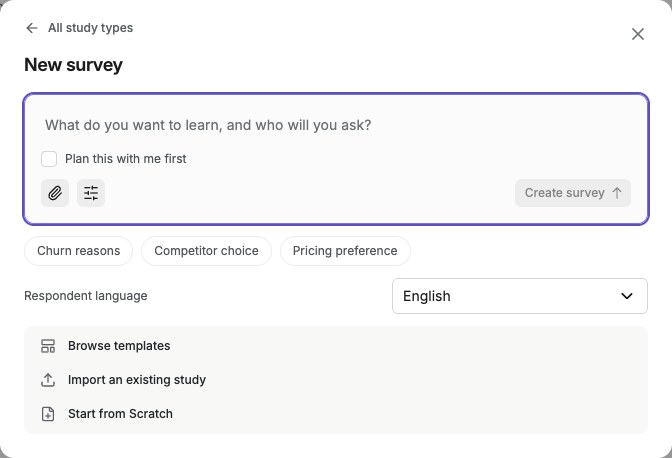
English interface · Empty study prompt. Enter your own research goal before creating a draft.
### 3. Review and edit the draft
The AI generates a complete survey with question types, order, and suggested AI follow-ups. Review each question. Edit the text. Add or remove questions. Adjust the flow to fit your study.

English interface · Fictional demo questionnaire. This screen does not show participant findings.
### 4. Preview, then publish
Use Preview to test the survey as a respondent. Make any final edits. Then publish when you are ready to share.

English interface · Actual Preview of a three-question demo in One at a time mode. Preview answers aren't saved as collected responses.
## Details
AI survey generation turns a research goal into an editable draft. Describe what you want to learn in natural language, then review the suggested questions, answer options, and flow before publishing.
The draft includes a mix of question types based on your goal: opinion scales for sentiment, multiple choice for categorization, and AI interview questions for qualitative depth.
When your prompt includes strict structural constraints (such as exact question counts or required wording), QuestionPunk saves them as **Hard rules (Must keep)** in **Survey settings → General** so subsequent AI edits preserve those requirements.
After generation, add questions manually or use the AI chat editor to refine questions and sections. You can also ask for supported survey-setting and design changes, such as the title, welcome screen, participant mode, colors, progress bar, or response limit. Check the saved controls and Preview after an AI edit.
## Check the result
You should see a complete survey draft with generated questions, order, and suggested follow-ups that you can edit in Build.
## If something goes wrong
If the draft is too broad or off target, rewrite your goal with a more specific audience or topic and generate again.
## Related articles
- [Create your first survey](https://www.questionpunk.com/support/create-your-first-survey.md)
- [Choose a survey template](https://www.questionpunk.com/support/templates.md)
- [Question and block types guide](https://www.questionpunk.com/support/survey-design-question-types.md)
- [Create a study plan with AI](https://www.questionpunk.com/support/study-plan.md)
---
# Import a Qualtrics .qsf, Word, or PDF survey
Canonical page: https://www.questionpunk.com/support/import-existing-study
Upload a Qualtrics .qsf export, a Word or PDF questionnaire, or plain text, and QuestionPunk rebuilds it as an editable survey.
Already have a questionnaire in another tool? Upload a Qualtrics .qsf export, an XLSForm, a PDF, a Word document, or plain text, or paste the questions, and QuestionPunk rebuilds it as an editable draft. Compare the rebuilt wording, choices, order, and branching with your original before publishing.
Last reviewed: 2026-10-27
Time: 2-5 minutes
Level: Beginner
Audience: Researchers, Academics, Teams migrating from another tool
## Before you start
Prepare the source file or the question text before you begin. Check that the file is one of the supported formats and no larger than 3 MB.
## Watch the walkthrough
[Import an existing study](https://www.questionpunk.com/support/videos/import-study.mp4)
A navigation overview using actual English-interface demo screenshots, generated English narration, and English/Japanese captions. This is a narrated screenshot sequence, not a continuous recording. Examples are fictional.
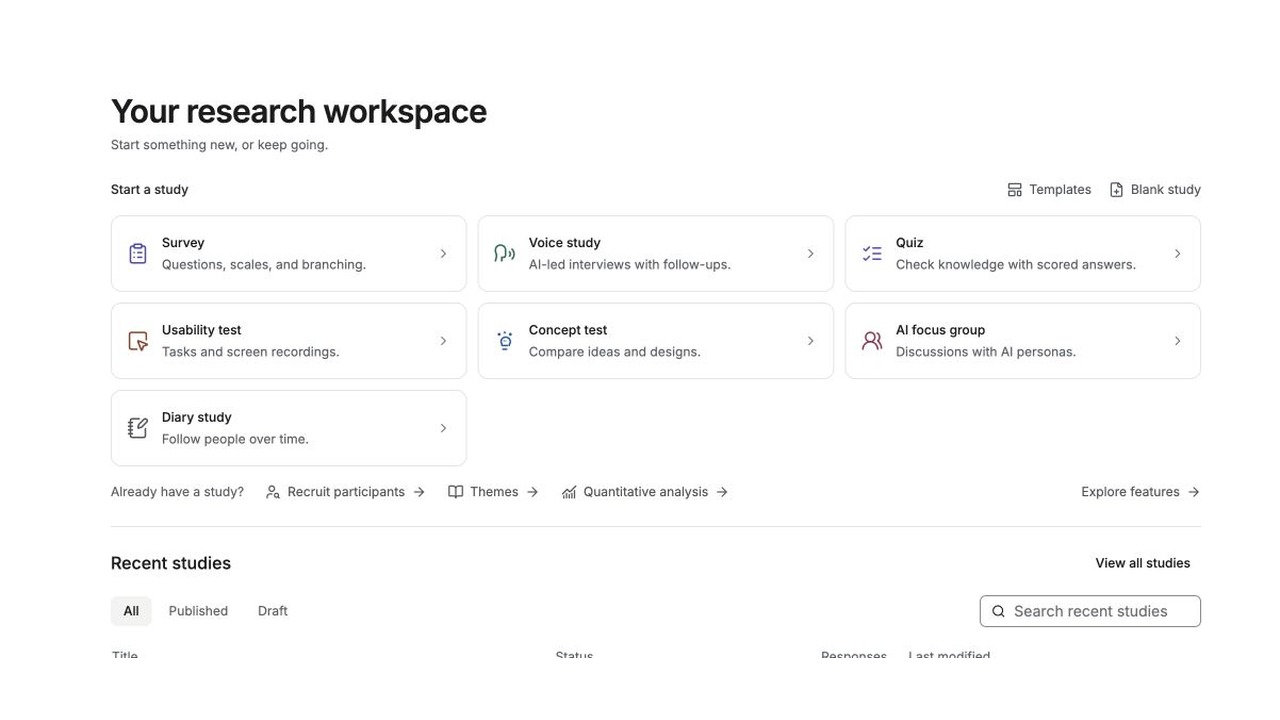
[English captions](https://www.questionpunk.com/support/videos/import-study-2026-10.en.vtt)
[Japanese captions](https://www.questionpunk.com/support/videos/import-study-2026-10.ja.vtt)
### Video transcript
From Home, open Survey and choose Import an existing study. Keep your original questionnaire for comparison. Paste your questions, upload a document, or select Survey export for a Qualtrics or XLSForm file. In Questions, compare the imported wording, answer types, and branching logic against your original questionnaire. Preview every important path before publishing your imported study.
## Steps
### 1. Open Import an existing study
From the **Start a study** grid on Home, click **Survey** (or **Voice study** or **Usability test**). Then click **Import an existing study** below the description box.

English interface · Study creation menu. Available methods can vary by account.
### 2. Upload your file or paste your questions
Upload a Qualtrics **.qsf** export, an **XLSForm** (.xlsx), a **PDF**, a **Word** document (.docx), or a plain-text or Markdown file, up to 3 MB. You can also paste the questions as text.
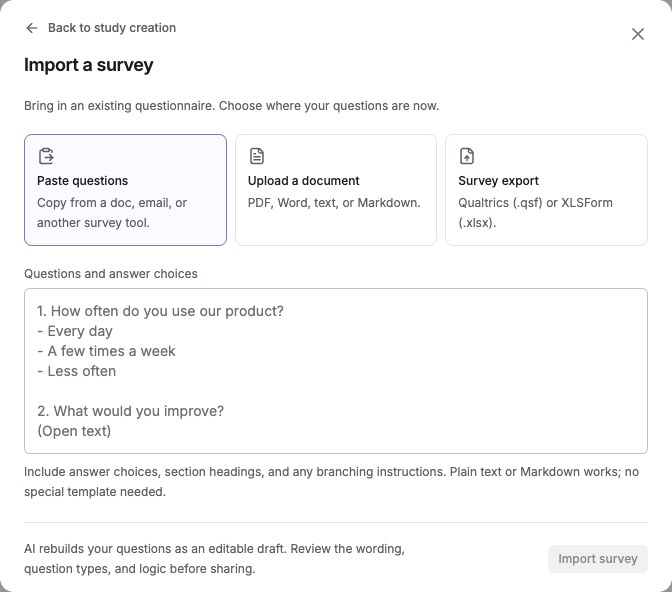
English interface · Import options and example placeholder questions; no file has been imported.
### 3. Let AI rebuild the study
QuestionPunk rebuilds supported questions, answer options, and order as an editable draft. Structured Qualtrics and XLSForm exports preserve more of the original structure. PDF and Word imports depend on text extraction, so compare the draft with your source file. Review any unsupported items or logic before publishing.

English interface · Fictional demo questionnaire. This screen does not show participant findings.
### 4. Review the draft and finish setup
If the file could not be read, QuestionPunk still creates a draft. Open the draft and attach the file there, or describe the study instead. If the import worked, review the rebuilt survey, make any changes you need, and publish as usual.

English interface · Actual Preview of a three-question demo in One at a time mode. Preview answers aren't saved as collected responses.
## Details
Importing is a fast way to move research from another platform or digitize a paper or Word questionnaire instead of rebuilding it question by question.
Use the original questionnaire to check the draft. Compare each question, answer option, required setting, and branch, and correct anything that is missing or different.
**Google Forms:** if a Google Forms option is available in Import an existing study, use that guided import and review the imported draft against the original. This option is enabled separately by environment; if it is absent, use the paste or file options described above.
## Check the result
You should see an editable draft in the survey editor. Compare its question wording, answer choices, order, and logic with your source, correct any differences, and preview the important paths before publishing.
## If something goes wrong
If the import result looks incomplete, open the draft and attach the file there or paste the questions as text so the study can still be rebuilt.
## Related articles
- [Create your first survey](https://www.questionpunk.com/support/create-your-first-survey.md)
- [Create a survey draft with AI](https://www.questionpunk.com/support/ai-generate-survey.md)
- [Choose a survey template](https://www.questionpunk.com/support/templates.md)
---
# Create a study plan with AI
Canonical page: https://www.questionpunk.com/support/study-plan
Use one description to have AI draft a research plan with audience, methodology, sample size, and a survey outline.
The AI study planner turns your description into a research plan. It can include audience targeting, collection format, question outline, estimated duration, and cost estimates. By default, it plans and builds a configured survey right away. If you want to review, adjust, or skip the plan before building, you can choose a guided conversation first.
Last reviewed: 2026-10-27
Time: 2-10 minutes
Level: Beginner
Audience: Researchers, Product teams, Students
## Before you start
Decide on your research goal before you begin. If you want to review the plan before building, start with the guided conversation option.
## Steps
### 1. Start a new survey
On Home, click a method tile under **Start a study**, such as **Survey**. Describe your research goal. By default, the AI uses that description to plan and build the survey directly with sensible defaults, without stopping for review.

English interface · Study creation menu. Available methods can vary by account.
### 2. Choose a guided conversation first
If you want to stop at a reviewable plan before anything is built, turn on **Plan this with me first** before generating on Home. You can also click **Not sure where to start?** in the empty chat editor. Either option starts a guided conversation where the AI asks focused questions one at a time about your goal, audience, modality, sourcing, and languages.

English interface · Empty study prompt. Enter your own research goal before creating a draft.
### 3. Review the study plan
In the guided conversation, the AI creates a study plan card. It shows the research goal, collection format (standard, AI interview, or hybrid), question count with type breakdown, estimated duration, target audience and participant count, and a step-by-step survey outline. For QuestionPunk Panel studies, it also includes cost estimates.
### 4. Build, edit, or skip the plan
Click **Build Survey** to turn the plan into a configured survey. Click **Edit this plan in chat** to change specific parts. Or click **Skip plan** to go straight to the editor.
## Details
The study planner helps you move from a research idea to a survey draft that is ready to refine. It handles methodology decisions, question type selection, and sample size estimation so you can focus on the research goal.
By default, describing your goal plans and builds the survey in one step, with no review pause. To review a plan first, turn on **Plan this with me first** on Home or click **Not sure where to start?** in the chat editor. The AI asks a few clarifying questions, shows the plan, and lets you build it, edit it in chat, or skip it.
Three collection formats are supported: **Standard** (fixed questions with optional AI probes), **AI Interview** (a single conversational interview), and **Hybrid** (fixed questions plus an AI interview section).
The plan includes a question outline that shows each proposed question and its type, such as multiple choice, AI interview, or screener. This makes it easier to review the survey structure before you build.
For studies that use QuestionPunk Panel, the planner estimates participant costs based on duration and sample size.
## Check the result
You should have either a study plan card to review or a configured survey draft built from your description.
## If something goes wrong
If the survey builds immediately and you wanted to review the plan first, go back to Home and turn on **Plan this with me first** before generating.
## Related articles
- [Create your first survey](https://www.questionpunk.com/support/create-your-first-survey.md)
- [Create a survey draft with AI](https://www.questionpunk.com/support/ai-generate-survey.md)
- [Test your survey with synthetic AI personas](https://www.questionpunk.com/support/synthetic-testing.md)
---
# Personalize AI with Memory
Canonical page: https://www.questionpunk.com/support/personalization-memory
Save your industry, role, brand voice, research methods, and target audiences in Settings → Memory so AI drafts, personas, and reports reflect your context.
Memory stores context for your signed-in account that QuestionPunk uses when drafting surveys, creating AI personas, and writing reports. Populate it through the onboarding interview or edit it in Settings → Memory. It is not a shared team settings page.
Last reviewed: 2026-10-27
Time: 3 min
Level: Beginner
Audience: Researchers, Product managers, Insights teams
## Before you start
Sign in and decide which context should apply to your own work across studies, such as industry, role, brand voice, and audiences.
## Steps
### 1. Open Settings → Memory
From the left sidebar, open your account menu or navigate to **Settings → Memory**. Review the structured **Your context** fields: **Industry**, **Company**, **Your role**, **Team size**, **Brand voice**, **Research methods**, and **Target audiences**.
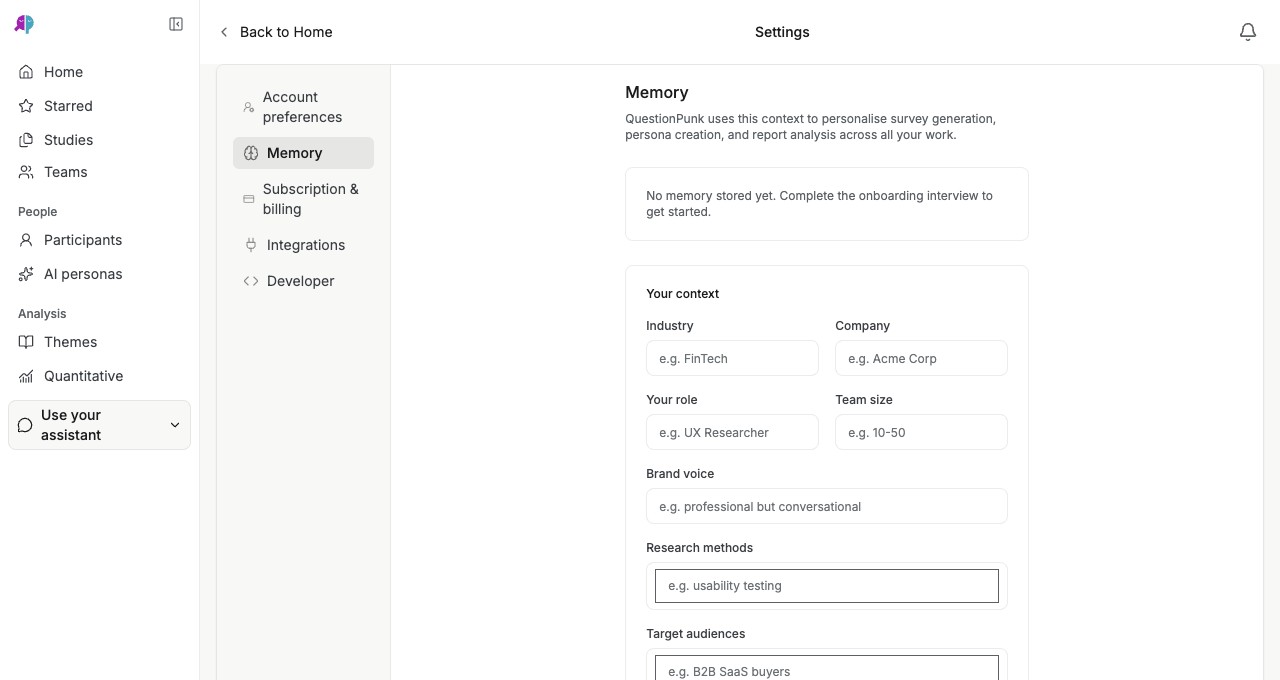
English interface · Context saved here belongs to the signed-in account. Review it before saving changes.
### 2. Complete the onboarding interview or enter fields manually
If no memory is stored yet, you can complete the brief onboarding interview or type directly into the context fields. Add tag chips for recurring **Research methods** (such as usability testing or pricing research) and **Target audiences** (such as B2B SaaS buyers).
### 3. Review, edit, or clear saved context
Review the **AI Summary**, structured fields, and tags. Edit outdated values or remove tags, then click **Save changes**. Use **Clear Memory** only when you want to clear the complete saved record.
### 4. Override context in individual studies when needed
Memory supplies saved context for your own account when generating surveys, synthetic personas, and reports. If a study needs a different audience or tone, state it explicitly in the study prompt or report brief, then review the generated wording.
## Details
Saving your industry, brand voice, and typical audiences in **Settings → Memory** gives AI reusable context for your work across studies. Keep it current when your research focus changes.
Memory is account context, not a respondent-facing profile. It can influence generated questions and other content, so review that content before sharing a study and avoid saving details you would not want used in AI drafts.
If you research multiple distinct products or client brands from one account, keep **Settings → Memory** focused on shared methodological preferences and specify brand-specific details inside each study or Research Project.
## Check the result
Your account context is saved in Settings → Memory for later AI drafts, personas, and report analysis.
## If something goes wrong
If a new survey draft uses context from an older project, open **Settings → Memory** to update or clear outdated fields, or state the target audience and tone explicitly in the study prompt.
## Related articles
- [Create a survey draft with AI](https://www.questionpunk.com/support/ai-generate-survey.md)
- [Create a study plan with AI](https://www.questionpunk.com/support/study-plan.md)
- [Test your survey with synthetic AI personas](https://www.questionpunk.com/support/synthetic-testing.md)
- [View your survey report](https://www.questionpunk.com/support/view-report.md)
---
# Question and block types guide
Canonical page: https://www.questionpunk.com/support/survey-design-question-types
Learn what each question and flow-control block type does in QuestionPunk and when to use it.
QuestionPunk supports many question types and flow-control blocks. Use this guide to understand each type, choose the right one, and review its main options. Research methods have their own types: MaxDiff, conjoint analysis, Kano, Van Westendorp and Gabor-Granger pricing, constant sum, distribution builder, vignette and list experiments, wiki surveys, card sorting, heatmap click, five-second test and text highlight, plus AI interviews, usability tests and AI image generation. Scheduling types include Find a time (a poll over dates and times) and Book a time (a Calendly, Cal.com or SavvyCal booking inside the survey). An Address question can suggest addresses as people type (Settings > Suggest addresses as people type), optionally only in the countries you choose.
Last reviewed: 2026-10-27
Time: 10-25 minutes
Level: Beginner to Intermediate
Audience: Researchers, Analysts, Survey designers
## Before you start
Open the survey editor first. Be ready to add or edit questions from the left sidebar.
## Watch the walkthrough
[Edit questions and check the flow](https://www.questionpunk.com/support/videos/edit-and-check-flow.mp4)
A three-question fictional demo shows a configured branch and fallback path using actual English-interface screenshots, generated English narration, and English/Japanese captions. This narrated screenshot sequence shows the saved rule, flow canvas, and Preview; it is not a continuous recording.
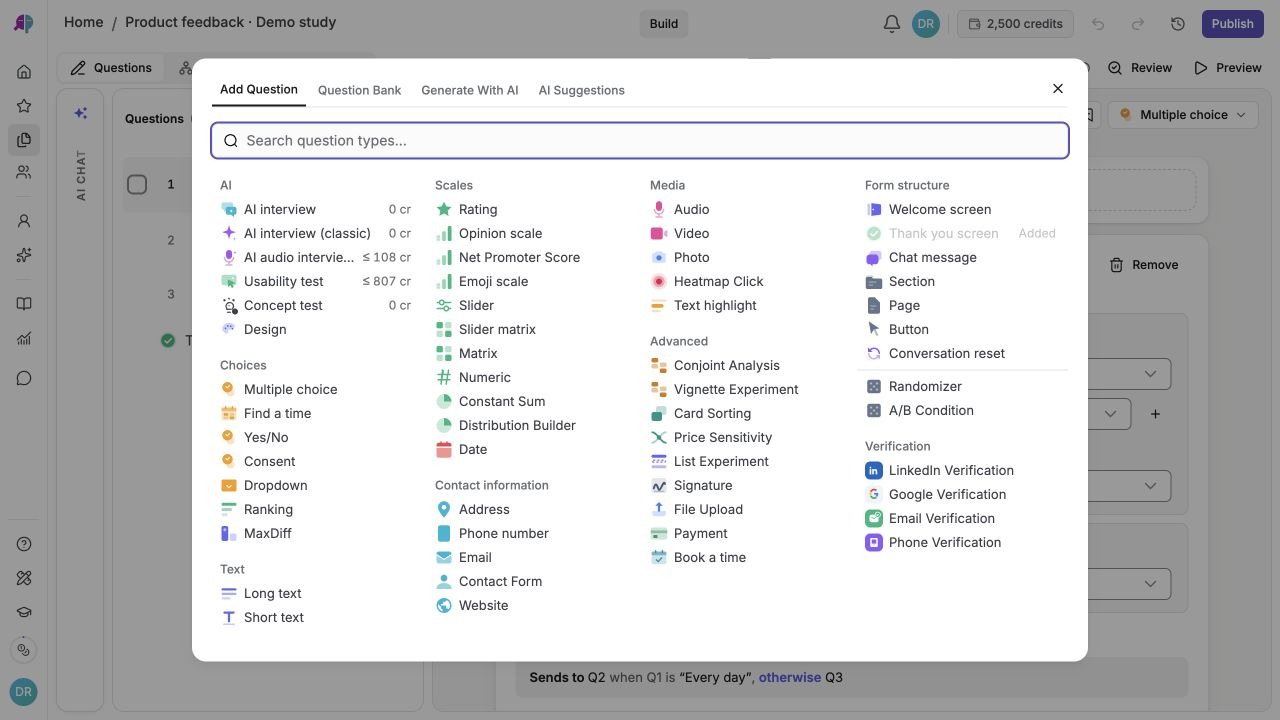
[English captions](https://www.questionpunk.com/support/videos/edit-and-check-flow.en.vtt)
[Japanese captions](https://www.questionpunk.com/support/videos/edit-and-check-flow.ja.vtt)
### Video transcript
In Questions, click Add to choose the question type that fits the evidence you need. Select a question and open Advanced Edit to configure its answer choices, validation, and display settings. Open Logic to add display or branching rules. Check both the matching path and the fallback path. In Build, choose Survey Flow to inspect how questions connect across your survey. Test each branch in Preview with different answers before publishing.
## Steps
### 1. Click Add Question to view available types
In the survey editor, click **Add Question** in the left sidebar. Review the available question types, grouped by category.
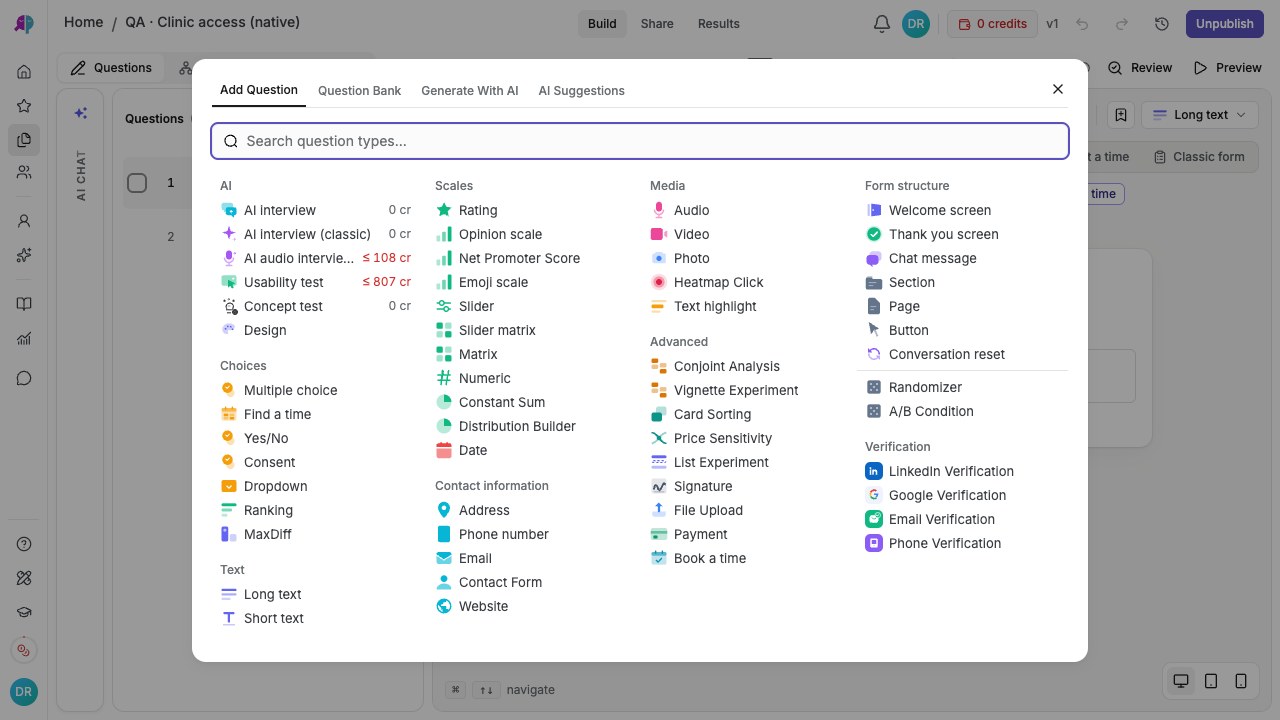
English interface · Demo study. Use the controls described in this step.
### 2. Pick the type that fits your research goal
Select a question and click **Advanced Edit** to configure options such as randomization, exclusive choices, spot limits (**Limit spots per option**), schedule polling (**Find a time**), respondent tallies (**Show results to respondents**), or short-text format validation (**Any text**, **Email**, **Phone**, **URL**, **Date**, **Number**, **Postal code**, or **Custom pattern (regex)**).
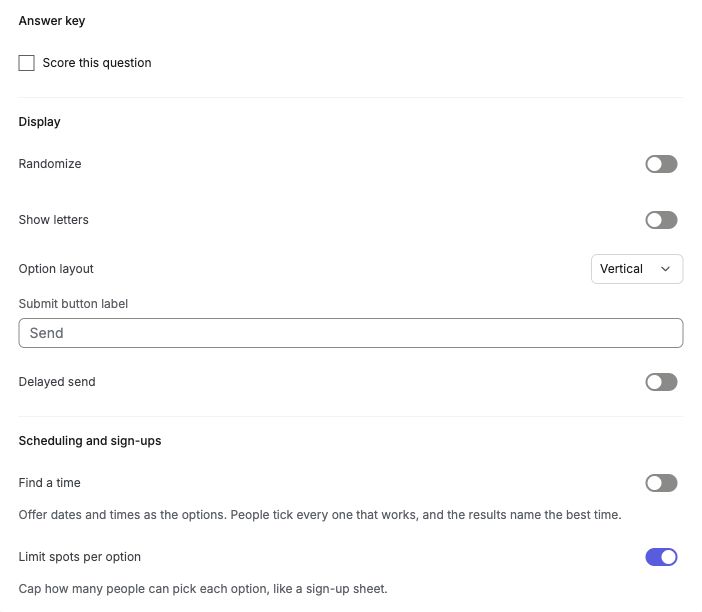
English interface · Staging demo. Available groups depend on question settings; this example has Limit spots per option enabled.
## Details
**Quantitative types:** Opinion Scale (1-10 or custom range), Slider (continuous scale with draggable handle), Slider Matrix (slider grid for rating multiple items), Rating (star/number rating), Multiple Choice (single or multi-select), Yes/No (preset multiple choice), Dropdown (single select from a list), Ranking (drag to order items), Matrix (grid of rows and columns), Constant Sum (allocate points across options), Distribution Builder (visual allocation of values), Numeric (free number entry), Net Promoter Score (preset 0-10 opinion scale with anchor labels), Emoji Scale (sentiment scale using emoji icons), MaxDiff (best-worst scaling to identify preferences), Conjoint Analysis (trade-off analysis between attribute combinations), Price Sensitivity (Van Westendorp analysis with four price-point questions), Price Ladder (Gabor-Granger sequential price acceptance and revenue-maximizing price), Feature Priorities (Kano model categorizing features into Must-be, Performance, Attractive, Indifferent, and Reverse), Wiki survey (collaborative pairwise voting where respondents can also submit their own ideas for others to vote on), Vignette Experiment (randomized scenario-based evaluation), and List Experiment (sensitive topic measurement using embedded list design).
**AI-powered types:** AI Interview (conversational interview with a choice of text chat or voice and adaptive follow-ups) and [Usability test](https://www.questionpunk.com/support/usability-testing) (AI-moderated usability testing with screen share, guided tasks, think-aloud prompts, and native app testing support). Text interviews offer three question modes: Fixed Count, AI Decides (the AI chooses when to stop probing based on your guidance), and Time-Based (up to 60 minutes). Voice interviews are time-based only, from 1 to 240 minutes. [Concept test](https://www.questionpunk.com/support/concept-testing) (AI-powered concept testing that moves through Brief, Concepts, Test, Respondents, and Results) is also available for design and creative research.
**Open-ended types:** Long Text (paragraph response), Short Text (single line response).
**Contact & scheduling types:** Email, Phone Number, Date, Address, Website, Contact Form, Find a time (group availability poll across candidate dates and time slots), and Book a time (inline Calendly, Cal.com, or SavvyCal scheduling embed).
**Media types:** Audio (respondent records audio), Video (respondent records video), Photo (respondent captures a photo with their device camera), File Upload (respondent uploads a file), Signature (draw a signature).
**Interactive types:** Heatmap Click (respondent clicks on an image to indicate areas of interest), Five-second test (shows an image briefly for timed first-impression recall questions), Text Highlight (respondent highlights passages in a block of text), Card Sorting (drag and drop cards into categories), Design (show up to 6 saved or uploaded design images for rating and feedback), Payment (amount confirmation, or a Stripe charge when collection is connected and available).
**Verification types:** LinkedIn Verification (respondent verifies identity via LinkedIn), Google Verification (verify via Google account), Email Verification (verify via email address), Phone Verification (verify via phone number). Verification blocks are used with [respondent incentives](https://www.questionpunk.com/support/respondent-incentives) to confirm identity before issuing rewards.
**Flow control types:** Chat Message (display-only message to the respondent), Conversation Reset (clears the chat history and starts a fresh conversation thread), Page (page break between sections), Button (clickable action button), Consent (collect explicit consent or agreement before proceeding), Section (group questions into collapsible sections), Randomizer (a section that shows its questions in random order, or a random subset of them), and A/B Condition (split respondents into groups with different survey paths for A/B testing).
**Section-level features:** [Repeat-from-data](https://www.questionpunk.com/support/repeat-from-data) lets a section repeat its questions for each row in an uploaded data table (product images, ad creatives, brand names), for stimulus-driven research like product testing and ad evaluation. [Carry-forward](https://www.questionpunk.com/support/carry-forward) dynamically populates a choice question with options the respondent selected or skipped in an earlier question.
Combine supported question types with display logic, branching rules, [quotas](https://www.questionpunk.com/support/quotas-response-limits), and AI follow-ups. Available settings depend on the question type; inspect its editor and test the resulting path in Preview.
**Choose by the answer you need.** Use multiple choice for a defined set of categories, a scale for a rating, short or long text for an answer in the participant’s own words, and an AI interview when you need adaptive follow-ups. Use a display-only message for instructions rather than collecting an unnecessary answer. Before publishing, test required fields, branching, and media in the display mode and device participants will use.
**Find question settings:** in Advanced Edit, use **Answers** for multiple-selection or ranking limits; **Answer key** for multiple-choice or slider scoring; **Display** for randomization and appearance; **Scheduling and sign-ups** for Find a time, Limit spots per option, or Show results to respondents; and **Research methods** for available research options. Groups depend on the question type and configuration.
For multiple-choice questions, **Scheduling and sign-ups** is available when scoring and carry-forward are off. **Find a time** treats options as dates and times and cannot use per-option capacity limits. Short-text questions have separate **Show answers to respondents** controls; review whether names or other answers will be visible before enabling sharing. Test the finished question in [Respondents see](https://www.questionpunk.com/support/survey-modes) and Preview.
**Booking tracking:** In account **Settings → Integrations**, connect Calendly or, where available, Cal.com. In a **Book a time** question, select an event type or enter its booking URL. A scheduling embed alone does not prove a booking was received: check the meeting details on the response in **Results → Responses**, including cancellations or reschedules. Cal.com requires a valid API key and successful webhook setup; a server-not-configured or connection error must be resolved first. SavvyCal can be embedded, but this does not establish the same response-level booking tracking.
**Payment questions:** Check the payment status shown in Advanced Edit. Where payment collection is available, the owning account (or team owner) connects its own Stripe account under **Settings → Integrations → Payments** and completes Stripe setup. Only the collecting state charges respondents. **Not collecting money: respondents only confirm the amount** is an amount-confirmation step, not a charge. Do not treat a completed response, a preview, or an unconnected payment question as proof of payment; verify the payment in Stripe.
## Examples
- Opinion Scale: "On a scale of 1-10, how likely are you to recommend us?"
- AI Interview: "Tell us about your experience with our product" (AI asks adaptive follow-ups)
- Rating: "Rate each feature from 1 to 5 stars"
- Multiple Choice: "Which department do you work in?"
- Ranking: "Rank these features from most to least important"
- Matrix: "Rate each aspect of our service on satisfaction and importance"
- MaxDiff: "Which of these features is most and least important to you?"
- Heatmap Click: "Click on the area of this design that draws your attention first"
- Card Sorting: "Organize these items into categories that make sense to you"
- Concept Test: "Test logo concepts with respondents through a brief, generated variants, a preference test, and a results report"
- Emoji Scale: "How do you feel about this experience?" (respondent picks from a row of emoji icons)
- Net Promoter Score: "On a scale of 0-10, how likely are you to recommend us to a friend or colleague?"
- Usability Test: "Complete the checkout flow on this website" (AI moderator observes via screen share and asks follow-ups)
## Check the result
You should be able to identify the right question or block type for your survey and know where to add it.
## If something goes wrong
If you cannot find a type, click **Add Question** in the left sidebar and check the category list again.
## Related articles
- [Design surveys for better responses](https://www.questionpunk.com/support/survey-design-best-practices.md)
- [How AI interviews work](https://www.questionpunk.com/support/ai-how-it-works.md)
- [Set up logic and branching](https://www.questionpunk.com/support/survey-design-logic-branching.md)
- [Create a quiz with scored answers](https://www.questionpunk.com/support/quizzes.md)
---
# Show choice tallies and answer lists to respondents
Canonical page: https://www.questionpunk.com/support/shared-results
Share selected choice tallies or short-text answers, show a sign-up table before answering, and manage a group Name draw.
Let respondents see selected choice tallies or short-text answer lists. Optionally show them before answering, review the host roster in Results → Responses, or set up a group gift exchange with Name draw.
Last reviewed: 2026-10-27
Time: 3 minutes
Level: Beginner
Audience: Event organizers, Researchers, Teams
## Before you start
Choose a multiple-choice question with predefined options, or a Short Text question whose answers you intend to share. Quiz questions and choices carried forward from another question cannot use the choice tally. For names, add a separate Short Text name question in the same survey. Explain which answers will be visible and who can see them. Surveys containing scored quiz questions use their quiz results screen instead of shared results on completion.
## Watch the walkthrough
[Share a choice tally after submission](https://www.questionpunk.com/support/videos/shared-results.mp4)
A choice-question example in the classic English editor, using actual demo screenshots, generated English narration, and English/Japanese captions. This narrated screenshot sequence shows a choice tally after completion; it does not demonstrate Short Text answer lists or the newer editor. Examples are fictional.
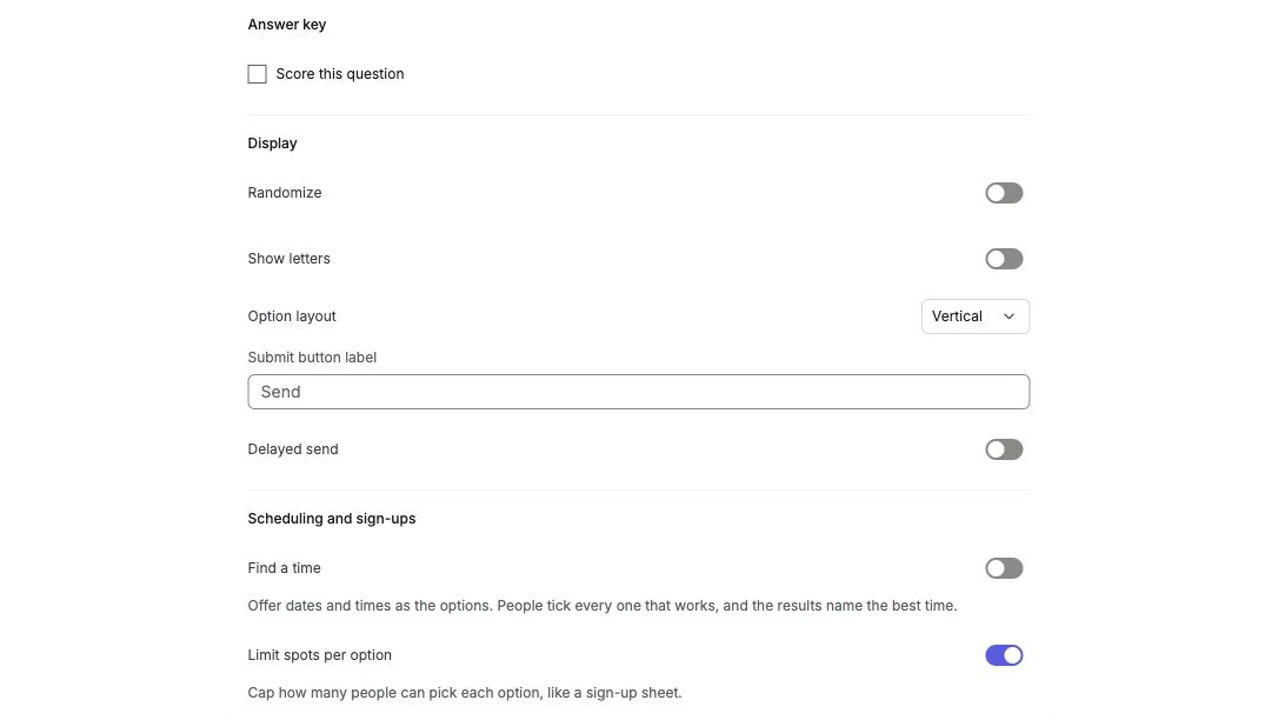
[English captions](https://www.questionpunk.com/support/videos/shared-results.en.vtt)
[Japanese captions](https://www.questionpunk.com/support/videos/shared-results.ja.vtt)
### Video transcript
Select a choice question in Questions and open Advanced Edit to configure respondent results. Turn on Show results to respondents. Keep counts only, or link a name question when participants know their names will be shown. After submitting the published survey, respondents see the live choice tally on the completion screen.
## Steps
### 1. Enable a choice tally or short-text answer list
Select the question in **Build** and open its settings. For a choice question, turn on **Show results to respondents** under **Scheduling and sign-ups**. For **Short Text**, turn on **Show answers to respondents**. In the classic **Questions** editor, open **Advanced Edit** to reach these settings.
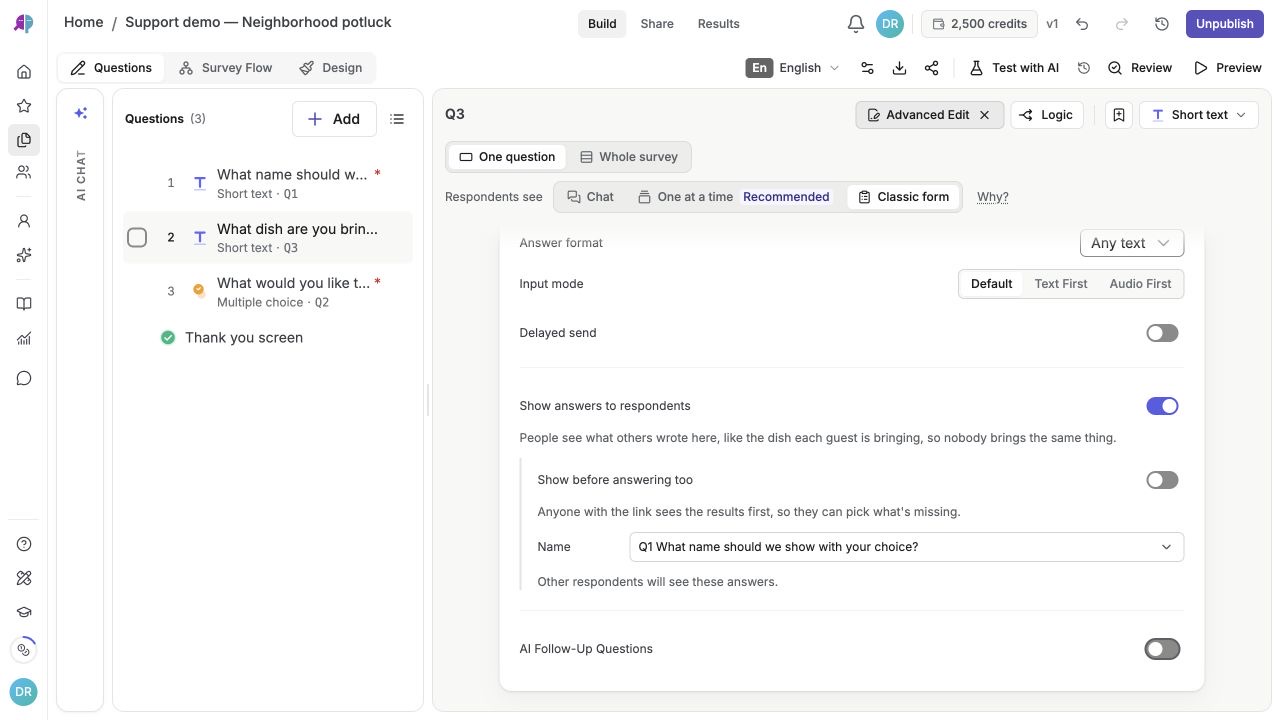
English interface · Short Text answer sharing with a name question selected. Show before answering too is off in this example.
### 2. Choose whether to show names
For a short-text answer list, leave **Name** at **No names** or select a separate Short Text name question. For a choice tally, **List who picked each option** also offers **Detail** and, once a name or detail is set, **Tags**. Select only the name, detail or tags that people agreed to share. With no name or detail source, a choice question shows counts only.
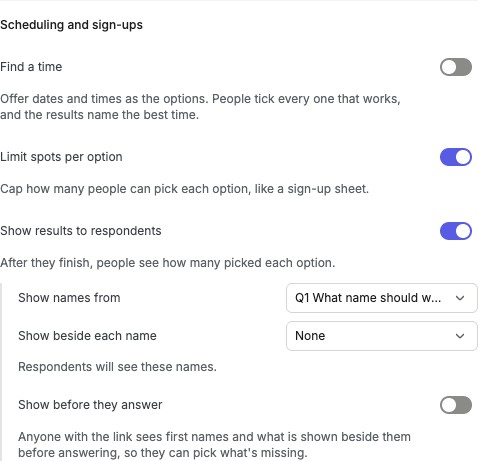
English interface · Names are optional. Choose a name question only when respondents know their names will be shared.
### 3. Check the published response and completion screen
Publish from **Share** and complete an approved test response through the participant link. Check the selected choice counts or short-text answers and optional names. To let visitors see the table while answering too, enable **Show before answering too** and reopen the published link. In a one-question-at-a-time layout, the table appears on its own question’s screen. Long tables can start folded on phones and short laptop windows; expand the table to inspect it. Completion redirects bypass the end screen, and **Test with AI** responses do not populate shared results.
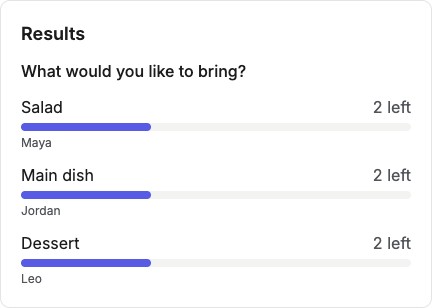
English interface · A completed local demo response appears beside its chosen option. The name is fictional.
### 4. Review the host sign-up roster or run a Name draw
Open **Results → Responses** to review the host’s **Signed up so far** roster when offered. For a gift exchange, open **Survey settings → Group tools → Name draw** and turn on **Draw names**. Choose the name question, an email question for email delivery, and which answers to share with each person’s match. Use the **Draw names** card in Responses to review the people and settings before drawing. People you enter yourself can have names without email addresses; after the draw, use their **Send link** control to share their private match link individually.
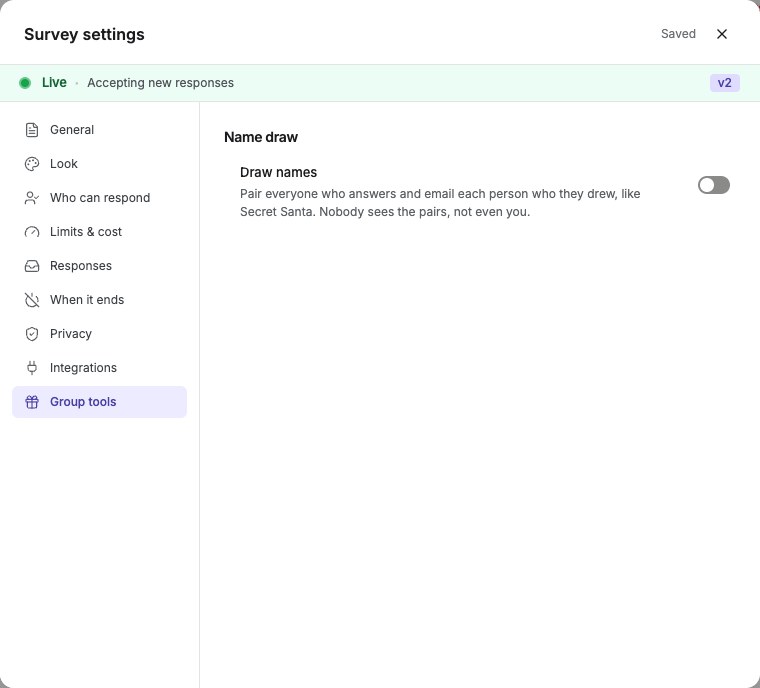
English interface · Name draw setup before configuration.
## Details
Only enabled questions are shared. A choice tally counts predefined options and excludes None. If you also share names or details, completed write-in Other answers can appear as their own cleaned rows. A Short Text list shares the answers to that selected question. Review all of these fields before enabling public visibility.
For questions without sign-up limits, counts come from completed real responses. For a question with sign-up limits, counts also include unfinished responses while their choice is still held, and the tally shows remaining places or Full. Synthetic Test with AI responses do not count. Guests can change a limited choice after submitting from **Edit your answers**: it shows spots left, and a full option is disabled unless they already hold it.
Names are shown as typed (for example Mr. Johnston or Ana L.) from completed real responses to the short-text question you selected, so tell guests to sign the way they want to appear. A response without a usable name can still count in the tally. Email-like entries and entries containing seven or more digits are omitted from names. At most 50 names appear per option, and long names are shortened to 40 characters, so the name list may be shorter than the count.
For a counts-only choice tally, leave name and detail sources unset. When you select them, those answers, selected tags, and eligible Other write-ins can be visible. A Short Text answer list explicitly shares that question’s answers even when names are off. Questions that are neither enabled nor selected as a source stay out of these shared results.
For example, a potluck form could show Maya beside Salad and Leo beside Dessert. These are fictitious demo names. Use an explanation in your own form so people understand who can see their name and choice.
Optional: **Show before answering too** makes the enabled table visible to anyone who can open the published survey link. It includes the names as typed and details or tags you selected. In one-question-at-a-time surveys it appears on the relevant question’s screen; long tables can be expanded on smaller screens. Explain this visibility before collecting answers. Leave it off for results that should appear only after completion. The visitor table is unavailable for password-protected surveys and outside configured opening and closing times.
**Your own sign-up table.** When a survey has a sign-up question, with option limits or shared results, editors also see a **Signed up so far** table at the top of **Responses**. It lists each guest who left a name or detail, with their dish, servings, tags and spots left. Only people who can edit the survey see it; it is separate from what respondents see, and you can hide it with **Hide**.
**Name draw:** the Responses card supports 3 to 200 participants, an optional spending limit, exchange date, automatic draw date, organizer note and exclusion pairs. Review people before drawing. Each participant receives a private match page; eligible people with email addresses receive it by email. For people you added with a name only, use **Send link** after drawing: a phone opens its share sheet, or a computer copies the link. Send it only to that person; anyone holding it can see their match. Email reminders apply only to people with an email address. **Update the draw** and **Take out** / **Put back** limit changes to affected matches; **Draw again** reshuffles everyone. After a change, share any newly offered private links and check email delivery statuses.
## Check the result
Respondents can see the selected choice tallies or short-text answer lists, with names only when you selected a name question. Before-answering visibility is a separate setting.
## If something goes wrong
If results are missing, check that the setting is on for a supported choice or Short Text question, finish a real response through the published link, and check whether the survey redirects or uses a quiz results screen. If names are missing, confirm the source is a separate Short Text question in the same survey and was answered. If a short-text answer already appears as a choice table’s name or detail, its settings identify that table instead of offering a duplicate list.
## Related articles
- [Question and block types guide](https://www.questionpunk.com/support/survey-design-question-types.md)
- [Send your survey to multiple people](https://www.questionpunk.com/support/embed-and-share.md)
- [Reduce IP and location data collection (anonymous mode)](https://www.questionpunk.com/support/anonymous-mode.md)
---
# Design surveys for better responses
Canonical page: https://www.questionpunk.com/support/survey-design-best-practices
Use these practices to improve response quality and completion rates.
Follow these tested practices to write shorter, clearer surveys. Focus each survey on a small set of goals, use plain language, apply skip logic carefully, and check the mobile experience.
Last reviewed: 2026-10-27
Time: 5-15 minutes
Level: Beginner
Audience: Researchers, Product teams
## Before you start
Know the decision or metric the survey needs to support. Review your draft questions before you pilot the survey.
## Steps
### 1. Focus on clear objectives
Keep only the questions needed for your research goal. Use a pilot to measure completion time and identify questions that feel repetitive or difficult.
### 2. Use simple language
Avoid double-barreled and leading questions. Ask about one thing in each question.
### 3. Design for mobile
Check the participant mode under **Respondents see**: Chat, One at a time, or Classic form. Keep option lists short, use clear labels, and test the actual participant flow on a phone. Templates can start in different modes depending on their questions.
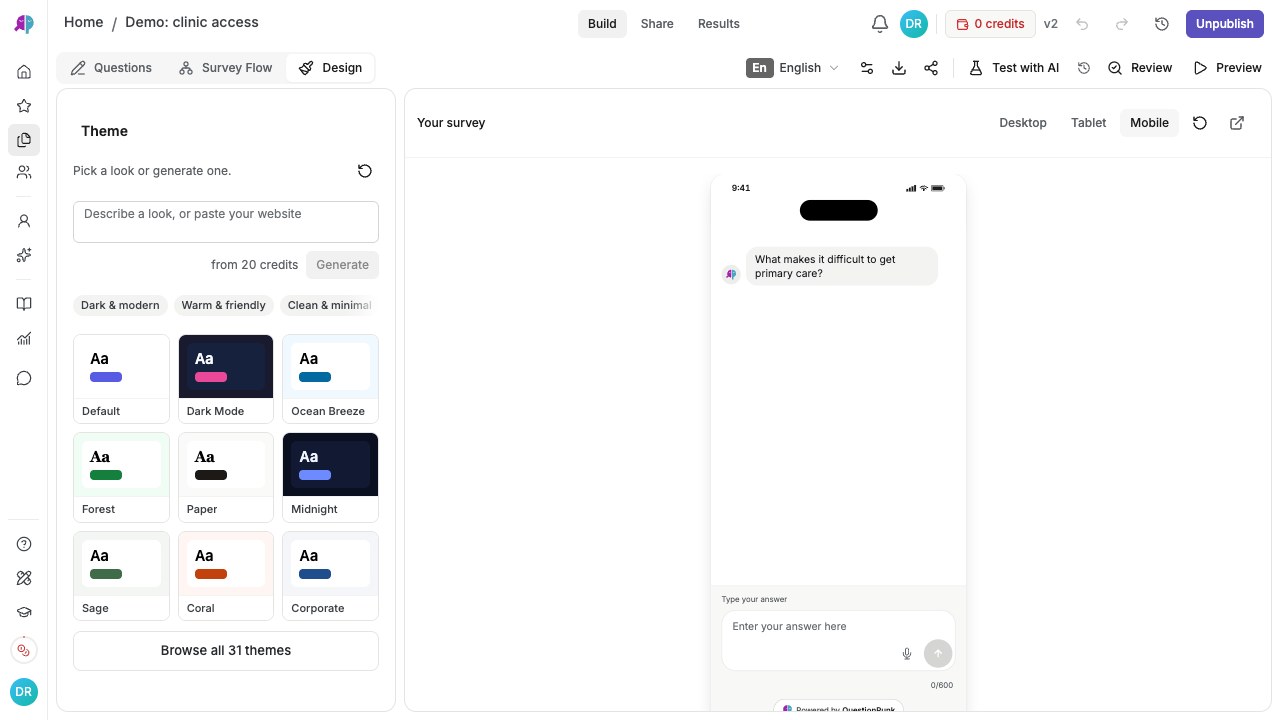
English interface · Built-in Mobile preview of the demo questionnaire; this is not a physical-device test.
### 4. Use AI follow-ups carefully
AI interview questions can add depth, but they also take more time. Place them only on your most important open-ended topics.
### 5. Pilot and revise
Use Preview and synthetic personas to rehearse question flow. Then run a small pilot with real people from your intended audience to check comprehension, accessibility, and completion time. Synthetic completion times and opinions are not measurements of human behavior.
## Details
Keep the survey concise and centered on core objectives. Use clear language and avoid leading questions.
Pilot the full flow, add progress indicators, and use AI follow-ups to recover incomplete answers when that fits your study.
Ask the AI generator to add attention-check questions, then review those answers yourself. QuestionPunk does not grade attention checks. It can automatically flag responses with suspicious typing, pasting, speeding, or straight-lining. Quality flags are signals to review, not proof of fraud. No flags are not proof of validity.
## Check the result
You should have a shorter, clearer survey that works on mobile and is ready for a pilot check.
## If something goes wrong
If pilots take too long or people drop off, remove low-priority questions and shorten option lists.
## Related articles
- [Question and block types guide](https://www.questionpunk.com/support/survey-design-question-types.md)
- [Choose a survey template](https://www.questionpunk.com/support/templates.md)
- [Test your survey with synthetic AI personas](https://www.questionpunk.com/support/synthetic-testing.md)
---
# Set up logic and branching
Canonical page: https://www.questionpunk.com/support/survey-design-logic-branching
Use logic to send people through the right path and skip irrelevant questions.
Learn how to set conditional logic, branching rules, and display logic. Includes skip-logic examples, AND/OR rule groups, and ways to keep your flow easy to review.
Last reviewed: 2026-10-27
Time: 10-30 minutes
Level: Intermediate to Advanced
Audience: Researchers, Survey designers
## Before you start
Open your survey in Build and decide which earlier answers should control later questions. To add branching from a question, save at least three questions: the current question and two other questions for routing. This prerequisite applies to branching, not every display-logic rule. List any URL parameters you want to use.
## Watch the walkthrough
[Edit questions and check the flow](https://www.questionpunk.com/support/videos/edit-and-check-flow.mp4)
A three-question fictional demo shows a configured branch and fallback path using actual English-interface screenshots, generated English narration, and English/Japanese captions. This narrated screenshot sequence shows the saved rule, flow canvas, and Preview; it is not a continuous recording.

[English captions](https://www.questionpunk.com/support/videos/edit-and-check-flow.en.vtt)
[Japanese captions](https://www.questionpunk.com/support/videos/edit-and-check-flow.ja.vtt)
### Video transcript
In Questions, click Add to choose the question type that fits the evidence you need. Select a question and open Advanced Edit to configure its answer choices, validation, and display settings. Open Logic to add display or branching rules. Check both the matching path and the fallback path. In Build, choose Survey Flow to inspect how questions connect across your survey. Test each branch in Preview with different answers before publishing.
## Steps
### 1. Open the branching rules
In Build, click a question in the editor. Open the branching or logic options. Add rules that evaluate earlier answers.
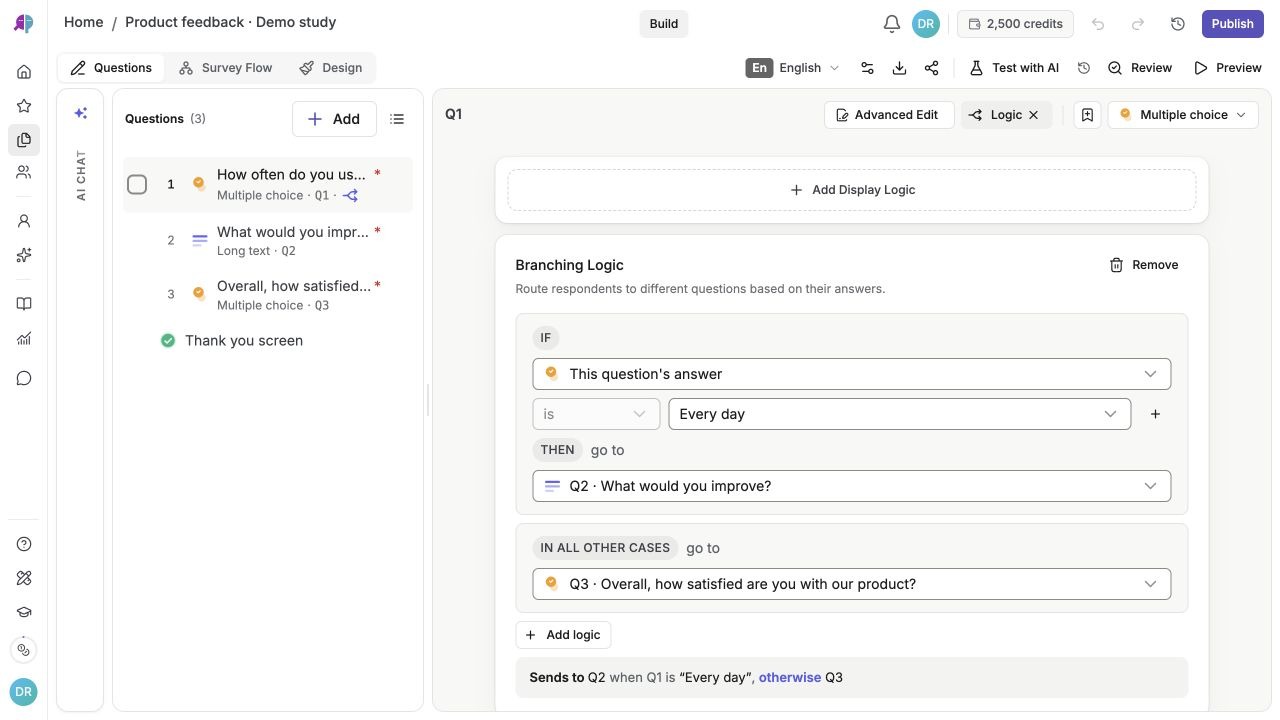
English interface · Q1 sends Every day answers to Q2, What would you improve? All other answers skip to Q3, overall product satisfaction.
### 2. Set conditions with AND/OR groups
Create rule groups with AND when all conditions must match. Use OR when any condition can match. Then combine the groups with All or Any.
### 3. Use display logic
Use display logic to show or hide a question based on earlier answers. Use branching when you need to change the respondent's path through the survey.
### 4. Combine with AI interview modes
Text AI interviews support an **AI Decides** question mode. In this mode, the AI decides when to stop follow-up questions based on your guidance criteria. This works alongside branching logic by controlling depth inside one interview question. Voice interviews are time-based only.
### 5. Use carry-forward for follow-ups
Use [carry-forward](https://www.questionpunk.com/support/carry-forward) to fill a follow-up question with only the options the respondent selected or did not select in an earlier question.
### 6. Set quotas to cap segments
Use [quotas](https://www.questionpunk.com/support/quotas-response-limits) to set response targets for each option. When a quota bucket is full, new respondents in that segment are terminated automatically.
### 7. Validate with the flow canvas
Use the [survey flow canvas](https://www.questionpunk.com/support/survey-flow-canvas) to review every branch and check for dead ends.
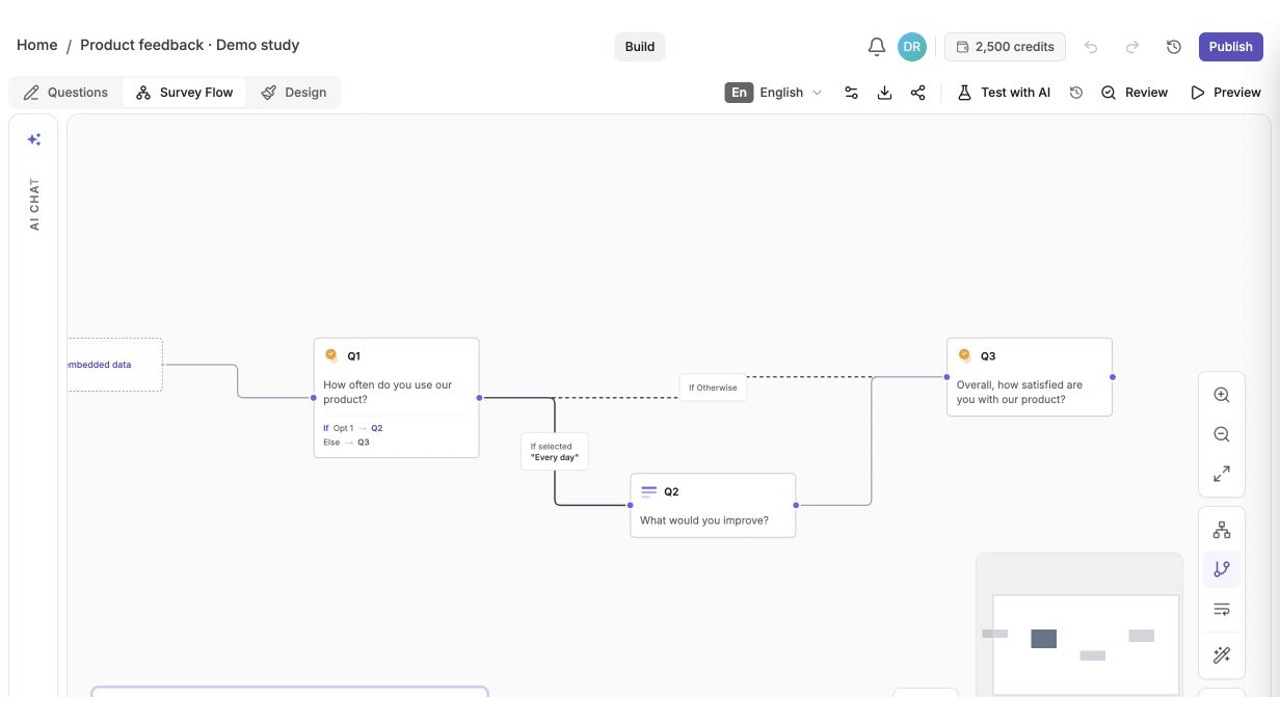
English interface · Every day answers follow Q1 → Q2 → Q3; other answers follow Q1 → Q3. The fictional demo has a saved branching rule.
## Details
Use branching based on earlier answers to ask relevant follow-ups and skip irrelevant sections. QuestionPunk supports AND/OR rule groups for more complex conditions.
Display logic shows or hides individual questions without changing the overall path. Branching rules send respondents to different sections of the survey.
[Carry-forward](https://www.questionpunk.com/support/carry-forward) fills a follow-up question dynamically based on which options the respondent selected or skipped earlier. This helps you avoid repeating long option lists.
[Quotas](https://www.questionpunk.com/support/quotas-response-limits) let you set numeric targets for each answer option or URL parameter value. When a bucket is full, new respondents in that segment are terminated automatically, with an optional custom end screen.
URL parameter-based display logic lets you show or hide questions based on values passed in the survey link as embedded data. This is useful for panel routing and A/B testing.
For adaptive depth inside a single question, text AI interviews support an **AI Decides** mode. The AI stops probing when it has enough information based on your guidance. You set the minimum and maximum follow-ups and the stopping guidance.
Test every branch with Preview and synthetic answers before you publish. Synthetic answers are for testing only, not evidence from real participants.
## Check the result
You should have rules that show, hide, or redirect respondents based on the conditions you set. In Preview, each test path should reach the expected next question or section.
## If something goes wrong
If Add Branching Logic is unavailable, confirm the question type supports branching and at least three questions are saved. If a question does not show or route correctly, check the referenced question, the AND/OR conditions, and whether the groups are combined with All or Any. Test both matching and fallback answers.
## Related articles
- [Create your first survey](https://www.questionpunk.com/support/create-your-first-survey.md)
- [Question and block types guide](https://www.questionpunk.com/support/survey-design-question-types.md)
- [Use the survey flow canvas](https://www.questionpunk.com/support/survey-flow-canvas.md)
- [Carry choices forward from an earlier question](https://www.questionpunk.com/support/carry-forward.md)
- [Set quotas and response limits](https://www.questionpunk.com/support/quotas-response-limits.md)
---
# Use the survey flow canvas
Canonical page: https://www.questionpunk.com/support/survey-flow-canvas
See your survey as an interactive node graph.
The Flow tab shows questions, pages, and logic as a connected graph. It is different from Whole survey in Questions, which shows question cards for reading and editing.
Last reviewed: 2026-10-27
Time: 5-10 minutes
Level: Beginner
Audience: Researchers, Survey designers
## Before you start
Open the survey editor first. Make sure your survey already has questions or pages so the canvas has nodes to show.
## Watch the walkthrough
[Edit questions and check the flow](https://www.questionpunk.com/support/videos/edit-and-check-flow.mp4)
A three-question fictional demo shows a configured branch and fallback path using actual English-interface screenshots, generated English narration, and English/Japanese captions. This narrated screenshot sequence shows the saved rule, flow canvas, and Preview; it is not a continuous recording.

[English captions](https://www.questionpunk.com/support/videos/edit-and-check-flow.en.vtt)
[Japanese captions](https://www.questionpunk.com/support/videos/edit-and-check-flow.ja.vtt)
### Video transcript
In Questions, click Add to choose the question type that fits the evidence you need. Select a question and open Advanced Edit to configure its answer choices, validation, and display settings. Open Logic to add display or branching rules. Check both the matching path and the fallback path. In Build, choose Survey Flow to inspect how questions connect across your survey. Test each branch in Preview with different answers before publishing.
## Steps
### 1. Open Flow in the top bar
In the survey editor, click **Flow** next to **Questions** in the top bar. The canvas shows your questions, pages, and branching rules as connected nodes.

English interface · Every day answers follow Q1 → Q2 → Q3; other answers follow Q1 → Q3. The fictional demo has a saved branching rule.
### 2. Move around the canvas
Scroll to zoom in or out. Click and drag to pan. Use the minimap in the corner to keep your place in larger surveys.
### 3. Edit a node from the canvas
Click a question node to open its edit panel. Update question text, options, or logic without leaving the canvas.
### 4. Check branching paths
Look at the edges between nodes to review branching rules and transitions. Use this view to spot dead ends or paths you did not expect.
## Details
The canvas turns your survey into a visual flowchart. Each question appears as a node, and the connections show how participants move through the survey.
Branching rules appear as labeled edges between nodes. This helps you read complex survey logic quickly.
The canvas is especially useful when your survey has several branching paths. Check that each path reaches a completion point.
**Looking for the question cards?** Return to **Build → Questions**. In the classic desktop editor, **Whole survey** shows cards in order; some accounts use a different card editor. See [survey modes and the whole-survey view](https://www.questionpunk.com/support/survey-modes). Test branches in Preview after reviewing the cards or Flow.
## Check the result
You should see your survey laid out as connected nodes in **Flow** and be able to open a node to edit it.
## If something goes wrong
If the canvas looks empty, confirm you are in **Flow** and that the survey already contains questions or pages.
## Related articles
- [Set up logic and branching](https://www.questionpunk.com/support/survey-design-logic-branching.md)
- [Create your first survey](https://www.questionpunk.com/support/create-your-first-survey.md)
---
# Use rich text, media, and piping in survey questions
Canonical page: https://www.questionpunk.com/support/survey-design-rich-text-media
Add formatted text, images, videos, and piping variables to your survey questions.
QuestionPunk includes a rich text editor for question text. You can add images, videos, bold or italic text, links, and piping variables directly in your questions. Piping can insert dynamic content from earlier answers or metadata. Every question can also carry a plain-text help line shown under it.
Last reviewed: 2026-10-27
Time: 3-5 minutes
Level: Beginner
Audience: Researchers, Marketers, Educators
## Before you start
Open your survey in Build and select the question you want to edit. Prepare any image, video, or earlier-answer variable you plan to insert.
## Steps
### 1. Open a question in Build
In the top section switcher, go to Build. Click any question to open the editor. The question text field supports rich text formatting.
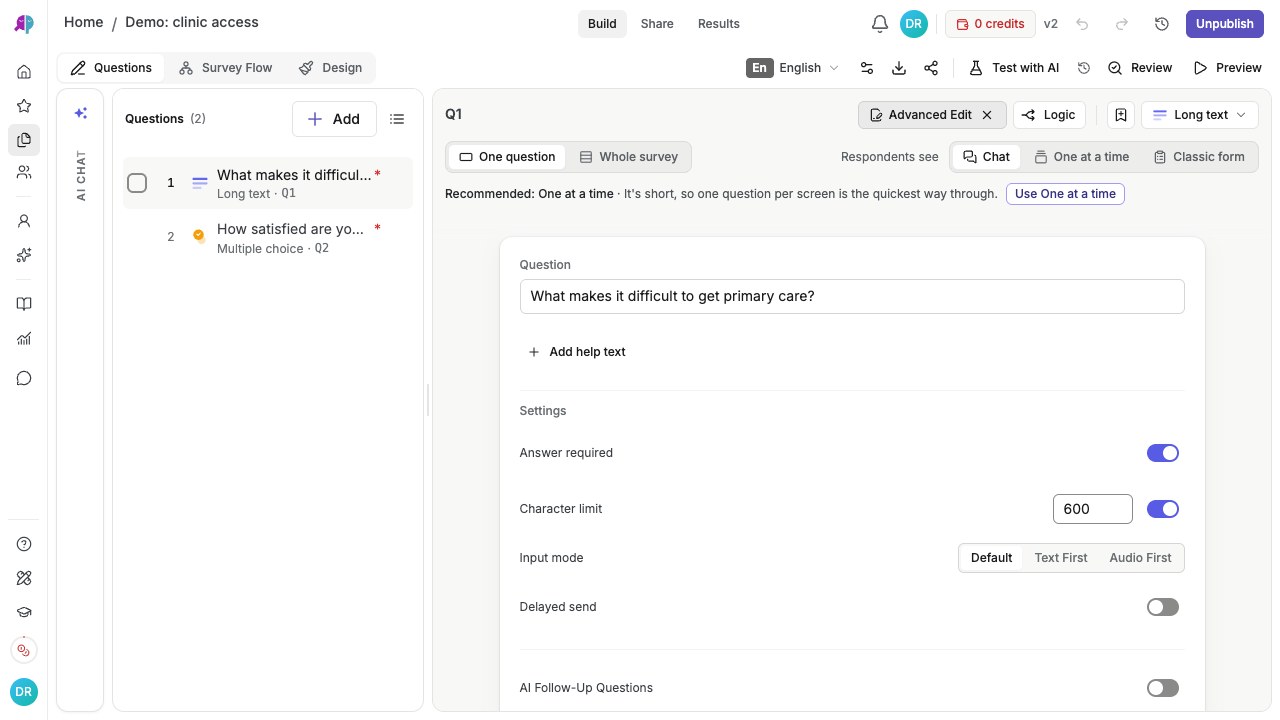
English interface · Advanced settings for a fictional open-text question.
### 2. Apply text formatting
Use the toolbar to add bold, italic, links, and other formatting. Use formatting to highlight key terms or show instructions clearly.
### 3. Insert images or videos
Click **+** in the editor, or type /. Then insert an image or a YouTube or Vimeo video into the question. Use media for concept testing, product mockups, or other visual stimuli.
### 4. Insert dynamic content with piping
Click **Piping**, or choose it from the + menu, to insert variables into your question text. You can add answers from earlier questions, such as "You mentioned {{Q1}}. Tell us more.", respondent metadata such as city, country, or browser, and system variables such as current date or response ID. Transformations such as UPPER, lower, and Title Case are available.
## Details
Rich text formatting makes questions easier to read. Use bold for key terms, links for reference material, and embedded media for visual context.
Images are especially useful in concept testing surveys where respondents need to react to visual designs or product screenshots.
**Piping** inserts dynamic content into question text. Reference earlier answers with {{Q1}}, {{Q2}}, and similar variables to personalize follow-up questions. Metadata variables include IP address, city, state, country, browser, OS, timezone, and screen resolution. System variables include current date/time, response ID, question count, and answers so far. IP-based fields are empty when Minimize IP and location data is on. You can apply text transformations such as UPPER, lower, Title Case, Sentence case, and word or character limits to piped values.
## Check the result
The question contains your formatting, media, or piping variable. In Preview, answer the earlier source question and continue to the question using that answer; confirm the value and any text transformation display correctly. Check media on the devices your respondents will use.
## If something goes wrong
If you do not see media or piping options, click into the question text field first, then use **+** or type /.
## Related articles
- [Question and block types guide](https://www.questionpunk.com/support/survey-design-question-types.md)
- [Design surveys for better responses](https://www.questionpunk.com/support/survey-design-best-practices.md)
---
# How AI interviews work
Canonical page: https://www.questionpunk.com/support/ai-how-it-works
Learn how AI interview questions run in a conversational survey.
This article explains how AI interviews work. It covers adaptive follow-up questions, prompt setup, context across multiple turns, and how the AI moderates in different languages. It also covers privacy and moderation considerations.
Last reviewed: 2026-10-27
Time: 10-30 minutes
Level: Intermediate
Audience: Researchers, Product managers
## Before you start
Create or open a survey in the editor first. Decide whether you want a text or voice interview before you configure the model and length.
## Steps
### 1. Add an AI interview question
In the survey editor, click **+ Add**. Choose **AI interview**. In the two-step setup, enter what you want to learn. Then choose **Text chat** or **Voice** under **How should it be conducted?**.

English interface · Demo study. Use the controls described in this step.
### 2. Configure the AI interviewer
Click **Interviewer**. Choose a personality or create your own with a name, description, and example questions that guide the style. To read the prompt behind it, open **AI model** > **Advanced prompt** > **Configure**.
### 3. Set the interview length mode
Under **Length**, choose how the AI decides when to stop follow-up questions. Use **Fixed Count** to set an exact number of follow-up questions. Use **AI Decides** to let the AI stop when it has enough depth, guided by min/max limits and your stopping criteria. Use **Time-Based** to run the interview for a set duration. Voice interviews are time-based only.
### 4. Choose a model
Select the AI model for the interview from the model picker. Existing questions keep their saved selection. Text and voice have separate pickers. If needed, run a small pilot and compare results. See [Choosing a model](https://www.questionpunk.com/support/ai-choosing-a-model) for trade-offs.
### 5. Pick the response quality
Under **AI model**, set **Response quality** for how text follow-up questions are generated. **Fast** (default) generates a single question in one step. It is the most responsive option. **Slow** generates five candidate follow-up questions, grades each with personality-specific criteria, and picks the highest-ranked one. Use it when question quality matters more than latency.
### 6. Choose what it can refer to (optional)
Click **What it can refer to** to let the AI use the respondent's earlier answers, or insights from this survey or other surveys, during the interview. The AI can use these references for more contextual follow-up questions. You can also add per-respondent context that feeds into the interview dynamically.
### 7. Monitor and review
After launch, review AI interview transcripts in **Results**. Check the full exchange between the AI and each respondent.
## Details
AI interviews adapt follow-up questions based on participant answers. The system probes for clarity and depth. This can produce richer qualitative data than a standard open-text field.
The AI preserves context across conversation turns. Follow-up questions can refer to what the respondent already said. This creates a more natural interview flow.
Three question modes control the length of a text interview: **Fixed Count** (exact number of follow-ups), **AI Decides** (AI stops when it has enough depth, with configurable min/max and stopping guidance), and **Time-Based** (runs for a set duration). Voice interviews always run for a set duration.
**Response quality** controls how text follow-up questions are produced. **Fast** (default) generates a single question in one step and works best when responsiveness matters. **Slow** generates five candidate questions, grades each with personality-specific criteria, and picks the highest-ranked one. Use it for important interviews where question quality matters most.
Choose the respondent language in the survey editor. Text and voice have different language and provider support; check the current voice settings and test your selected language with the chosen transcription, conversation, and speech providers before recruitment.
**What it can refer to** lets the AI use answers from earlier questions in the survey. This helps follow-up questions build on what the respondent already shared in previous sections. Per-respondent context can also be injected dynamically.
You can read the full prompt the interviewer uses, edit its context, add your own sections, and review every exchange in the response data.
## Check the result
You should have an AI interview question configured with an interviewer, a length mode, and a model selection. After launch, you should be able to review full transcripts in **Results**.
## If something goes wrong
If the interview does not behave as expected, reopen the question and check the selected mode under **Length**. Voice interviews only support **Time-Based**.
## Related articles
- [Choose an AI model](https://www.questionpunk.com/support/ai-choosing-a-model.md)
- [Write effective prompts for the AI interviewer](https://www.questionpunk.com/support/ai-prompt-tips.md)
- [Set up a voice AI interview](https://www.questionpunk.com/support/ai-audio-interviews.md)
---
# Set up a voice AI interview
Canonical page: https://www.questionpunk.com/support/ai-audio-interviews
Run a voice-based AI interview with real-time transcription.
Voice AI interviews let respondents answer by speaking instead of typing. The AI runs a live voice conversation, asks adaptive follow-up questions, and creates a transcript automatically.
Last reviewed: 2026-10-27
Time: 10-20 minutes to set up
Level: Intermediate
Audience: Researchers, UX teams
## Before you start
Open the survey editor and decide whether you need a standard voice interview or a guided Usability Test. If you plan to control providers or duration, gather those choices before you start building.
## Steps
### 1. Add a voice AI interview or Usability Test
In the survey editor, click **Add Question** and choose **AI interview**. Set the interview to **Voice**. Choose **Usability test** for guided tasks with screen sharing.

English interface · Demo study. Use the controls described in this step.
### 2. Set the voice interview options
Set the interview goal and duration. Choose a duration preset or enter a custom duration from 1 to 240 minutes, then review **What to find out**. Open **More settings** for Free conversation or Topic guide, interviewer behavior, voice, and the advanced prompt. The default voice setup uses separate speech-to-text, conversation, and text-to-speech providers. **Ultra-low latency** uses a single realtime model and does not offer What to find out. Existing interviews keep their saved settings.
### 3. Check the transcript after responses arrive
After an interview, open **Results → Responses** to read its transcript. If it tracked a What to find out list, review **Found out**: items are marked Found out, Partly found out, or Not reached, with supporting quotes where available. Check these AI judgments against the transcript. Audio or video recordings are available only when recording was enabled for the session.
## Details
Voice AI interviews remove the need to type. This makes it easier for respondents to share detailed feedback in a natural conversation.
You can use one of two setups: the default chain (separate speech-to-text, AI model, and text-to-speech for maximum flexibility) or **Ultra-low latency** (a single realtime model for the fastest replies).
**Text-to-speech:** Choose the provider and voice in the voice settings. Check the available language and cost information before using it. With Ultra-low latency enabled, the realtime model handles speech.
**Speech-to-text:** Choose the transcription provider in the voice settings. Test domain-specific words, names, and the respondent language in a pilot.
**Avatar support:** Add a visual AI avatar to voice interviews using Tavus or LemonSlice. Avatars give respondents a face to talk to and can help maintain engagement in longer interviews. Choose from the preset avatars available in the voice settings.
**Guided usability testing:** Voice AI interviews support a [guided usability testing mode](https://www.questionpunk.com/support/usability-testing). In this mode, respondents complete step-by-step tasks on a website or app while the AI moderator observes through screen sharing. You can configure task scenarios, time budgets, warmup tasks, think-aloud prompts, and counterbalanced task ordering. See the [usability testing guide](https://www.questionpunk.com/support/usability-testing) for full setup details.
**Pricing:** Voice interviews consume AI credits according to the selected providers and interview duration. Review the cost shown in the editor before publishing.
Built-in audio enhancement (ai-coustics) applies voice focus and speaker isolation to improve transcription accuracy in noisy environments. Short noises and one-word interjections like coughs or "mm-hm" do not cut the interviewer off.
Transcripts are generated automatically for every voice interview, so you can analyze audio responses more easily.
**Run a device check before recruiting.** Complete a short voice pilot on the devices and in the languages your participants will use. Check microphone permission, whether both sides can hear each other, transcript accuracy, and any recording you need. A text Preview alone does not verify voice capture. If audio stops, follow [microphone, camera, and screen-sharing troubleshooting](https://www.questionpunk.com/support/troubleshooting-audio-video).
**Choose what to find out:** below the goal, use **Suggest from the goal** or **Write my own**. New voice questions can suggest a list after you enter a goal. Edit the wording, use **+ Add** for another item, and move the most important items to the top. The list holds up to 12 items. **Suggest again** replaces the list; removing every item turns tracking off.
**Fit the list to the time:** the editor estimates how many items fit the selected duration and labels extra items **if time allows**. Shorten the list, reorder priorities, or use the offered **Make it … min** button when a longer preset fits. This is planning guidance, not a promise that every item will be covered. In **Results → Summary**, **What we found out** summarizes the interviews that tracked each item; see [report interpretation](https://www.questionpunk.com/support/view-report).
## Check the result
You have a goal, duration, voice, and prioritized What to find out list where supported. Pilot the interview, then check its transcript and tracked findings in Results. Saved recordings require recording to be enabled.
## If something goes wrong
If you cannot choose a voice, check whether **Ultra-low latency** is turned on. That mode uses a single realtime model and does not include voice choice.
## Related articles
- [How AI interviews work](https://www.questionpunk.com/support/ai-how-it-works.md)
- [Choose an AI model](https://www.questionpunk.com/support/ai-choosing-a-model.md)
- [Run a usability test with screen sharing](https://www.questionpunk.com/support/usability-testing.md)
---
# Choose an AI model
Canonical page: https://www.questionpunk.com/support/ai-choosing-a-model
How to select an AI model for your study.
QuestionPunk offers models from multiple AI providers including Anthropic Claude, OpenAI GPT, Google Gemini, and more. This guide shows how to choose a model for your study and compare options in a pilot.
Last reviewed: 2026-10-27
Time: 5-15 minutes
Level: Intermediate
Audience: Researchers, Product teams
## Before you start
Decide whether you are setting up a text or voice interview. If you already created questions, note that each one keeps its saved model until you update it.
## Steps
### 1. Review the available models
Open an AI interview question and check its model picker. It shows the models available for that interview type and your plan. Text and voice interviews have separate choices. Existing questions keep their saved model until you change it.
### 2. Select a model for the interview question
In **Questions**, select the AI interview question and open its interviewer settings. Choose a model for that question. Different interview questions in the same survey can use different models.
### 3. Run a pilot and compare
Run a short pilot with different model settings. Compare the outputs before you send the survey to your full sample. Check response quality, follow-up style, and speed. Use the pilot to choose the model that fits your study.
## Details
Use the current model picker as the list of available options. Model names and availability can change, so check the picker when setting up a new interview.
Choose from the actual model picker instead of relying on a fixed catalog. Some models are built for fast, lower-cost interviews. Others can produce richer follow-up questions or stronger reasoning. Compare a small pilot before you decide which model fits your study best.
Compare the cost shown for available models with your credit balance and study size. Real respondents’ text follow-ups on the standard models are included on every plan without using AI credits (subject to the monthly fair-use allowance), while premium text models and voice interviews use AI credits. Your plan can also restrict which models you can select.
Run a short pilot with 5-10 respondents using different model settings to compare output quality before committing to your full sample.
## Check the result
Each interview question should show the model you selected. Check a preview or small pilot before sending the survey to your full sample.
## If something goes wrong
If you do not see the model you expected, check the correct picker for that question type. Text and voice use separate model pickers.
## Related articles
- [How AI interviews work](https://www.questionpunk.com/support/ai-how-it-works.md)
- [Write effective prompts for the AI interviewer](https://www.questionpunk.com/support/ai-prompt-tips.md)
---
# Write effective prompts for the AI interviewer
Canonical page: https://www.questionpunk.com/support/ai-prompt-tips
Write clear prompts that guide the AI interviewer’s follow-up questions and tone.
Use practical prompt-writing strategies. Specify tone, structure, and length. Add examples and clear boundaries for the AI interviewer.
Last reviewed: 2026-10-27
Time: 5-20 minutes
Level: Intermediate
Audience: Researchers, Prompt engineers
## Before you start
Decide the tone, depth, and format you want before you edit the prompt. Prepare one or two sample responses to test against.
## Steps
### 1. Specify tone and follow-up depth
State the tone you want, such as friendly, professional, or academic. Say how deeply the AI should follow up, such as 1-2 follow-ups or deeper probing. State the response format.
### 2. Add examples
Give positive and negative examples of the follow-up questions you want the AI to ask.
### 3. Define boundaries
Tell the AI which topics to avoid. Say when it should stop probing. Explain how it should handle off-topic responses.
### 4. Test and refine
Try your prompt on sample responses in Preview or with synthetic answers for testing. Revise the prompt until the AI behaves the way you want.
## Details
Be specific about the tone, follow-up depth, and examples of acceptable responses. Short examples help the model match the format and style you want.
Avoid vague instructions. Use concrete tasks like "Ask one clarifying question, then ask for a specific example."
You can review the full prompt that drives the AI interviewer, edit its context, and add your own sections. In a response, open **Prompt used** to see the prompt and model behind each interview.
We improve the default interviewer instructions over time, and a running study picks up each improvement. For research where every participant must get the same interviewer, turn on **Keep the interviewer prompt fixed during a study** in **Settings > Account preferences**. Each study then stays on the instructions its first interview used. Sections you edit yourself never change.
## Check the result
Your prompt should clearly tell the AI how to ask follow-up questions, what to avoid, and when to stop probing.
## If something goes wrong
If the AI asks questions that feel too broad or too deep, replace vague instructions with one concrete action and one clear limit.
## Related articles
- [How AI interviews work](https://www.questionpunk.com/support/ai-how-it-works.md)
- [Choose an AI model](https://www.questionpunk.com/support/ai-choosing-a-model.md)
---
# Show a personalized AI result after completion
Canonical page: https://www.questionpunk.com/support/ai-result
Show your message or ask AI to write a personalized result when someone completes the study.
Choose what each person should read at the end. A message is shown as a message; an instruction such as career suggestions asks AI to use their answers, including voice-interview answers.
Last reviewed: 2026-10-27
Time: 3-5 minutes
Level: Beginner
Audience: Researchers, Coaches and educators, Marketers
## Before you start
Decide what kind of result each participant should read at the end. If your study redirects on completion, the AI result will not be shown.
## Steps
### 1. Open Survey settings
Open your survey's settings. Go to **When it ends**. Find the **Personalized AI result** section.
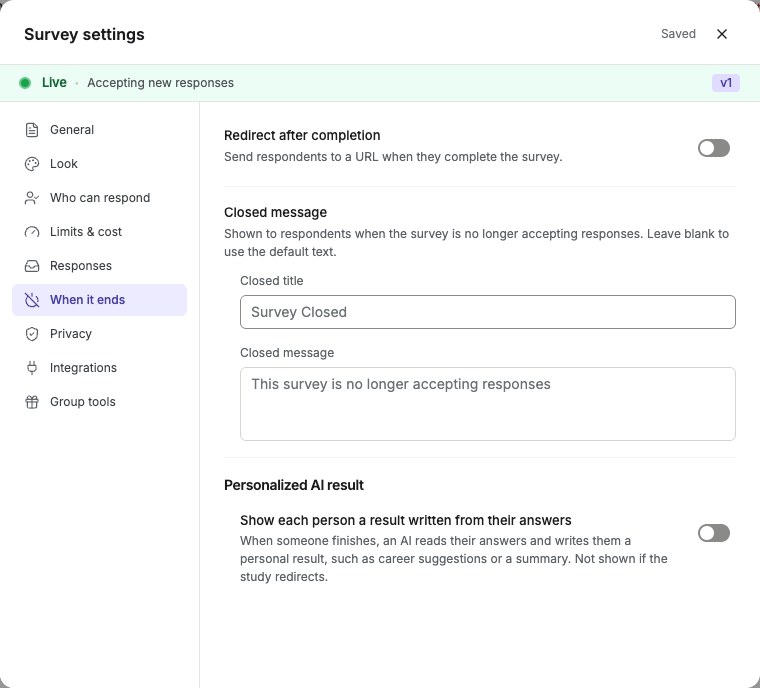
English interface · Survey settings → When it ends tab showing Personalized AI result.
### 2. Describe the result
Turn on **Show each person a result written from their answers**. Then write the message or instructions. For personalized advice, give an explicit task, for example: Suggest three careers that fit this person, each with one sentence on why, based on what they said about their skills and interests.
### 3. Publish
Click outside the text field to save, then publish the survey. Turn the AI result switch off to remove it; switching it off clears the saved instructions. Test a completed response through the published link.
## Details
The result appears on the completion screen under the heading Your result. There is a short wait while AI writes it. You can see the same result with each response.
An AI result is shown only to people who complete the study. It is not shown if the study redirects respondents to another page on completion, or if someone is screened out or their quota is full.
On a [quiz](https://www.questionpunk.com/support/quizzes), the same setting is called **AI result summary**. It is written from the person's score and graded answers and shown with their score.
A plain message such as Thank you for your time. is treated as the message to display, translated when needed. To request a summary or recommendations from answers, describe that task explicitly.
Some templates also have a separate **Reveal** section under **When it ends**. If result types are already configured, choose **Edit** beside **Result types** to change their emoji, name, tagline, or description, then **Save** or **Cancel**. These edits change wording, not the outcome IDs, scoring rules, or profiles. A graded quiz uses its quiz result screen instead of enabling Reveal.
**Author a Personal report:** templates with Reveal can also offer **Personal report** under **When it ends**. Open it and use **Report** to write sections and blocks, **Answer tags** to tag answer choices, and **Preview** to try sample answers and check which blocks appear. Save the report and tag changes. These are authored blocks selected by rules, separate from the AI-written Personalized AI result. Test the completion screen before publishing.
## Check the result
After the survey is published, people who complete it can see an Your result section on the completion screen.
## If something goes wrong
If no result appears, check whether the person reached the normal completion screen instead of being redirected, screened out, or blocked by a full quota.
## Related articles
- [Create a quiz with scored answers](https://www.questionpunk.com/support/quizzes.md)
- [How AI interviews work](https://www.questionpunk.com/support/ai-how-it-works.md)
- [Use AI insights and analysis](https://www.questionpunk.com/support/ai-insights.md)
---
# Use AI insights and analysis
Canonical page: https://www.questionpunk.com/support/ai-insights
Generate AI reports, review themes and sentiment by question, and explore survey responses with Ask in Results.
QuestionPunk includes several AI analysis tools. You can create narrative reports with executive summaries, review themes and sentiment for each question, and ask natural-language questions about your data with cited responses.
Last reviewed: 2026-10-27
Time: 2-10 minutes
Level: Beginner
Audience: Researchers, Analysts, Product teams
## Before you start
Make sure your survey has responses in Results. More responses unlock more AI output for each question.
## Watch the walkthrough
[Find responses and generate a report](https://www.questionpunk.com/support/videos/review-results.mp4)
A navigation overview using actual English-interface demo screenshots, generated English narration, and English/Japanese captions. This is a narrated screenshot sequence, not a continuous recording. Examples are fictional.
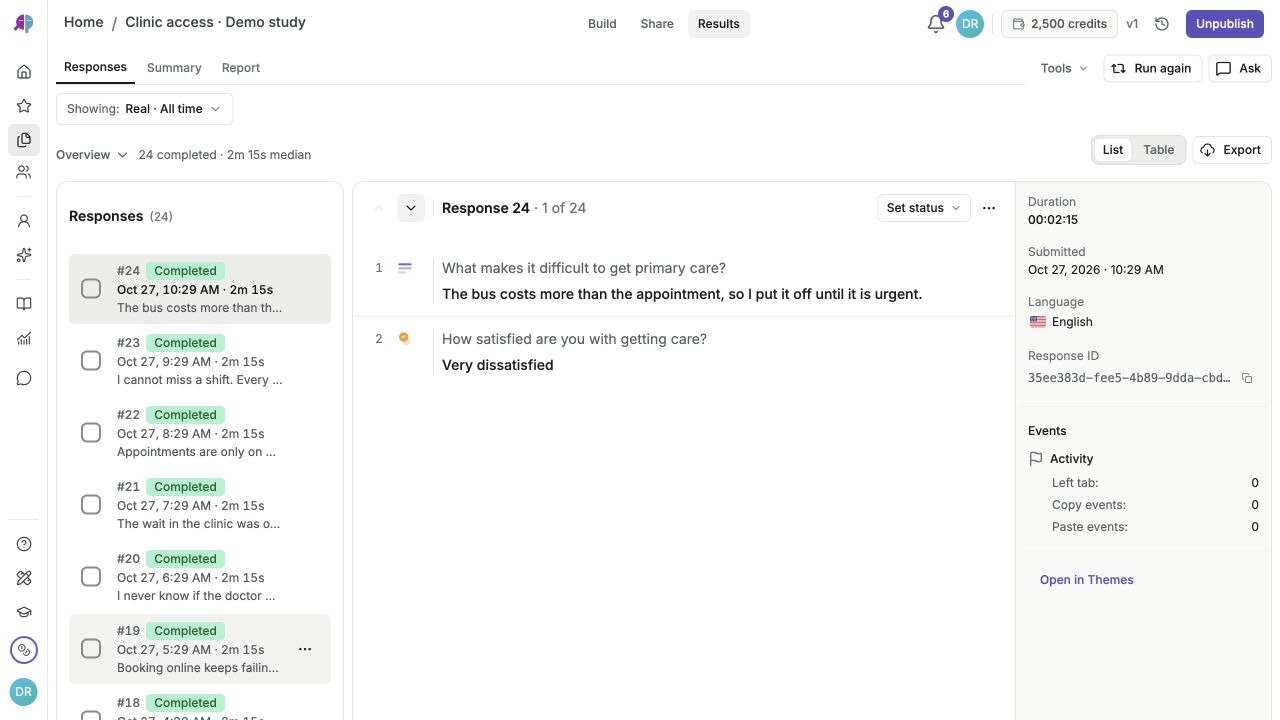
[English captions](https://www.questionpunk.com/support/videos/review-results.en.vtt)
[Japanese captions](https://www.questionpunk.com/support/videos/review-results.ja.vtt)
### Video transcript
In Results, open Responses to inspect individual submissions and check your active filters. Open Summary to review distributions and per-question breakdowns across completed responses. Open Report to prepare an AI report. Review generated findings against your responses, or use Ask to query your evidence.
## Steps
### 1. Open Results
Open your survey and switch to **Results**. AI analysis tools are available in **Report**, **Summary**, and **Responses**. You can also open **Ask** alongside them.
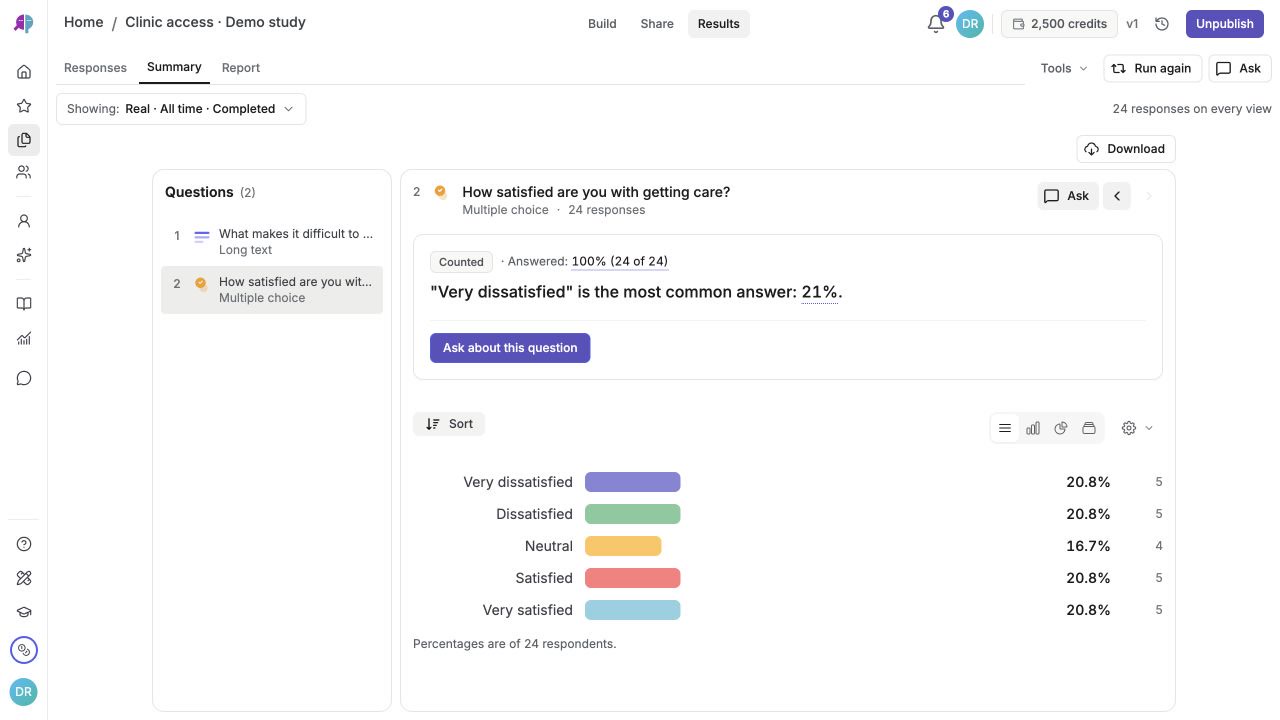
English interface · Results → Summary showing per-question charts across 24 demo responses.
### 2. Generate an AI report
In **Report**, generate an AI narrative report with executive summaries, per-question analysis, identified themes, and charts. Refine the report through the conversation interface and compare versions over time. Export as PDF or Word.
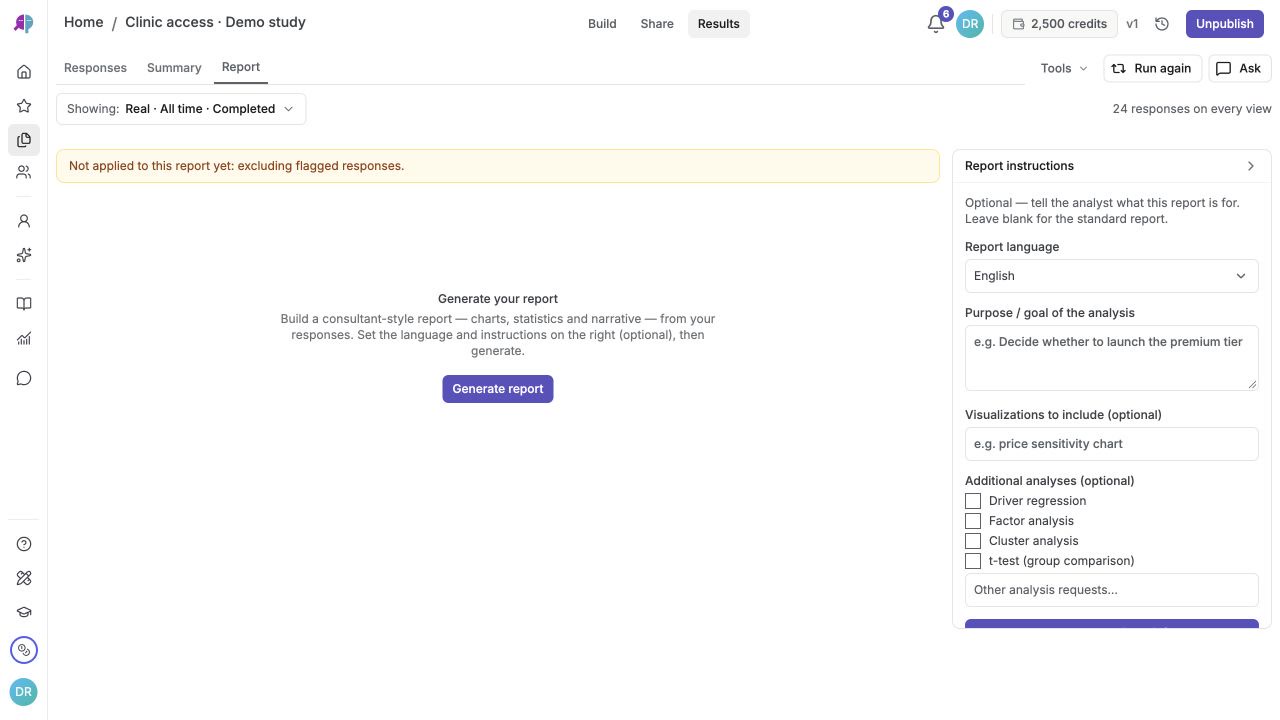
English interface · Report navigation overview before generation. No AI findings have been generated for this demo.
### 3. Review themes and sentiment by question
In **Summary**, review each question’s response count, answers, and available summaries or themes. The screen shows coding progress and whether more answers are needed. Open the source responses before relying on a summary.
### 4. Ask questions about your data
Open **Ask** in Results and ask natural-language questions about your survey data. For example: "What were the main complaints?" or "Compare satisfaction scores between departments." The AI responds with insights, inline charts, stat badges, and quote blocks, each with citations linking back to the source responses.
### 5. Review saved report versions
In **Report**, use **Past reports** or the version selector to review a saved report. Check which responses and filters it used before comparing versions. The **AI test runs** history icon beside **Test with AI** in Build opens synthetic test history, not report history.
## Details
AI insights help you turn raw survey data into findings you can review. The **Report** section generates a narrative report with executive summaries, per-question analysis, and theme extraction. You can refine reports through conversation and export as PDF or Word.
The **Summary** section shows per-question analysis. It includes identified themes with response counts, a sentiment breakdown (positive/neutral/negative bar), and written summaries. This is especially useful for open-ended and AI interview questions.
**Ask** lets you explore your data in plain language. Ask questions and get responses with inline charts, statistics, and direct quotes from respondents, with citations that link to the source responses.
Generate a new report when the responses or research question change, then review the source answers and filters. Saved report versions are available in Report. Synthetic test runs have a separate history in Build; they do not establish that human findings have changed.
## Check the result
You should see AI-generated analysis in Report, question-level themes or summaries in Summary, or cited answers in Ask.
## If something goes wrong
If a summary or theme is not ready, check the question card’s coding status and required answer count. Make sure the active response filters include the answers you intend to analyze.
## Related articles
- [View your survey report](https://www.questionpunk.com/support/view-report.md)
- [Qualitative analysis and coding](https://www.questionpunk.com/support/qualitative-analysis.md)
- [Export response data](https://www.questionpunk.com/support/data-exports-exporting-results.md)
---
# Test your survey with synthetic AI personas
Canonical page: https://www.questionpunk.com/support/synthetic-testing
Create AI-generated respondent personas and run them through your survey before launch.
Synthetic testing creates AI personas with specific demographics, attitudes, and backgrounds, then runs them through your survey so you can check question flow, logic, and quality before real respondents see it.
Last reviewed: 2026-10-27
Time: 10-20 minutes
Level: Intermediate
Audience: Researchers, Survey designers, QA teams
## Before you start
Open the survey in Build. Synthetic test runs show an estimated cost before you start. **Build from your data** also uses AI credits; prepare enough written responses or notes to support distinct personas, and use only material you are permitted to use. Existing interview questions keep their saved model selection.
## Watch the walkthrough
[Prepare a test with AI personas](https://www.questionpunk.com/support/videos/test-with-ai.mp4)
A navigation overview using actual English-interface demo screenshots, generated English narration, and English/Japanese captions. This is a narrated screenshot sequence, not a continuous recording. Examples are fictional.
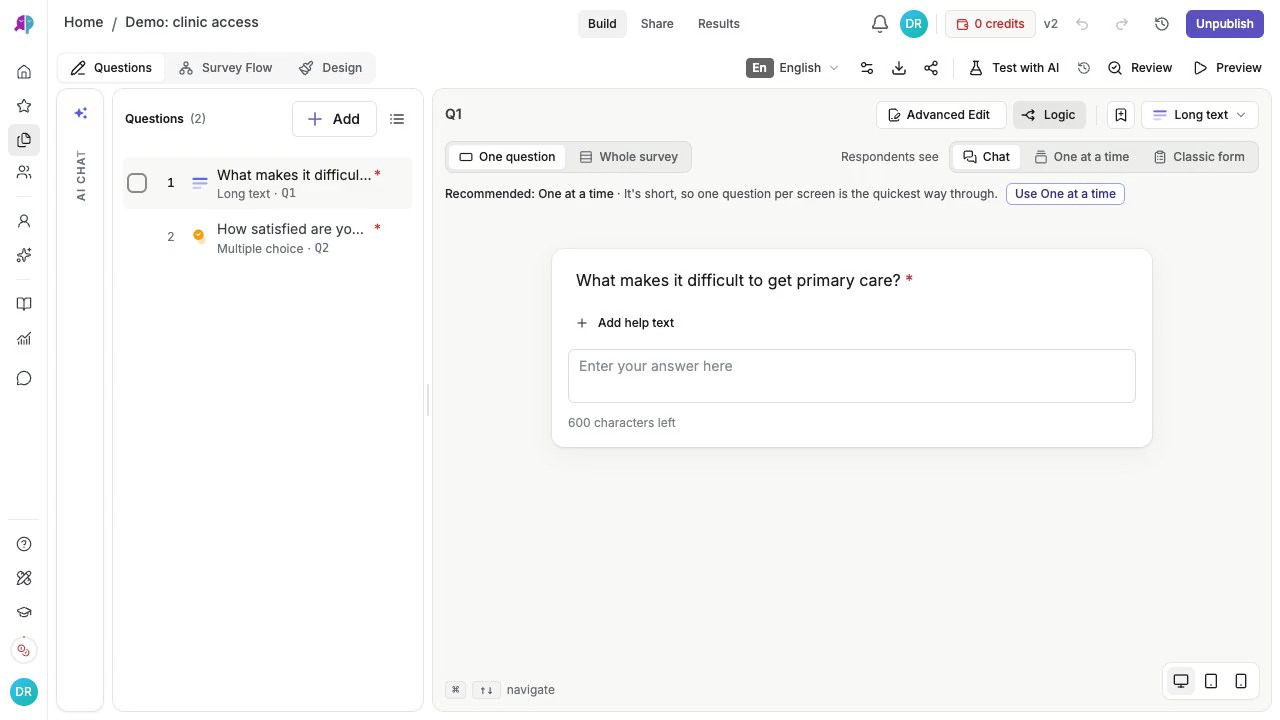
[English captions](https://www.questionpunk.com/support/videos/test-with-ai-2026-10.en.vtt)
[Japanese captions](https://www.questionpunk.com/support/videos/test-with-ai-2026-10.ja.vtt)
### Video transcript
In Build, click Test with AI. Use the adjacent AI test runs history control to return to earlier runs. Choose the number of respondents, persona source, and model, then check the estimated credit cost. Review the configuration and estimated cost before starting a run, or cancel to return without spending credits. When a test finishes, filter Results by Synthetic responses to verify logic and wording. Synthetic answers test your setup and are not human research evidence.
## Steps
### 1. Open a synthetic test from Build
In the survey editor, open the top section switcher and stay in Build. Click **Test with AI** to start a synthetic test. Choose how many respondents to run. Then choose a respondent source: **auto-generated diverse personas**, **an audience**, **custom targeting** (describe who you want), **panel-based personas**, or **digital twins** of real respondents. You can also manage reusable personas on the **AI Personas** page and run them against any survey.

English interface · Fictional demo questionnaire. This screen does not show participant findings.
### 2. Create personas
Create reusable personas with **AI Generate**, **from a template**, or **Manual** on **AI Personas**. To use existing evidence, find **From your data** and click **Build from your data**. Choose a survey, paste call notes or support tickets, or upload text, Markdown, or CSV notes. Select 3–6 personas and click **Build personas**. Review the source quotes shown under each persona before using it.
### 3. Set options and run the test
Choose a **Respondent source**, such as auto-generated diverse personas or a saved list. Set the **Number of respondents** to 3, 5, 10, or a custom number up to 500. Then start the test. Under Advanced, turn on **Diverse responses** to increase variation in answers. Set **Target marginals** to guide answer shares for multiple-choice questions. You can also choose different AI models from the model picker and compare a pilot run. Before you start, the dialog shows an estimated credit cost or "Free". It updates as you change the model, respondent count, and run options. While the run is in progress, a progress banner shows the estimated time.
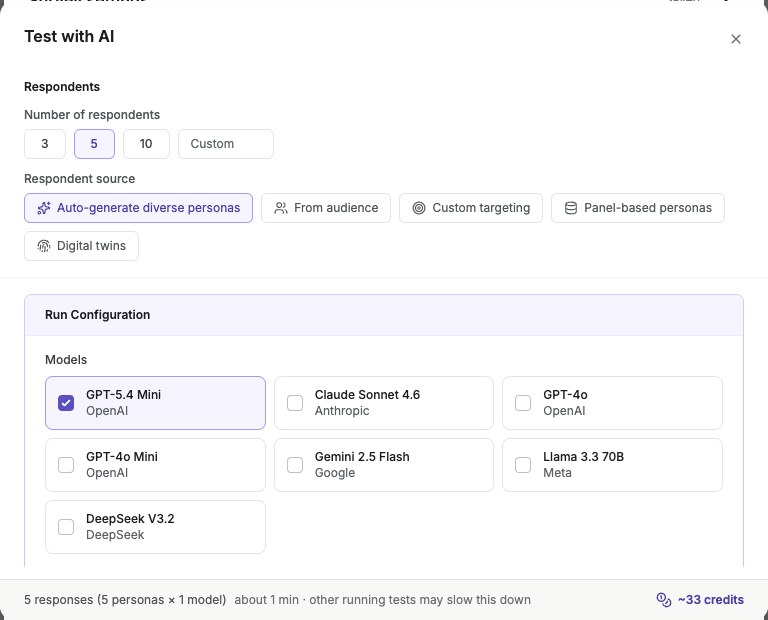
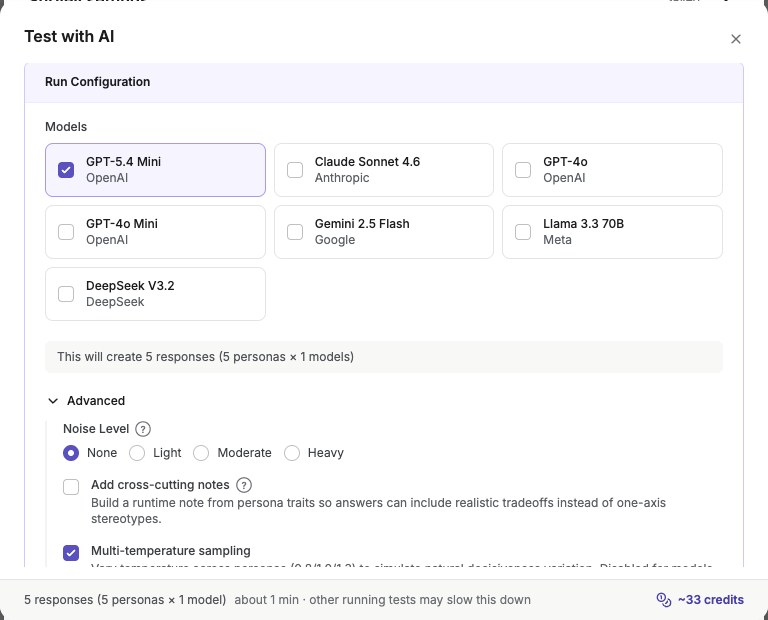
English interface · Two views of the test setup before a run. Model options and credit estimates can change; no generated responses are shown.
### 4. Review synthetic responses in Results
Synthetic responses appear in Results with a "synthetic" label. Review how different personas answered. Use this to spot question issues, biased wording, or logic problems.
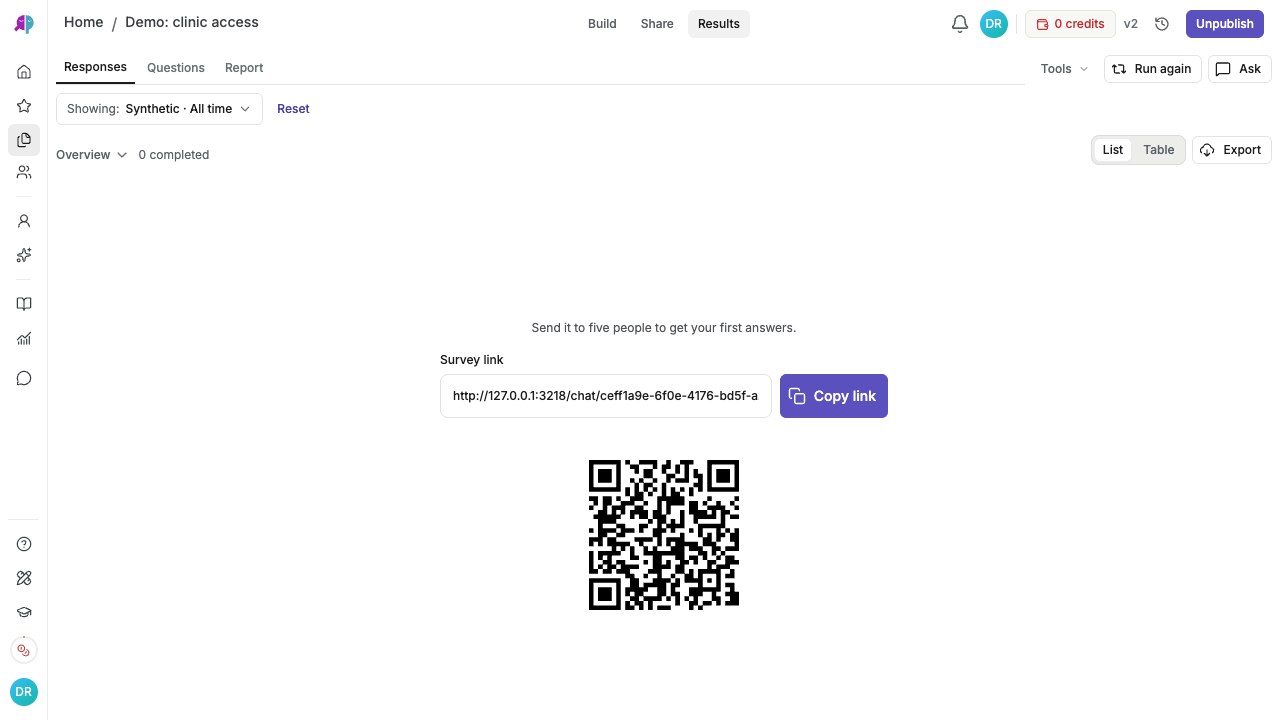
English interface · Synthetic filter navigation overview. No AI test has been run in this demo.
## Details
Synthetic testing is a dress rehearsal for your survey. AI personas simulate respondents so you can catch issues before launch.
**From your data** builds personas from the selected survey’s newest 150 real responses and AI interviews, from notes, or from both. Each persona keeps source quotes that are supplied when it answers. Review those quotes and the resulting profile: grounding a simulation in your data does not turn its new answers into human evidence or a representative sample.
Pre-built persona templates cover common demographics and archetypes. This makes it easier to test with a varied set of simulated respondents.
Personas are stored on the AI Personas page and can be reused across multiple surveys. This saves setup time for recurring studies.
**Target marginals** let you set the answer percentages you expect on multiple-choice questions, for example from census figures. **Diverse responses** samples each persona's answers from estimated probabilities so runs do not all answer alike.
Use the model picker to compare responses from different models. In Build, open the **AI test runs** history control beside **Test with AI** to inspect past runs and credit usage.
**Fidelity reports** compare synthetic responses against real human responses to measure how closely AI personas mirror actual respondent behavior. The **Human vs. Synthetic comparison** view highlights where synthetic and real distributions align or diverge.
Run history tracks all synthetic test runs, so you can compare results across iterations as you refine your survey. Synthetic answers are simulations for testing. Do not present them as evidence from real participants.
## Check the result
You should see responses marked "synthetic" in Results and be able to compare how personas moved through the survey.
## If something goes wrong
If test controls are missing, return to **Build → Test with AI**. If data-based persona creation reports too little evidence, add more written responses or longer notes; numeric answers alone may not provide usable source text. If it reports insufficient credits, check your balance before trying again. Review any notice about unmatched quotes being left out.
## Related articles
- [Create your first survey](https://www.questionpunk.com/support/create-your-first-survey.md)
- [Design surveys for better responses](https://www.questionpunk.com/support/survey-design-best-practices.md)
- [Fraud detection and response quality](https://www.questionpunk.com/support/fraud-detection.md)
- [Manage participants, lists, and respondents](https://www.questionpunk.com/support/audiences.md)
---
# Create a quiz with scored answers
Canonical page: https://www.questionpunk.com/support/quizzes
Score multiple-choice questions, add a pass mark, and choose what participants see after they submit.
A quiz is a survey that uses a private answer key for multiple-choice and slider questions. QuestionPunk grades each attempt, shows you the score, and shows participants only the results you choose.
Last reviewed: 2026-10-27
Time: 5-10 minutes
Level: Beginner
Audience: Educators, Trainers, HR and certification teams
## Before you start
Include multiple-choice or slider questions for the items you want to score. Decide whether participants should see correct answers, just a score, or nothing after submission.
## Steps
### 1. Start a quiz
On the home page, choose **Quiz**. Describe what participants should know, or paste training material. You can also turn any survey into a quiz by scoring its multiple-choice or slider questions.
### 2. Set the answer key
In **Build → Questions**, select a multiple-choice or slider question and open **Advanced Edit**. Expand **Answer key**, then turn on **Score this question**. On a multiple-choice question, choose the correct answer, or turn on **Several correct answers** and check each one (a multi-select answer is correct only when it matches every keyed option and nothing else). On a slider question, enter the target number in **Correct answer** and set the **±** margin (leave at `0` for an exact match, or enter a positive margin to award points within that tolerance on either side).
### 3. Set points and an explanation
Assign points to the question from 1 to 100. The default is 1. Add an optional explanation, such as why the answer is correct. Participants see it with their graded answer only when you allow it.
### 4. Add a pass mark
Open Survey settings. Go to **When it ends**. Set a **Pass mark**, which is the percent of points needed to pass. This appears after the survey has at least one scored question. Participants then see Passed or Not passed with their score. Leave it empty if you do not want a pass mark.
### 5. Choose what participants see
In the same section, under **Quiz results**, choose one of four levels: score and correct answers, score and what they got wrong, score only, or nothing. You cannot publish until every scored question has a correct answer selected.
### 6. Review attempts
In Results, open **Responses** to see the quiz overview. It shows graded attempts, average score, pass rate, and how many people got each question right. Switch to **Table** for a sortable **Score** column and Correct/Incorrect marks on every graded answer. For a **Friend quiz**, a ranked scoreboard card appears above the response list showing each participant’s name, score, percentage, and completion date. Your Results show every answer, regardless of the result level participants see.
## Details
Each attempt is graded against the version of the quiz that the person took. If you edit a published quiz later, earlier scores do not change.
**What participants see.** Score and correct answers marks each question right or wrong and shows the correct answer and your explanations. It fits practice and training. Score and what they got wrong marks each question without revealing the answer, though on a two-choice question a wrong mark still gives it away. Score only shows a result such as 4 / 5. Nothing shows the usual thank-you screen and keeps the answer key private. It fits hiring or certification. The answer key is withheld on the server, so a hidden key never reaches the participant's browser.
**AI result summary.** Turn on **Add an AI-written summary to each score** and describe the result you want, for example a playful two-sentence verdict. AI uses the person’s score and graded answers, limited to what your Quiz results level shows, and displays it with the score. With Nothing, no summary is shown. See [AI result](https://www.questionpunk.com/support/ai-result).
**Translations.** Edit option order and option count in the source language. Translated wording stays editable. See [multi-language surveys](https://www.questionpunk.com/support/translations).
**Number-guess sliders.** On a survey that is already a quiz, a slider can be scored too. In **Advanced Edit**, turn on **Score this question**, then set **Correct answer** and the ± margin, and the points. A guess within the margin of the number, either side, earns the points. For example, 8 ± 1 accepts 7, 8 and 9. Like a multiple-choice question, a scored slider needs its correct answer before you can publish.
**Friend quizzes.** In a quiz where you answer about yourself and friends guess, the overview lists counted attempts by whole name, up to the top 500, ranked as the friends’ leaderboard ranks them. In **Table**, a friend quiz opens ranked by score.
## Check the result
You should have a published quiz with scored multiple-choice or slider questions, optional points and pass mark, and quiz results set to the level you want participants to see.
## If something goes wrong
If Answer key is missing, confirm the question is multiple choice or slider and open Advanced Edit; on multiple choice it is hidden while Find a time is active. If you cannot publish, confirm every scored question has a valid answer key configured. Edit the key and option structure in the source language.
## Related articles
- [Question and block types guide](https://www.questionpunk.com/support/survey-design-question-types.md)
- [Show a personalized AI result after completion](https://www.questionpunk.com/support/ai-result.md)
- [Translate a survey into other languages](https://www.questionpunk.com/support/translations.md)
- [Create your first survey](https://www.questionpunk.com/support/create-your-first-survey.md)
---
# Fraud detection and response quality
Canonical page: https://www.questionpunk.com/support/fraud-detection
QuestionPunk automatically flags suspicious responses and groups them by quality level.
QuestionPunk checks typing behavior, response timing, answer patterns, and available IP or panel-profile signals. Suspicious responses are flagged as low, medium, or high so you can review them before analysis. A flag is a review signal, not proof of fraud.
Last reviewed: 2026-10-27
Time: 5-10 minutes to configure
Level: Intermediate
Audience: Researchers, Analysts
## Before you start
Collect at least some responses first. Plan how you will review flagged responses before exporting or analyzing data.
## Steps
### 1. Understand the automatic classification
QuestionPunk automatically evaluates response timing, typing behavior (paste events and tab switches), duplicate submissions, and open-ended answer quality. To add a pre-survey bot challenge, open **Survey settings → Privacy** and turn on **Block bots**, which runs an automatic Cloudflare Turnstile check before a respondent starts.
### 2. Filter responses in Results
In Results, use the quality filter. Choose **No flags detected** to review responses without automatic flags, or **Flagged (high + medium)** to investigate the flagged group. Neither selection proves whether an answer is valid; compare the answers and available context before deciding what to include.
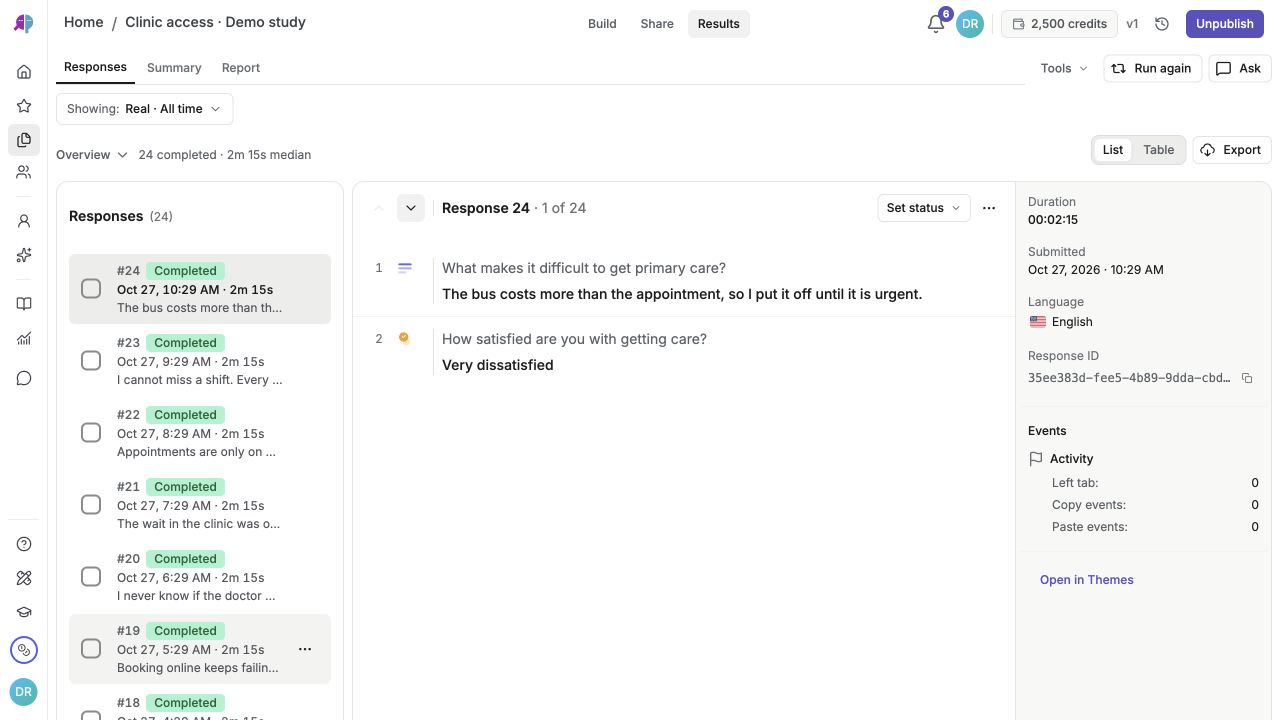
English interface · Results → Responses showing 24 demo responses with List and Table views.
### 3. Review the response signals
Open each response to review its session details, including IP address, location, device info, time spent, and events. Use these details to assess response quality.
## Details
Fraud detection runs automatically on responses. Checks include typing behavior (speed, paste/copy use, backspacing), speeding, and straight-lining on rating scales. When the necessary data is available, checks also include anonymizer IPs, a country mismatch with panel residence, shared IPs within the survey, and signs of machine-written pasted text.
The suspicious level and optional fraud data can be included in CSV and Excel exports. The Results quality filter applies to those exports. Including fraud columns does not itself exclude flagged responses. Respondent-code and answer-content filters are not carried into exports, so check the downloaded file if you used those to define a subgroup.
Select responses and click **Label** to add a respondent code (e.g., "Needs review", "Confirmed valid") for organized follow-up.
For QuestionPunk Panel studies, medium and high flags hold submissions for review before automatic approval. Review the answer content and the specific reasons before deciding what to do. A shared IP alone is a low-level signal: households, offices, and campuses can share an address. Neither a quality flag nor the absence of flags proves whether a response is valid.
IP address and IP-based location are unavailable for responses collected with **Minimize IP and location data** enabled. Review the remaining signals and the answer content instead of treating missing location as suspicious.
## Check the result
You can see which responses are unflagged or flagged as low, medium, or high, and you can filter or label them for review.
## If something goes wrong
If you do not see the filter you need, make sure you are in Results and not in Build or Share.
## Related articles
- [Test your survey with synthetic AI personas](https://www.questionpunk.com/support/synthetic-testing.md)
- [Design surveys for better responses](https://www.questionpunk.com/support/survey-design-best-practices.md)
- [Export response data](https://www.questionpunk.com/support/data-exports-exporting-results.md)
---
# Review a survey draft with the survey review tool
Canonical page: https://www.questionpunk.com/support/survey-review-tool
Get an AI grade and feedback on your survey draft before you publish it.
The survey review tool reviews your survey draft and grades its structural flow and overall design, logical ordering, question quality and wording, and survey-level considerations. It is a standalone tool. You do not need an account. Enter an email address to receive the report.
Last reviewed: 2026-10-27
Time: 2-5 minutes
Level: Beginner
Audience: Researchers, Students, Survey designers
## Before you start
Prepare your survey draft as pasted text, a supported file, or a survey link. Have an email address ready so you can receive the report.
## Steps
### 1. Open the survey review tool
Go to questionpunk.com/survey-review. You can also open it from the app.
### 2. Submit your survey draft
Paste your survey questions, upload a draft (.pdf, .docx, .txt, .qsf, .json, or an XLSForm .xlsx file; up to 20 MB), or import it from a survey link. Check the extracted content before requesting the AI review of structure, wording, and flow.
### 3. Check the grade and feedback
Review the overall grade and the grade for each of four dimensions: structural flow and overall design, logical ordering and page flow, question quality and wording (bias, clarity, double-barreling), and survey-level considerations such as fatigue. The report also lists flagged issues and suggests a revised survey.
### 4. Use the suggestions
Apply the feedback before publishing your survey. Start with the changes that will improve the survey the most.
## Details
The survey review tool gives AI feedback on your survey design. It grades surveys on four dimensions: structural flow and overall design, logical ordering, question quality and wording, and survey-level considerations.
It flags common issues such as double-barreled questions, leading wording, missing options, and problems in the survey flow.
You can request a review without an account by entering the email address that should receive the PDF report. Guest access is limited to one review per email address. Signed-in users use their account email and the review allowance shown for their plan. Treat the grade as AI feedback and pilot the revised survey with your intended audience.
## Check the result
You should receive a report with an overall grade, four dimension grades, flagged issues, and a suggested revised survey.
## If something goes wrong
If the review does not start, check the on-screen error, your remaining review allowance, and the input. Supported uploads are .pdf, .docx, .txt, .qsf, .json, and XLSForm .xlsx, up to 20 MB. A survey link must be accessible; otherwise paste the questions or upload a supported document.
## Related articles
- [Design surveys for better responses](https://www.questionpunk.com/support/survey-design-best-practices.md)
- [Question and block types guide](https://www.questionpunk.com/support/survey-design-question-types.md)
---
# Send your survey to multiple people
Canonical page: https://www.questionpunk.com/support/embed-and-share
Publish your survey, copy its participant link, and share the same link with everyone you want to invite.
Learn how to publish your survey and share it with a direct link, embed code, recruitment options, or a QR code. You can also customize the link preview and set a custom URL slug. A survey can also require a password (Settings > Who can respond), and Settings > Responses can give respondents a finish-later link and let them edit their answers after submitting.
Last reviewed: 2026-10-27
Time: 5-15 minutes
Level: Beginner
Audience: Researchers, Marketers, Educators
## Before you start
Finish building the survey in Build and make sure it is ready for participants. If you plan to recruit with your own Prolific account instead of QuestionPunk Panel, connect it first in Settings > Integrations > Prolific.
## Watch the walkthrough
[Send your survey to multiple people](https://www.questionpunk.com/support/videos/publish-and-share.mp4)
A navigation overview using actual English-interface demo screenshots, generated English narration, and English/Japanese captions. This is a narrated screenshot sequence, not a continuous recording. Examples are fictional.
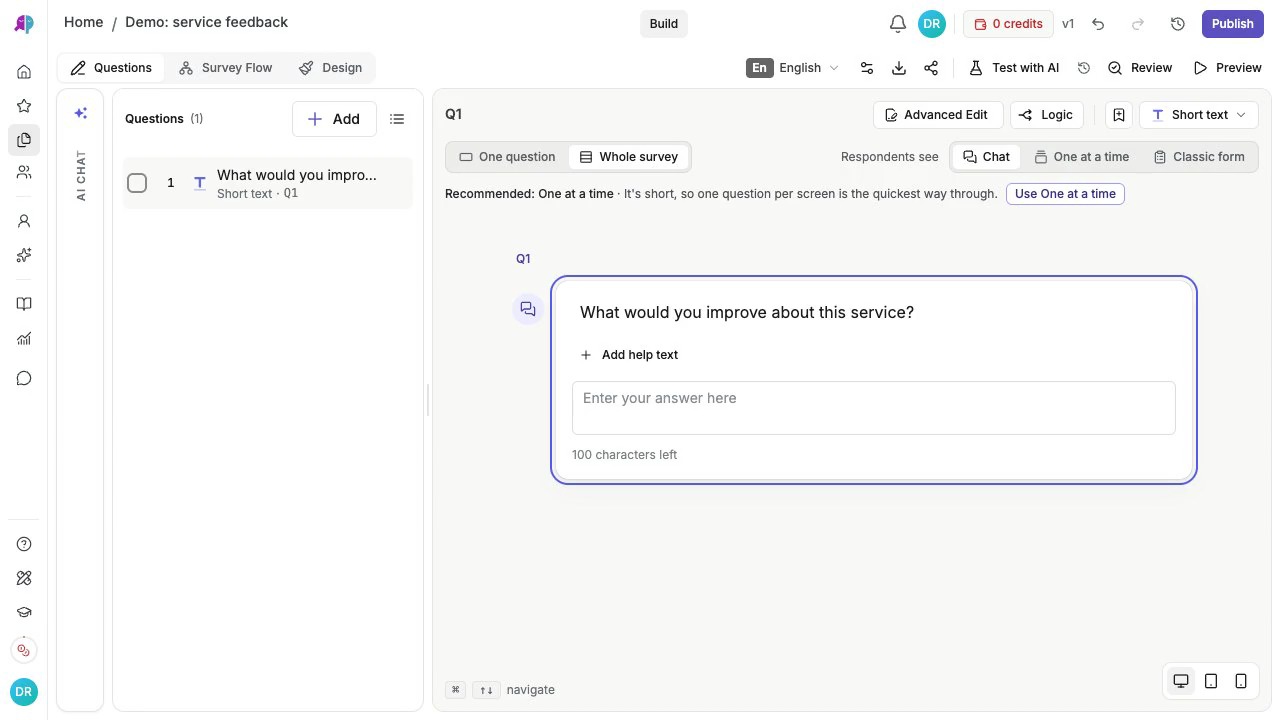
[English captions](https://www.questionpunk.com/support/videos/publish-and-share.en.vtt)
[Japanese captions](https://www.questionpunk.com/support/videos/publish-and-share.ja.vtt)
### Video transcript
When your survey is ready to share, click Publish in the top right of the editor. Review the pre-publish checks in the confirmation dialog, then click Publish. Your survey is now live. Click Copy link to copy the participant URL. To find your link, QR code, embed options, or recruitment tools later, open the Share tab at any time.
## Steps
### 1. Publish your survey
Open your finished survey. Click **Publish** in the top right. Review the confirmation window, then click **Publish** again. When publication finishes, your survey is live.

English interface · Demo study. Use the controls described in this step.
### 2. Copy the participant link
Click **Copy link** in the publication confirmation (on mobile browsers with a system share sheet, you can also tap **Share** to send the link directly). To find the link again later, choose **Share** at the top of the editor, open **Share link**, and click **Copy link**. Choose the survey language before copying a language-specific link.
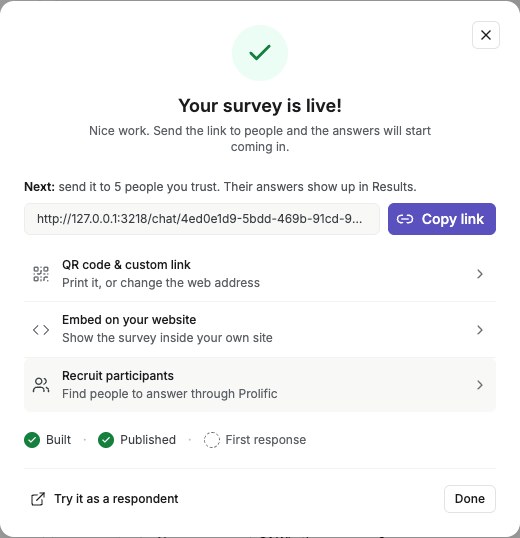
English interface · Demo study. Use the controls described in this step.
### 3. Send the same link to multiple people
Paste the link into an email, text message, or group chat. Everyone can use the same link, and each person submits their own answers. For example: “Please complete this short survey so we can plan hotel rooms for the reunion: [your survey link].” Use Bcc if you email people who do not know each other.
### 4. Share a QR code
In **Share link**, find the **QR Code**. Click **Download QR** to save a PNG or **Copy QR** to paste it elsewhere. Scan it with a phone before adding it to posters, slides, or printed invitations.
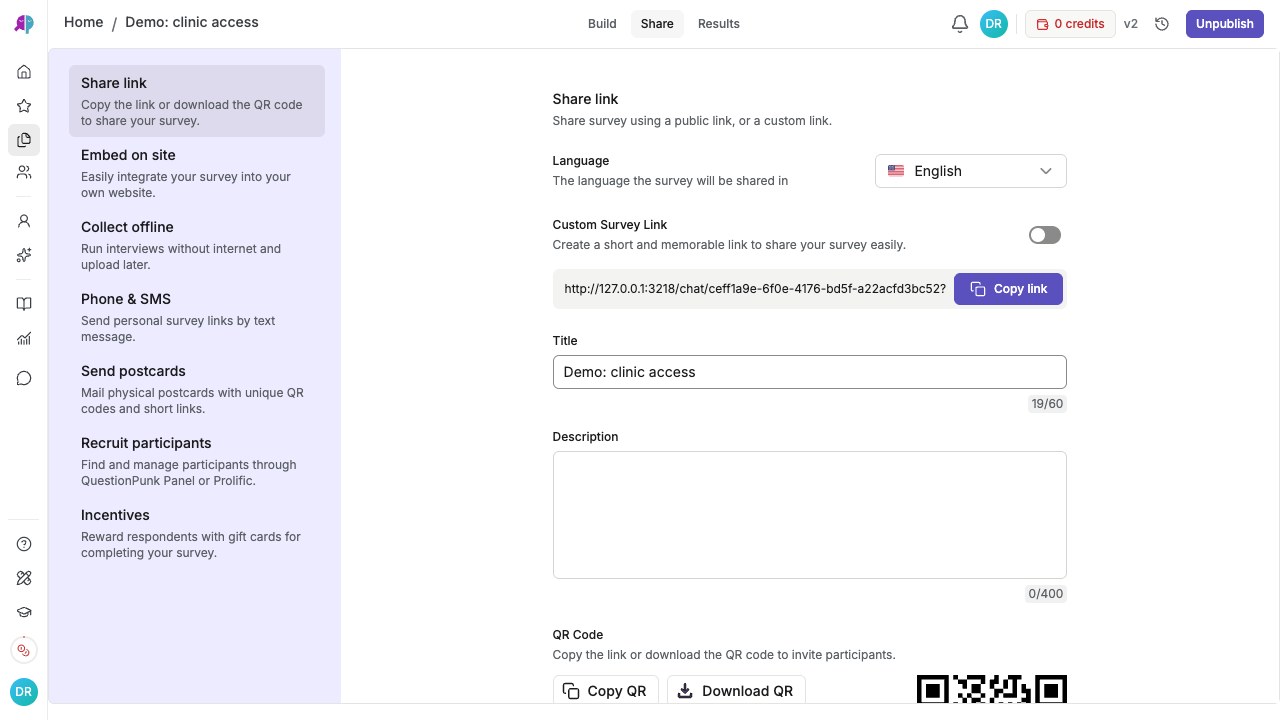
English interface · Local demo link for illustration. Use your own published link when sharing a real study.
### 5. Embed the survey on a website
Choose **Embed on site**. Pick **Standard** for a fixed container, **Full page** to fill the viewport, **Popup** for a modal, **Popover** for a button that opens a sidebar, or **Slide tab** for a slide-in panel. Under **Code format**, keep **Script tag** (a two-line snippet that works on custom sites and site builders such as Squarespace, Framer, Ghost, Carrd, and Google Sites, and receives `embed.js` updates automatically) or switch to **Inline HTML** for an alternative snippet. Standard and Full page use an iframe; Popup, Popover, and Slide tab still need inline JavaScript. Confirm your website permits the selected format. Copy the generated code into your website and check the published page.
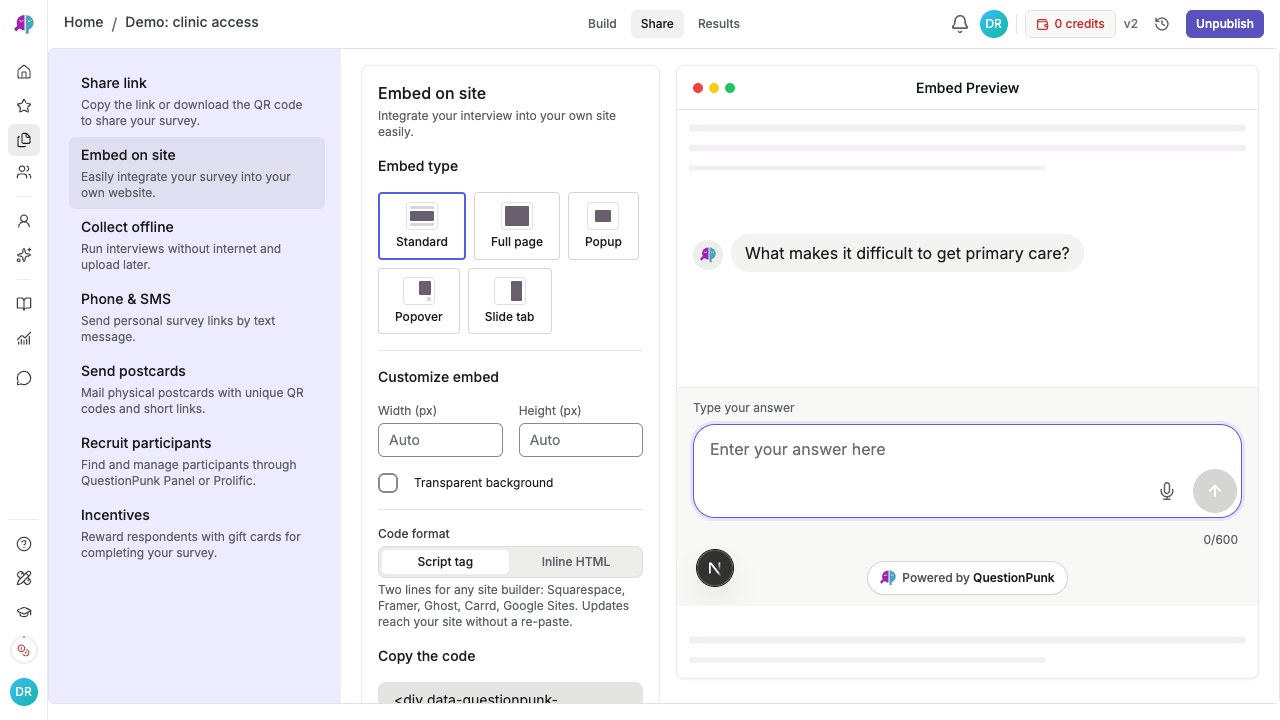
English interface · Demo study. Use the controls described in this step.
### 6. Recruit participants when you need a sample
Choose **Recruit participants**, then **QuestionPunk Panel**. Set the reward, number of places, estimated duration, and device requirements before launching a paid study. To pay with your own Prolific account instead, connect it first in Settings > Integrations > Prolific. See [respondent incentives](https://www.questionpunk.com/support/respondent-incentives) for gift-card rewards.
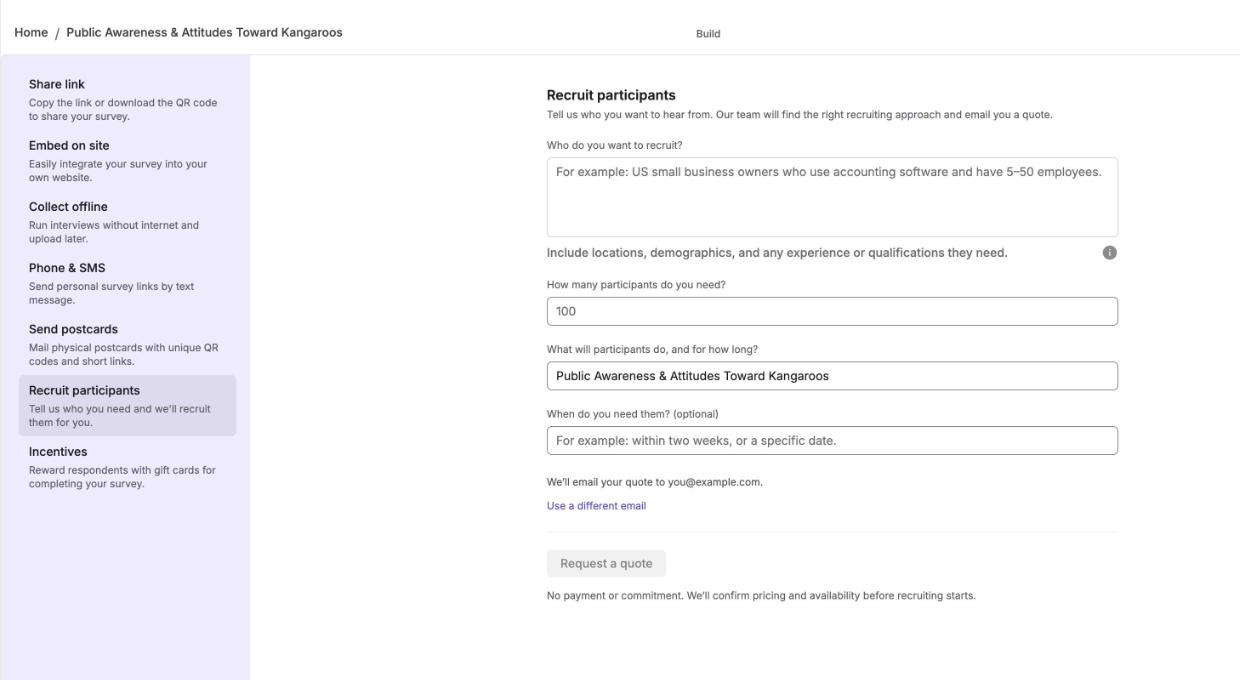
English interface · Recruitment setup only. This demo has no configured reward or active recruitment.
## Details
QuestionPunk offers several distribution methods: shareable links, website embeds (five embed styles: standard, full page, popup, popover, and slide tab), participant recruitment (QuestionPunk Panel), panel routing (SampleNinja, set in survey Settings), and QR codes.
Shareable links support per-language URLs. If your survey has multiple language versions, each language gets its own link.
**Share link variants** let you create a separate link and preview card for each audience (for example, one per university), up to 20 per survey.
From the **Share** tab, you can copy your public link, configure a custom slug, download a QR code, embed the survey on your site, collect offline responses, send SMS invitations, mail physical QR postcards via **Send postcards**, or recruit participants through QuestionPunk Panel or your own Prolific account.
Share icons in the Share link panel post your survey link to LinkedIn, X (Twitter), Facebook, WhatsApp, email, and Telegram.
**Using WordPress or a site builder?** The [WordPress guide](https://www.questionpunk.com/support/integrations-wordpress) covers the published-survey picker, page blocks, site-wide widgets, and WooCommerce placement. For Squarespace, Framer, Ghost, Carrd, or Google Sites, copy the two-line **Script tag** snippet from **Share → Embed on site** into an Embed or Code block.
**Check the link preview:** use the copied participant link and inspect its preview in the destination app. Short `/s/` links forward to the survey and use its own preview details and rendered language. The destination app decides how it displays the preview; check the title, image, and language before sending your invitation.
**Get feedback before you publish:** click the share icon (**Share Preview**) in the editor toolbar, or on a phone open the **⋯** menu and tap **Share preview**. Turn on **Enable shareable preview** and copy the link. Anyone with it can go through the survey without an account, and none of their answers are saved. When you are ready to collect responses, click **Publish** in the same window. Once the survey is published, people outside your team who open the preview link are sent to the live survey.
**Don't send the editor address.** The address in your browser while you edit a survey (it contains `/survey/`) opens the editor only for you and your team. Anyone else (after signing in, if they are not already) sees a page saying their account can't open the editor, with the account they are signed in with. If the survey is published they get a button to open the live survey; if its preview is shareable, a button to open the preview. Otherwise they are told to ask you for the survey link, and you get a notification. If it is your own survey and you are signed in with another account, choose **Sign in with a different account** to come back to the same page. Send the participant link or the preview link instead.
## Check the result
You should have a published survey and at least one working way to distribute it, such as a copied link, QR code, embed code, or recruitment setup.
## If something goes wrong
If the participant link shows a closed message, check that the survey is published. If the editor shows **Republish**, publish it again. A preview is for testing; use the participant link when inviting people. If people say your link asks them to sign in, you sent the editor address: send the participant link, or a shareable preview link before you publish.
## Related articles
- [Add a survey to WordPress](https://www.questionpunk.com/support/integrations-wordpress.md)
- [Export response data](https://www.questionpunk.com/support/data-exports-exporting-results.md)
- [Recruit participants with QuestionPunk Panel](https://www.questionpunk.com/support/integrations-prolific.md)
- [Use a QR code to share your survey](https://www.questionpunk.com/support/qr-codes.md)
---
# Use a QR code to share your survey
Canonical page: https://www.questionpunk.com/support/qr-codes
Download a QR code or print a flyer for your published survey.
Share your published survey with a QR image or a ready-to-print flyer containing a headline, a short line, and a QR code.
Last reviewed: 2026-10-27
Time: 1-2 minutes
Level: Beginner
Audience: Researchers, Marketers, Educators, Event organizers
## Before you start
Make sure the survey is ready to share. QR codes work from the published survey link.
## Steps
### 1. Open Share from the top section switcher
Open your survey, go to **Share** from the top section switcher, and publish the survey first if it is not live yet.
### 2. Confirm publication and find the QR code
Review the publication confirmation, confirm **Publish** again, and then find the survey link panel where the **QR Code** is shown for your published link.

English interface · Local demo link for illustration. Use your own published link when sharing a real study.
### 3. Download or copy the QR code
Click **Download QR** to save a PNG, or **Copy QR** to paste it elsewhere. For a ready-made page, choose **Print flyer** in the same QR code area. Edit **Headline** and **Short line**, choose **Language** if your survey has more than one, then click **Print** to open your browser’s print dialog. Scan the code with a phone before distributing the image or flyer.
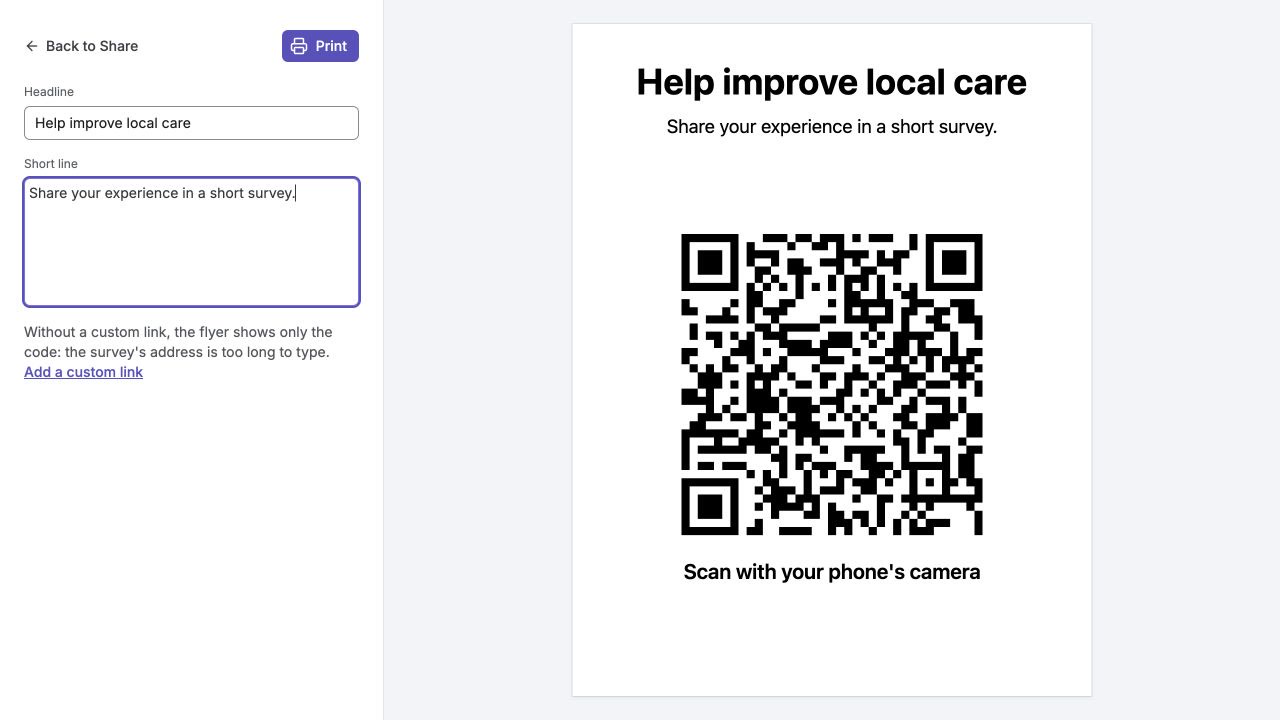
English interface · Fictional local demo. This example QR code is for a local test survey, not a public study. Flyer edits do not change the saved survey.
## Details
QR codes help you connect in-person and online survey sharing. Add the code to flyers, slides, or event signage.
When someone scans the QR code, the survey opens directly in their phone browser.
Flyer edits affect only the printout and are not saved to your survey. Changing Language resets the headline and short line to that language’s survey text, so choose the language before editing the wording.
A flyer with a [custom survey link](https://www.questionpunk.com/support/embed-and-share) also prints an address people can type. Without one, it shows only the QR code. Use **Add a custom link** to return to Share if you want a readable address.
## Check the result
You have a QR image or printed flyer whose code opens the intended published survey on a phone.
## If something goes wrong
If the flyer says the survey is not published, return to Share and complete publication before distributing it. Printing a flyer does not publish the survey. If a readable address is missing, add a custom link; the QR code can still work without one.
## Related articles
- [Send your survey to multiple people](https://www.questionpunk.com/support/embed-and-share.md)
---
# Translate a survey into other languages
Canonical page: https://www.questionpunk.com/support/translations
Add a language, review the translated questions, and test the matching participant link.
Choose automatic or manual translation, edit the result, and share a language-specific survey link. Pro Translate adds AI review notes; those notes do not replace human review or a participant pilot.
Last reviewed: 2026-10-27
Time: 10-20 minutes
Level: Intermediate
Audience: Researchers, International teams, Academics
## Before you start
Open Build and decide which source language and target language you need. Pro Translate uses the survey owner’s Pro, Team, or Enterprise plan. For an established questionnaire, use its publisher’s official translation where available.
## Steps
### 1. Add a language
In the survey editor, open the language menu at the top right of the Build toolbar. Choose a language under **Supported languages**. In the **Translate your survey** dialog, choose Standard, Pro Translate, or **Translate Manually**.
### 2. Check the translation and review status
For Standard translation, review the resulting wording in the editor. If you used Pro Translate, open **Translation and review** or **Translation review notes** in the Build sidebar. This opens a separate tab. Check the source language, run status and available notes; queued or running does not mean the translation is finished.
### 3. Review the actual survey wording
Select the target language from the **More options (⋮)** menu in the editor header and check the questions, answer options, and messages. Edit wording that needs correction, then use **Preview** to check layout and flow.
### 4. Test and copy the language-specific link
If the survey is not yet live, click **Publish**, review the confirmation and confirm publication. Open **Share > Share link**, select the target language and choose **Copy link**. Open that participant link and check its language before distributing it. Pilot the survey with someone who understands the intended language and audience.
## Details
Choose from the languages offered in the current editor. Survey wording, the app interface and a voice provider’s language support are different; test the intended interview mode as well as the translated questions.
AI interviews run in the language the respondent chose. Voice interviews can optionally follow a respondent who switches language during the interview.
Each language version has its own shareable link, so you can send different links to different regional audiences. The same participant link can be shared with multiple people, and each person submits separate answers.
**Before running Pro again:** check and preserve any manual translation edits you need. A rerun replaces the language’s wording and review report. AI review notes describe that run, not certification of your current survey.
Pro Translate compares independent AI translations, reconciles differences and checks meaning through blind back-translation. Review its notes and glossary alongside the actual questions. It does not include certified translation or validation with respondents.
**Optional human review:** when offered on the completed Pro review page, choose **Request a review quote** or **Already have a reviewer? Download the workbook**. A quote request sends the details and workbook to the QuestionPunk team; it does not place a paid order. Downloading a workbook changes no survey wording. Returned reviewer edits must currently be checked and applied manually.
## Check the result
The target-language wording has been reviewed in the survey, and the matching participant link opens in the intended language. A completed Pro run is a draft ready for review, not proof of human validation.
## If something goes wrong
If review details do not load, use Try again. If the Pro run failed, check Translate from and use Retry Pro translation when available; read the replacement warning first. If Owner upgrade needed appears, Pro eligibility depends on the survey owner’s plan. For a wrong-language link, reselect the language in Share link and copy it again.
## Related articles
- [Send your survey to multiple people](https://www.questionpunk.com/support/embed-and-share.md)
- [How AI interviews work](https://www.questionpunk.com/support/ai-how-it-works.md)
---
# Customize branding and themes
Canonical page: https://www.questionpunk.com/support/custom-branding
Change chat colors, fonts, bubble styles, logos, and avatars.
Make your survey match your brand. In Build, QuestionPunk lets you change chat colors, fonts, bubble styles, input styles, logos, and avatars. You can use a preset avatar, upload your own, or generate one with AI.
Last reviewed: 2026-10-27
Time: 5-15 minutes
Level: Beginner
Audience: Marketers, Brand managers, Researchers
## Before you start
Open the survey editor and stay in Build. Have your logo file and brand style choices ready if you want to apply them.
## Watch the walkthrough
[Customize the survey design](https://www.questionpunk.com/support/videos/brand-and-preview.mp4)
A navigation overview using actual English-interface demo screenshots, generated English narration, and English/Japanese captions. This is a narrated screenshot sequence, not a continuous recording. Examples are fictional.
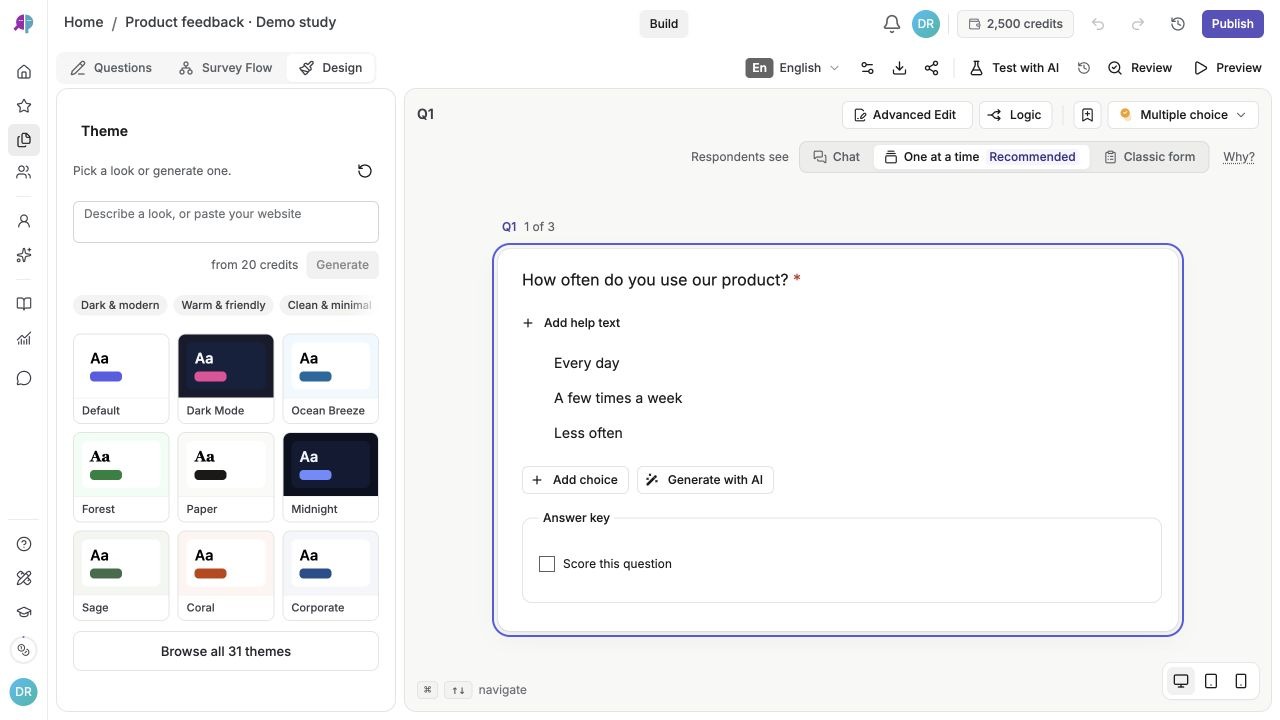
[English captions](https://www.questionpunk.com/support/videos/brand-and-preview.en.vtt)
[Japanese captions](https://www.questionpunk.com/support/videos/brand-and-preview.ja.vtt)
### Video transcript
Open Design in the editor header. Choose a theme and review the typography, colors, and layout. Open Survey settings and check Look for display preferences and When it ends for the completion screen. Preview on desktop and mobile to make sure participants can read every question and use every control.
## Steps
### 1. Open Design in Build
Open **Design** in the editor header. In the classic editor shown here, choose a theme and scroll through the brand and display settings. If your editor has **Theme** and **Customise** tabs, choose the theme in Theme and adjust fonts, colors, and display settings in Customise. See [survey modes](https://www.questionpunk.com/support/survey-modes) to change the participant format.
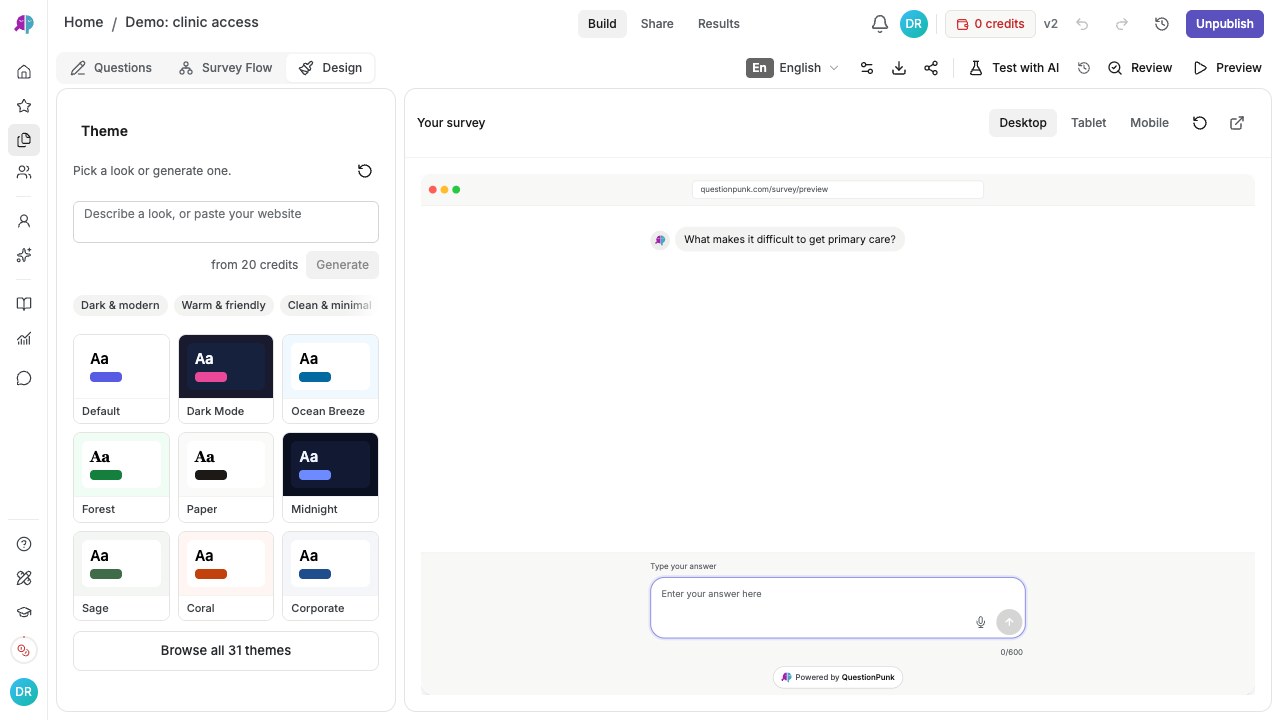
English interface · Classic editor with theme choices and a survey preview. Some accounts have separate Theme and Customise tabs.
### 2. Generate a theme or choose one
Under **Theme**, describe the look you want and click **Generate**. The generated theme applies immediately; review it in the preview. Use **Undo** to restore the look from before this round of generated themes, or **Regenerate** to try another. You can also click a built-in theme to apply it.
### 3. Customize colors and fonts
Set your brand color. Then set the background, bubble, and text colors. Choose a font style (system, sans-serif, serif, monospace, rounded). Pick a chat bubble style (rounded, square, minimal, modern, none). Select an input style (rounded, square, minimal, underlined, bordered). Choose a send button style (rounded, square, circle, pill, minimal). Under **Text size**, choose **Standard**, **Large**, or **Extra large**. This changes respondent text across Chat, One at a time, and Classic form; check the preview at your participants’ screen sizes.
### 4. Turn Card layout on or off
Surveys run edge-to-edge by default. Turn on the **Card layout** switch in Design to wrap the survey in a rounded card instead. Edge-to-edge works well for embedded surveys and immersive branded flows.
### 5. Set streaming and animation
Choose how AI responses appear to respondents: **Raw** (instant display), **Word-by-word**, or **Letter-by-letter**. Set the typing label shown while the AI is thinking. You can use the default label, custom text, or an AI-generated creative label.
### 6. Add logos and avatars
Upload your company logo under Brand to show it in the survey header. Under **Assistant Avatar**, choose a preset (QuestionPunk, Robot, Assistant, Chat, Sparkle, Gradient) for the AI interviewer, or upload or AI-generate your own image.
### 7. Customize survey screens
Edit the **welcome screen** and **thank-you screen** on their cards in the builder. Add them from **Add Question** > Form structure if needed. In **Settings > When it ends**, set the redirect URL and the **closed-survey message** shown after the survey stops accepting responses. For traditional surveys, set the Back, Next, and Submit button labels in **Settings > Look**.
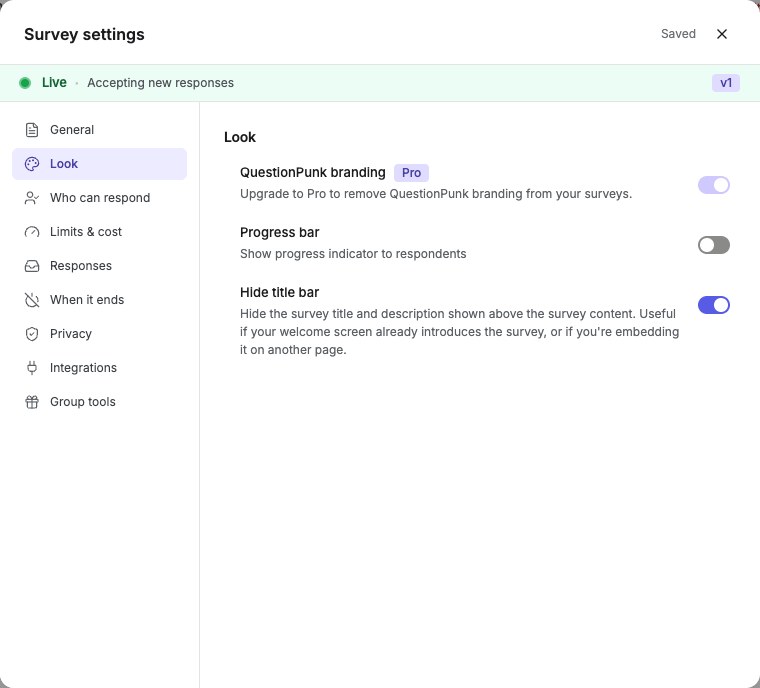
English interface · Survey settings → Look. Participant mode is selected separately under Respondents see in Questions.
### 8. Preview your branding
Check the design preview, then open **Preview** to test the respondent experience on the intended devices. Confirm the saved participant mode using [Respondents see](https://www.questionpunk.com/support/survey-modes) and test the full flow, including any interactive cards in Classic form. With larger text, check long labels, answer choices, and buttons on a narrow screen.
## Details
Custom branding makes your survey feel like a natural part of your brand. You can customize colors, fonts, bubble styles, input styles, logos, and streaming animations.
Use **Generate** to describe a look and apply an AI theme as soon as it is ready. Review the displayed credit estimate before generating. A website address in the same box uses brand matching instead. Built-in themes provide another quick starting point.
Chat bubble styles include rounded, square, minimal, modern, and none. Font options include system, sans-serif, serif, monospace, and rounded. Input styles include rounded, square, minimal, underlined, and bordered. Send button styles include rounded, square, circle, pill, and minimal.
The **Card layout** toggle controls whether the survey is rendered edge-to-edge (the default) or wrapped in a rounded card.
Control how AI responses stream to respondents: raw (instant), word-by-word, or letter-by-letter. You can also customize the typing indicator label shown while the AI composes a response.
Choose from preset avatars (QuestionPunk, Robot, Assistant, Chat, Sparkle, Gradient), or upload or AI-generate an image for the AI interviewer. You can also customize the status dot color and visibility next to the avatar.
Set the default input mode for respondents: **text first** (typing with optional audio) or **audio first** (microphone with optional typing). This is useful for AI audio interviews when you want respondents to start speaking right away.
In chat mode, the **Fixed answer panel** toggle keeps the input below a divider line instead of scrolling with the messages. It's off by default.
Edit the welcome and thank-you screens on their cards in the builder. In Settings, set the closed-survey message and a redirect URL for after completion, and rename the Back, Next, and Submit buttons for traditional surveys.
Pro, Team, and Enterprise plans can remove QuestionPunk branding in **Settings > Look**. On the Free plan, the thank-you screen shows a "Made with QuestionPunk" link and a box that invites respondents to start their own survey.
**Keep or undo an AI theme:** **Back** returns to the prompt without removing the applied theme; Undo is still available there. You can leave Design and return during the same browser session while the generated look is unchanged. Changing its colors, font, or other generated style settings by hand removes that theme-specific Undo option. Use [version history](https://www.questionpunk.com/support/version-history) for a saved restore point.
## Check the result
The live preview should reflect your selected theme, colors, layout, logo, and avatar. If you added welcome or thank-you screens, their cards should appear in the builder.
## If something goes wrong
If you cannot find **Design**, open **Questions** or **Flow** in the survey editor and click the **Design** icon button in the top-right header, or open **Survey settings → Look**.
## Related articles
- [Create your first survey](https://www.questionpunk.com/support/create-your-first-survey.md)
- [How AI interviews work](https://www.questionpunk.com/support/ai-how-it-works.md)
---
# Export response data
Canonical page: https://www.questionpunk.com/support/data-exports-exporting-results
Export response data as Excel or CSV, or find the right download for a questionnaire, report, or presentation.
Start with the file you need. The steps below cover response data; the details section lists other export destinations. CSV and Excel exports apply the selected status, quality, response type, date, revision, and wave filters. Respondent-code and answer-content filters are not carried into the download.
Last reviewed: 2026-10-27
Time: 1-10 minutes depending on size
Level: Beginner to Intermediate
Audience: Analysts, Researchers
## Before you start
**Filter coverage:** CSV and Excel exports, in both Standard and Expanded layouts, apply status, suspicious level, real/synthetic response type, date range, survey revision, and wave filters. They do not apply respondent-code selections or answer-content filters. For those subgroups, include the needed columns and filter the downloaded file yourself; contact support if the file lacks the fields needed to identify the subgroup.
## Watch the walkthrough
[Export survey responses and attachments](https://www.questionpunk.com/support/videos/export-results.mp4)
A navigation overview using actual English-interface demo screenshots, generated English narration, and English/Japanese captions. This is a narrated screenshot sequence, not a continuous recording. Examples are fictional.
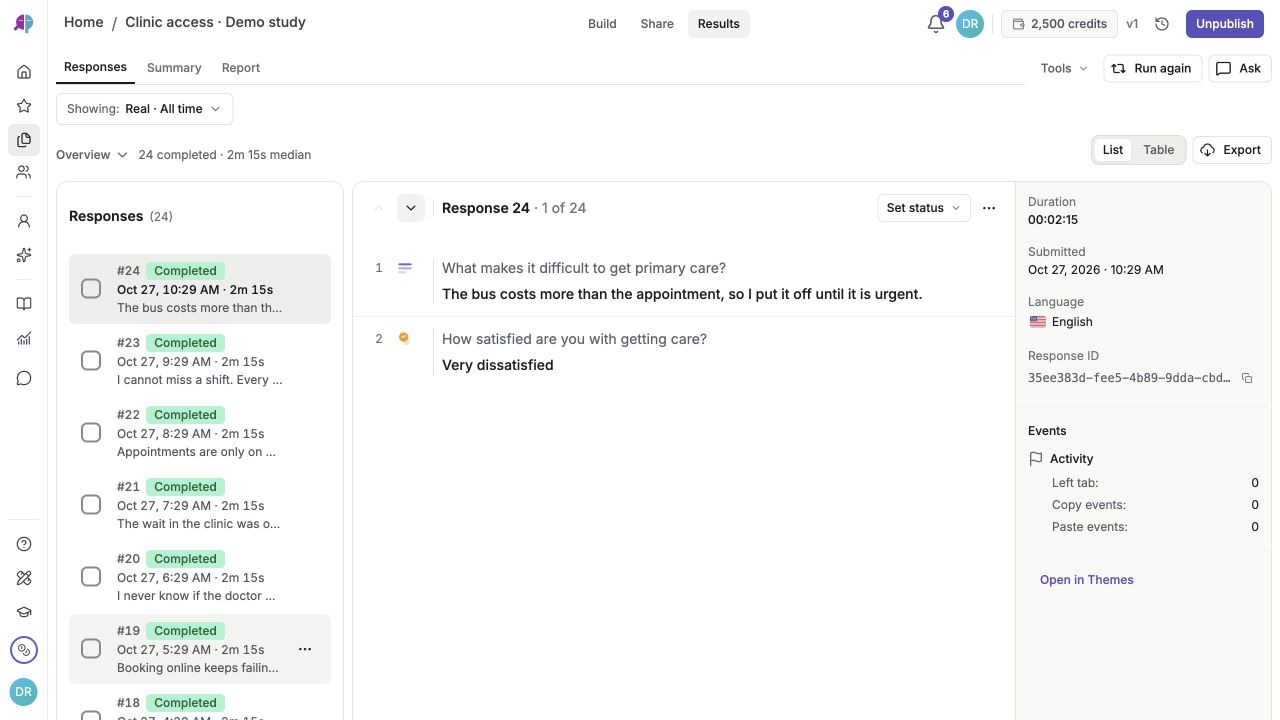
[English captions](https://www.questionpunk.com/support/videos/export-results-2026-10.en.vtt)
[Japanese captions](https://www.questionpunk.com/support/videos/export-results-2026-10.ja.vtt)
### Video transcript
In Results, open Responses and confirm your active response filter and completed count before exporting. Click Export to choose Excel or CSV, or use Download all files for respondent attachments, then review the layout, answer format, and metadata fields.
## Steps
### 1. Open the response data
Open your survey, then choose **Results → Responses**. Set the status, quality, real/synthetic response type, date, revision, and wave filters you need. Note any respondent-code or answer-content filters separately: those are not passed to response exports.

English interface · Results → Responses showing 24 demo responses with List and Table views.
### 2. Choose the file and layout
Click **Export** in **Results → Responses**. Choose **Excel (.xlsx)** or **CSV (.csv)**, then select a **Layout** (**Standard** or **Expanded**) and **Answer format** (**Labels**, **Numeric**, or **Both**). If your survey collects file uploads, audio, or video recordings, use **Download all files** at the bottom of the dialog to download a ZIP archive of respondent attachments. To export a single submission as a formatted document, open that submission in **Responses** and choose **Download PDF**. Developers can also pull responses as JSON via the [REST API or MCP server](https://www.questionpunk.com/support/api-access).
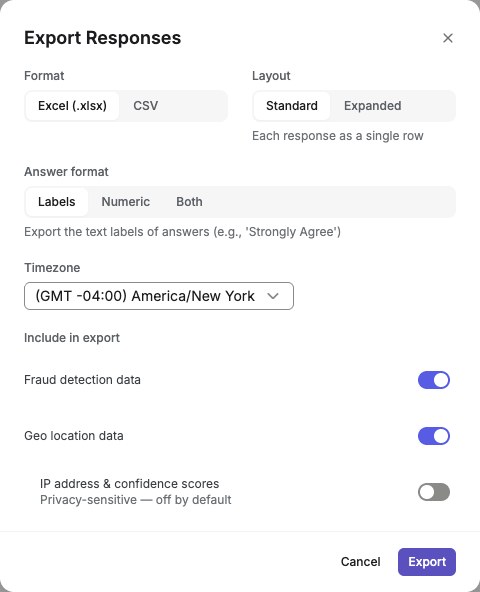
English interface · Export setup for 24 fictional demo responses. Review the included fields before downloading.
### 3. Review columns and download
Check the timezone and optional columns. Turn on **Respondent Codes** if you need code columns; this does not filter the file by those codes. Fraud data is included by default and can be turned off. Click **Export** to download.
### 4. Verify the downloaded responses
Open the file and check the response IDs, questions, response type, and dates against the group you intended to export. Exclude synthetic test responses when reporting human findings. Expanded exports contain several rows per response: row count is not participant count. Keep answer labels with numeric codes so you can interpret them.
## Details
CSV and Excel exports offer two layouts: **Standard** (one row per respondent, useful for spreadsheet tools and quick analysis) and **Expanded** (one row per question/answer, useful for detailed joins and per-question analysis). Choose an answer format (labels, numeric, or both) to control how responses appear in the export. Every plan exports all of its responses.
**Questionnaire (PDF or Word):** open **Build → Export survey**. This exports the survey structure, not response rows.
**Question charts (PDF, PNG or JPG):** open **Results → Summary → Download**.
**Presentation (PowerPoint):** open **Results → Summary → Download → PowerPoint presentation**. See [presentation exports](https://www.questionpunk.com/support/ppt-generation).
**Narrative report (PDF or Word):** open **Results → Report**, then export the report. Review AI-generated interpretations against the source answers before sharing.
Fraud data is optional in response exports. Including a quality signal does not automatically remove flagged responses.
Respondent codes can be included in CSV and XLSX exports by turning on Respondent Codes. This adds columns for each code, making it easy to segment and filter responses by your custom tags in external analysis tools.
**Verify the file before analysis.** Record the filters and export options you used. Open the download and confirm the expected questions and responses are present. Expanded exports contain multiple rows per respondent, so a spreadsheet row count is not a participant count. If you selected Numeric or Both, keep the option labels with the codes for interpretation. For human findings, check that synthetic test responses are excluded.
**Copy uploaded files to cloud storage:** Where available, open **Survey settings → Integrations → File storage**. Connect Google Drive, OneDrive, Dropbox, or Box, select the account, name the new folder, and review **One folder per response** and **Also copy files from earlier responses** before choosing **Create folder and start copying**. Review copied/failed counts and inspect the destination folder. Reconnect, free space, or retry failures as indicated. This copies respondent uploads, including photos and signatures; it is separate from spreadsheet answer exports.
## Check the result
You have a downloaded file whose contents and included responses you have checked, with synthetic data excluded when reporting human findings.
## If something goes wrong
If the file includes unexpected responses, check whether you relied on respondent-code or answer-content filters; those do not carry into exports. Recheck the supported filters and export options. Verify the file before sharing it.
## Related articles
- [Run another wave of the same survey](https://www.questionpunk.com/support/run-survey-again.md)
- [Keep and export survey data](https://www.questionpunk.com/support/data-exports-retention.md)
- [View your survey report](https://www.questionpunk.com/support/view-report.md)
- [Fraud detection and response quality](https://www.questionpunk.com/support/fraud-detection.md)
- [Generate a PowerPoint presentation](https://www.questionpunk.com/support/ppt-generation.md)
---
# View your survey report
Canonical page: https://www.questionpunk.com/support/view-report
How to review results and understand each Results section.
Use the Results section to review charts for closed-ended questions, response lists for open-ended questions, AI-generated analysis, and per-question summaries. This article explains where to find each view and what it shows. Reports read the study's A/B design (randomized groups or URL-parameter splits) and compare the arms. Responses a survey ended early show as "Screened out" and are counted apart from completes.
Last reviewed: 2026-10-27
Time: 5-10 minutes
Level: Beginner
Audience: Analysts, Researchers, Educators
## Before you start
Open the survey first and switch to Results from the top section switcher. You need collected responses to review response data and generate useful analysis.
## Watch the walkthrough
[Find responses and generate a report](https://www.questionpunk.com/support/videos/review-results.mp4)
A navigation overview using actual English-interface demo screenshots, generated English narration, and English/Japanese captions. This is a narrated screenshot sequence, not a continuous recording. Examples are fictional.

[English captions](https://www.questionpunk.com/support/videos/review-results.en.vtt)
[Japanese captions](https://www.questionpunk.com/support/videos/review-results.ja.vtt)
### Video transcript
In Results, open Responses to inspect individual submissions and check your active filters. Open Summary to review distributions and per-question breakdowns across completed responses. Open Report to prepare an AI report. Review generated findings against your responses, or use Ask to query your evidence.
## Steps
### 1. Open the Results section
Use the top section switcher to open **Results**. Work in **Report** for AI narrative summaries, **Summary** for per-question charts and statistics, and **Responses** to review individual submissions. Open **Ask** alongside these sections. For synthetic test history, return to **Build** and open the **AI test runs** history icon beside **Test with AI**.

English interface · Report navigation overview before generation. No AI findings have been generated for this demo.
### 2. Browse individual responses
Open **Responses** to see collected responses in a list on the left. Click one response to view the full conversation in the center panel. Check the right panel for response details such as language, date, fraud status, events, and geolocation. Filter by status, suspicious level, response type, date range, revision, answer content, and respondent codes. To compare people side by side, switch from **List** to **Table** above the responses. The Table shows one row per completed response (pick an unfinished status in the filter to see those), labelled by the name the respondent typed when the survey asks for one, with a column for each question. Select a row to open that response in the list. The switch remembers your choice in this browser, and phones show one card per response.

English interface · Results → Responses showing 24 demo responses with List and Table views.
### 3. Generate an AI report
Open **Report** to create an AI-generated narrative report from your survey data. The report can include executive summaries, per-question analysis, charts, and key themes. Refine the report in the conversation interface, and compare saved versions. Export the report as PDF or Word.
### 4. Review per-question results
Open **Summary** to review auto-generated charts for each question. Structured questions show response distributions with counts and percentages. Open-ended responses appear in lists with timestamps. Download the question breakdown as PDF, PNG, or JPG, or as a PowerPoint deck.

English interface · Results → Summary showing per-question charts across 24 demo responses.
### 5. Ask questions with AI
Use **Ask** to ask natural-language questions about your survey data. The AI can return insights, inline charts, stat badges, and quote blocks from responses, with citations linked to source responses. See [AI insights](https://www.questionpunk.com/support/ai-insights) for more analysis options.
### 6. Tag and annotate responses
Use [respondent codes](https://www.questionpunk.com/support/data-exports-exporting-results) to tag responses with colored labels and add internal comments for your team. Codes and comments appear in the response detail panel on the right side.
## Details
Results brings together individual Responses, saved narrative Report versions, Summary charts, and the Ask assistant. Synthetic run history opens separately from the AI test runs icon in Build. Synthetic answers are simulations, not evidence from real participants.
AI-generated reports can include executive summaries, per-question analysis, charts, and extracted themes. Refine the report through the conversation interface, compare versions, and export as PDF or Word.
Per-question charts are created automatically for structured question types. Download the question breakdown as PDF, PNG, or JPG for presentations or reports.
From Results tools, you can open [Themes](https://www.questionpunk.com/support/qualitative-analysis) to work with open-ended responses, or [Stats](https://www.questionpunk.com/support/quantitative-analysis) for methods such as descriptive summaries, correlations, regression, and segmentation. Use these methods to explore relationships, not to claim causation. PowerPoint generation is under Summary > Download.
**Voice interview findings:** an individual interview in **Responses** can show **Found out** with full, partial, or not-reached status and available quotes. In **Summary**, **What we found out** shows found/total for each tracked item. The denominator is interviews that tracked that item within the current filters and access scope, not all study responses. Editing an item’s wording during a study can create separate rows. Earlier interviews without tracking do not gain findings retroactively; withheld figures are omitted. Verify the AI judgments against the source transcript.
## Check the result
You should be able to use Report, Summary, Responses, and Ask, and open synthetic test history using AI test runs beside Test with AI in Build.
## If something goes wrong
If an older guide calls the charts Questions or Breakdown, open **Results → Summary**. Use **Report** for the narrative report and **Ask** to ask about your responses.
## Related articles
- [Use AI insights and analysis](https://www.questionpunk.com/support/ai-insights.md)
- [Qualitative analysis and coding](https://www.questionpunk.com/support/qualitative-analysis.md)
- [Quantitative analysis](https://www.questionpunk.com/support/quantitative-analysis.md)
- [Export response data](https://www.questionpunk.com/support/data-exports-exporting-results.md)
---
# Qualitative analysis and coding
Canonical page: https://www.questionpunk.com/support/qualitative-analysis
Code open-ended responses with AI help, organize themes, and check intercoder reliability.
QuestionPunk includes a workspace for coding open-ended and AI interview responses. Use it to run AI-assisted coding, organize codes into theme hierarchies, measure intercoder reliability, and export coded data.
Last reviewed: 2026-10-27
Time: 15-30 minutes
Level: Intermediate to Advanced
Audience: Researchers, Academics, Analysts
## Before you start
Have open-ended responses available in a QuestionPunk study, a CSV, or a connected Qualtrics survey. Decide whether you want to start from a blank codebook or an AI-drafted one.
## Watch the walkthrough
[Find the analysis workspaces](https://www.questionpunk.com/support/videos/find-analysis-tools.mp4)
A navigation overview using actual English-interface demo screenshots, generated English narration, and English/Japanese captions. This is a narrated screenshot sequence, not a continuous recording. Examples are fictional.
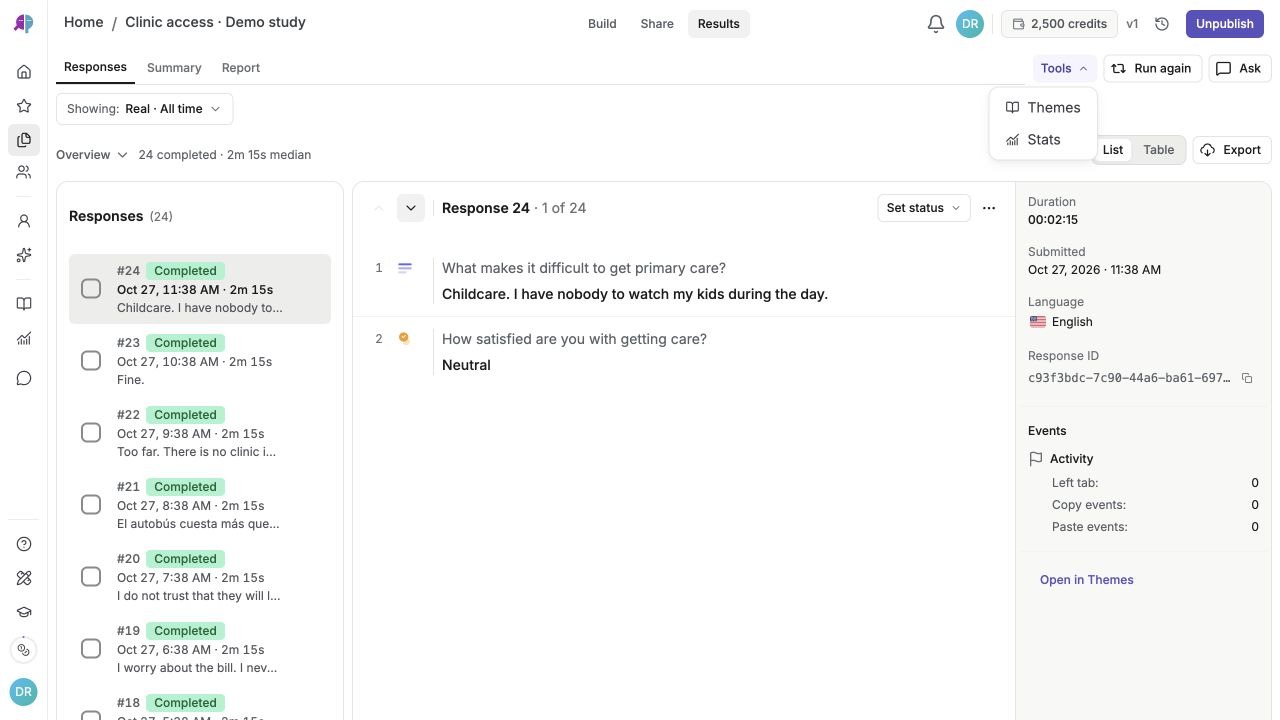
[English captions](https://www.questionpunk.com/support/videos/find-analysis-tools.en.vtt)
[Japanese captions](https://www.questionpunk.com/support/videos/find-analysis-tools.ja.vtt)
### Video transcript
In Results, open Tools and choose Themes to code open-ended text responses and review your codebook. Open Tools and choose Stats to run descriptive statistics, crosstabs, and hypothesis tests on structured variables.
## Steps
### 1. Open the qualitative workspace
Open **Themes** from the sidebar, or choose **Tools** > **Themes** in a survey’s **Results** section. Select the open-ended question you want to code. You can also import a CSV or connect a Qualtrics survey to bring in text-entry questions.
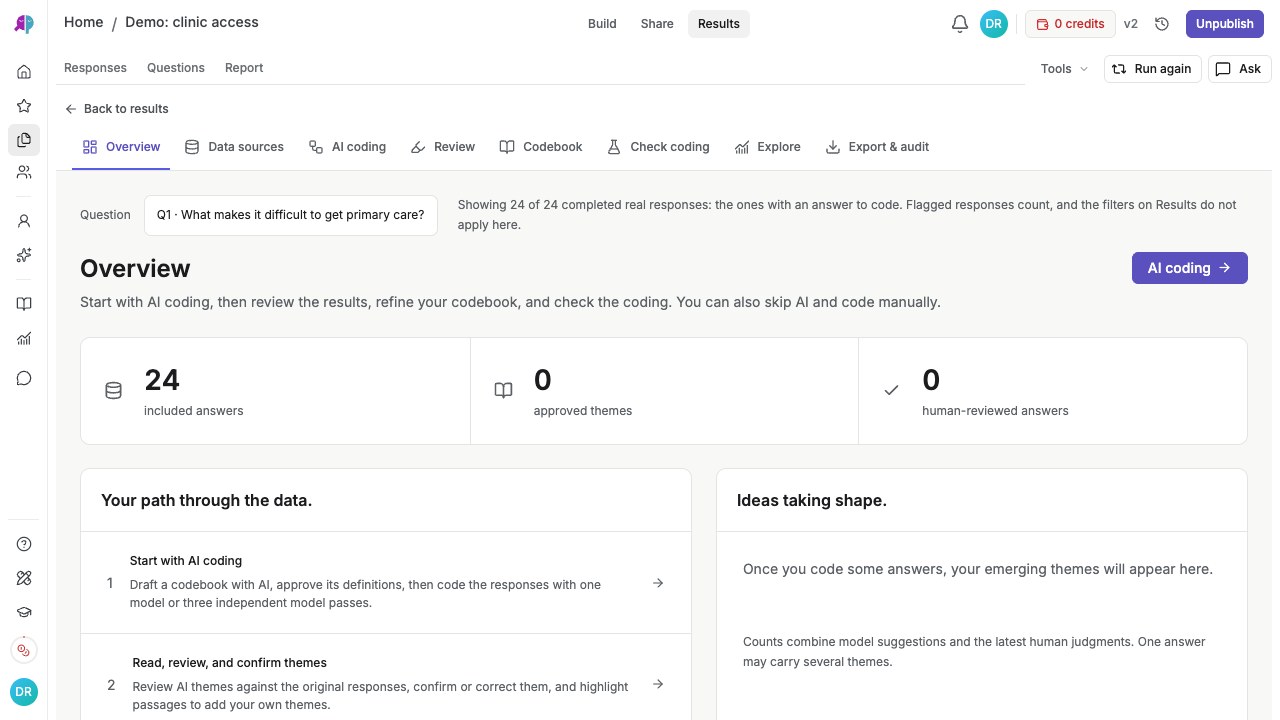
English interface · Themes navigation overview before coding or approving themes. All answers are fictional.
### 2. Set up a research framework
Open **Codebook** and create an initial codebook. Start with a blank codebook, or let AI draft codes from your data.
### 3. Run an AI coding session
Open **AI coding**, or the coding action in **Start** if your workspace uses the four-step layout. Review the included and excluded answers, selected models, estimated credits, and credit limit in the confirmation before starting. AI applies the codebook to responses; review its coding against the quoted source text.
### 4. Review and refine codes
Open **Review**, or **Workbench** in the four-step layout, to read answers and check assigned codes against their source passages. Accept AI coding or edit it where needed. Use **Codebook** to refine definitions, merge similar codes, and split broad ones. Distinguish respondent counts from coded passages: one answer can contain several themes.
### 5. Explore themes
Use **Explore**, or **Analyze** in the four-step layout, to review theme distributions. In **Matrix**, compare themes by a closed-question attribute and open a cell to inspect the underlying answers. Check the displayed base and exclusions before comparing groups.
### 6. Measure intercoder reliability
Use **Check coding** to assess agreement on a blind sample with Cohen’s Kappa and Krippendorff’s Alpha. In the four-step layout, open **Check your coding on a blind sample** from Workbench or Export. Inspect the sample, disagreements, and code definitions; an agreement score alone does not establish the validity of the themes.
### 7. Export coded data
Use **Export** to download a respondent-by-code matrix (CSV), the codebook (CSV), a REFI-QDA .qdpx project for NVivo, ATLAS.ti, or MAXQDA, a methods statement, or the full JSON research record.
## Details
Qualitative analysis in QuestionPunk helps you turn raw open-ended responses into structured findings. AI-assisted coding speeds up the work, but you stay in control of coding decisions.
Use the workspace navigation to start coding, edit the codebook, review answers, explore themes, and export your work. Follow the task names shown in your workspace; layouts can change.
You are not limited to native QuestionPunk surveys. Import a CSV of open-ended responses, or connect directly to a Qualtrics survey and choose which text-entry questions to bring in for coding.
Theme hierarchies let you group codes into parent-child relationships. This helps you analyze the same data at different levels of detail.
The methods statement in Export records how coding was done. It does not claim theoretical saturation. That judgment stays with you.
Intercoder reliability metrics (Cohen's Kappa and Krippendorff's Alpha) give quantitative measures of coding consistency. They can support publishable qualitative research, but they do not replace substantive review.
Add analytic memos to document coding decisions and keep a record of your process.
## Check the result
You should have coded responses, a usable theme hierarchy, and exported files or reliability metrics if you ran those steps.
## If something goes wrong
If no responses appear for coding, check that your imported CSV or Qualtrics source includes text-entry questions and that you selected the right data source.
## Related articles
- [Use AI insights and analysis](https://www.questionpunk.com/support/ai-insights.md)
- [View your survey report](https://www.questionpunk.com/support/view-report.md)
- [Quantitative analysis](https://www.questionpunk.com/support/quantitative-analysis.md)
- [Export response data](https://www.questionpunk.com/support/data-exports-exporting-results.md)
---
# Quantitative analysis
Canonical page: https://www.questionpunk.com/support/quantitative-analysis
Run descriptive statistics, correlations, regression, and segmentation on your survey data, and save analyses you can rerun later.
Explore structured data with summaries, group comparisons, paired measurements, rating scales, reliability, correlations, regression, segmentation, and principal components. Filter and save analyses to rerun or export later. Group summaries can also use weights.
Last reviewed: 2026-10-27
Time: 10-20 minutes
Level: Intermediate
Audience: Researchers, Analysts, Product teams
## Before you start
Make sure your survey already has responses, or prepare a CSV dataset to import. Check that the variables you want to analyze are typed correctly in the dataset.
## Watch the walkthrough
[Find the analysis workspaces](https://www.questionpunk.com/support/videos/find-analysis-tools.mp4)
A navigation overview using actual English-interface demo screenshots, generated English narration, and English/Japanese captions. This is a narrated screenshot sequence, not a continuous recording. Examples are fictional.

[English captions](https://www.questionpunk.com/support/videos/find-analysis-tools.en.vtt)
[Japanese captions](https://www.questionpunk.com/support/videos/find-analysis-tools.ja.vtt)
### Video transcript
In Results, open Tools and choose Themes to code open-ended text responses and review your codebook. Open Tools and choose Stats to run descriptive statistics, crosstabs, and hypothesis tests on structured variables.
## Steps
### 1. Open Quantitative
Click **Quantitative** in the sidebar to see the studies available to you. You can also open it from a survey by using the top section switcher, going to **Results**, and opening the quantitative workspace for that survey. You can also import an external CSV dataset into its own quantitative workspace.
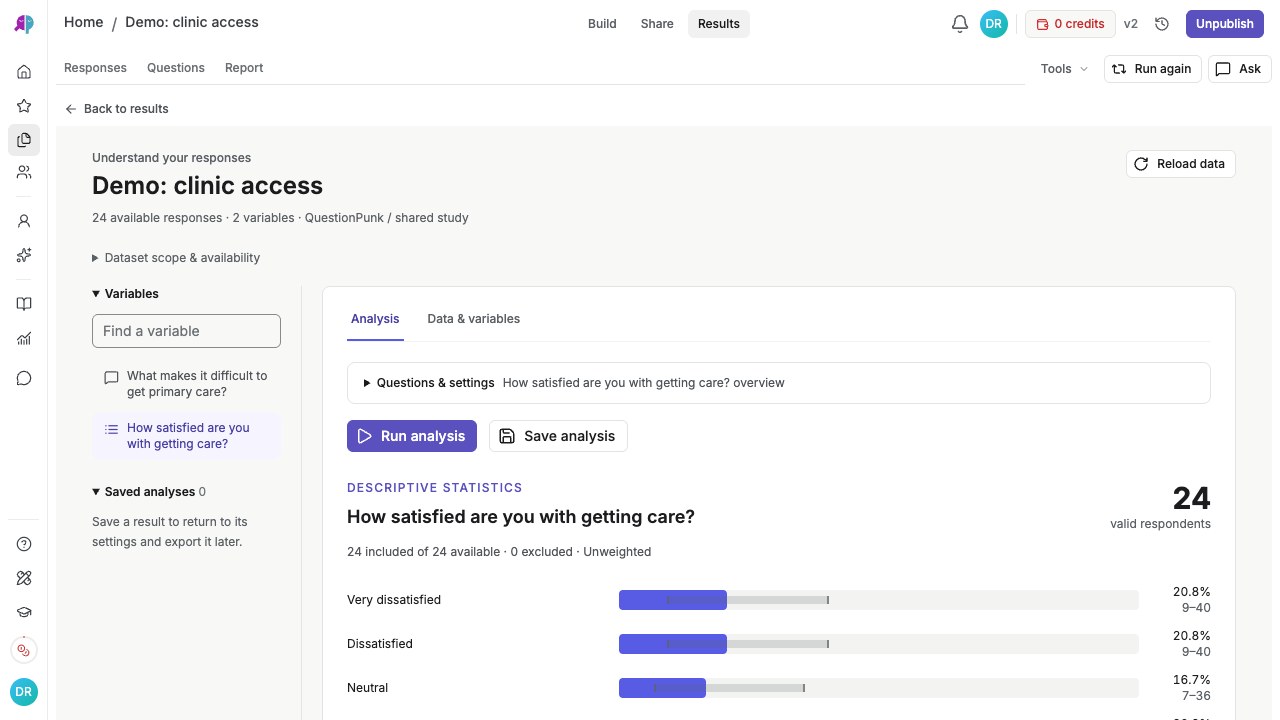
English interface · Results → Tools → Stats showing descriptive statistics across 24 demo responses.
### 2. Check your data and variables
In **Data & variables**, review how each column is typed: Numeric, Single category, Multiple choices, or Open-ended text. Exclude any rows you do not want included in the analysis.
### 3. Choose a method
In **Analysis**, choose a method: **Summarize & compare groups**, **Likert & rating items**, **Scale reliability (Cronbach’s alpha)**, **Pearson correlation**, **Spearman rank correlation**, **Multiple linear regression**, **Segmentation (k-means)**, or **Principal components (PCA)**. Likert needs at least one rating item. Reliability needs at least two items. Other methods, except summaries, need at least two numeric variables. **Compare the same people** compares two numeric ratings from each respondent with a paired t-test.
### 4. Filter and weight the analysis
Apply filters to narrow the data. For **Summarize & compare groups**, you can choose a numeric weight column when you have a justified weighting scheme. Check its values and how it was constructed; selecting a column alone does not make a sample representative.
### 5. Save and rerun analyses
Save the analysis with a name so you can return to the same settings later. If the underlying data changes, saved analyses are marked stale so you know to rerun them before exporting.
## Details
Quantitative is a standalone workspace you can open from the sidebar, and you can also open it for a survey from **Results**. In survey results, **Report**, **Summary**, and **Responses** are the main sections, and **Ask** opens the analysis assistant alongside them.
**Summarize & compare groups** covers descriptive statistics, group comparisons, and cross-tabs. **Likert & rating items** summarizes rating questions. **Scale reliability (Cronbach’s alpha)** checks how consistently multiple items move together. **Pearson correlation** and **Spearman rank correlation** measure how closely two numeric measures move together. **Multiple linear regression** estimates associations with an outcome while accounting for other factors. **Segmentation (k-means)** finds groups of respondents with similar answer patterns and lets you export segments. **Principal components (PCA)** reduces correlated measures to a smaller set of patterns and exports component scores. **Compare the same people** is for paired measurements: both numeric values must belong to the same respondent.
Open **Results → Tools → Stats** for descriptive statistics, crosstabs, hypothesis tests, regression, factor analysis, and cluster analysis. On **Conjoint** and **MaxDiff** questions in **Results → Summary**, click **Run HB analysis** under **Hierarchical Bayes (HB)** to estimate respondent-level utilities, break results out by segment with **Cut by**, run the interactive Conjoint **Market simulator** (**Share of preference** or **First choice**, overall or by **Segment**, across up to 5 product profiles), and download **Excel with simulator** (Conjoint), **Excel** (MaxDiff), or **CSV** (individual utilities). For **Price Ladder (Gabor-Granger)** questions, the question report computes demand and **Revenue index** across price points and recommends the revenue-maximizing price.
Saved analyses are reproducible. Each one keeps its setup, including variables, groups, weights, filters, and excluded rows. If the dataset changes, the saved analysis is marked stale so you can rerun it before you export or present it.
You can analyze responses from an existing survey or import an external CSV dataset that does not have a parent survey.
**Interpret the result with its limits.** Check the included sample, missing values, excluded rows, variable coding, and method assumptions before reporting. A correlation or regression shows an association; it does not establish cause and effect. Keep synthetic test data separate from real participant findings.
## Check the result
You should have a quantitative analysis run with the method, filters, and any weights you chose. If you saved it, you should also see the named analysis available to open again later.
## If something goes wrong
If a method is unavailable or does not give the setup you expect, review the variable types in **Data & variables** and confirm you have enough rating items or numeric variables for that method.
## Related articles
- [Qualitative analysis and coding](https://www.questionpunk.com/support/qualitative-analysis.md)
- [View your survey report](https://www.questionpunk.com/support/view-report.md)
- [Export response data](https://www.questionpunk.com/support/data-exports-exporting-results.md)
---
# Generate a PowerPoint presentation
Canonical page: https://www.questionpunk.com/support/ppt-generation
Create presentation slides from your survey results.
Build a PowerPoint presentation from your survey data. Choose what to include, add AI-generated context, and download a PPTX deck.
Last reviewed: 2026-10-27
Time: 5-10 minutes
Level: Intermediate
Audience: Analysts, Researchers, Product teams
## Before you start
Open a survey that already has results to export. Decide whether you want charts, an AI-generated deck, or both.
## Steps
### 1. Open PowerPoint export in Results
Open the top section switcher and go to **Results** > **Summary**. Click **Download**, then **PowerPoint**.
### 2. Set up the presentation
Enter a title and choose the output: all charts, an AI-generated deck, or both (each downloads as its own file). Choose which AI context to include (AI summary, report summary, question summaries), pick a theme, and add a custom prompt if needed. Decision slides need Pro. To build a deck from a spreadsheet instead of your survey, switch to **Import CSV**.
### 3. Generate and download the file
Click generate and wait while the presentation is built. Download the PPTX file when it is ready.
## Details
The PPT generator builds a presentation deck from your survey results for stakeholder meetings.
You can include AI-generated insights, charts, and response summaries. The setup shows the number of reportable questions included; non-question content is excluded. The deck uses the Results population selected when you open it. Check that population and the response count before generating, and review AI-written slides against the underlying answers before sharing.
The **Import CSV** tab builds a deck from an external CSV file instead of your survey responses.
## Check the result
You should have a downloaded PPTX file, or separate files if you chose both output types.
## If something goes wrong
If you cannot find this option, make sure you are in the top section switcher under **Results** and then open **Summary** before using **Download**.
## Related articles
- [View your survey report](https://www.questionpunk.com/support/view-report.md)
- [Use AI insights and analysis](https://www.questionpunk.com/support/ai-insights.md)
- [Export response data](https://www.questionpunk.com/support/data-exports-exporting-results.md)
---
# Keep and export survey data
Canonical page: https://www.questionpunk.com/support/data-exports-retention
Export a copy, delete responses or your account, and check retention requirements.
Use this guide to keep a checked export and find the deletion controls. For contractual retention periods or data-handling requirements, consult the current privacy notice and your agreement, or contact support.
Last reviewed: 2026-10-27
Time: 2-5 minutes
Level: Beginner
Audience: Admins, Compliance teams, Researchers
## Before you start
Make sure you can access the survey and its Results section. If you need local records, decide whether Excel or CSV fits your archival process.
## Steps
### 1. Understand how data is stored
Open **Results** and check the active filters and response count. Every plan shows all its responses, so the filters decide what an export holds. Showing a response is not a retention policy; check your research requirements before making an archive.
### 2. Export data for archival
Use the [export features](https://www.questionpunk.com/support/data-exports-exporting-results) (Excel or CSV for responses) to save local copies of your data for long-term archival or compliance requirements.

English interface · Export setup for 24 fictional demo responses. Review the included fields before downloading.
### 3. Choose the appropriate deletion control
For one response, open **Results > Responses**, select the response, open its menu, and choose **Delete response**. Review the confirmation carefully. To close your whole account, go to **Settings > Account Preferences > Delete account**. The confirmation covers your account, surveys, and collected responses. Export and check any records you are authorized to keep before confirming; account deletion is final.
## Details
Keep exports only in locations approved for your research. Check the downloaded population: status, quality, response type, date, revision, and wave filters apply, but respondent-code and answer-content filters do not. See [export filter coverage](https://www.questionpunk.com/support/data-exports-exporting-results). An export is a separate copy; deleting the original does not remove downloaded files or data already delivered to another system.
This guide does not promise indefinite storage, immediate removal from backups, or a custom retention schedule. Check the [privacy notice](https://www.questionpunk.com/legal) and your agreement for applicable terms. If deletion is blocked by retained panel recruitment, submission, or payout history, contact support about the record and the message shown. Active QuestionPunk Panel members must withdraw before deleting their account.
**Cloud copies are separate records.** Turning off **Copy new files** pauses future copies. **Stop copying** leaves files already copied in your storage. Deleting a QuestionPunk response does not establish that those external copies were deleted; manage them in the destination according to your research requirements.
## Check the result
You have a checked export or have located the appropriate deletion control, and know where to confirm your retention requirements.
## If something goes wrong
If rows are missing, review the filters. If deletion fails, keep the error message and contact support; do not assume the record was deleted.
## Related articles
- [Manage your subscription](https://www.questionpunk.com/support/account-manage-subscription.md)
- [Export response data](https://www.questionpunk.com/support/data-exports-exporting-results.md)
---
# Set up respondent incentives
Canonical page: https://www.questionpunk.com/support/respondent-incentives
Offer respondents a reward when they complete your survey.
Create respondent incentives to issue rewards after a completed survey. Set the reward amount, set a total budget, and optionally require identity verification before payout.
Last reviewed: 2026-10-27
Time: 5-10 minutes
Level: Intermediate
Audience: Researchers, Product teams, Academics
## Before you start
Make sure your survey already includes the required contact or verification question for the payout method you plan to use. You also need enough credit balance if you use Gift cards.
## Steps
### 1. Open Share and go to Incentives
In the survey editor, use the top section switcher to open **Share**. Then open the **Incentives** section.
### 2. Set the reward amount and budget
Enter the reward amount per respondent (from 0.50 to 100.00) and the total budget (minimum 5.00) in the payout method's currency. The system calculates the number of available reward slots from your budget.
### 3. Choose a payout method and turn it on
Select a payout method: **Gift cards** (digital gift cards delivered automatically, budgeted in USD) or **Mobile top-up** (manual airtime top-up, budgeted in Ukrainian hryvnia (UAH); you send the credit yourself and mark it paid in-app). Gift cards require an Email or Email Verification question, and the full budget is reserved from your credit balance (1,000 credits = $1) when you create the incentive. Mobile top-up requires a Phone Verification question so respondents can enter their number. Activate the incentive configuration. After that, respondents who complete the survey are eligible for a reward.
### 4. Add identity verification
To reduce fraudulent claims, add a **LinkedIn Verification** question so respondents must verify their identity before receiving a reward. Other verification types (Google, Email, Phone) are also available. If the incentive is limited to an audience, a verification question is required.
### 5. Track payouts
Use the incentive dashboard to monitor reserved, paid, and available reward slots. You can pause or delete the incentive configuration at any time.
## Details
Respondent incentives let you reward participants after they complete your survey. This can help increase response rates and improve data quality.
Two payout methods are available: **Gift cards** (digital gift cards delivered automatically by email, budgeted in USD and reserved from your credit balance) and **Mobile top-up** (manual airtime top-up: you transfer the credit to the respondent's phone number yourself and update the payout status in-app; add a Phone Verification question so respondents can enter their number). Mobile top-up pays in Ukrainian hryvnia (UAH).
Set a reward amount for each respondent and a total budget. The system calculates the number of available slots and tracks payouts in real time.
You can add identity verification blocks (LinkedIn, Google, Email, Phone) to reduce fraudulent reward claims. LinkedIn Verification is recommended for professional research panels.
The incentive dashboard shows reserved slots (respondents in progress), paid slots (completed payouts), and remaining budget so you can track spending. For mobile top-up, you mark each payout as complete, failed, or pending yourself.
You can pause incentives by toggling the active state, or delete the configuration entirely. Adjust the reward amount and budget before launch to match your research budget.
## Check the result
You should see an active incentive configuration with the reward amount, total budget, and available slots shown in the incentive dashboard.
## If something goes wrong
If you cannot enable the incentive, check that your survey includes the required Email, Email Verification, or Phone Verification question for the payout method you selected.
## Related articles
- [Send your survey to multiple people](https://www.questionpunk.com/support/embed-and-share.md)
- [Fraud detection and response quality](https://www.questionpunk.com/support/fraud-detection.md)
- [Manage participants, lists, and respondents](https://www.questionpunk.com/support/audiences.md)
---
# Connect Slack notifications
Canonical page: https://www.questionpunk.com/support/integrations-slack
Send survey event notifications to your Slack workspace in real time.
Connect QuestionPunk to Slack with an incoming webhook URL. You can send notifications when responses are completed, responses are started, surveys are published or unpublished, or response limits are reached. Microsoft Teams connects the same way: paste an incoming webhook URL from a Teams workflow into the Microsoft Teams card.
Last reviewed: 2026-10-27
Time: 5-10 minutes
Level: Beginner
Audience: Researchers, Product teams, Team leads
## Before you start
Create an incoming webhook in your Slack workspace first. Keep the webhook URL ready before you open the Slack card in QuestionPunk.
## Steps
### 1. Open Settings > Integrations
Go to **Settings > Integrations** and find the **Slack** card.
### 2. Paste your Slack webhook URL
Create an incoming webhook in your Slack workspace through Slack app settings. Paste that URL into QuestionPunk.
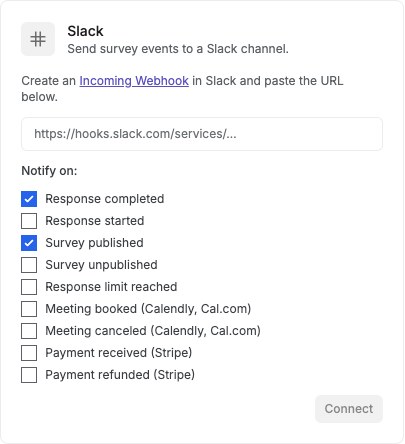
English interface · Demo study. Use the controls described in this step.
### 3. Choose notification events
Select the events your channel needs: response starts/completions, survey publishing/unpublishing, response limits, **Meeting booked (Calendly, Cal.com)**, **Meeting canceled (Calendly, Cal.com)**, **Payment received (Stripe)**, and **Payment refunded (Stripe)**.
### 4. Save the connection and test it
Save the connection. Then click **Test** to send a test notification and confirm it arrives. You can edit events or disconnect at any time.
## Details
The Slack integration sends real-time notifications to a Slack channel when survey events happen. This helps your team stay updated without leaving Slack.
Choose notifications for response starts or completions, publishing or unpublishing, reaching a response limit, and bookings or cancellations from connected Calendly or Cal.com accounts. Select only the events your channel needs. Stripe payment and refund notifications require the connected payment workflow to be available.
After you save the integration, use Test to confirm messages go to the correct channel.
To disconnect, click Disconnect on the Slack card in Settings > Integrations.
## Check the result
The Slack card should be saved with your selected events, and a test notification should appear in the Slack channel connected to the webhook.
## If something goes wrong
If the test message does not arrive, check that you pasted the full incoming webhook URL into the Slack card and saved the connection first.
## Related articles
- [Set up webhooks](https://www.questionpunk.com/support/webhooks.md)
- [Connect Google Sheets](https://www.questionpunk.com/support/integrations-google-sheets.md)
- [Use webhooks to connect Zapier, Make, and other apps](https://www.questionpunk.com/support/integrations-zapier-make.md)
---
# Connect Google Sheets
Canonical page: https://www.questionpunk.com/support/integrations-google-sheets
Send completed survey responses to a Google Sheet automatically.
Connect your Google account to QuestionPunk. Then link a spreadsheet to each survey. Each completed response is added as a new row.
Last reviewed: 2026-10-27
Time: 5-10 minutes
Level: Beginner
Audience: Researchers, Analysts, Product teams
## Before you start
Sign in to the Google account that owns the spreadsheet or can access it. Decide which survey should send responses to which sheet tab.
## Steps
### 1. Open Settings > Integrations
Go to **Settings > Integrations** and find the **Google Sheets** card.
### 2. Connect your Google account
Click **Connect Google Account**. Authorize QuestionPunk to access your Google Sheets. Your Google email appears after the connection is complete.
### 3. Connect a sheet for each survey
Open the survey’s **Settings > Integrations**. Choose a spreadsheet from Google Drive or paste its URL. Set the tab name. Then click **Connect Sheet**. Each completed response is added as one row: timestamp, response ID, survey title, then each question and answer.
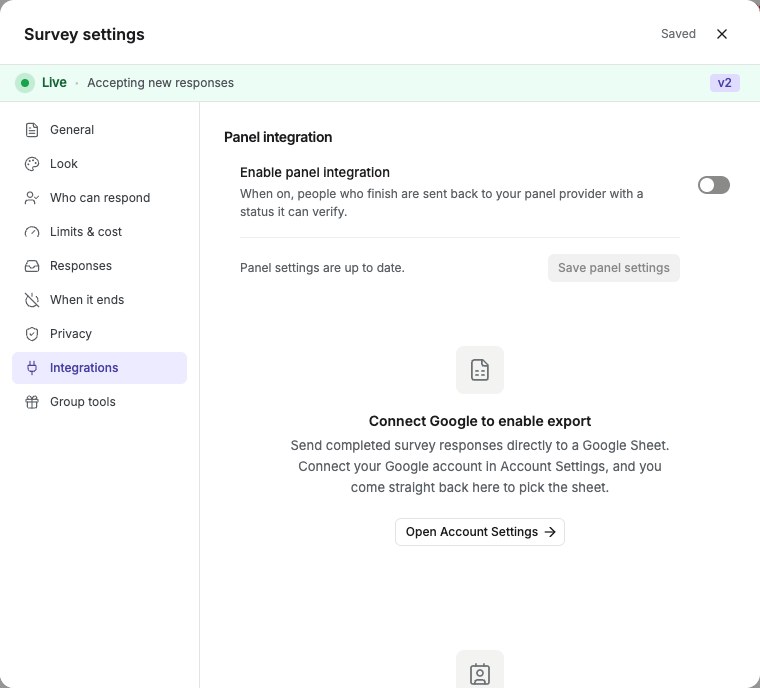
English interface · Connect the required account before configuring exports. Additional integration settings are farther down the panel.
### 4. Disconnect the integration if needed
Click **Disconnect** on the Google Sheets card to revoke access at any time.
## Details
Use the Google Sheets integration to avoid manual CSV exports. New completed responses are added to your spreadsheet as they arrive.
Connect with your Google account. No API keys or webhook setup is required.
This works well for teams that use Google Sheets for live dashboards, shared analysis, or stakeholder reporting.
## Check the result
Your Google account shows as connected, and the survey is linked to a spreadsheet tab. New completed responses should appear there as new rows.
## If something goes wrong
If you cannot link a sheet, check the connected Google account and select the spreadsheet with Choose from Google Drive. For a 403 error, re-pick the sheet; if necessary, disconnect and reconnect with the requested permission for the specific Drive files you use with the app. A spreadsheet you can open yourself is not automatically authorized for QuestionPunk.
## Related articles
- [Export response data](https://www.questionpunk.com/support/data-exports-exporting-results.md)
- [Connect Slack notifications](https://www.questionpunk.com/support/integrations-slack.md)
- [Use webhooks to connect Zapier, Make, and other apps](https://www.questionpunk.com/support/integrations-zapier-make.md)
---
# Use webhooks to connect Zapier, Make, and other apps
Canonical page: https://www.questionpunk.com/support/integrations-zapier-make
Send QuestionPunk events to Zapier, Make, or your own systems with webhooks or the REST API.
Connect Zapier or Make from Settings > Integrations when an app connection is offered. You can also send events with webhooks and use the REST API for other workflows.
Last reviewed: 2026-10-27
Time: 10-20 minutes
Level: Beginner to Intermediate
Audience: Researchers, Product teams, Operations
## Before you start
Decide which events you want to send and where they should go. Have the destination webhook URL ready before you add the endpoint.
## Steps
### 1. Open Settings > Integrations
Open **Settings > Integrations** and find **Zapier** or **Make**. If the card shows **Connect**, follow that app’s installation and account-connection steps. If it shows **Set up webhook**, or you prefer a webhook, use the steps below. An install link does not by itself mean a workflow is connected or active.
### 2. Create a webhook
In **Settings > Developer > Webhooks**, add an endpoint and select events such as response completed or survey published. In Zapier, use a "Webhooks by Zapier" catch hook URL as the endpoint.
### 3. Use Make's webhook module
In Make, start a scenario with the Webhooks module. Copy its URL and add it as a QuestionPunk webhook endpoint. For other actions, use Make's HTTP module to call the QuestionPunk REST API.
### 4. Choose a common workflow
Use the webhook payload to send responses to spreadsheets, notify a channel, add rows to Airtable, or update other tools. For Slack and Google Sheets, use QuestionPunk's native integrations instead.
## Details
Webhooks cover response, booking, survey, recruitment, and panel submission events. Choose the exact event in [webhook settings](https://www.questionpunk.com/support/webhooks); for example, use booking.scheduled for a booking rather than treating response.completed as proof of one. Any automation platform that can receive HTTPS webhooks can use these events.
Zapier and Make both accept incoming webhooks. You can build workflows without a dedicated QuestionPunk app.
Before building an automation, check **Settings > Integrations** for a native connection. Available cards include spreadsheets and databases, messaging, CRM, task tools, scheduling, and payments. A card marked **Coming soon** is not available in that environment. Account connection and survey delivery settings are separate: connect the account, then configure the destination in the owned survey’s **Settings > Integrations**. See [CRM sync](https://www.questionpunk.com/support/integrations-crm) for contact matching, field mapping, and consent.
For the webhook route, configure the endpoint in **Settings > Developer > Webhooks**. Then enable your Zap or scenario and confirm that the selected event reaches the destination before relying on it.
Power Automate, Logic Apps, and Copilot Studio require a custom connector package and account setup. Contact support for availability and installation instructions; do not assume a certified marketplace listing is available. Once configured, use **When a survey event happens**, choose the required events, and confirm a test flow receives them before relying on it.
**Coda:** where available, connect a Coda API token in **Settings → Integrations**, then choose a doc and table in the survey’s Integrations settings. Existing tables need a text column named **Response ID**; add the requested columns in Coda and use **Check columns**. Review AI summary, transcript, and existing-response options before starting. Check synced, waiting, and failed counts, then inspect the rows in Coda. Stopping sync leaves existing rows in place.
**Schedule a find-a-time result:** where available, connect Google Calendar in Settings → Integrations, then choose **Add to Google Calendar** beside a time in the poll results. Review the title, date, start time, duration, timezone, and invitation checkbox before saving. Only people who picked that time and supplied an email can be invited from this control. If Zoom is connected, you can also choose **Add a Zoom meeting**. Confirm the event and any meeting link in the destination calendar.
## Check the result
You should see a webhook endpoint saved in QuestionPunk and receiving events in Zapier, Make, or your own system.
## If something goes wrong
If nothing arrives, check that you copied the webhook URL into **Settings > Developer > Webhooks** and selected the event you want to send.
## Related articles
- [Send completed responses to your CRM](https://www.questionpunk.com/support/integrations-crm.md)
- [Set up webhooks](https://www.questionpunk.com/support/webhooks.md)
- [Connect Slack notifications](https://www.questionpunk.com/support/integrations-slack.md)
- [Connect Google Sheets](https://www.questionpunk.com/support/integrations-google-sheets.md)
---
# Recruit participants with QuestionPunk Panel
Canonical page: https://www.questionpunk.com/support/integrations-prolific
Create a QuestionPunk Panel recruitment draft, publish it separately, and check its status. Your own Prolific account and SampleNinja are separate options.
Follow the QuestionPunk Panel setup from recruitment settings to a published study. Publishing your QuestionPunk survey and publishing a panel study are separate actions. To use your own Prolific account or SampleNinja, see the sections below.
Last reviewed: 2026-10-28
Time: 15-30 minutes to configure
Level: Intermediate
Audience: Researchers, Academics
## Before you start
Use a survey you own. Finish and publish the survey, then check its participant link before paying for recruitment. QuestionPunk Panel is paid from your credits and needs no Prolific account. To use your own Prolific account instead, connect it in Settings > Integrations > Prolific with your API token and Connect. Review the funding source and costs shown in the recruitment form; availability can depend on your account setup.
## Steps
### 1. Open Recruit participants
From the top section switcher, open **Share**, then **Recruit participants**. Choose **QuestionPunk Panel** as the participant source, then **Create New Study**. You don't need a Prolific account.

English interface · Recruitment setup only. This demo has no configured reward or active recruitment.
### 2. Configure and create the draft
Enter the study title and description, number of places, reward, estimated duration, device requirements, and screening criteria. Review the audience and costs. The current button is labelled **Launch Study**, but this action creates an unpublished draft; it does not start recruitment.
### 3. Publish the panel study
Back in the study list, find the draft and open its **More options** menu. Choose **Publish** only when you are ready to start paid recruitment. This is separate from publishing the survey itself. Wait for the action to finish and check the study status.
### 4. Check recruitment and collected answers
Use the study list to check the status and response count. Open the survey’s **Results** to review collected answers. A saved draft or a click on Launch Study does not establish that recruitment is active; check the returned study status.
## Details
The recruitment form shows whether costs come from your QuestionPunk credits (QuestionPunk Panel) or your connected Prolific account. Review the displayed reward, fees and total before publishing; do not assume both routes use the same balance.
You can keep a draft study for review before publishing it. If publication is blocked because another study for this survey is active or publishing, resolve that study’s status before launching another.
**Use your own Prolific account instead.** Connect it in Settings > Integrations > Prolific with your API token and Connect. Prolific then bills your Prolific account directly, and QuestionPunk charges no fee.
**Using SampleNinja instead?** SampleNinja is a separate panel route from QuestionPunk Panel. Open the survey’s **Settings > Integrations > Panel integration**. Configure Full URL signing, choose a hash algorithm (SHA-256 recommended, SHA-1 or MD5), and map demographic variables. Entry signature validation is required; the exit URL must use HTTPS on an approved SampleNinja domain.
For a SampleNinja setup, check entry and exit routing with your panel provider before recruitment. Its signing and demographic mapping settings are separate from QuestionPunk Panel study creation.
Panel studies, on QuestionPunk Panel or your own Prolific account, don't send the recruitment.* or panel.submission.* events listed in [webhooks](https://www.questionpunk.com/support/webhooks). Use response.completed to react to each finished response.
For how participants are recruited and paid, and what you can ask them, see [where QuestionPunk Panel participants come from](https://www.questionpunk.com/support/panel-participant-source).
## Check the result
For QuestionPunk Panel, the study list shows the result of publication and you can monitor its status and responses. For SampleNinja, the required signing and mapping settings are configured separately.
## If something goes wrong
If the study is still unpublished, open its More options menu and review the separate Publish action. If publication fails, read the error and recheck the study’s status before retrying. Check the funding source and balance, account connection, and any other active study for this survey. Do not create another draft just because publication failed.
## Related articles
- [Where QuestionPunk Panel participants come from](https://www.questionpunk.com/support/panel-participant-source.md)
- [Run another wave of the same survey](https://www.questionpunk.com/support/run-survey-again.md)
- [Send your survey to multiple people](https://www.questionpunk.com/support/embed-and-share.md)
- [Fraud detection and response quality](https://www.questionpunk.com/support/fraud-detection.md)
- [Set up API and developer access](https://www.questionpunk.com/support/api-access.md)
- [Set up webhooks](https://www.questionpunk.com/support/webhooks.md)
---
# Where QuestionPunk Panel participants come from
Canonical page: https://www.questionpunk.com/support/panel-participant-source
QuestionPunk Panel recruits participants through Prolific. How they're paid, what you can ask them, and how to use your own Prolific account instead.
QuestionPunk Panel participants are recruited through Prolific, an opt-in platform where people sign up to take part in research studies.
Last reviewed: 2026-10-28
Time: 2-3 minutes
Level: Beginner
Audience: Researchers, Academics
## Before you start
Publish your survey before you recruit. QuestionPunk Panel needs no Prolific account; connecting your own is optional.
## Details
**Who the participants are.** When you recruit with QuestionPunk Panel, QuestionPunk publishes your study on Prolific, an opt-in research participant platform. Participants signed up with Prolific to take part in research and choose which studies they join.
**How payment works.** Before you publish, the recruitment form shows the total price: participant pay plus panel fees (including any VAT). Paid plans get lower panel prices; see [pricing](https://www.questionpunk.com/pricing). It's taken from your QuestionPunk credits when you publish and refunded if publishing fails. QuestionPunk pays Prolific, and Prolific pays the participants.
**What you can ask.** Participants are identified only by a pseudonymous Prolific ID. Don't ask for names, email addresses, phone numbers or anything else that identifies them.
**Screen-outs.** A participant your screening questions turn away inside the study is paid a small fixed amount for their time.
**Using your own Prolific account.** If you have a Prolific researcher account, connect it in Settings > Integrations > Prolific with your API token and Connect. Studies then run on your Prolific account, Prolific bills you directly, and QuestionPunk charges no fee.
To set up a study, see [recruit participants with QuestionPunk Panel](https://www.questionpunk.com/support/integrations-prolific).
## Check the result
Your study collects answers from Prolific participants, paid from your credits, without asking for their personal details.
## If something goes wrong
If the recruitment form shows a cost you don't expect, check which funding source it shows: your QuestionPunk credits or your connected Prolific account.
## Related articles
- [Recruit participants with QuestionPunk Panel](https://www.questionpunk.com/support/integrations-prolific.md)
- [Fraud detection and response quality](https://www.questionpunk.com/support/fraud-detection.md)
---
# Connect GitHub to import Concept Test images
Canonical page: https://www.questionpunk.com/support/integrations-github
Connect a GitHub repository and import images into a Concept Test.
Add a GitHub Personal Access Token so you can browse a repository and import images as Concept Test variants instead of uploading them one by one.
Last reviewed: 2026-10-27
Time: 2-5 minutes
Level: Beginner
Audience: Designers, Product teams, Researchers
## Before you start
Make sure you have a GitHub repository with the images you want to use. You also need a GitHub Personal Access Token with the right scope for that repository.
## Steps
### 1. Open Settings > Integrations
Go to **Settings > Integrations** and find the **GitHub** card.
### 2. Add a Personal Access Token
Create a GitHub Personal Access Token with the **repo** scope for private repositories, or **public_repo** for public repositories. Paste the token into QuestionPunk.
### 3. Import images into a Concept Test
After GitHub is connected, open a [Concept Test](https://www.questionpunk.com/support/concept-testing) and use the GitHub import. Click **Load repos**, choose a repository, optionally enter a folder path, preview the images, and click **Import to concept test**.
### 4. Disconnect GitHub if needed
Click **Disconnect** on the GitHub card in Settings > Integrations to remove the saved token from QuestionPunk. Revoke the token in your GitHub settings too.
## Details
The GitHub integration is for one task: pulling images from a repository so you can quickly fill a [Concept Test](https://www.questionpunk.com/support/concept-testing) with variants from assets already stored in version control.
Use the smallest scope that works. Use **public_repo** for public repositories. Use **repo** only when the images are in a private repository.
## Check the result
You should be able to load repositories from GitHub and import selected images into your Concept Test as variants.
## If something goes wrong
If you cannot access a repository, check that the token scope matches the repository type: **public_repo** for public repositories or **repo** for private repositories.
## Related articles
- [Concept testing](https://www.questionpunk.com/support/concept-testing.md)
- [Connect Slack notifications](https://www.questionpunk.com/support/integrations-slack.md)
- [Set up API and developer access](https://www.questionpunk.com/support/api-access.md)
---
# Collect payments in a survey with Stripe
Canonical page: https://www.questionpunk.com/support/survey-payments
Connect your own Stripe account, add a payment question, and respondents pay by card inside the survey.
Charge a fixed amount, let respondents enter an amount, or charge the total from priced choices. The money goes to your Stripe account. QuestionPunk takes 2% of each payment on the Free plan and nothing on paid plans.
Last reviewed: 2026-10-27
Time: 10 minutes, plus Stripe's account review
Level: Beginner
Audience: Event and class organizers, Researchers, Small businesses
## Before you start
Use this guide when the Payments integration and Payment question are available in your account. You need a Stripe account. Payments are in USD, EUR or GBP, with a minimum of 0.50. For Order total, first add priced choices to the survey.
## Steps
### 1. Connect Stripe
Open **Settings > Integrations** and choose **Connect Stripe** on the **Payments** card. Stripe opens so you can sign in to your account or create one. You are the merchant of record: payments, refunds, disputes and payouts are in your own Stripe dashboard.
### 2. Add a payment question
Add a **Payment** question. Under **Payment Type**, choose **Fixed amount**, **Variable amount (respondent enters)** with minimum and maximum amounts, or **Order total** to use priced choices in the survey. For Order total, choose the full total, a percentage deposit, or a fixed deposit. Use the same currency for your priced choices and payment: USD, EUR, or GBP.
### 3. Check that it charges
Once Stripe lets your account take payments, the question's settings say **Respondents pay by card through Stripe.** Until then they say **Not collecting money**, with a **Connect Stripe** link, and respondents only confirm the amount. Previews never charge.
### 4. See who paid
Each response shows what it paid. The **Payment** filter on the Responses list shows paid, unpaid or refunded responses. The question's report shows the total collected, and CSV and Excel exports add Payment Amount, Payment Currency, Payment Status and Payment Intent ID columns.
## Details
Respondents pay by card or Link, or with Apple Pay or Google Pay when their browser supports them. The card form is part of the survey, and a bank's 3D Secure check opens over the page, so nobody leaves the survey to pay.
Stripe charges its processing fee to your Stripe account. QuestionPunk takes 2% of each payment on the Free plan, and nothing on Pro, Team, Enterprise or during a trial.
Refunds and disputes happen in your Stripe dashboard. QuestionPunk updates the response when Stripe reports them. Webhooks can send `payment.succeeded` and `payment.refunded` events, and the Slack, Teams and Discord integrations can post them.
## Check the result
Respondents pay in the survey, the money goes to your Stripe account, and each response shows whether it paid.
## If something goes wrong
If the question says **Not collecting money**, open **Settings > Integrations**. If the Payments card shows **Finish setup in Stripe**, finish it there. If it says **Stripe is reviewing**, Stripe is still checking your account, and **Open Stripe dashboard** shows what it needs. On a team survey, the team owner's Stripe account collects, so the owner connects it.
## Related articles
- [Manage your subscription](https://www.questionpunk.com/support/account-manage-subscription.md)
- [Set up webhooks](https://www.questionpunk.com/support/webhooks.md)
- [Keep and export survey data](https://www.questionpunk.com/support/data-exports-retention.md)
---
# Manage your subscription
Canonical page: https://www.questionpunk.com/support/account-manage-subscription
View your current plan, update billing details, and change your subscription.
Use Subscription & Billing to check your current plan, AI credits, payment card, and available upgrades. Review the plans and prices shown in your account before confirming a change.
Last reviewed: 2026-10-27
Time: 2-5 minutes
Level: Beginner
Audience: Org owners, Admins
## Before you start
Sign in to the account whose subscription you want to manage, then open Settings → Subscription & Billing.
## Steps
### 1. Open subscription settings
Click your profile icon. Then open **Settings > Subscription & Billing**.
### 2. Check your current plan
Review your active plan, AI credit balance, and the date your monthly credits refresh.
### 3. Change your plan
Choose **Yearly** or **Monthly** billing, then review the displayed price and included credits before clicking **Upgrade** on an available plan. To cancel, use **Cancel subscription** or choose the Free plan. Cancellation takes effect immediately and the remaining paid period is not refunded.
### 4. Manage your payment card
Add, replace, or remove the card on file. Payments are processed by Stripe.
## Details
**Free:** Unlimited surveys, responses and team members, 3,000 AI credits ($3) a month, and 20 daily AI chat edits. Standard-model text follow-ups for real respondents have a separate included monthly allowance; see [AI credits](https://www.questionpunk.com/support/ai-credits). QuestionPunk branding shows on your surveys.
**Pro:** Unlimited surveys, responses and team members, access to premium AI models, 25,000 AI credits ($25) a month, 100 daily AI chat edits, branding removal, and priority support. Check Subscription & Billing for the current monthly and yearly prices.
**Team, where offered:** Pro features plus 50,000 AI credits ($50) a month. Team members and survey co-hosts are free on every plan; you do not need this subscription to invite collaborators.
**Enterprise (Custom):** Unlimited surveys, unlimited responses, custom AI credits, priority support, branding removal, and dedicated support.
AI credits are shown as a number of credits, and 1,000 credits equal $1 of AI usage. They are used for voice interviews, AI interviews on premium models, synthetic testing, and AI-powered analysis. A real respondent’s text follow-ups on standard models use no credits within the included monthly allowance. New interviews after that allowance is exhausted use AI credits; see [AI credits](https://www.questionpunk.com/support/ai-credits). Drafting and editing surveys with AI doesn’t use credits. Daily AI chat edits limit how many times the AI chat editor can refine questions per day. You can purchase additional credits from the Subscription & Billing page at any time. Automatic coding and automatically drafted codebooks use a separate included analysis allowance first. Requested coding work or enabled overflow can use AI credits.
**Moving from Pro to Team:** if Team is offered in your account, choose it on the Subscription & Billing page and confirm. The change happens in place, with no cancel and re-subscribe. You pay the prorated difference for the rest of your billing period, and your monthly AI credits go up to the Team amount right away (once per credit cycle). If you also switch between monthly and yearly billing, a new billing period starts today and you are charged for the Team period, less the unused part of your current plan. There is no free trial.
To cancel Pro or Team, choose the Free plan. Cancellation takes effect immediately and the rest of the paid period isn't refunded. To switch between monthly and yearly billing, contact support.
## Check the result
You should see your current plan, billing details, and available options to change your plan or card.
## If something goes wrong
If you do not see the expected subscription, check that you are signed in to the account that purchased it. Contact support to switch between monthly and yearly billing.
## Related articles
- [Find invoices and receipts](https://www.questionpunk.com/support/account-invoices.md)
- [Invite team members and manage roles](https://www.questionpunk.com/support/account-team-seats.md)
---
# How AI credits work
Canonical page: https://www.questionpunk.com/support/ai-credits
Learn what uses AI credits, how plan credits reset, and how to buy more.
AI credits cover AI work in your studies, including voice interviews, AI interviews on premium models, synthetic testing, and AI analysis. 1,000 credits equal $1 of AI usage. Every plan has unlimited surveys and responses, and responses use no credits. Automatic coding and automatically drafted codebooks use a separate included analysis allowance first. Requested coding work or enabled overflow can use AI credits.
Last reviewed: 2026-10-27
Time: 3 minutes
Level: Beginner
Audience: Researchers, Admins, Org owners
## Before you start
Make sure you can sign in and open Settings. If you plan to buy more credits, confirm you can access Subscription & Billing.
## Steps
### 1. Check your balance
Click your profile icon. Then open **Settings > Subscription & Billing**. The balance card shows how many credits remain, split between your plan’s monthly credits (shown as "free") and credits you bought.
### 2. See what uses credits
A real respondent’s text follow-ups on standard models use no credits within the included monthly allowance. Premium-model follow-ups, preview and Test with AI runs use credits. New interviews after the included allowance is exhausted also use credits. Text AI is charged by model and token usage. Voice interviews are charged per minute by model, with a 30-second minimum. Automatic coding and automatically drafted codebooks use a separate included analysis allowance first; requested coding work or enabled overflow can use AI credits.
### 3. Buy more credits
On the Subscription & Billing page, click **Buy more credits**. Then choose an amount. Credits you buy do not expire. Your plan’s monthly credits are used first.
### 4. Set a spending limit for one survey
Set an [AI budget cap](https://www.questionpunk.com/support/ai-budget-cap) in the survey’s settings to limit its AI spending.
## Details
**Monthly AI credits:** Free includes 3,000 credits ($3), Pro includes 25,000 credits ($25), and Team, where offered, includes 50,000 credits ($50). Enterprise credit amounts depend on your agreement. These credits are separate from the included text follow-up allowance.
The monthly allowance resets to your plan’s amount every month. Unused monthly credits do not carry over.
The model you choose for AI interviews changes how many credits each interview uses. See [Choosing a model](https://www.questionpunk.com/support/ai-choosing-a-model).
**Included text follow-ups:** Free includes 5,000 standard-model follow-up calls per account per calendar month (UTC); Pro and Team include 15,000. This counts model calls, not respondents: fast-thinking follow-ups use one call and slow-thinking follow-ups use two. Once the allowance is used, newly started interviews use AI credits. Voice, premium models, and preview or synthetic runs are separate paid usage.
## Check the result
You should be able to see your remaining AI credits, understand what spends them, and know where to buy more or set a survey cap.
## If something goes wrong
If you cannot find your credit balance, check that you opened your profile icon first, then **Settings > Subscription & Billing**.
## Related articles
- [Manage your subscription](https://www.questionpunk.com/support/account-manage-subscription.md)
- [Set an AI budget cap](https://www.questionpunk.com/support/ai-budget-cap.md)
- [Choose an AI model](https://www.questionpunk.com/support/ai-choosing-a-model.md)
---
# Find invoices and receipts
Canonical page: https://www.questionpunk.com/support/account-invoices
View past invoices and receipts in your account and download the PDF you need.
This article explains where to find invoice history, how to open a PDF invoice or receipt, and what to send to support if billing details are wrong.
Last reviewed: 2026-10-27
Time: 1-3 minutes
Level: Beginner
Audience: Finance teams, Admins
## Before you start
Make sure you can sign in to the account that owns the subscription. You need access to Settings and billing details.
## Steps
### 1. Open Subscription & Billing
Go to **Settings > Subscription & Billing**. Scroll to **Invoice history**. The page shows the latest three invoices. Click **View All** to see older ones.
### 2. Open the PDF
Click an invoice or its download icon to open the PDF.
### 3. Contact support about billing details
If any details are incorrect, contact support. Include the invoice number and billing email.
## Details
You can find invoices under Invoice history on the Subscription & Billing page. Download the PDF for accounting or expense reporting.
If an invoice is missing or incorrect, contact support with the invoice number and billing email.
## Check the result
You should be able to open the invoice history list and download the PDF you need.
## If something goes wrong
If you do not see the invoice you need, check **View All** in **Invoice history** before contacting support.
## Related articles
- [Manage your subscription](https://www.questionpunk.com/support/account-manage-subscription.md)
---
# Invite team members and manage roles
Canonical page: https://www.questionpunk.com/support/account-team-seats
Add people to a team and choose what each role can access.
Learn how to invite team members and control access with roles. Teams share surveys and responses so people can work together.
Last reviewed: 2026-10-27
Time: 3-7 minutes
Level: Intermediate
Audience: Admins, Team leads
## Before you start
Create or open your team workspace. Decide which people should be Editors or Viewers before you invite them.
## Steps
### 1. Open the team workspace
Open your team from the sidebar. Check current members and any people waiting for approval.
### 2. Send invites or share the invite link
Invite colleagues by email to send a join request with a role. Or share the team's **Invite Link**. If **Auto Join** is on, people with a matching email domain join right away as Viewers. Everyone else can still request access for your approval.
### 3. Review and update roles
The person who creates the team is the **Owner**. The Owner has full control of team settings and all team surveys. You can assign other members as **Editors**, who can create and edit surveys and view responses, or **Viewers**, who have read-only access to surveys and responses.
## Details
Team workspaces let multiple people collaborate on surveys. Invite people by email or share a team invite link to help them join.
There are three roles. The **Owner** is the team's creator and has full control of the team. An **Editor** can create and edit surveys. A **Viewer** has read-only access. Billing stays with each person's own account, not the team.
**Auto Join** uses a list of allowed email domains. People with a matching domain join instantly as Viewers. Other people can still request access.
Every plan, Free included, can add team members. There are no seats to buy, so add as many members as you need.
**Collaborate on one survey with co-hosts:** open the survey’s **Share** section and find **Hosting with someone?**. Use **Invite a co-host** or **Copy link**. People sign in through this link to edit this survey and see its responses without joining a team workspace. Co-hosts are free on every plan. Use the co-host list to remove someone; turning off the invite link stops new joins but does not remove existing co-hosts.
## Check the result
You should see invited or approved members in the team workspace with the role you expected.
## If something goes wrong
If someone did not join automatically, check whether **Auto Join** is on and whether their email domain matches the allowed domain list.
## Related articles
- [Manage your subscription](https://www.questionpunk.com/support/account-manage-subscription.md)
---
# Set quotas and response limits
Canonical page: https://www.questionpunk.com/support/quotas-response-limits
Use quota targets to limit how many responses you collect for each segment.
Quotas let you set numeric caps for accepted responses by answer option or embedded-data value. When a quota bucket is full, new respondents who match that bucket are screened out and can see an optional custom end screen.
Last reviewed: 2026-10-27
Time: 5-10 minutes
Level: Intermediate
Audience: Researchers, Panel managers, Academics
## Before you start
Make sure your survey already has either a single-select multiple choice or dropdown question, or an embedded-data field with a fixed list of values. Decide the numeric target for each bucket before you start.
## Watch the walkthrough
[Review privacy and response limits](https://www.questionpunk.com/support/videos/privacy-and-scheduling.mp4)
A navigation overview using actual English-interface demo screenshots, generated English narration, and English/Japanese captions. This is a narrated screenshot sequence, not a continuous recording. Examples are fictional.
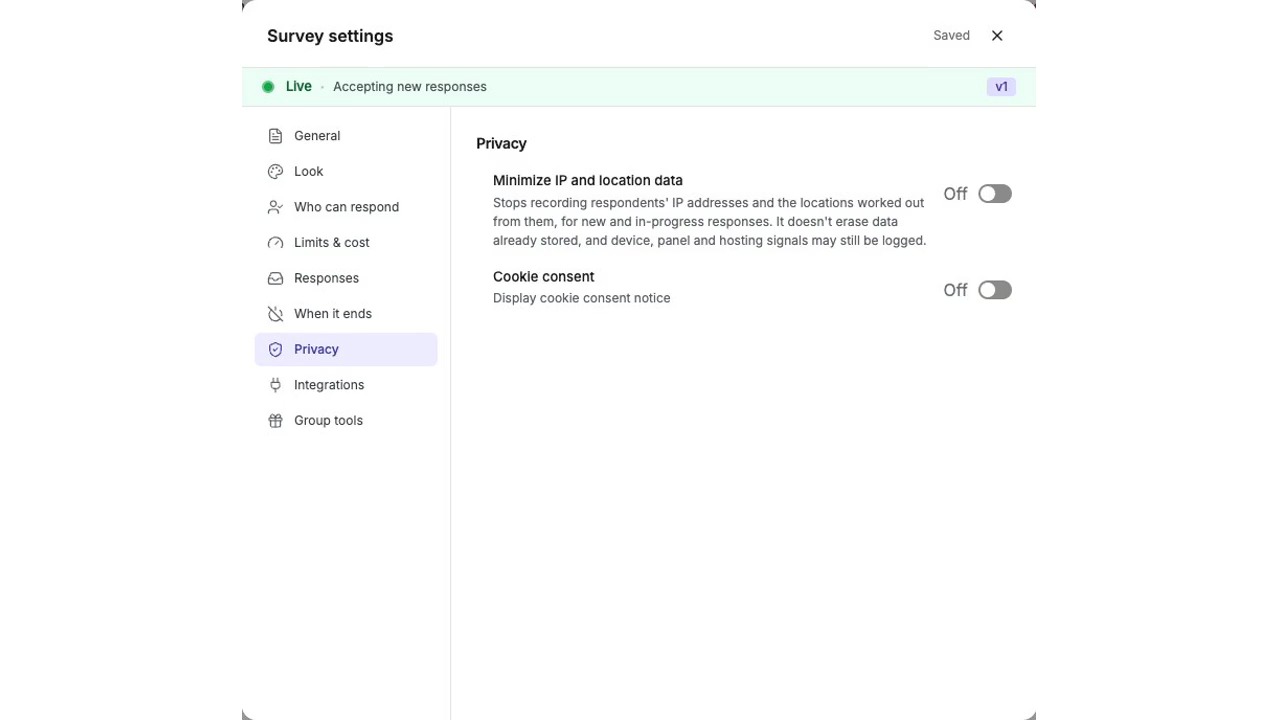
[English captions](https://www.questionpunk.com/support/videos/privacy-and-scheduling.en.vtt)
[Japanese captions](https://www.questionpunk.com/support/videos/privacy-and-scheduling.ja.vtt)
### Video transcript
Open Survey settings and select Privacy. Minimize IP and location data reduces metadata collection, though it does not remove identifying questions from your survey. Open Who can respond for password options, browser restrictions, and opening or closing dates. Check the timezone before scheduling. Open Limits and cost to set a total response cap, answer quotas, or an AI budget cap before publishing.
## Steps
### 1. Open quota settings
Open the survey's **Settings > Limits & cost**. Then find **Quotas**.
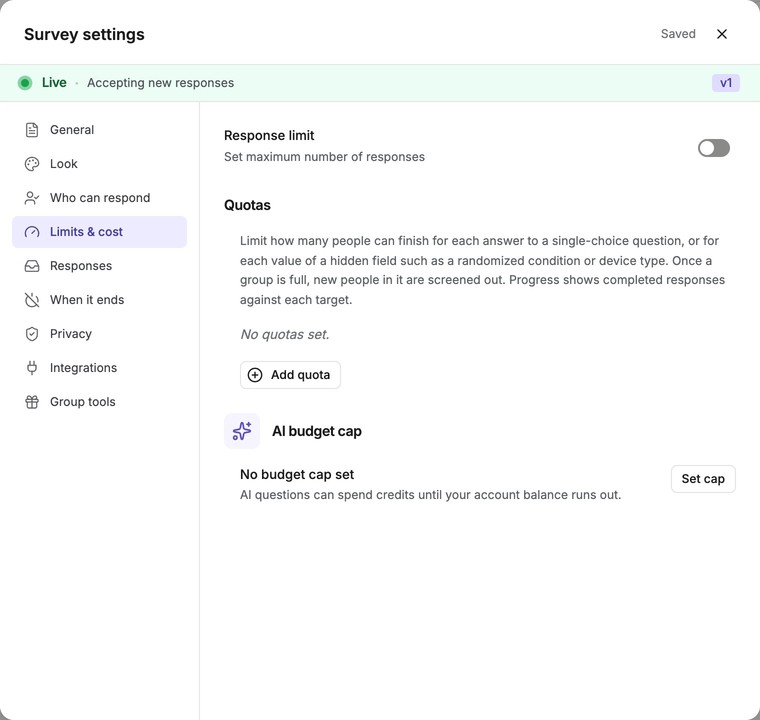
English interface · Survey settings → Limits & cost tab showing Response limit and Quotas.
### 2. Choose a quota source
Select the source for the quota. Use a **question** for a single-select multiple choice or dropdown question, such as gender or age group. Or use an **embedded-data field** with a fixed list of values passed in the survey link. Each quota uses exactly one source.
### 3. Set per-bucket targets
Enter a numeric target for each answer option or parameter value. For example, if the source is a gender question, you might set 50 for "Male" and 50 for "Female" to collect an even split.
### 4. Configure the termination screen (optional)
Choose a custom end screen for respondents whose quota bucket is already full. Use it to explain that you already have enough responses from their group.
### 5. Publish and monitor
New quotas turn on when you add them. Switch a quota off to pause it. Publish the survey. As responses arrive, bucket counts update automatically. When a bucket's completed count reaches its target, new respondents who match that bucket are screened out.
## Details
Quotas help you keep your sample balanced. Set a target for each option in a screening question, and QuestionPunk stops accepting matching respondents after that segment is full.
Two quota source types are supported: **question-based**, which uses the answer options from a single-select multiple choice or dropdown question, and **embedded-data-based**, which uses values passed in the survey link and is useful for panel provider routing.
You can run multiple quotas on one survey at the same time. Each quota has its own source and targets. This helps you control more than one demographic dimension.
The respondent who fills the last open slot in a bucket completes the survey normally. Later respondents who match that bucket are terminated and shown the configured end screen.
You can combine quotas with [QuestionPunk Panel](https://www.questionpunk.com/support/integrations-prolific) or other panel providers to control the demographic composition of your sample more precisely.
**Limit the whole survey.** In **Settings > Limits & cost**, turn on **Response Limit** and enter a positive maximum response count. Turn the switch off to remove this survey-level cap. This is separate from quotas, which limit particular answer groups. Review both when a survey stops accepting answers.
## Check the result
You should see an active quota with targets for each bucket. After you publish, completed responses count toward each target automatically.
## If something goes wrong
If you cannot assign buckets, check that the source is a supported single-select multiple choice question, a dropdown question, or an embedded-data field with fixed values.
## Related articles
- [Set up logic and branching](https://www.questionpunk.com/support/survey-design-logic-branching.md)
- [Send your survey to multiple people](https://www.questionpunk.com/support/embed-and-share.md)
- [Recruit participants with QuestionPunk Panel](https://www.questionpunk.com/support/integrations-prolific.md)
---
# Carry choices forward from an earlier question
Canonical page: https://www.questionpunk.com/support/carry-forward
Fill a follow-up question with the options a respondent selected, or did not select, in an earlier question.
Carry-forward lets a multiple choice or dropdown question reuse options from an earlier question. Show only the options the respondent selected, or only the options they did not select, so you can build follow-up questions without copying the same option list.
Last reviewed: 2026-10-27
Time: 3-5 minutes
Level: Intermediate
Audience: Researchers, Survey designers
## Before you start
Create the source question first. Make sure it is an earlier required multiple choice or dropdown question that meets the carry-forward restrictions.
## Steps
### 1. Add the follow-up choice question
Add a multiple choice or dropdown question after the source question you want to carry forward from.
### 2. Turn on carry-forward
In the follow-up question, click **Use choices from...** (**Use dropdown options from...** for a dropdown) and choose the **Source question**.
### 3. Select what to show
Under **Show choices that were**, choose **Selected** to show only the options the respondent chose, or **Not selected** to show only the options they did not choose.
### 4. Preview the logic
Use Preview to check that the right options appear based on the respondent's earlier answer.
## Details
Carry-forward removes duplicate option lists by filling a question from an earlier answer. If a respondent selected "Feature A" and "Feature C" from a list of five features, a carry-forward follow-up can show only those two options for a deeper evaluation.
There are two modes: **Selected** shows what the respondent picked, and **Not selected** shows what they skipped. **Not selected** is useful when you want to ask why certain options were not chosen.
If the source answer is "None of the above" and the mode is Selected, the **If they chose "None of the above"** setting controls the follow-up. **Show it as a choice** includes the "None" label as an option in the follow-up (as Qualtrics does). **Skip this question** skips the follow-up entirely. This setting is ignored in Not selected mode.
Carry-forward works with multiple choice and dropdown questions (not quizzes). The source must be an earlier, required multiple choice or dropdown question with unique, non-empty option labels, no randomized option order, no "Other" option, and no carry-forward of its own.
Exports show the correct labels for carried-forward answers.
## Check the result
The follow-up question should show only the carried-forward options that match the respondent's earlier answer.
## If something goes wrong
If carry-forward does not work, check that the source question is earlier in the survey and does not use randomized options or an "Other" choice.
## Related articles
- [Set up logic and branching](https://www.questionpunk.com/support/survey-design-logic-branching.md)
- [Question and block types guide](https://www.questionpunk.com/support/survey-design-question-types.md)
- [Use rich text, media, and piping in survey questions](https://www.questionpunk.com/support/survey-design-rich-text-media.md)
---
# Repeat a section for each row in uploaded data (stimulus testing)
Canonical page: https://www.questionpunk.com/support/repeat-from-data
Repeat one section of questions for each row in an uploaded data table for product tests, ad evaluations, and other stimulus-based research.
Repeat-from-data lets you upload a table of stimuli such as product images, brand names, and ad creatives, then repeat one section of questions once for each row. Each trial shows one stimulus and collects answers, so each respondent evaluates several items with the same questions.
Last reviewed: 2026-10-27
Time: 10-15 minutes
Level: Intermediate to Advanced
Audience: Researchers, Academics, Product teams, Brand managers
## Before you start
Prepare the section you want to repeat and a data table with up to 12 columns and 200 rows. Decide which columns respondents should see and which should stay as records only.
## Steps
### 1. Create the section you want to repeat
In the survey editor, create a section with the questions you want to ask for each stimulus, such as "Rate this product" and "What do you like about it?".
### 2. Turn on repeat-from-data
Open the section settings. Under **Run behavior**, choose **Repeat for each row**. Keep this section at the top level, with no sections nested inside it.
### 3. Set up fields and upload your data
Define the columns in your data table, up to 12. For each field, set a name, type (**Text** or **Image**), and visibility (**Participant**, shown to respondents, or **Analysis only**, hidden and kept for your records). Then add rows, up to 200, by entering them manually, pasting them, or importing a CSV or TSV file.
### 4. Choose which rows each respondent sees
Choose **All rows** or **Random subset**, then set rows per respondent if needed. Set the order to **authored** for a fixed order or **randomized** for the default behavior, where each respondent sees rows in a different order. If needed, use **Split rows by participant assignment** to match a data column to an embedded-data field so different respondents see different rows.
### 5. Assign the trial image and text
Under **Used as**, choose which column is the trial image and which column is the supporting text shown with it. The questions stay the same on every row. The image and text change on each trial.
### 6. Preview and publish
Use the live preview to check how the section repeats across data rows. Confirm that each trial shows the correct stimulus and records a separate response.
## Details
Repeat-from-data is built for stimulus-based research such as product evaluations, ad testing, packaging comparisons, and other studies where respondents react to a series of items.
Each data row becomes one trial. The section's questions appear once per row, and that row's image or text is shown as the stimulus. Responses are tagged to the matching row for analysis.
Randomized order and random subsets can reduce order effects and respondent fatigue when you test large sets of stimuli.
**Split rows by participant assignment** shows different stimuli to different respondents based on an embedded-data field. You can set that field from the survey link or randomize it. This is useful for between-subjects designs or panel routing.
Fields marked as "analysis only" are included in exports but hidden from respondents. Use them to attach metadata such as product IDs, categories, or internal codes to each trial without showing that information.
## Check the result
In preview, the same section repeats once per data row, and each trial shows the assigned image or text for that row.
## If something goes wrong
If **Repeat for each row** is unavailable or does not work, check that the section is at the top level and does not contain nested sections.
## Related articles
- [Question and block types guide](https://www.questionpunk.com/support/survey-design-question-types.md)
- [Set up logic and branching](https://www.questionpunk.com/support/survey-design-logic-branching.md)
- [Concept testing](https://www.questionpunk.com/support/concept-testing.md)
---
# Set up tracking pixels and conversion events
Canonical page: https://www.questionpunk.com/support/tracking-pixels
Send conversion events to ad platforms when people view, start, or complete your survey.
Connect your survey to ad platform tracking pixels to measure campaign performance. You can map survey events such as view, start, complete, and specific question shown or answered to conversion events on Meta, Google Ads, GA4, TikTok, LinkedIn, and more.
Last reviewed: 2026-10-27
Time: 5-10 minutes
Level: Intermediate
Audience: Marketers, Growth teams, Researchers
## Before you start
Publish the survey before you test. You also need the platform account or pixel ID for each provider you want to add.
## Steps
### 1. Open survey settings
Open the survey's **Settings > Integrations**. Find **Tracking & conversion pixels**.

English interface · The top of Survey settings → Integrations. Scroll to Tracking & conversion pixels; its controls are not shown in this overview. A Google account connection is not required for pixels.
### 2. Turn on tracking and add a provider
Turn on **Enable tracking pixels**. Click **Add provider**. Choose a provider and enter your account or pixel ID.
### 3. Map the events
For each provider, choose what to **Fire on**. Then enter the conversion event name. Options are **Welcome screen / survey opened**, **Survey started (answering begins)**, **First chat message shown**, **Any content page shown**, **A specific question shown**, **A specific question answered**, and **End screen (survey completed)**.
### 4. Test and verify
Open the published survey link. Pixels do not load in Preview. Accept cookies. Then check your ad platform's event debugger to confirm the events fire correctly.
## Details
Ten ad platforms are supported: **Meta Pixel**, **Google Ads**, **GA4**, **TikTok Pixel**, **Reddit Pixel**, **LinkedIn Insight Tag**, **X (Twitter) Pixel**, **Snapchat Pixel**, **Pinterest Tag**, and **Microsoft Ads (Bing UET)**.
Only platform account IDs are accepted. You enter an ID, and QuestionPunk loads that provider's standard tag. Custom JavaScript and tag containers are not supported.
You can add up to 20 providers per survey. This lets you track conversions across multiple ad platforms at the same time.
Question-level triggers (**A specific question shown** and **A specific question answered**) fire when respondents reach or answer specific questions. Use them to track mid-funnel conversions.
Tracking pixels are switched off when [Minimize IP and location data](https://www.questionpunk.com/support/anonymous-mode) is on.
Pixels load only after the respondent accepts cookies. This is always enforced. Turning on **Cookie Consent** in Privacy also shows that requirement in the survey settings.
## Check the result
The published survey should load the selected provider tags after cookie consent, and your event debugger should show the mapped events when those survey actions happen.
## If something goes wrong
If no events appear, open the published survey link instead of Preview, then accept cookies before testing again.
## Related articles
- [Send your survey to multiple people](https://www.questionpunk.com/support/embed-and-share.md)
- [Create your first survey](https://www.questionpunk.com/support/create-your-first-survey.md)
---
# Set an AI budget cap
Canonical page: https://www.questionpunk.com/support/ai-budget-cap
Set a per-survey limit on AI credit spend to help control costs.
Set a per-study limit for respondent AI interviews and, in concept studies, concept AI work. When pausing is enabled, reaching the cap prevents further eligible AI work. The cap is a soft limit, so calls already in progress can exceed it.
Last reviewed: 2026-10-27
Time: 2-3 minutes
Level: Beginner
Audience: Researchers, Admins, Team leads
## Before you start
Open the survey in the editor and make sure you can access **Settings > Limits & cost**. Decide whether you want AI to pause automatically when the cap is reached.
## Steps
### 1. Open the AI budget cap settings
In the survey editor, open **Settings > Limits & cost** and find the **AI budget cap** card. Click **Set cap** or **Edit cap**. You can also open the same dialog during the publish flow.

English interface · Survey settings → Limits & cost tab showing AI budget cap.
### 2. Set the cap
Use the slider to choose the maximum AI credit spend for this survey. The modal shows an approximate respondent count for the cap you set.
### 3. Choose what happens at the cap
Toggle **Pause AI when reached**. It is on by default. When it is on, respondents follow the survey’s AI failure behavior after the cap is hit: AI questions are skipped, or the survey closes. When it is off, spend is tracked and AI keeps running.
### 4. Check spend
View the **AI budget cap** card to see credits spent against the cap. A notice appears after the cap is reached.
## Details
AI budget caps help avoid cost surprises in studies with many respondents or long AI interviews. Set a credit limit and optionally pause AI automatically when the limit is reached.
The cap counts respondent AI interviews, including text and voice. In concept studies it also counts concept classification, brief extraction, creator chat, and concept runs. These share the study’s spend total, so concept work can also pause respondent AI. Ordinary survey analysis and report generation are outside this cap.
Budget caps are soft limits. Calls already in progress can push spend past the cap. With **Pause AI when reached** enabled, subsequent respondent AI work follows the survey’s AI failure behavior; new concept AI work is also stopped in a capped concept study. With pausing off, spend is tracked and AI continues.
You can change or remove the cap at any time. If AI features were paused, increasing the cap resumes them immediately.
## Check the result
The survey shows an **AI budget cap** with the cap amount and current spend, and the pause behavior matches your choice.
## If something goes wrong
If you cannot find the cap, check that you are in the survey editor and open **Settings > Limits & cost**.
## Related articles
- [Manage your subscription](https://www.questionpunk.com/support/account-manage-subscription.md)
- [How AI interviews work](https://www.questionpunk.com/support/ai-how-it-works.md)
---
# Learn with QuestionPunk University
Canonical page: https://www.questionpunk.com/support/learn-courses
Take free interactive courses on survey design, AI research methods, and agentic AI through hands-on challenges.
QuestionPunk University offers free courses that teach survey design and AI-powered research through practical challenges. Fix real survey mistakes, design research flows, and build AI interview guides inside the app.
Last reviewed: 2026-10-27
Time: About 3 to 4 hours per course
Level: Beginner to Advanced
Audience: Students, Researchers, Educators, Product teams, Anyone new to QuestionPunk
## Before you start
Sign in to QuestionPunk and open the main navigation sidebar. If you plan to join a classroom, have your class code ready.
## Steps
### 1. Open Learn
Click **Learn** in the main navigation sidebar to open the course catalog.
### 2. Pick a course
Three courses are available: **Survey Design Sprint** (13 levels: learn survey design by fixing real mistakes), **AI for Customer Research** (16 levels, about 4 hours: AI-augmented research methods including reusable AI instructions and quality checking), and **AI Agents for Research** (16 levels, about 4 hours: plan research agents and automated workflows with limits, checks, and human review, including n8n workflow design).
### 3. Work through the challenges
Each level includes hands-on challenges. Fix broken questions. Spot problems in survey flows. Make research decisions. Build survey logic. Compare question versions. Write AI interview guides. Earn star ratings for your answers.
### 4. Join a classroom if needed
If your instructor gave you a class code, enter it on the course catalog to join a classroom. Your progress is shared with the instructor for grading and feedback.
## Details
QuestionPunk University is completely free. All three courses are available to every user, with no plan restrictions.
Courses are organized into acts or chapters with multiple levels. Each level combines theory, including video and transcripts, with hands-on challenges that test your understanding.
Challenge types include: **Fix the Question** (rewrite a flawed question), **Spot the Problem** (identify issues in a survey), **Design Decision** (choose the right approach for a scenario), **Build Flow** (construct survey logic), **Side by Side** (compare alternatives), **Pick Better Version** (evaluate rewrites), **Write Guide** (create AI interview instructions), **Match the Scale**, and **Survey or Interview**.
An AI grading system evaluates your responses and gives feedback, so you can learn from each attempt.
Educators can create classrooms with a 4-character class code. Students join with the code, and instructors can track progress and grade answers.
## Check the result
You should see the course catalog, be able to start a course, and know whether your classroom progress is being shared with an instructor.
## If something goes wrong
If you cannot join a classroom, check that you entered the 4-character class code on the course catalog under Learn.
## Related articles
- [Create your first survey](https://www.questionpunk.com/support/create-your-first-survey.md)
- [Design surveys for better responses](https://www.questionpunk.com/support/survey-design-best-practices.md)
- [How AI interviews work](https://www.questionpunk.com/support/ai-how-it-works.md)
---
# Choose a survey mode and review the whole survey
Canonical page: https://www.questionpunk.com/support/survey-modes
Choose how participants answer, review all questions together, and test the saved mode.
Choose Chat, One at a time, or Classic form under Respondents see. In the classic desktop editor, Whole survey lets you review the question cards together. The participant mode and your editing view are separate settings.
Last reviewed: 2026-10-27
Time: 3-5 minutes
Level: Beginner
Audience: Researchers, Survey designers
## Before you start
Open the survey in the desktop editor. The screenshots show the classic editor; the instructions also identify the mode control in the editor with Theme and Customise tabs. Changing Respondents see saves the survey mode. Use a duplicate to experiment without changing a live survey.
## Steps
### 1. Choose how participants answer
In the classic editor, open **Build → Questions → Respondents see**. If your editor has separate **Theme** and **Customise** tabs in Design, find **Respondents see** under **Design → Theme**. Choose **Chat** for a conversation, **One at a time** for one question per screen, or **Classic form** for a page-based form. This saves the survey mode; it is not just a preview switch.

English interface · Classic editor with two demo questions. Whole survey changes the editor view; Respondents see changes the participant layout.
### 2. Review all questions together
In the classic editor, choose **Whole survey** to scroll through the question cards. Click a card to select it before editing; the other cards are read-only. Use **Advanced Edit** for detailed settings. **One question** returns to a focused view. These view choices do not change what participants see.
### 3. Check interactive questions in Classic form
Classic form supports every question type. Questions that need their own interaction, including uploads, card sorts, and repeating sections, run in a card within the form. Complete the fields above the card, finish its interaction, then continue to the fields below. Adding these questions does not switch the whole survey to One at a time.
### 4. Test the participant flow
Open **Preview** and complete the relevant paths with test answers. Check required fields, branches, page breaks and media on the intended devices. Whole survey is an editing view, not a completed response or proof that branching works. Publish only when the participant experience is ready.

English interface · Actual Preview of a three-question demo in One at a time mode. Preview answers aren't saved as collected responses.
## Details
**Two different choices:** One question / Whole survey is your editor view, remembered on this device. Respondents see changes the saved participant mode. Switching to Whole survey returns from Advanced Edit to the question preview.
**Classic form:** ordinary fields appear together on pages. Advanced questions and repeating sections can run in interactive cards; AI interviews use their interview interface. Voice interviews with guided tasks or screen sharing also run within the form. Preview the complete flow, including any microphone, upload, or verification step, on the devices your participants will use.
**Whole survey or Flow?** Whole survey shows question cards for reading and editing. [Flow](https://www.questionpunk.com/support/survey-flow-canvas) shows connections and branching logic as a graph. Always use Preview to test the actual respondent path.
**Design and respondent format:** use Design to change appearance. In the classic editor, choose the participant mode under Respondents see in Build → Questions. In the editor with Theme and Customise tabs, use Design → Theme → Respondents see.
**Split a long Classic form into pages:** in **Whole survey**, a **Split into … pages** suggestion may appear when the survey has suitable topic boundaries. Review it and click the button to insert page breaks. The suggestion does not change your survey until you apply it. Review or edit the breaks, then Preview the pages and branching before publishing.
## Check the result
You have reviewed the survey in the saved participant mode and tested its fields, interactive cards, and branches in Preview.
## If something goes wrong
If Respondents see is missing from Questions, open Design and check Theme. In the classic editor, return to Build → Questions, select a question, and leave Logic to see the toolbar. If a Classic form card is waiting, complete or skip its interaction where allowed before continuing.
## Related articles
- [Create your first survey](https://www.questionpunk.com/support/create-your-first-survey.md)
- [Customize branding and themes](https://www.questionpunk.com/support/custom-branding.md)
- [Use the survey flow canvas](https://www.questionpunk.com/support/survey-flow-canvas.md)
- [Question and block types guide](https://www.questionpunk.com/support/survey-design-question-types.md)
---
# Use version history and restore deleted questions
Canonical page: https://www.questionpunk.com/support/version-history
View saved versions of your survey, compare them with the current version, and restore an earlier version or a deleted question.
Compare or restore saved survey snapshots. Drafts can also have periodic automatic snapshots. Before restoring, use Save version and confirm it succeeds so your current edits have an explicit restore point.
Last reviewed: 2026-10-27
Time: 5-10 minutes
Level: Intermediate
Audience: Researchers, Team leads, Survey designers
## Before you start
Open the correct survey and save your current edits with **Save version** before restoring. Survey history restores questions and settings, not deleted response records.
## Watch the walkthrough
[Save and restore a survey version](https://www.questionpunk.com/support/videos/version-history.mp4)
A navigation overview using actual English-interface demo screenshots, generated English narration, and English/Japanese captions. This is a narrated screenshot sequence, not a continuous recording. Examples are fictional.
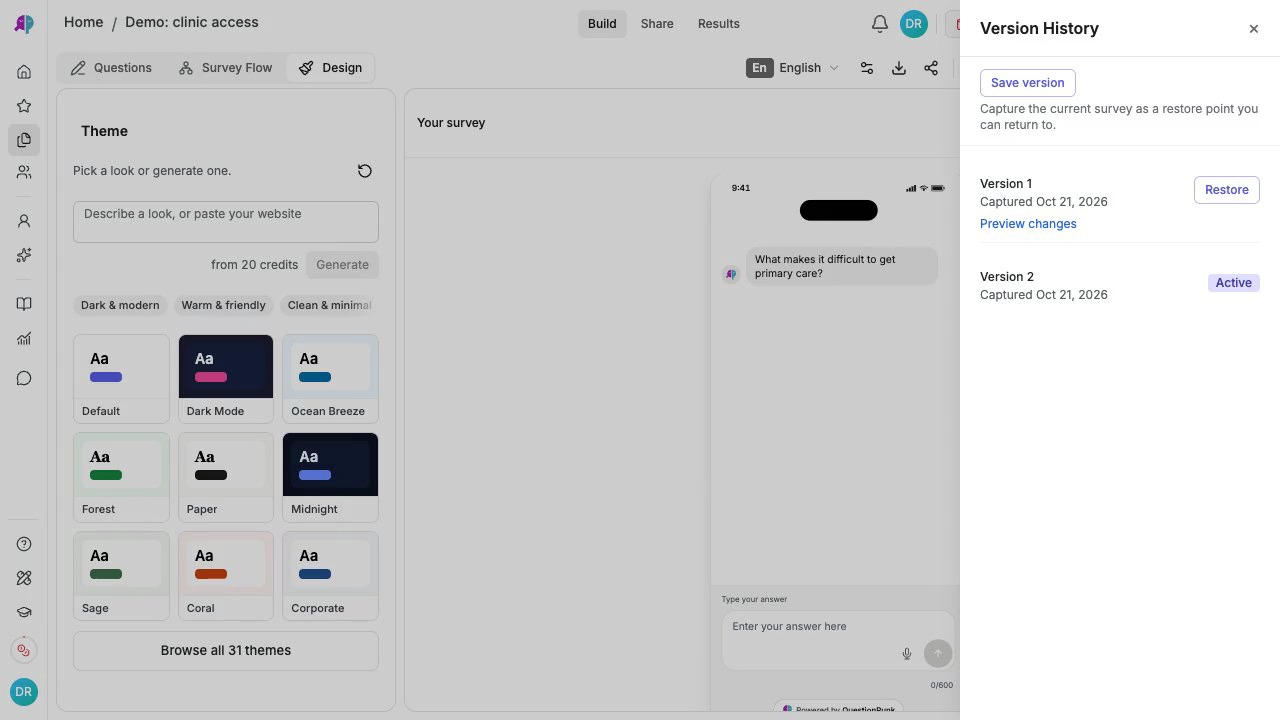
[English captions](https://www.questionpunk.com/support/videos/version-history.en.vtt)
[Japanese captions](https://www.questionpunk.com/support/videos/version-history.ja.vtt)
### Video transcript
Click Version history in the editor header. Use Save version and confirm it succeeds before restoring an earlier version. After restoring an earlier version, review your questions, logic, and Preview before publishing again.
## Steps
### 1. Open version history
In the survey editor header, click the **Version history** icon. Review the list of versions and the date each one was captured.
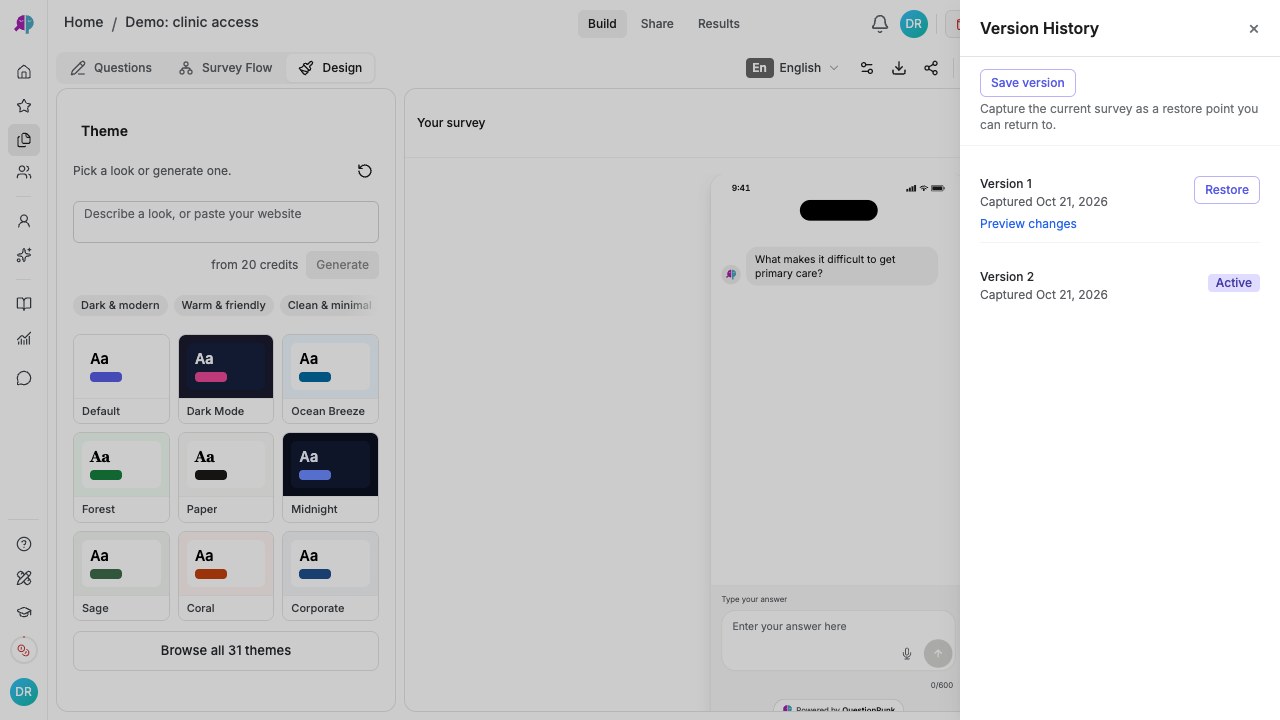
English interface · Review saved versions and save a restore point before restoring an older version.
### 2. Compare versions
Click **Preview changes** on a version. Review the differences from the active version, including added questions, edited text, updated logic, and removed items.
### 3. Save a version
Before restoring anything, click **Save version** and wait for the version list to refresh. If the survey already matches its active saved version, the panel reports **Already saved** instead of creating a duplicate. If saving fails, stop before Restore and see the recovery guidance below.
### 4. Restore a previous version
After saving your current edits, use **Preview changes** on the version you want, then click **Restore**. Restore replaces the current survey content; it does not first create a new snapshot of your latest edits. Check the restored questions and logic in Build and Preview.
### 5. Recover deleted questions
At the top of the version history panel, open the **Recently deleted** section. Find the deleted question or section, then click **Restore** to bring it back. Sections show how many items they contained.
## Details
Publishing saves a survey snapshot, and drafts also receive periodic automatic snapshots. **Save version** is available for drafts, published surveys, and archived surveys when current content differs from the active saved version. Use it before restoring or making risky edits, and confirm that it succeeded. Autosave does not mean every keystroke creates a separate version.
If you want to test changes without affecting a live survey, duplicate the survey and edit the copy.
**Preview changes** shows a clear diff against the active version, so you can review changes before you restore anything.
The **Recently deleted** section at the top of the version history panel lists questions and sections you removed. Click **Restore** on any item to return it to your survey.
**Undo and Redo are for quick fixes, not restore points.** Undo and Redo (or Cmd/Ctrl+Z) step back and forward through your edits on both Build and Design. A design change, such as picking a theme or changing a font, color or layout, is its own step: Undo restores the previous look and leaves your questions alone. Use version history to go back further.
## Check the result
You should see a version listed, a diff in Preview changes, or the restored question or section back in the survey.
## If something goes wrong
If **Save version** fails, keep the current content and do not restore yet. Retry after checking your connection and editing permission; contact support if it still fails. You do not need to publish a draft to save a version. For a missing question, check **Recently deleted** and confirm you are in the correct survey.
## Related articles
- [Create your first survey](https://www.questionpunk.com/support/create-your-first-survey.md)
- [Design surveys for better responses](https://www.questionpunk.com/support/survey-design-best-practices.md)
---
# Run a focus group with AI agents
Canonical page: https://www.questionpunk.com/support/focus-groups
Set up an AI-moderated focus group with multiple synthetic personas.
Focus groups simulate a discussion among multiple AI personas. You can combine participants with different backgrounds, have them discuss your research topic, and review the range of perspectives and debate that follow.
Last reviewed: 2026-10-27
Time: 10-20 minutes
Level: Intermediate
Audience: Researchers, Product teams, UX teams
## Before you start
Decide what you want the group to discuss before you begin. If you want grounded participants, make sure you already have respondents with digital-twin profiles from an earlier survey.
## Steps
### 1. Open Focus Groups
From Home, filter your studies by **AI focus groups**, or click the **AI focus group** tile under Start a study to open the focus groups page. Click **New Focus Group**.
### 2. Step 1: Describe your research question
In the **Brief** step, write what you want to learn. Click **Draft the guide** if you want AI to draft discussion topics and probe questions for you (uses a small number of credits). You can also continue and write them yourself.
### 3. Step 2: Write a discussion guide
In the **Guide** step, add up to 5 discussion topics. For each topic, write one main question and optional probe questions (up to 5 probes per topic). Set a round limit for each topic to control how long the discussion goes. You can also attach a **stimulus** (title and content) to give every participant the same context.
### 4. Step 3: Select participants
In the **People** step, choose 2-6 AI personas to join the discussion. Use existing personas from the **AI Personas** page or create new ones. To ground the discussion in real data, select respondents marked **Real answers**. These are digital twins built from answers to an earlier survey. Each participant is color-coded so you can identify them in the transcript.
### 5. Step 4: Configure the session
In the **Review** step, open **Session settings**. Choose the AI model. Set a **moderator style** (neutral, challenging, or empathetic). Pick a **group dynamic** (natural, debate, or consensus). Set the maximum number of rounds (5-50).
### 6. Review the transcript and summary
Watch the discussion in a color-coded, real-time transcript with topic dividers. When the session finishes, review the AI-generated summary with key themes, points of agreement and disagreement, notable quotes, and per-participant analysis.
## Details
Focus groups complement synthetic testing by producing qualitative discussion instead of individual survey responses.
Each persona speaks from a different perspective shaped by demographics, attitudes, and background. The AI moderator decides who speaks next and guides the conversation using your discussion guide.
After the session, an auto-generated summary includes key themes, points of consensus and conflict, notable participant quotes, and a per-participant analysis showing key contributions and how each stance changed.
**Stimulus support:** Attach a stimulus (title and content) to a focus group session to give all participants shared context. The stimulus text is shown to every participant and the moderator, so the discussion stays grounded in a specific concept, ad, or product description.
**Grounded respondents (digital twins):** Instead of generic AI personas, you can add grounded participants: respondents from a previous survey who have a digital-twin profile. The AI persona mirrors that respondent's answers, so the discussion draws on what real people said.
Use focus groups early in research design to spot blind spots, test question wording, and uncover topics you may have missed.
**Interpret the output as a simulation.** Every contribution in this discussion is generated by AI, including a digital twin marked Real answers. Earlier human answers provide context; the generated statements are not new interviews with those people and are not quotes you can attribute to them. Use the discussion to develop hypotheses and questions, then validate decisions with real participants.
## Check the result
You should have a completed focus group session with a transcript, topic dividers, and an AI-generated summary to review.
## If something goes wrong
If the discussion feels too generic, check the **People** step and confirm you selected the intended personas or respondents marked **Real answers**.
## Related articles
- [Test your survey with synthetic AI personas](https://www.questionpunk.com/support/synthetic-testing.md)
- [How AI interviews work](https://www.questionpunk.com/support/ai-how-it-works.md)
- [Manage participants, lists, and respondents](https://www.questionpunk.com/support/audiences.md)
---
# Concept testing
Canonical page: https://www.questionpunk.com/support/concept-testing
Use AI-powered concept tests to evaluate logos, packaging, ads, and other creative assets with respondents.
Generate or upload concepts and evaluate them with respondents. Start from Home or add a Concept test question to a survey. The workspace has six steps: Brief, Concepts, Test, People, Results, and Files. Results contains the scores, insights, and report; Files contains downloadable deliverables.
Last reviewed: 2026-10-27
Time: 15-30 minutes to set up
Level: Intermediate
Audience: Researchers, Designers, Brand managers, Product teams
## Before you start
Decide what creative asset you want to test and gather any brand guidance, references, or source images you want to use. If you plan to add the test inside a survey, open that survey first.
## Steps
### 1. Start a concept test
Click the **Concept test** tile in the **Start a study** grid on Home. Describe what you want to test. The concept-testing workspace opens. In an existing survey, you can also click **Add Question** and choose **Concept test** from the AI category. This adds a summary card with an **Advanced edit** link to the same workspace.
### 2. Write the brief
In the **Brief** tab, define your concept. Choose a concept type: **Logo**, **Packaging**, **Ad**, **Label**, **Icon**, or **Brand system**. Add a description. Set brand voice and audience context. Optionally add a color palette, mood references, and reference images.
### 3. Generate concepts
In the **Concepts** tab, generate AI variants and review them in a grid. Regenerate, upload, or fine-tune any variant. Click **Edit in Design** on a variant to refine it on a 2D design canvas. You can use an optional dieline overlay.
### 4. Choose a test method
In the **Test** tab, choose how respondents judge the concepts. Select **Compare** (respondents see your concepts side by side and pick the stronger one, with the strongest advancing to rating), **Shelf** (respondents shop a real store shelf with your concept placed next to real competitors), or **Both** (shelf first, then the comparison). Set how many respondents should complete the test before the strongest concepts move on. For Compare and Both, use the **Research settings** section for phase quotas and other tuning.
### 5. Field the test
In **People**, publish the test to get a shareable participant link and check collected responses. You can run **Test with AI** to check the experience before recruiting people. Keep synthetic responses separate from real responses; they do not establish what customers prefer.
### 6. Review results
Open **Results** and switch between **Results**, **Insights**, and **Report** to review scores, patterns, and the written report. Check the response count and source before interpreting a winner. Use **Share report** to manage the public report link. Open **Files** for available downloads, including response data and PowerPoint; a highlight reel appears there when one exists.
## Details
Concept testing automates the creative evaluation process. Instead of manually mocking up designs and running separate surveys, the concept engine generates variants with AI and guides respondents through a structured evaluation.
It works both as a standalone study and as a survey block. Start it from the **Concept test** tile on Home for a dedicated workspace. Or add a **Concept Test** block to an existing survey, which links to the same workspace for advanced editing.
Six concept types are supported: **Logo**, **Packaging**, **Ad**, **Label**, **Icon**, and **Brand system**. Each type uses image-generation settings and evaluation criteria that fit that format.
The workspace has six steps: **Brief**, **Concepts**, **Test**, **People**, **Results**, and **Files**. In Test, choose **Compare**, **Shelf**, or **Both**. Compare presents concepts side by side; Shelf puts a concept beside competitors in a simulated shopping task; Both runs the shelf task first.
**Design** is the design-creation step of concept testing. It is a 2D design canvas with an optional dieline overlay for refining any generated variant. Open it from a variant's **Edit in Design** action.
AI image models generate concept variants from your brief. Several lo-fi models are available for quick exploration, and hi-fi renders use one model for polished final images.
Results depend on the responses and analyses available. Review the sample size, whether answers are real or synthetic, and the underlying evidence before choosing a concept. Use **Files** for data exports and generated deliverables; use **Share report** in Results for a public report link.
## Check the result
You should have a concept test with a brief, generated variants, a selected test method, and a respondent link or results to review.
## If something goes wrong
If you cannot refine a variant, first generate or upload a concept in the **Concepts** tab, then use **Edit in Design** from that variant.
## Related articles
- [How AI interviews work](https://www.questionpunk.com/support/ai-how-it-works.md)
- [Test your survey with synthetic AI personas](https://www.questionpunk.com/support/synthetic-testing.md)
- [Question and block types guide](https://www.questionpunk.com/support/survey-design-question-types.md)
- [Connect GitHub to import Concept Test images](https://www.questionpunk.com/support/integrations-github.md)
- [Create packaging designs](https://www.questionpunk.com/support/packaging-design.md)
---
# Create packaging designs
Canonical page: https://www.questionpunk.com/support/packaging-design
Use dieline templates to build packaging concepts, then add them to surveys with Design questions.
Design is a standalone tool for creating packaging concepts, separate from the survey editor. Use the Library to browse dieline templates, the Editor to design on a dieline, Vectorize to turn raster images into vector art, and Projects to manage saved work.
Last reviewed: 2026-10-27
Time: 10-20 minutes
Level: Beginner to Intermediate
Audience: Designers, Brand managers, Packaging teams, Researchers
## Before you start
Decide whether you only need to browse and design as a guest or whether you need an account for downloads and AI features. Prepare any logo or photo file you want to trace in Vectorize.
## Steps
### 1. Browse the dieline library
Open **Design studio** from the sidebar. It opens the Editor. Then open the **Library** to browse standard packaging dieline templates and box sizes. You can browse without an account.
### 2. Design in the Editor
Choose a dieline to open the **Editor**. The dieline is placed on the board and ready to edit. You can design as a guest. You need an account to download your work or use AI generation, mockups, and AI review.
### 3. Trace images with Vectorize
Use **Vectorize** to turn a raster image, such as a logo or photo, into clean vector art in your browser. You can use it casually without an account.
### 4. Manage projects and settings
Saved designs appear in **Projects**. Use **Design settings** to manage packaging defaults separately from your account-wide Settings. Open Projects and Design settings from the Editor. Library and Vectorize are separate pages linked from there.
### 5. Add the design to a survey
Add a [Design question](https://www.questionpunk.com/support/survey-design-question-types) to a survey. Then embed your finished Packaging Design concept so respondents can react to it and give structured feedback.
## Details
Design is a separate product area alongside Concept Testing. It is not part of the survey editor. The main sidebar has one **Design studio** entry. Inside Design, a local navigation bar lets you switch between **Editor**, **Projects**, and **Design settings**. The dieline **Library** and **Vectorize** are linked from within Design, not listed as separate sidebar items.
The **Library** is a browsable catalog of packaging dieline templates and standard box sizes. When you pick a size, the **Editor** opens with that dieline already placed on the board.
The **Editor** is the design canvas where you build a packaging concept on the dieline. You can design without signing in. Downloading, AI image generation, mockups, AI review, and turning a design into a concept test require an account.
**Vectorize** is a standalone raster-to-vector tracer. It turns a logo or photo into clean vector art in your browser, with no upload required. Guests can use it, with a daily limit for anonymous visitors.
You can embed finished designs directly into a survey with the [Design question type](https://www.questionpunk.com/support/survey-design-question-types). This lets you collect structured respondent feedback on packaging concepts without leaving QuestionPunk.
## Check the result
You should have a packaging concept open or saved in Design, and you should know how to place it into a survey with a Design question.
## If something goes wrong
If you cannot find Library or Vectorize in the main sidebar, open **Design studio** first and use the links inside that product area.
## Related articles
- [Concept testing](https://www.questionpunk.com/support/concept-testing.md)
- [Question and block types guide](https://www.questionpunk.com/support/survey-design-question-types.md)
- [Connect GitHub to import Concept Test images](https://www.questionpunk.com/support/integrations-github.md)
---
# Schedule a survey to open and close automatically
Canonical page: https://www.questionpunk.com/support/survey-scheduling
Set dates and times for a survey to start and stop accepting responses automatically.
Choose an open date and a close date for your survey. The survey will begin and end response collection automatically at those times. This is useful for time-sensitive research, course evaluations, and event feedback.
Last reviewed: 2026-10-27
Time: 2-5 minutes
Level: Beginner
Audience: Researchers, Educators, Event organizers
## Before you start
Make sure the survey is ready to publish and that you know the date, time, and timezone you want to use. You will set scheduling in Survey settings.
## Watch the walkthrough
[Review privacy and response limits](https://www.questionpunk.com/support/videos/privacy-and-scheduling.mp4)
A navigation overview using actual English-interface demo screenshots, generated English narration, and English/Japanese captions. This is a narrated screenshot sequence, not a continuous recording. Examples are fictional.

[English captions](https://www.questionpunk.com/support/videos/privacy-and-scheduling.en.vtt)
[Japanese captions](https://www.questionpunk.com/support/videos/privacy-and-scheduling.ja.vtt)
### Video transcript
Open Survey settings and select Privacy. Minimize IP and location data reduces metadata collection, though it does not remove identifying questions from your survey. Open Who can respond for password options, browser restrictions, and opening or closing dates. Check the timezone before scheduling. Open Limits and cost to set a total response cap, answer quotas, or an AI budget cap before publishing.
## Steps
### 1. Open Survey settings
Open the survey's **Survey settings > Who can respond**. Find **Schedule Open Date** and **Schedule Close Date**.
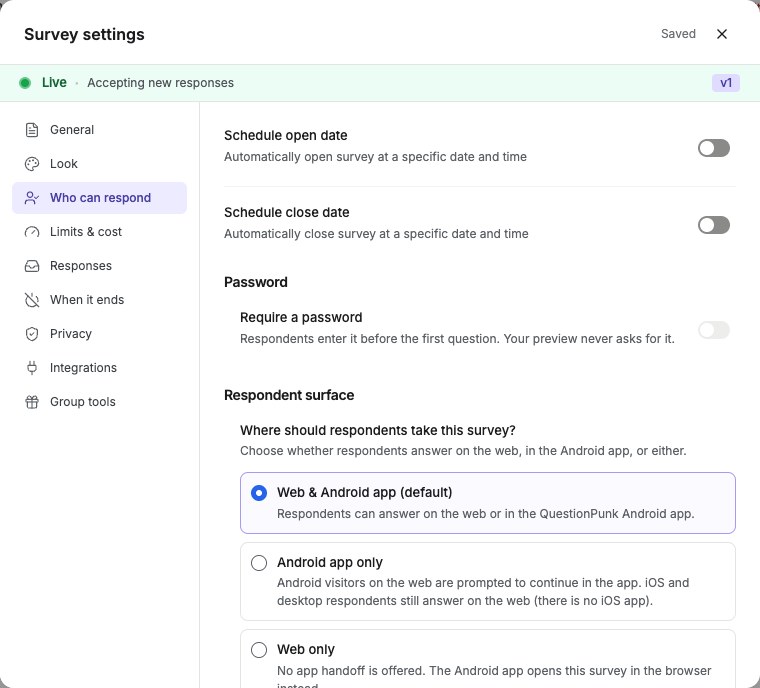
English interface · Survey settings → Who can respond tab showing Schedule.
### 2. Set the open date
Choose the date, time, and timezone for the survey to start accepting responses. The survey opens automatically at the scheduled time.
### 3. Set the close date
Choose the date, time, and timezone for the survey to stop accepting responses. After that time, the survey link shows a closed message.
### 4. Publish the survey
Publish the survey after you enable scheduling. Even after it is published, the survey will not accept responses until the open date.
## Details
Scheduling lets you prepare and share your survey link ahead of time while controlling exactly when responses are accepted.
You can set a timezone for both the open date and the close date, so you can schedule for any region regardless of where you are.
You can combine scheduling with response limits to cap the number of submissions during your collection window.
Other useful settings: turn on the **Progress Bar** (Look) so respondents know how far they are, set a **Redirect URL** (When it ends) to send respondents to a custom page after finishing, configure **Cookie Consent** (Privacy) when required by your organization, set an [AI budget cap](https://www.questionpunk.com/support/ai-budget-cap) (Limits & cost) to limit AI credit spend, add [tracking pixels](https://www.questionpunk.com/support/tracking-pixels) (Integrations) to fire conversion events to ad platforms, and choose where respondents take the survey: on the web, in the Android app, or either.
## Check the result
The survey shows scheduled open and close dates, and it only accepts responses during that time window after you publish it.
## If something goes wrong
If the survey is not opening or closing when expected, check the timezone on both the open date and close date in **Survey settings > Who can respond**.
## Related articles
- [Create your first survey](https://www.questionpunk.com/support/create-your-first-survey.md)
- [Send your survey to multiple people](https://www.questionpunk.com/support/embed-and-share.md)
---
# Reduce IP and location data collection (anonymous mode)
Canonical page: https://www.questionpunk.com/support/anonymous-mode
Stop collecting respondents' IP addresses and IP-based location for a study.
Turn on Minimize IP and location data to stop QuestionPunk from collecting respondents' IP addresses and IP-based location for a study from that point forward. It does not remove data collected earlier.
Last reviewed: 2026-10-27
Time: 1-2 minutes
Level: Beginner
Audience: Researchers, Academics, Compliance teams
## Before you start
Open the survey you want to update. Make sure you can access **Settings > Privacy** for that survey.
## Watch the walkthrough
[Review privacy and response limits](https://www.questionpunk.com/support/videos/privacy-and-scheduling.mp4)
A navigation overview using actual English-interface demo screenshots, generated English narration, and English/Japanese captions. This is a narrated screenshot sequence, not a continuous recording. Examples are fictional.

[English captions](https://www.questionpunk.com/support/videos/privacy-and-scheduling.en.vtt)
[Japanese captions](https://www.questionpunk.com/support/videos/privacy-and-scheduling.ja.vtt)
### Video transcript
Open Survey settings and select Privacy. Minimize IP and location data reduces metadata collection, though it does not remove identifying questions from your survey. Open Who can respond for password options, browser restrictions, and opening or closing dates. Check the timezone before scheduling. Open Limits and cost to set a total response cap, answer quotas, or an AI budget cap before publishing.
## Steps
### 1. Open survey settings
Open the survey's **Settings > Privacy**.
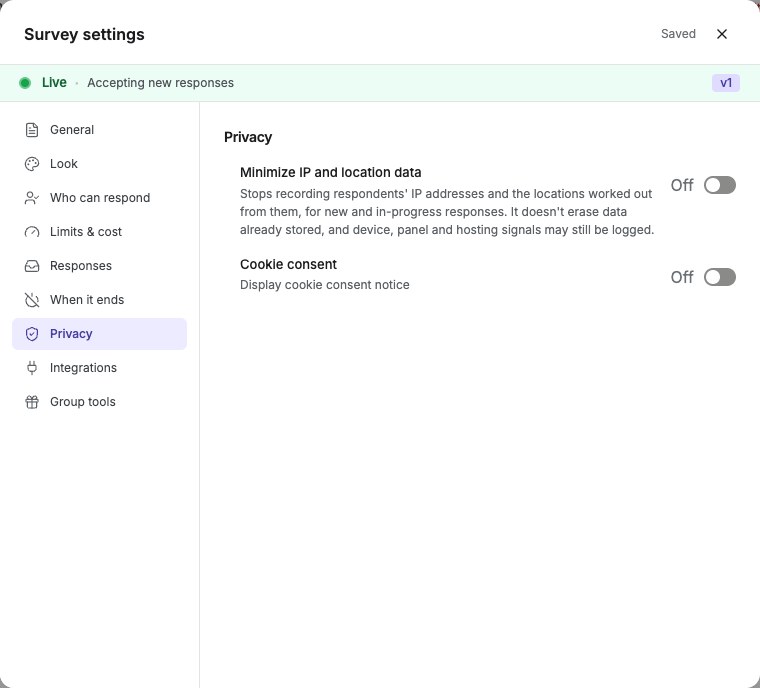
English interface · Survey settings → Privacy tab showing Minimize IP and location data.
### 2. Turn on Minimize IP and location data
Under Privacy, turn on **Minimize IP and location data**. It is off by default and applies per survey. For new and in-progress responses, QuestionPunk stops recording IP addresses and IP-based location. It also removes IP-based fields from piping and AI prompts. Tracking pixels are disabled when the study page loads with this setting enabled. Pages that are already open must reload.
### 3. Review other privacy and access settings
Review cookie consent in **Privacy** and session resumption in **Responses**. In **Who can respond**, review incognito and unknown-browser restrictions and the rule against multiple submissions from the same browser.
## Details
Use this setting when your study should not keep respondents' IP addresses or locations.
Responses do not store IP addresses or IP-based location. Device type, operating system, browser, browser language, and URL parameters are still recorded with the answers.
You can combine this setting with other privacy controls, such as disabling session resumption and enabling cookie consent prompts.
Additional access controls include blocking incognito or private browsers, restricting unknown browser types, and preventing multiple submissions from the same browser. Session resumption can use a custom time-to-live (TTL, from 1 hour to 7 days) so respondents can return and finish a survey within a set window.
Settings also let you choose where your survey can be taken: **Web & Android app** (the default), **Android app only** (Android visitors are asked to continue in the app; iOS and desktop respondents still answer on the web), or **Web only**.
**This setting does not make a study anonymous by itself.** Names, email addresses, phone numbers, verification answers, participant IDs in links, and identifying details in free-text or recorded answers can still identify someone. Review the questions and URL parameters you collect before describing the study as anonymous. This setting does not delete identifiers already collected.
## Check the result
The survey saves new responses without IP addresses or IP-based location. Existing open study pages need a reload before the change applies there.
## If something goes wrong
If IP-based fields still appear in testing, reload any study pages that were already open before you turned on **Minimize IP and location data**.
## Related articles
- [Keep and export survey data](https://www.questionpunk.com/support/data-exports-retention.md)
- [Create your first survey](https://www.questionpunk.com/support/create-your-first-survey.md)
---
# Manage participants, lists, and respondents
Canonical page: https://www.questionpunk.com/support/audiences
Group respondents into lists and track their activity across surveys.
The Participants page is where you create named respondent lists, add real respondents, and review survey participation. AI personas are managed on the separate AI Personas page. Use lists to organize panels, manage recruitment, and reuse respondents across studies.
Last reviewed: 2026-10-27
Time: 10-15 minutes
Level: Intermediate
Audience: Researchers, Product teams, Panel managers
## Before you start
Make sure you have access to the main navigation sidebar and know whether you need real respondents, imported respondents, or AI personas. Prepare your CSV file in advance if you plan to bulk import respondents.
## Steps
### 1. Open the Participants page
Click **Participants** in the main navigation sidebar to open the respondent management dashboard. AI-generated personas are managed from the separate **AI Personas** sidebar entry, and both use the same underlying respondent database.
### 2. Create a list
Click **+ New list** to make a named group. Use lists to organize respondents by study, demographic, or any criteria you need.
### 3. Add respondents
From **Participants**, add real respondents with email, phone, external ID, source, and notes, or upload them in bulk with **CSV import**. Create synthetic AI personas separately from the **AI Personas** sidebar entry, which uses the same underlying respondent database.
### 4. Import respondents from CSV
Click **Import CSV** to start the 5-step import wizard. Upload your file. Map columns to respondent fields such as name, email, phone, country, region, city, and custom fields. Preview the data. Set the respondent type and audience assignment. Then import in batches with the progress tracker.
### 5. Filter and review respondents
Filter respondents by type (real or imported), source, email status, response history, date range, and geographic location (country, region, city). Switch between **Table view** and **Map view** to review distribution on a world map.
### 6. Manage respondents
Select respondents to run bulk actions: **Add to list**, **Merge** duplicates, or remove them. Real respondents are archived when removed. Click a respondent to open the full profile with cross-survey participation history, list memberships, and geographic data.
### 7. Tag respondents with codes
Assign colored codes (labels) to individual respondents from the Results section. Codes are survey-scoped, so each survey has its own set. Create a code with a name and color, then turn it on or off for any respondent. Codes appear as colored pills in the response detail panel and can be included in CSV and XLSX exports.
### 8. Add comments to respondents
Add internal notes to any respondent from the Results section. Comments are visible to your team. They include timestamps and the team member who wrote them. You can edit or delete comments at any time. The Audiences page shows a read-only comment count for each respondent.
### 9. Merge duplicate respondents
Select multiple respondent records and click **Merge** to combine them into one profile. The merged profile keeps all survey responses, list memberships, comments, and codes. Missing fields are filled from the secondary records.
## Details
Lists help you manage respondents across all your surveys in one place. Create separate lists for studies, demographics, or recruitment sources.
Three respondent types are supported: **Synthetic** (AI personas for testing), **Real** (human respondents added manually or from panel providers like QuestionPunk Panel), and **Imported** (bulk-uploaded from CSV files).
The CSV import wizard auto-maps common column names such as name, email, and phone. It also supports custom persona detail fields for unmapped columns.
The **Map view** shows respondent locations on a world map.
Respondent profiles can include geographic data (country, region, city), demographic data (age, sex, nationality, ethnicity, student status, employment status), contact information (email, phone, LinkedIn URL), source, participation history across surveys, and fraud scores. You can import demographics by CSV, and the source is tracked automatically.
Bulk operations help you manage large respondent pools. Select multiple respondents to add them to a list, merge them, or remove them in one action.
**Merge** combines multiple respondent records into one primary profile and transfers survey responses and list memberships. To stop the same person from answering an open link twice, turn on Prevent Multiple Submissions in the survey's Who can respond settings. It works per browser.
**Codes** let you tag respondents with colored labels for categorization, filtering, and export. Codes are scoped per survey, so each study can use its own coding scheme. Create, rename, recolor, or delete codes from the response detail panel. Codes can be assigned manually, generated by AI from qualitative analysis coding sessions, or promoted from AI-generated labels.
**Comments** let your team leave internal notes on respondents. Comments are timestamped and attributed, which creates an audit trail. Use them to flag interesting respondents, note follow-up actions, or share observations with colleagues.
## Check the result
You should have at least one respondent list, added or imported respondents, and respondent records you can filter, review, or merge.
## If something goes wrong
If a CSV import does not look right in the preview, check that each column is mapped to the correct respondent field before you continue.
## Related articles
- [Test your survey with synthetic AI personas](https://www.questionpunk.com/support/synthetic-testing.md)
- [Run a focus group with AI agents](https://www.questionpunk.com/support/focus-groups.md)
- [Recruit participants with QuestionPunk Panel](https://www.questionpunk.com/support/integrations-prolific.md)
---
# Create and edit surveys from Claude or ChatGPT (MCP)
Canonical page: https://www.questionpunk.com/support/connect-ai-assistant
Connect QuestionPunk to Claude or ChatGPT with our MCP server. Then ask in chat to draft a survey, add an AI interview, set logic, publish it and read the results. In ChatGPT, this needs an eligible Business, Enterprise or Edu workspace.
QuestionPunk has a hosted MCP server at https://app.questionpunk.com/api/v1. Add it as a custom connector in Claude, ChatGPT or Claude Code, sign in, and the assistant can work on your studies: create drafts, edit questions, publish when you ask, and read responses. The consent screen grants permissions for categories of actions; it is not an approval of every later action. Which actions the assistant may perform also depends on its own approval settings.
Last reviewed: 2026-10-27
Time: 5 minutes
Level: Beginner
Audience: Researchers, Product teams, Developers
## Before you start
For ChatGPT survey editing, use ChatGPT on the web in an eligible Business, Enterprise, or Edu workspace with custom MCP app access. Read-only connections cannot create or publish studies. For Claude, confirm that custom connectors are available in your account.
## Steps
### 1. Add the connector
In Claude, open **Customize > Connectors > Add > Custom > Web**. In an eligible ChatGPT workspace, open **Plugins**, select the **plus** button, then **Add custom MCP server**. The current Plugins flow does not require Developer Mode. If your workspace still uses the legacy Apps interface, follow its **Apps > Create** flow. Name the connection QuestionPunk and enter `https://app.questionpunk.com/api/v1`. In Claude Code, run `claude mcp add --transport http questionpunk https://app.questionpunk.com/api/v1`, then `claude mcp login questionpunk`. Availability depends on your assistant plan and workspace permissions. Check the current [Claude setup instructions](https://support.claude.com/en/articles/11176164-use-connectors-to-extend-claude-s-capabilities) or [ChatGPT setup instructions](https://help.openai.com/en/articles/12584461-connecting-custom-mcp-servers-in-chatgpt).
### 2. Sign in and approve access
Choose OAuth if your assistant asks for an auth method. Sign in to QuestionPunk, review the requested permissions, and click **Approve connection**.
### 3. Test it with a first request
In ChatGPT, install the resulting plugin, start a new chat, type **@** and select QuestionPunk. In Claude, enable the connector for the conversation. Ask: “Verify my QuestionPunk connection, then create an unpublished draft called Onboarding feedback.” Open the returned study and confirm it is saved as a draft.
### 4. Disconnect it later if needed
To remove access, go to **Settings > Integrations > Connected apps** in QuestionPunk and click **Disconnect**.
## Details
**What you can ask for:** create a draft from a brief or a template, add an AI interview by text or voice, edit questions and screens, set display logic on a draft, publish it, and read the results. The prompts under Examples below each map to one of these.
**What it can’t do:** it can’t add a language to a survey, though it can edit question text in the languages the survey already has. It can’t answer a survey as a participant or buy participant recruitment. Logic can only be changed while a survey is a draft. Publishing makes a survey live for respondents, so ask for it directly when you’re ready.
**What it costs:** connecting is free and works with your current plan. The connector’s own requests don’t use AI credits. AI features inside a published survey, such as voice interviews and AI interviews on premium models, use credits as respondents answer, the same as in a survey you build yourself.
**Your data:** the assistant receives the account details, study content and results it asks for, and its provider’s terms apply to those copies. Disconnecting stops further access. It doesn’t remove data the assistant already received.
**Other MCP clients:** Cursor, VS Code and Gemini CLI connect the same way. Add `https://app.questionpunk.com/api/v1` as a remote (HTTP) MCP server, then sign in to QuestionPunk and approve the connection when the client opens your browser.
**Permissions:** reading your studies and writing to them are two permissions. Reading responses is a third, and using QuestionPunk’s own AI features a fourth. The consent screen lists the ones your assistant asked for, and you approve them together or cancel.
To build your own integration with an API key, see [API and developer access](https://www.questionpunk.com/support/api-access). The [connector setup page](https://mcp.questionpunk.com/docs) has troubleshooting steps.
## Examples
- See your studies: “List my QuestionPunk surveys and tell me which are still drafts.”
- Start from a brief: “Create a draft called Churn interviews: a voice AI interview that asks why people cancelled, then three multiple-choice questions about price, features and support.”
- Start from a template: “Find a QuestionPunk template for an NPS survey and make me a draft from it.”
- Edit questions: “Add a question after question 2 asking how long they’ve been a customer, and make it required.”
- Add logic to a draft: “Only show question 5 to people who rated us 6 or lower.”
- Change the screens: “Rewrite the welcome screen so it says the survey takes three minutes.”
- Publish: “Publish it and give me the participant link.” It publishes only when you ask, and returns the link to share.
- Read results: “How many responses do we have? Read the open answers and tell me the top three reasons people gave.” With permission to read responses, it can also cross-tab two rating or numeric questions and give you Excel and CSV download links.
## Check the result
The QuestionPunk connector is connected in Claude or ChatGPT, and a test request can create an unpublished draft in your QuestionPunk account.
## If something goes wrong
If the connection test does not create the draft, check that the connector URL is exactly `https://app.questionpunk.com/api/v1` and that QuestionPunk is turned on in the new chat.
## Related articles
- [Set up API and developer access](https://www.questionpunk.com/support/api-access.md)
- [How AI credits work](https://www.questionpunk.com/support/ai-credits.md)
- [Create your first survey](https://www.questionpunk.com/support/create-your-first-survey.md)
---
# Set up API and developer access
Canonical page: https://www.questionpunk.com/support/api-access
Use the QuestionPunk REST API to work with surveys and responses programmatically.
QuestionPunk offers a public REST API for survey and response workflows. Authenticate with an API key or an OAuth access token. Use the documented operations and required scopes. Assistants connect through the separate researcher MCP connection with OAuth.
Last reviewed: 2026-10-28
Time: 10-20 minutes
Level: Intermediate
Audience: Developers, Product teams, Researchers
## Before you start
Decide whether you need the public REST API or the separate researcher MCP connection. Make sure you can access Developer settings before you try to create a key.
## Steps
### 1. Create an API key
Go to **Settings > Developer > API Keys** and click **+ Create API Key**. Enter a name and copy the key. Store it securely because it is shown only once.
### 2. Authenticate your requests
Use `https://app.questionpunk.com/api/public/v1` as the REST base URL. For authenticated operations, send your API key or OAuth access token in the `Authorization: Bearer ` header.
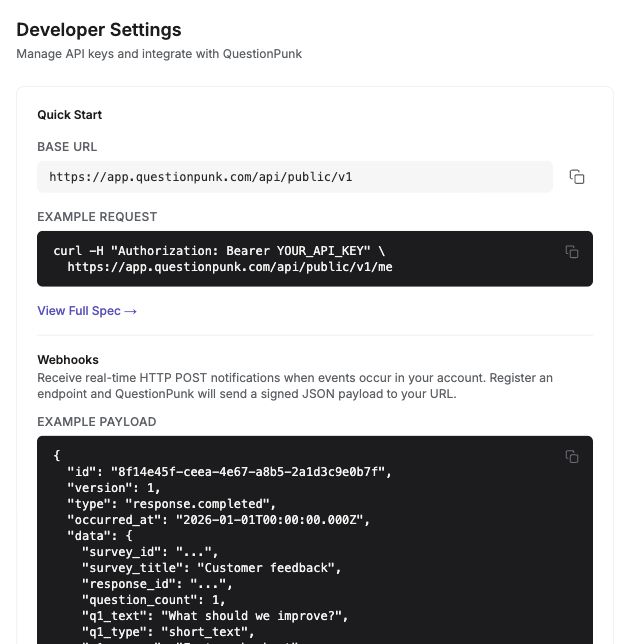
English interface · Demo study. Use the controls described in this step.
### 3. Check the API specification
Open the [public REST OpenAPI specification](https://app.questionpunk.com/api/public/v1/openapi.json) to see supported methods, paths, request bodies, response schemas, and required scopes. MCP tool arguments and REST request bodies use different contracts.
### 4. Follow the rate limits
The public REST API allows 100 requests per fixed 60-second window per client IP. Read the returned rate limit headers. If a request returns 429, wait as directed by `Retry-After`.
## Details
If you want to connect an assistant, use the [researcher MCP setup guide](https://mcp.questionpunk.com/docs). Its canonical endpoint is `https://app.questionpunk.com/api/v1`. A compatible client discovers OAuth, asks you to sign in, and requests consent. This is separate from the public REST base URL.
You can create, rotate, and revoke API keys from the Developer settings page. Choose the scopes your REST integration needs. Keep credentials out of URLs and chat messages.
You can use the public [OpenAPI specification](https://app.questionpunk.com/api/public/v1/openapi.json) to generate REST client libraries. Account permissions and operation-specific restrictions still apply.
REST responses include `RateLimit-Policy` and `RateLimit` (IETF draft format) as well as `X-RateLimit-Limit`, `X-RateLimit-Remaining`, and `X-RateLimit-Reset`. Keys used from the same client IP share the same window. Creating another key does not create a separate IP allowance.
## Check the result
You should have an API key stored securely or know to use OAuth, the correct base URL, and the OpenAPI spec for the requests you plan to make.
## If something goes wrong
If requests fail, confirm you are using `https://app.questionpunk.com/api/public/v1` for REST and not the MCP endpoint at `https://app.questionpunk.com/api/v1`.
## Related articles
- [Create and edit surveys from Claude or ChatGPT (MCP)](https://www.questionpunk.com/support/connect-ai-assistant.md)
- [Set up webhooks](https://www.questionpunk.com/support/webhooks.md)
- [Export response data](https://www.questionpunk.com/support/data-exports-exporting-results.md)
---
# Set up webhooks
Canonical page: https://www.questionpunk.com/support/webhooks
Get real-time event notifications when responses are submitted or survey status changes.
Webhooks send events to your server when something happens in QuestionPunk. You can receive events when a response starts or completes, when a survey is published or unpublished, or when a response limit is reached. Use webhooks to trigger follow-up workflows without polling.
Last reviewed: 2026-10-27
Time: 10-15 minutes to configure
Level: Intermediate
Audience: Developers, Product teams
## Before you start
Prepare a publicly accessible HTTPS endpoint that accepts POST requests. When you create the endpoint, save the returned webhook secret securely so your receiver can verify deliveries.
## Steps
### 1. Add a webhook endpoint
Go to **Settings > Developer > Webhooks** and click **+ Add Endpoint**. Enter a publicly accessible HTTPS URL that can receive POST requests.
### 2. Choose events
Choose the response, booking, survey, recruitment, or panel submission events your workflow needs: `response.completed`, `response.started`, `response.abandoned`, `response.updated`, `response.analyzed`, `booking.scheduled`, `booking.canceled`, `payment.succeeded`, `payment.refunded`, `survey.published`, `survey.unpublished`, `survey.response_limit_reached`, `recruitment.started`, `recruitment.fulfilled`, `recruitment.partial`, `recruitment.failed`, `panel.submission.approved`, `panel.submission.rejected`, `panel.submission.payout_released`, `panel.submission.paid`. **Select all** selects the events currently listed. To subscribe to future event types too, use `*` through the API.
### 3. Verify request signatures
Each delivery includes an `X-QP-Signature` header with the value `sha256=`. This is an HMAC of the raw request body. Verify it with your webhook secret to confirm the request came from QuestionPunk.

English interface · Demo study. Use the controls described in this step.
### 4. Check delivery logs
Open **Settings > Developer > Logs** to review delivery history. You can see HTTP status codes and response times there to diagnose failed deliveries.
## Details
Webhooks help you respond to QuestionPunk events in real time. Common uses include sending a Slack notification when a response is completed, syncing data to a CRM, or triggering an analysis pipeline.
**Response events** cover starts, completions, abandonment, updates, and completed analysis. **Booking events** cover scheduled and canceled bookings. **Survey events** cover publishing, unpublishing, and reaching the response limit. **Recruitment events** track started, fulfilled, partial, and failed recruitment. **Panel submission events** track approvals, rejections, payout release, and payment. Choose the event that represents the action you need; a booking event is separate from a completed survey response. **Survey payment events** report successful and refunded Stripe payments; they are separate from panel payouts.
Webhook secrets are encrypted at rest using AES-256-GCM. Each delivery is signed with SHA-256 HMAC so your server can verify authenticity.
If a delivery fails, check the delivery log in Settings > Developer > Logs. Review the HTTP status code and response time to help diagnose the issue.
**Acknowledge quickly and handle retries.** Return a 2xx status within 10 seconds after accepting the event, and do slower work in your own queue. Failed deliveries can be attempted up to six times. Deduplicate by `X-QP-Event-Id` (also the payload’s `id`), not `X-QP-Delivery-Attempt-Id`, which changes for each attempt. A retry must not send the same reward or create the same record twice.
**Signature does not match.** Compute the HMAC from the original request bytes before parsing JSON; re-serializing JSON can change those bytes. Compare against the `sha256=` signature using a timing-safe comparison. Keep the signing secret on your server, never in browser code. If no request reaches your receiver, check HTTPS accessibility and delivery logs before changing signature verification.
## Check the result
You should have a webhook endpoint saved, the right events selected, and delivery logs available to review after QuestionPunk sends events.
## If something goes wrong
If deliveries fail, open **Settings > Developer > Logs** and check the returned HTTP status code and response time for the endpoint.
## Related articles
- [Set up API and developer access](https://www.questionpunk.com/support/api-access.md)
- [Export response data](https://www.questionpunk.com/support/data-exports-exporting-results.md)
---
# Set up a diary study
Canonical page: https://www.questionpunk.com/support/diary-studies
Set up recurring survey waves, track participants, and monitor completion across a longitudinal study.
Diary studies let you schedule repeating survey waves over days or weeks, enroll participants with unique smart links, and track completion in a visual compliance grid. Use them for longitudinal research, daily journaling studies, and multi-wave experience sampling.
Last reviewed: 2026-10-27
Time: 15-30 minutes to set up
Level: Intermediate
Audience: Researchers, Academics, UX teams, Product teams
## Before you start
Decide which survey should run on each day or week. If you plan to use intake or exit surveys, make sure they are different from each other and from every wave survey. Plan how each participant will be identified, for example with an email, Prolific ID, or participant ID. Completing a plain anonymous link does not enroll someone in the diary study.
## Steps
### 1. Create the diary study
Open **Survey settings → Responses → Repeat as a diary study** and choose **Set up**. Create the study with the surveys and schedule for its check-ins. After creation, manage it from the survey’s **Diary** tab. **Session resumption** on the Responses page controls unfinished sessions; it does not create a diary schedule.
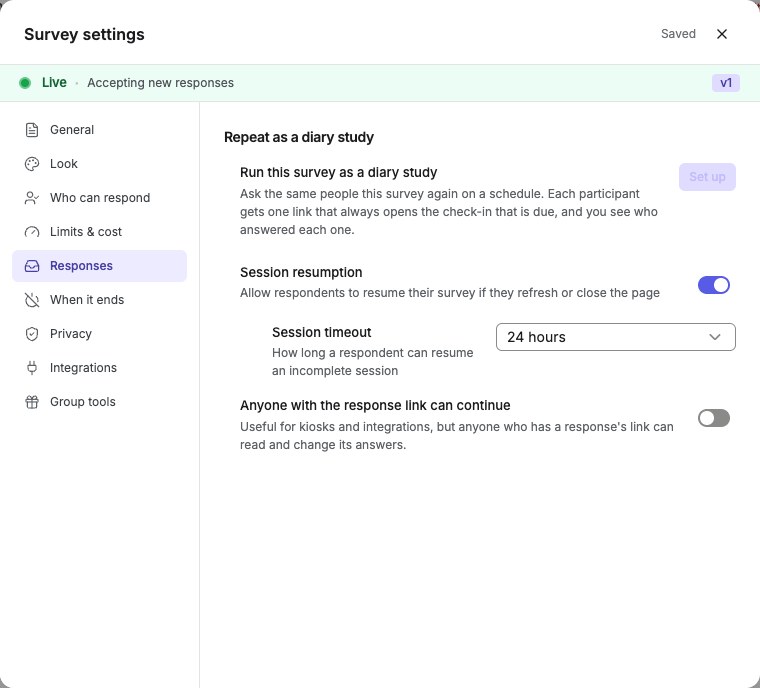
English interface · Repeat as a diary study opens the study setup. Session resumption below it is a separate setting.
### 2. Set the schedule
Choose the cadence: **daily** or **weekly**. Set **Check-ins open at**. Optionally set a deadline time. Set the study timezone. On a shared calendar, set a **Start date**, or leave it empty to open each wave by hand. Choose how to handle late entries: **Flag as late** to accept late responses with a marker, or **Reject after the deadline** to block submissions after the deadline.
### 3. Activate the study and share the first link
A new study starts as a draft and does not enroll anyone. Click **Activate** on the study page. Then share the intake survey link, or the first wave survey link if there is no intake. Participants are **automatically enrolled** when they complete the intake survey, or the first wave survey if no intake is configured. There is no manual enrollment step. Enrollment requires an identified respondent; anonymous completions are not enrolled.
### 4. Share each participant’s smart link for later waves
After a participant completes the intake survey or first wave, a unique smart link (`/d/`) is created for that participant. Copy it from the compliance grid and share it with that person. The smart link stays the same for the whole study. It routes the participant to the current wave, the exit survey, or a between-waves message as needed. Smart links work on the web and in the QuestionPunk mobile respondent app, where participants can also track enrolled studies and due check-ins.
### 5. Monitor compliance
Use the compliance grid to review a participant-by-wave matrix. Each cell shows a status: **Completed** (green), **Late** (amber), **In progress** (blue), **Missed** (red), **Due now** (outlined), or **Not due yet** (gray). The **Done so far** column shows the share of due waves each participant has completed. Wave statuses appear as colored badges: **scheduled**, **open**, and **closed**. You can close any wave. On a shared calendar, you can also open a wave.
### 6. Review participant completion history
Open the study detail page to review each participant’s completion history across all waves. The compliance grid shows who completed each wave and their overall completion rate.
## Details
Diary studies work well for longitudinal research such as daily journaling, experience sampling, habit tracking, and multi-wave evaluations where the same participants respond over time. Set up a diary study from the survey editor at **Settings > Responses > Repeat as a diary study**.
Each day in the study gets its own survey assignment from a day-by-day calendar, with up to 60 days. In many studies, the same survey repeats every day. Choose it once and it fills the remaining calendar. Change only the days that should ask something different. You can also add an optional **intake survey** for baseline data, demographics, or consent before day 1, and an optional **exit survey** for final reflections or an overall assessment after the last day. Both must be different from each other and from every day’s survey.
Once the study is active, participants are automatically enrolled when they complete the intake survey, or the first wave if there is no intake. Each enrolled participant gets a unique smart link (`/d/`) that stays the same for the rest of the study. The link routes to the current wave, the exit survey, or a waiting page between waves, so participants do not need a new link after enrollment. The first completion must carry a participant identity. Anonymous completions do not create a participant smart link.
The compliance grid gives you a quick view of who completed each wave. The color-coded cells help you spot missed or late waves. The Done so far column shows each participant’s completion record for waves that are already due.
Wave scheduling supports daily or weekly cadence with timezone-aware timing. Set an open time and an optional deadline to define each wave’s response window. The study detail page polls every 30 seconds to keep statuses current.
By default, each participant gets a personal wave calendar based on when they enrolled. This lets staggered or batched recruitment still give each participant the full study. Someone who joins a week late is not measured against another participant’s earlier wave dates. Switch to a shared calendar instead if you want everyone on the same wave dates no matter when they joined. In that setup, a late joiner starts on the current wave and misses earlier ones.
**Completion bonus tracking:** You can set an optional per-study bonus amount in USD, up to $1,000, for participants who complete every wave. The compliance grid tracks eligibility automatically. Each participant appears as **Eligible**, **Not eligible**, or **On track**. Pay the bonus through your panel provider or your usual compensation process. QuestionPunk tracks who earned it, but does not disburse payments directly.
**Scheduled Prolific batches:** Connect your own Prolific API key in Settings. After activating the diary and enrolling participants, use **Prolific batches > Set up batch**. Choose a workspace and project, select enrolled participants, review every check-in and wrap-up window, and approve a spending limit and submission policy. Each batch has its own full calendar. Prolific bills your account directly; QuestionPunk charges no fee and deducts no credits. Verified automatic approvals require a completed response matching the participant, Prolific study and session. Pause, reschedule and cancel remain pending until Prolific confirms them. Automation must be enabled for your environment; if unavailable, the card explains this. Closing the diary still allows existing submissions to finish approval review.
## Check the result
You should have an active diary study with a schedule, a first link to share, and participant smart links appearing in the compliance grid after enrollment.
## If something goes wrong
If a participant is missing from the compliance grid, check that the study is active, their intake or first-wave response is completed, and that response includes a participant identity.
## Related articles
- [Run another wave of the same survey](https://www.questionpunk.com/support/run-survey-again.md)
- [Create your first survey](https://www.questionpunk.com/support/create-your-first-survey.md)
- [Manage participants, lists, and respondents](https://www.questionpunk.com/support/audiences.md)
- [Send your survey to multiple people](https://www.questionpunk.com/support/embed-and-share.md)
- [Set up respondent incentives](https://www.questionpunk.com/support/respondent-incentives.md)
---
# Run a usability test with screen sharing
Canonical page: https://www.questionpunk.com/support/usability-testing
Set up an AI-moderated usability test where respondents share their screen, complete tasks, and think aloud.
A Usability test question runs an AI-moderated usability session. Respondents share their screen, complete guided tasks on a website or app, and think aloud while the AI moderator observes, asks follow-up questions, and collects post-task ease ratings. Results include task outcomes, navigation analytics, and per-task video clips when screen recording is enabled. A usability test can also run on a Figma prototype: paste the prototype link, pick the start and goal screens, and respondents use the prototype embedded in the study, with its screen changes noted alongside the recording.
Last reviewed: 2026-10-27
Time: 15-30 minutes to set up
Level: Intermediate to Advanced
Audience: UX researchers, Product teams, Designers
## Before you start
Prepare the task scenarios, target URLs, and any micro-steps you want to track. If you are testing a native app, have the Android package name, iOS URL scheme, and iOS App Store ID ready.
## Steps
### 1. Add a Usability test question
In the survey editor, click **Add Question**. Then choose **Usability test** from the **AI** category. This question type is built for AI-moderated usability sessions with screen sharing and task tracking.
### 2. Add tasks
A Usability test always uses guided tasks with screen sharing, so there is nothing to turn on. Open the question. Then add the tasks you want respondents to complete.
### 3. Set up task scenarios
Add up to 20 task scenarios. For each task, add the **scenario text** that the AI reads aloud, a **target URL** for a website, app, or prototype, optional micro-steps to track sub-task completion (up to 50 per task), a **time budget** (30 seconds to 45 minutes, default 5 minutes), and a **stuck threshold** (10 seconds to 60 minutes with no progress before the AI intervenes, default 120 seconds). Mark warmup tasks with the **warmup** flag so they are excluded from analysis.
### 4. Choose task ordering
Enable **randomize task order** to vary task sequence across respondents and reduce order effects. You can also randomize step order within tasks.
### 5. Set think-aloud and intervention behavior
Think-aloud reprompting is on by default. If the respondent is silent for 20 seconds, the AI gives a neutral "keep talking" prompt. You can change this to 5-120s. Set **Moderator style** to **Coach** (AI reads each task, guides step by step, answers questions, and moves on when done) or **Silent observer** (AI reads each task and watches quietly, speaking only to advance or debrief). Under **When the participant asks for help**, choose **Deflect**, **Minimal answer**, or **Don't respond**. The reassurance intro is on by default. You can also add up to 10 post-task questions per task and up to 5 wrap-up questions after all tasks.
### 6. Use screen sharing
Screen sharing is always on for a Usability test question. On desktop, respondents share their screen through the browser's screen capture. On Android, the mobile app uses native screen sharing.
### 7. Check the results
The results show a per-task breakdown: outcome distribution (success/partial/fail/abandoned), average duration, navigation friction (revisits, oscillations, back-navigations), and per-step completion rates with stuck and wrong-turn indicators. When screen recording is enabled, per-task video clips are cut from that recording.
## Details
Usability testing is a dedicated question type in QuestionPunk that combines AI-moderated voice interviews with screen recording and guided task tracking. Respondents speak their thoughts while completing tasks. The AI moderator adapts its questions based on what it observes. Screen sharing works in desktop browsers and in the Android app.
Each task scenario defines what the respondent should accomplish and on which URL. You can also set time limits and stuck detection. The AI looks for signs of difficulty and can coach or stay silent, depending on your moderator style.
**Think-aloud reprompting** helps respondents keep narrating their thought process. If they go silent, the AI gives a neutral prompt after a configurable silence threshold (default 20 seconds).
A **Single Ease Question** (SEQ, 1-7 scale) is asked after each task by default. You can turn it off. This gives you a standardized ease metric alongside qualitative observations.
Use the outcome, navigation, and per-step results to find where people got stuck, took wrong turns, or gave up.
Navigation analytics track every screen visit. They compute revisit counts, oscillation patterns (A→B→A), and back-navigation frequency per task. This helps you spot navigation friction without reading logs.
When screen recording is enabled, QuestionPunk can cut per-task video clips from the full recording. Check recording settings before the session if you need clips to share with stakeholders.
Counterbalanced task ordering randomizes the sequence across respondents. This helps control fatigue and learning effects in within-subjects designs.
**Native app testing:** Task targets can be set to **website**, **app**, or **prototype**. For native app targets, configure an Android package name, iOS URL scheme, and iOS App Store ID to launch the respondent directly into the app being tested.
Per-language task text overlays let you translate scenario descriptions, step instructions, and post-task questions for multilingual usability studies.
**Match recruitment to the supported device.** Desktop browsers can share a screen; Android browser participants need the supported app handoff. An iPhone or iPad browser cannot provide the required screen share. A field for an iOS app URL does not establish iOS browser screen-sharing support. Pilot the complete task on the intended device before inviting participants.
**Screen sharing and recording are different.** Enable recording before the session if you need a saved recording or task clips. Explain what will be captured, and ask participants to close unrelated windows and notifications before sharing. For permission or interrupted-audio problems, use [the audio and screen-sharing guide](https://www.questionpunk.com/support/troubleshooting-audio-video).
## Check the result
Check the task scenarios, timing, and moderator behavior in Preview before recruiting. After completed sessions, review task outcomes and navigation metrics. Video clips require screen recording to be enabled.
## If something goes wrong
If the session does not match your study plan, open the question and check the task scenario details, including the target URL, time budget, and moderator style.
## Related articles
- [Set up a voice AI interview](https://www.questionpunk.com/support/ai-audio-interviews.md)
- [How AI interviews work](https://www.questionpunk.com/support/ai-how-it-works.md)
- [Test your survey with synthetic AI personas](https://www.questionpunk.com/support/synthetic-testing.md)
---
# Notifications and email preferences
Canonical page: https://www.questionpunk.com/support/notifications
Manage in-app notifications and choose which email alerts you receive.
QuestionPunk sends in-app and email notifications for survey activity, AI analysis completion, and account events. Use Settings to choose which notifications you receive. Per survey, you can also send each respondent a confirmation email with a copy of their answers, and include the answers in your own new-response email.
Last reviewed: 2026-10-27
Time: 2-5 minutes
Level: Beginner
Audience: All users
## Before you start
Sign in to the account whose notifications you want to manage. Open a survey or your account menu so you can reach the bell or Settings.
## Steps
### 1. Open in-app notifications
Click the **bell icon** in the top navigation bar to open the notification dropdown. Unread notifications show a dot, and the bell shows an unread count badge up to 99+. Use the **Unread** tab to view only new notifications. Click **Mark all read** to clear them.
### 2. Know what notifications you can receive
Notifications cover new survey responses, AI reviews and analysis, synthetic test runs, PowerPoint exports, survey generation, AI reports, and [diary study delivery problems](https://www.questionpunk.com/support/diary-studies). You may also see editor-link activity, referral rewards, and team invitations or access requests. Open each notification to inspect its status and next action.
### 3. Open the full activity list
Click **See all activity** at the bottom of the notification dropdown to open the notifications page. That page shows your 30 most recent notifications. Opening the page marks them all as read.
### 4. Set email preferences
Click **Notification settings** in the dropdown, or go to **Settings > Account Preferences**. Manage three toggles there: **Response Alerts** (the first-response email and in-app notifications for new survey responses), **Account Notices** (account updates and the daily response digest email), and **QuestionPunk Updates** (product tips and feature announcements by email).
### 5. Understand the daily response digest
When Account Notices are enabled, you receive a daily summary email for surveys that received new responses in the last 24 hours. Only real responses are counted. Synthetic test responses are excluded. The Response Alerts toggle separately controls the in-app version, sent as one summary per survey per day.
## Details
The notification bell in the top navigation bar shows survey activity and completed background tasks in real time. The unread count badge shows how many new notifications are waiting.
Notifications appear when background tasks finish, including AI analysis, synthetic test runs, PowerPoint exports, survey generation, and AI report generation. They also appear when something needs attention, such as a diary study wave whose invitations or reminders failed to send. Each notification includes a direct action link such as "View report", "Download", or "View responses".
Three toggles in Settings > Account Preferences control what you receive. **Response Alerts** covers the first-response email and in-app notifications when surveys get new responses. **Account Notices** covers account changes and includes the daily response digest email. **QuestionPunk Updates** sends product tips and feature announcements by email.
The daily response digest email is sent when Account Notices are enabled. It lists surveys that received new real responses in the last 24 hours. Synthetic test responses are filtered out. The Response Alerts toggle separately controls the in-app summary, with one summary per survey per day.
## Check the result
You should be able to review recent notifications and confirm which email and in-app alerts are enabled in **Settings > Account Preferences**.
## If something goes wrong
If you do not see an expected email, check whether the matching toggle is enabled in **Settings > Account Preferences**.
## Related articles
- [Manage your subscription](https://www.questionpunk.com/support/account-manage-subscription.md)
- [Create your first survey](https://www.questionpunk.com/support/create-your-first-survey.md)
- [Set up a diary study](https://www.questionpunk.com/support/diary-studies.md)
---
# Resolve common sign-in problems
Canonical page: https://www.questionpunk.com/support/troubleshooting-sign-in
Use these steps to fix common authentication and sign-in issues.
Troubleshooting steps for sign-in problems with email magic links, email/password, and OAuth providers (Google, Apple, Microsoft, LinkedIn).
Last reviewed: 2026-10-27
Time: 5-15 minutes
Level: Beginner
Audience: All users
## Before you start
Know which email address you used to register. If you use email sign-in, check that you can access that inbox and its spam folder.
## Steps
### 1. Check your email for the magic link
For email sign-in, request a **magic link** and open the latest email. Email/password and the OAuth buttons shown on the page are alternative methods. Use the same email address as your existing account; do not expect a numeric verification code for the magic-link flow.
### 2. Try another sign-in method
Use a sign-in method offered on the current page. Email magic links and existing email/password accounts are supported; Google, Apple, Microsoft, and LinkedIn buttons depend on the deployment configuration. If one offered method does not work, try another using the same email address.
### 3. Reset your password
If you already set a password, use the **Forgot your password?** link on the sign-in page to reset it.
### 4. Review your browser settings
Make sure cookies and JavaScript are enabled. Temporarily disable extensions to check whether one causes the issue. If you are preserving pending template setup, keep using the original browser/profile and do not clear its site data. A private window or another browser can help diagnose sign-in, but it will not carry that setup.
### 5. Contact support
Use the [support form](https://www.questionpunk.com/support). Include the sign-in method, exact error, approximate time and timezone, browser/device, and whether another browser works. Send the email address you registered with through the private form. Never include your password, a magic link, reset link, or verification code; crop those out of screenshots.
## Details
With magic-link signup, the account is created after email verification. Password signup is a separate flow and may show an email-verification banner after the account is created. Follow the flow shown on the page and use the latest message; do not share sign-in or verification links.
If you signed up with Google, click the "Sign in with Google" button instead of using the email/password form. Do the same for Apple, Microsoft, and LinkedIn. Use the matching sign-in button.
Try a separate browser or temporarily disable extensions before clearing site data. If you use [offline collection](https://www.questionpunk.com/support/collect-responses-offline), keep the original browser and device intact until queued interviews have uploaded. Use **Download a backup of queued interviews** if upload is blocked. Clearing site data can erase unsent interviews; a backup file does not have a self-service restore screen.
**Signing up from a template:** open the latest magic link in the same browser/profile where you answered the setup questions. Another tab in that browser is supported; switching devices or clearing site data can lose the pending answers. See [template setup continuation](https://www.questionpunk.com/support/templates) and check the created draft after sign-in. **Already have a guest draft?** If you open its edit link in another browser and sign in there, QuestionPunk may offer **Keep the survey you started before signing in?**. Choose **Keep it** to copy the eligible draft into your account, then review it. This does not transfer offline interviews stored in the original browser.
## Check the result
You should be able to sign in, or narrow the issue to a specific sign-in method or browser setting.
## If something goes wrong
If a magic link does not work, confirm it is from noreply@questionpunk.com and still within the 1 hour expiration window.
---
# Troubleshoot a survey link that is not working or not getting responses
Canonical page: https://www.questionpunk.com/support/troubleshooting-delivery
Check publishing, sharing, embeds, and provider status when people cannot open the survey or responses do not arrive.
Use these steps to diagnose delivery problems. Check that the survey is published, confirm the participant link, review embed setup, and verify any recruitment provider limits or access issues.
Last reviewed: 2026-10-27
Time: 10-30 minutes
Level: Intermediate
Audience: Researchers, Ops
## Before you start
Make sure you can open the survey editor and the site where the survey is embedded, if applicable. If you use QuestionPunk Panel, have access to the study details.
## Steps
### 1. Check survey status
Open the top section switcher and go to Share. Publish the survey first if it is not already **Published**. Review the publication confirmation, confirm Publish again, and then use Copy link. Only published surveys accept responses.
### 2. Verify the share link
Use the participant link from **Share**, not Preview. Test it in a normal browser window. If you test in a private window, first check whether **Who can respond** blocks incognito browsers; that setting can intentionally prevent the test from opening.
### 3. Check embed settings
If embedded, verify the iframe/script code is correctly placed on your site. Check that your site does not block iframes.
### 4. Review panel provider
For QuestionPunk Panel, verify that the study still has open places and is active. If you recruit with your own Prolific account, first confirm it is connected in Settings > Integrations > Prolific with an API token and Connect. Check for any provider-side pauses or issues.
## Details
A common delivery issue is sharing before the survey is published. Open Share from the top section switcher, complete the publication confirmation, confirm Publish again, and then use Copy link before sending it.
The same participant link can be sent to multiple people. Each person submits separate answers. If using embeds, ensure the embed code is placed correctly and your site does not block iframes. Test in multiple browsers.
For QuestionPunk Panel, confirm that the study still has open places and is active.
**The link says the survey is closed.** Check **Settings > Who can respond**: the opening time may be in the future or the closing time may have passed. Check the timezone as well as the date. In **Settings > Limits & cost**, the overall response limit or a quota bucket may be full. In **Who can respond**, also review browser restrictions and multiple-submission rules. Preserve those rules unless you intend to change who can participate.
**The link works but answers are missing.** Open **Results > Responses** and review status, date, revision, wave, and real/synthetic filters. Preview answers are not saved as collected responses. For an unresolved issue, use the [support form](https://www.questionpunk.com/support) with the exact error, time and timezone, browser/device, and whether the direct link or only the embed fails. Redact participant details and private link tokens from screenshots.
## Check the result
You should have a published participant link that opens correctly, or you should know whether the issue comes from the embed or the recruitment provider.
## If something goes wrong
If the survey opens in Preview but not from the participant link, return to Share and copy the link again after confirming the survey is published.
## Related articles
- [Recruit participants with QuestionPunk Panel](https://www.questionpunk.com/support/integrations-prolific.md)
- [Send your survey to multiple people](https://www.questionpunk.com/support/embed-and-share.md)
---
# Collect responses offline and upload later
Canonical page: https://www.questionpunk.com/support/collect-responses-offline
Prepare a field device online, collect interviews without a connection, and check that queued answers upload.
Last reviewed: 2026-10-27
## Before you start
Use the phone or tablet and browser you will take into the field. Sign in while online, publish the survey, and finish editing it before downloading. Offline collection supports a limited set of question types and does not support branching, display logic, piping, carry-forward, quotas, incentives, or sections that require the server.
## Steps
### 1. Download on each device
Open the survey and choose **Share → Collect offline → Download to this device**. Resolve any eligibility messages. A download prepares this browser; repeat on every device you will use.
### 2. Check Field collection
Open **Field collection** and confirm the survey appears under **On this device**. Check the download date. Before leaving, test the workflow on your intended browser and device, including an offline interview and its upload.
### 3. Collect interviews
Start the downloaded survey from Field collection. Completed interviews wait on this device until they can upload. If an interview was interrupted, use **Continue interview** when offered.
### 4. Reconnect and confirm uploads
Return to Field collection online. Uploads run automatically; use **Upload now** to request an upload. Wait for **Everything collected on this device is uploaded**, then check the survey’s Results.
### 5. Resolve queued interviews
For an expired session, use **Sign in** and return on the same device and browser. For an interview that needs attention, read the error before using **Try again**. Use **Download a backup of queued interviews** before troubleshooting persistent problems.
## Details
Offline answers are stored in the browser on that device. Upload frequently; a browser may clear local data when storage is under pressure. Keep backups secure because they contain interview data.
Downloading a survey is a snapshot. Do not assume later survey edits reach field devices. Review changes and download again before the next collection session.
## Check the result
Every completed field interview should be uploaded, with no interviews waiting or needing attention, and visible in Results.
## If something goes wrong
If download is refused, the message identifies unsupported settings or questions. If upload fails after the survey was edited, keep the queued interviews and contact support with the error. Do not clear browser data or switch browser profiles before confirming upload. Removing a downloaded survey keeps queued interviews, but clearing browser storage can remove them.
## Related articles
- [Send your survey to multiple people](https://www.questionpunk.com/support/embed-and-share.md)
- [Question and block types guide](https://www.questionpunk.com/support/survey-design-question-types.md)
- [Troubleshoot a survey link that is not working or not getting responses](https://www.questionpunk.com/support/troubleshooting-delivery.md)
---
# Save and reuse questions
Canonical page: https://www.questionpunk.com/support/save-and-reuse-questions
Save individual questions to your Question Bank and insert them into another survey.
Last reviewed: 2026-10-27
## Before you start
Open a survey you can edit in the desktop builder. Prepare the question wording, answer options and required setting before saving it.
## Steps
### 1. Save a question
In **Build**, select the question and open its **More actions (⋯)** menu, then choose **Save to Question Bank**. In the classic Questions editor, use the bookmark button with the same label. Wait for **Saved to Question Bank** confirmation.
### 2. Find a saved or built-in question
In the destination survey, open **Add Question → Question bank**. Search by question text, title, category or tags. Use the category buttons to narrow the list.
### 3. Insert and review
Select the question to insert it. Review the wording, options, required setting and position in the new survey. Preview it in its new context before publishing.
### 4. Remove an unused saved question
Use the trash icon labeled **Delete saved question** beside a saved entry. This removes the library entry; review carefully before clicking.
## Details
Use the Question Bank for individual questions and templates for whole surveys. A reused question still needs review for its new audience, language and surrounding questions.
## Check the result
The destination survey contains an editable question copied from the bank.
## If something goes wrong
If the save action is missing, check edit access, select the question, and look in its More actions menu or the classic editor’s bookmark button. If search returns nothing, clear the search and choose All. Saving a question does not save an entire survey or recreate relationships with other questions.
## Related articles
- [Choose a survey template](https://www.questionpunk.com/support/templates.md)
- [Question and block types guide](https://www.questionpunk.com/support/survey-design-question-types.md)
- [Create your first survey](https://www.questionpunk.com/support/create-your-first-survey.md)
---
# Import concept images from Google Drive
Canonical page: https://www.questionpunk.com/support/import-concept-images-google-drive
Connect Google Drive, preview images in an accessible folder, and add them to a concept test.
Last reviewed: 2026-10-27
## Before you start
Save the survey or concept test first and make sure you can edit it. Your Google connection must be able to access the images. Connecting an account does not automatically grant QuestionPunk access to every file in its Drive.
## Steps
### 1. Open the Google Drive source
In the concept image import area, expand **More sources → Google Drive**.
### 2. Connect your Google account
Use **Connect Google Drive**, or open **Settings → Integrations**. Complete the Google authorization flow, return to the concept test, and check the connected account. Use **Recheck connection** if needed.
### 3. Preview the folder
Paste the folder ID, which is the part after `/folders/` in its Drive URL, into **Folder ID**. Choose **Preview images**. Check that the returned images belong in this concept test.
### 4. Import and verify the variants
Choose **Import to concept test**. Check the imported count and the resulting variants. Review names and images before sharing the test; the preview grid may show only the first 12 images.
## Details
This imports image files, not Google Docs, Slides or an entire folder hierarchy. Folder import is capped at 50 images. Check the final variant count rather than assuming every file imported.
## Check the result
The imported images appear as concept variants that you can review before collecting responses.
## If something goes wrong
If no images appear, check the account, folder ID and the connection’s access to those files. Do not assume a shared folder link grants application access. If Drive access cannot be resolved, download the images yourself and use the concept image upload area. If the survey is not saved, save it before importing.
## Related articles
- [Concept testing](https://www.questionpunk.com/support/concept-testing.md)
- [Connect Google Sheets](https://www.questionpunk.com/support/integrations-google-sheets.md)
---
# Import responses into an existing survey
Canonical page: https://www.questionpunk.com/support/import-responses
Map answers in a CSV, TSV or XLSX file to questions in an existing survey.
Last reviewed: 2026-10-27
## Before you start
This feature must be enabled for your workspace, and you need edit access. If Results → Tools does not offer Import responses, it is not available to you. Create the destination questions and options first. Keep an unchanged copy of the source file.
## Steps
### 1. Choose the file
Open **Results → Tools → Import responses** and choose a CSV, TSV or XLSX file. Each row represents a response, with one column per mapped question.
### 2. Map columns
For each column, choose a survey question, **Respondent id**, **Date answered**, **Weight**, or **Leave out**. Map each question from one column only. Supported question types include numeric, multiple choice, dropdown, rating, opinion scale, short text, long text and email.
### 3. Map choices and missing values
Map every distinct choice value to an existing option, or list it as a **“No answer” code**. For multi-select answers, set **Choices separated by**. A no-answer code excludes that response from the question’s base; map Don’t know to an option if you want to count it.
### 4. Preserve IDs, dates and weights
Map stable respondent IDs to skip records already imported with those IDs. Use ISO dates or date-times for Date answered; otherwise import time is used. Weights must be positive. Check the mappings before importing.
### 5. Import and check the summary
Choose **Import**, resolve any row or column errors, and read the counts for imported, already present and empty responses. Then check Results. Imported responses are labeled in Results, exports and AI reports.
## Details
Imported responses count as real response records in the product, but their origin remains imported. Document where the source data came from and do not present it as newly collected QuestionPunk interviews.
## Check the result
Valid rows are added to the survey with their imported origin visible. The completion summary explains which rows were skipped.
## If something goes wrong
An exact file imported again without respondent IDs can double the records. If the app warns that the file was already imported, use Import it again only when intentional. This workflow imports answers into existing questions; use the questionnaire importer to rebuild a study, or analysis import to work with a separate dataset.
## Related articles
- [Import a Qualtrics .qsf, Word, or PDF survey](https://www.questionpunk.com/support/import-existing-study.md)
- [Build banner tables and apply weights](https://www.questionpunk.com/support/banner-tables-and-weighting.md)
- [Export response data](https://www.questionpunk.com/support/data-exports-exporting-results.md)
---
# Organize studies in a research project
Canonical page: https://www.questionpunk.com/support/research-projects
Group studies around one research question while preserving each study’s own responses and permissions.
Last reviewed: 2026-10-27
## Before you start
Research projects is available only to enabled accounts and teams. If you do not see it, contact support to check access. Create a study first if you want to link existing work.
## Steps
### 1. Create a project
Open **Research projects → New project**. Enter a project name and, optionally, the research question. Choose **Create project**. New projects start private to you.
### 2. Link existing studies
Use **Add to project** from a study, or the project’s **Add** menu to link a QuestionPunk study you can open. Select the destination project and confirm. Linking creates a reference; it does not copy responses.
### 3. Set each source’s role
In **Sources**, distinguish **Evidence**, **Context** and **Both**. Use evidence for material that answers the research question and context for background. AI simulations stay separate and are never counted as people.
### 4. Review the project
Use **Overview** for the research question and source counts, **Sources** to open and manage linked studies, and **Recordings** to import and review transcripts. Response counts are records, not a deduplicated total of unique participants.
### 5. Keep access and archive behavior clear
Project sharing does not replace each linked study’s permissions. Someone without access to a study cannot read it through the project. Archiving makes the project read-only and moves it to Archived; linked studies stay intact. Restore the project to make it active again.
## Details
Use one research question to keep the project focused. Source roles affect how evidence is organized and counted; they do not turn simulated answers into human evidence.
## Check the result
Your project links the relevant sources and clearly separates human evidence, background context and simulations.
## If something goes wrong
If a source is restricted, ask its owner for access to the study itself. Unlink removes a source from the project without deleting the study or its responses. If controls are unavailable, check whether you have edit access and whether the project is archived.
## Related articles
- [Create a study plan with AI](https://www.questionpunk.com/support/study-plan.md)
- [Import and review interview transcripts](https://www.questionpunk.com/support/import-interview-transcripts.md)
---
# Import and review interview transcripts
Canonical page: https://www.questionpunk.com/support/import-interview-transcripts
Upload a transcript, check speakers and participant roles, and add reviewed human evidence to a research project.
Last reviewed: 2026-10-27
## Before you start
You need Research projects access and edit access to an active project. Obtain the participants’ consent for recording and processing, including by AI services. Prepare a text, VTT, SRT or DOCX transcript up to 4 MB.
## Steps
### 1. Open the import dialog
In the project, choose **Recordings → Add a transcript**. Select the file and optionally give it a name in the project. Plain text can use `Name: text` lines.
### 2. Confirm consent and upload
Read and confirm the consent attestation, then choose **Upload and check speakers**. Uploading starts the review step; the transcript does not count as evidence yet.
### 3. Check every speaker
Read the transcript preview. Assign each speaker as **Participant: evidence**, **Interviewer: context, not evidence**, or **Other speaker: context**. Check unlabeled lines carefully because they attach to the previous speaker.
### 4. Set display names and the date
Use **Name in the project** for the alias shown in answers, citations and exports. The optional real name is retained on the transcript. Set the interview date and check the participant and interviewer turn counts.
### 5. Finish importing
Choose **Import transcript** after reviewing the speakers. Open the imported transcript and verify the roles and text. Use **Edit speakers** if you need to correct assignments.
## Details
This workflow imports existing transcript text. Audio upload is a separate workflow and may have different availability, language and review requirements. An alias changes how a speaker is named in the project; inspect the transcript text itself for identifying details before sharing.
## Check the result
The reviewed transcript is imported, with participant speech treated as evidence and interviewer or other speech as context.
## If something goes wrong
If the upload is unavailable, check project access, edit permission and archive status. If speakers are wrong, review labels and unlabeled continuation lines before completing the import. Deleting a transcript also removes the interview it added to the project, and findings that cited it show the citation as withheld.
## Related articles
- [Organize studies in a research project](https://www.questionpunk.com/support/research-projects.md)
- [Set up a voice AI interview](https://www.questionpunk.com/support/ai-audio-interviews.md)
---
# Build banner tables and apply weights
Canonical page: https://www.questionpunk.com/support/banner-tables-and-weighting
Define the groups used in tables and create a weighting scheme with a visible diagnostic preview.
Last reviewed: 2026-10-27
## Before you start
Tables must be enabled for your workspace. Open Results → Tools and check for Tables. Viewing needs study access; editing banners or weighting schemes needs edit access. For population weighting, have defensible population targets and record how the sample was recruited.
## Steps
### 1. Define the banner
Open **Results → Tools → Tables**, then **Edit banner**. Add column groups from single-choice or numeric questions. Keep one column per answer, recode or merge categories, or define numeric ranges. Save the banner.
### 2. Check the tables
Compare totals and groups, and read the base sizes and calculation notes. Confidence letters refer to differences between columns under the displayed test settings. A column with too small an effective base may be shown without being tested.
### 3. Create a weighting scheme
Open **Weighting → New scheme**, name it, and choose **Rake to population targets** or **Use a weight variable already in the data**.
### 4. Enter targets or choose weights
For raking, add variables and enter population percentages that total 100% for each variable. Define numeric bands carefully: both range endpoints are included. For supplied weights, select the numeric weight variable. Inspect missing values and unusual codes before continuing.
### 5. Review diagnostics and activate
Check target fit, convergence, effective sample size, design effect, weight distribution and warnings. Adjust targets or optional caps and floors if justified. Create or save the scheme, then choose **Make active**. Return to Tables to verify the active scheme is used.
## Details
The active weighting scheme applies in Tables. Other Results or analysis views are not automatically weighted; analysis views that offer a weight variable need their own selection.
Weighting can adjust imbalance on chosen variables but cannot turn an opt-in sample into a random sample. Use the displayed effective sample and sampling assumptions when interpreting results. Open-ended numeric bands can accidentally include codes such as 999; check observed ranges and missing-value coding.
## Check the result
Tables use your saved banner and active weighting scheme, with diagnostic information available for interpretation.
## If something goes wrong
If Tables is absent, the feature may not be enabled. If edits are unavailable, check study permissions. Targets that do not sum to 100% prevent a valid raking setup. If the preview does not converge or shows extreme weights, review coding, target coverage and sparse groups before activating. Saving a scheme alone does not make it active.
## Related articles
- [Quantitative analysis](https://www.questionpunk.com/support/quantitative-analysis.md)
- [Import responses into an existing survey](https://www.questionpunk.com/support/import-responses.md)
---
# Fix microphone, camera, and screen-sharing problems
Canonical page: https://www.questionpunk.com/support/troubleshooting-audio-video
Help participants start or recover a voice interview or usability session.
Use these checks when a participant cannot start recording, the interviewer cannot hear them, or screen sharing does not start.
Last reviewed: 2026-10-27
Time: 5–10 minutes
Level: Beginner
Audience: Participants, Researchers
## Before you start
Keep the study page open and note the exact error. A microphone, camera, or screen share is required only when that interview asks for it. Do not clear site data during an unfinished response unless the study owner advises it.
## Steps
### 1. Check the device and study requirement
For voice, check that a working microphone is connected. For screen sharing, use a supported desktop browser or the Android app flow offered by the study. iPhone and iPad browsers cannot provide the required screen share. Ask the study owner if you need another way to participate.
### 2. Review permission on the study page
Continue from the interview’s permission notice to the browser prompt. Allow the microphone, and camera if requested, when you are ready. If you previously denied permission, use the browser-specific help link shown in the permission panel and review the site permission. Your operating system may also need to allow the browser to use the device.
### 3. Check the sound path
Confirm that the microphone is not muted and that your speaker or headphone volume is audible. Reconnect a loose headset and check your selected input device in the browser or operating system. Try closing another app that is using the same device.
### 4. Recover interrupted audio
If the interview reports a microphone interruption, keep the page open while it attempts to reconnect. Use the microphone restart control if it is offered after recovery fails. Check that you can be heard again before continuing; a connected call alone does not confirm microphone capture.
### 5. Choose what to share
For a desktop screen-sharing prompt, select the intended screen, window, or tab and confirm the selection. Close unrelated windows and notifications first. If you cancel the prompt, follow the study’s on-screen instructions to try again. A saved recording or video clip is available only if the study owner enabled recording.
### 6. Report a persistent problem
Contact the study owner with the error text, browser and version, device, time and timezone, and which step failed. Researchers can use the [support form](https://www.questionpunk.com/support). Redact personal information and private participant-link tokens. Do not submit another paid response just to test a fix unless the researcher asks you to.
## Details
For researchers: test the full participant experience on each intended device before recruitment. Confirm the language, microphone, screen-share handoff, transcript, and recording settings. Keep a text alternative or a clear contact route in participant instructions where appropriate.
## Check the result
The required device works and the interview can continue, or the study owner has enough detail to arrange help or another participation method.
## If something goes wrong
If the microphone permission is allowed but the interviewer still cannot hear you, check mute and input-device selection, then use the offered recovery control. If screen sharing is unavailable in an iPhone or iPad browser, permission changes cannot add that capability.
## Related articles
- [Set up a voice AI interview](https://www.questionpunk.com/support/ai-audio-interviews.md)
- [Run a usability test with screen sharing](https://www.questionpunk.com/support/usability-testing.md)
- [Troubleshoot a survey link that is not working or not getting responses](https://www.questionpunk.com/support/troubleshooting-delivery.md)
---
# Run another wave of the same survey
Canonical page: https://www.questionpunk.com/support/run-survey-again
Use Run again to group responses into collection periods, keep your link, or prepare a new QuestionPunk Panel recruitment draft.
Last reviewed: 2026-10-27
## Before you start
You need edit access and at least one completed response. This workflow applies to one survey. Surveys linked to a [diary study](https://www.questionpunk.com/support/diary-studies) use their diary schedule instead. QuestionPunk Panel options require the survey owner and an earlier eligible panel study.
## Steps
### 1. Open Run again
Open the survey’s **Results** and choose **Run again**. On first use, earlier responses become wave 1 and you create wave 2. This does not duplicate the survey.
### 2. Name the wave and choose its start
In **Run wave N**, optionally enter a **Name** and **What changed since wave N−1**. Under **Starts**, choose **Now** or **At an earlier time**. The earlier time uses your local timezone and must follow the previous wave’s start. This control cannot schedule a future wave.
### 3. Review comparability
Read the question and codebook comparison before proceeding. Changed or removed questions can make waves difficult to compare even if the dialog allows you to continue. Keep a note of the change and compare only measures that remain meaningful.
### 4. Choose who answers
Under **Who answers**, choose **Keep the current link** and then **Start wave N** to keep collecting through the same link. Or choose **New QuestionPunk Panel sample, same filters** to exclude earlier studies, or **Invite wave N−1 people again** to restrict recruitment to completed real panel participants from the preceding wave. Recontact uses a participant allowlist in place of screening filters; it does not guarantee everyone returns.
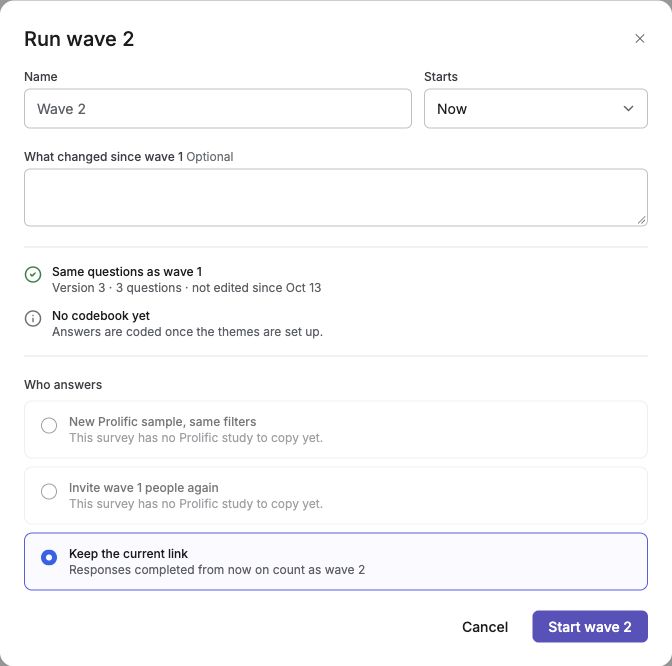
English interface · Example setup before starting a wave. Keep the current link is selected; QuestionPunk Panel options are unavailable because this demo has no earlier panel study.
### 5. Review any QuestionPunk Panel draft before publishing
For either QuestionPunk Panel option, click **Continue to QuestionPunk Panel**. This creates a draft; it does not publish or recruit participants. In **Distribute > QuestionPunk Panel**, check the audience, places, pay, settings, and displayed cost before publishing. Stop or complete a still-running study before publishing the next one.
### 6. Select and compare waves in Results
When there are at least two waves, the wave strip shows their dates and counts. Select a wave to apply its date window to Results; select it again to show all waves. Changing waves replaces the date filter. Check the other response filters before interpreting counts or [exporting results](https://www.questionpunk.com/support/data-exports-exporting-results).
## Details
Completed responses belong to a wave by completion time. Someone who starts before a boundary and finishes after it belongs to the later wave. In exports, an incomplete response falls back to its creation time.
Editors can use **Edit wave N** to rename a wave or change its notes. Starts after wave 1 can move only between their neighboring boundaries. Moving a boundary changes which responses belong to each wave.
Only the latest wave can be removed. **Remove wave** requires confirmation and returns its responses to the preceding wave; it does not delete responses. Removing wave 2 returns to a single ungrouped run.
A new QuestionPunk Panel sample can exclude up to 20 earlier studies. If prior exclusions or copied settings exceed the panel's limits, configure recruitment from Distribute and review it there.
## Check the result
The new wave appears in Results. Your existing survey link still works, or a QuestionPunk Panel draft is ready for your separate review. Confirm the boundary, filters, and counts before making comparisons.
## If something goes wrong
If Run again is missing, check edit access and diary linkage. If no response is completed, collect one first. If the wave was saved but the QuestionPunk Panel draft failed, choose **Try the QuestionPunk Panel draft again** in the dialog; do not create another wave to retry recruitment. For unexpected counts, check completion times, filters, and the wave boundary.
## Related articles
- [Set up a diary study](https://www.questionpunk.com/support/diary-studies.md)
- [Recruit participants with QuestionPunk Panel](https://www.questionpunk.com/support/integrations-prolific.md)
- [Export response data](https://www.questionpunk.com/support/data-exports-exporting-results.md)
- [Use version history and restore deleted questions](https://www.questionpunk.com/support/version-history.md)
---
# Add a survey to WordPress
Canonical page: https://www.questionpunk.com/support/integrations-wordpress
Choose a published survey in the QuestionPunk block, or paste its share link, then check it on your WordPress page.
Last reviewed: 2026-10-27
## Before you start
Install and activate [QuestionPunk from the WordPress plugin directory](https://wordpress.org/plugins/questionpunk/) and prepare a published survey. Ask your WordPress administrator to install the plugin and connect the account. People who can write posts can use its survey picker by default.
## Steps
### 1. Connect your account, or use a share link
In WordPress, open **Settings → QuestionPunk** and choose **Connect to QuestionPunk**. Sign in, review the read-access request, and return to WordPress. Check the connected account. Connection is optional: you can paste a participant share link in the block instead.
### 2. Add the block and choose a survey
Edit the WordPress page or post and add **QuestionPunk Survey**. If connected, type in **Choose a published survey** and select your survey. To use a link, choose **Paste a share link instead**; if disconnected, the share-link field is already shown. Paste the participant share link or survey ID, then select **Embed**. Use **Change survey** in the block toolbar to replace the selection.
### 3. Choose how it opens
In the block settings, use **Style**: **In the page**, **Button that opens a popup**, **Chat button, bottom right**, **Feedback tab, right edge**, or **Full page**. The inserter also offers QuestionPunk Survey Button, QuestionPunk Chat Button, QuestionPunk Feedback Tab, and QuestionPunk Full-Page Survey. A block affects that page; use the separate site-wide setting below to show a widget across the site. Leave width and height empty for automatic sizing. Full page has no width or height controls.
### 4. Check the live page
The connected editor preview shows the survey's first question; it is not an interactive respondent test and does not submit answers. Publish or update the WordPress page, open it as a visitor, and open the widget if needed. Check the survey on desktop and mobile. An unpublished QuestionPunk survey remains closed even when the WordPress page is published. Complete an approved test response only when you are ready, then check it in QuestionPunk Results.
### 5. Optionally enable a site-wide or post-purchase survey
For a widget across the site, open **Settings → QuestionPunk → Site-wide feedback widget**, select the survey and its chat-button or feedback-tab style, then choose **Save Changes**. For WooCommerce, use **WooCommerce: after checkout** to select a survey and either the in-page or popup-button style. Check it with an approved test order. This passes the order number as `order_id`, plus a source label; the plugin does not add the customer's name, email, or address.
### 6. Turn off the placement or disconnect
Remove the block to stop showing it on one page. For the site-wide widget or WooCommerce placement, choose **None (off)** or clear the Survey field, then save. **Disconnect** removes this site's account connection; it does not remove public survey placements. If you used an API key, revoke it separately in QuestionPunk's Developer settings when no longer needed. For OAuth access, always check QuestionPunk's Connected apps after disconnecting and revoke this site's access if it is still listed. WordPress can report a successful disconnect even when remote revocation fails.
## Details
For a Shortcode block, use `[questionpunk survey="SURVEY_ID" mode="standard"]`. Other modes are `popup`, `popover`, `slider`, and `full-page`. Add a non-sensitive source tag with `param_source="pricing-page"`. A pasted share link is reduced to its survey ID; its query parameters are not copied into the block. Use shortcode parameters when you need to pass your own values.
The account connection asks for read access. The site stores the credential on its server; it is not embedded in visitors' pages. The picker exposes the connected account's published-survey titles, response counts, and first-question previews to users allowed to write posts by default. Choose the connected account with that access in mind.
**If Connect is unavailable:** use **Use an API key instead** with a read-access key from QuestionPunk’s **Settings → Developer**, then choose **Save key**. Keep the key out of pages and shortcodes. This is the alternative for sites without HTTPS.
## Check the result
The survey opens in the intended position on the public WordPress page, and any approved test completion appears in QuestionPunk Results. The editor's first-question preview alone does not prove that the public survey is open or working.
## If something goes wrong
If the survey is missing, check the connected account and publication status. The picker caches its list for one minute and searches up to 500 published surveys; wait, reload the editor, or use Paste a share link instead. First-question previews can stay cached for five minutes. For a closed survey, check publication, schedule, and response limits in QuestionPunk. If the block is absent, ask your administrator to check plugin activation and version.
## Related articles
- [Send your survey to multiple people](https://www.questionpunk.com/support/embed-and-share.md)
- [Set up API and developer access](https://www.questionpunk.com/support/api-access.md)
- [Troubleshoot a survey link that is not working or not getting responses](https://www.questionpunk.com/support/troubleshooting-delivery.md)
---
# Send completed responses to your CRM
Canonical page: https://www.questionpunk.com/support/integrations-crm
Send completed responses to a connected CRM or marketing tool, with contact matching, field mapping, and consent settings.
Choose an available CRM connection in Settings, then configure each owned survey’s delivery. Providers include HubSpot, Salesforce, Pipedrive, Intercom, Zoho CRM, Klaviyo, Mailchimp, ActiveCampaign, Keap, Attio, Brevo, Constant Contact, Zendesk, Freshdesk, and SendGrid. Setup and delivered records differ by provider.
Last reviewed: 2026-10-27
## Before you start
You must own the survey and be authorized to send its answers to the chosen CRM. Availability varies by environment: a card marked **Coming soon** cannot connect yet. Salesforce requires an edition with API access. Have a test contact and an approved way to identify respondents by email.
## Steps
### 1. Connect the CRM account
Open account **Settings > Integrations**, find the CRM card, and choose **Connect** for that provider. For Intercom, select the correct **Workspace region** first: United States, Europe, or Australia. Complete authorization and verify the **Connected** badge and account label.
### 2. Enable delivery for this survey
Open the owned survey’s **Settings > Integrations > CRM**. Turn on **Send responses to [provider]**. Connecting the account alone does not enable survey delivery. Responses go to the survey owner’s connection; collaborator edit permission is not enough to configure it. For providers with an audience or list selector, choose the destination first. Mailchimp requires an audience before enabling sync. Configure the offered contact-field mappings and tag; changing a Mailchimp audience clears its previous field mappings. Review double opt-in when shown.
### 3. Decide how to handle unknown emails
Review **Create a [record] when none matches**. When off, responses from emails not found in the CRM are skipped. Turn it on only if you want new CRM records created.
### 4. Supply the respondent’s email
Ask an **Email** question, or add the email merge field from your campaign tool as the survey link’s `email` parameter. Use `&email=` if the link already has a query string. Send yourself a test campaign email and check that the merge field resolves. A valid email in the link takes precedence over an Email-question answer; do not share a personalized link with other people.
### 5. Verify an authorized live completion
Complete the published survey with approved test content and the intended test contact. Preview and synthetic tests do not establish CRM delivery. Check the provider’s expected note, task, profile fields, event, or list membership; the output differs by provider. Where a response link is provided, open it with an authorized QuestionPunk account and compare the response.
### 6. Stop delivery when needed
Turn off the survey switch to stop that survey’s delivery. Account **Disconnect** stops all survey syncs for that provider. Verify disconnection succeeds; a failed disconnect can leave it connected. After reconnecting, configure the survey switches again. Disconnecting does not remove notes or tasks already delivered.
## Details
**HubSpot:** matches a contact by email and adds a note; optional creation adds a contact. **Salesforce:** checks contacts before leads and adds a completed task; optional creation adds a lead.
**Pipedrive:** matches a person and adds a note; optional creation adds a person. **Intercom:** matches a user or lead by email and adds a contact note; optional creation adds a lead. **Zoho CRM:** checks contacts before leads and adds a note; optional creation adds a lead.
Notes contain answered questions in order and a link to the full response. Long answers can leave later answers out of the CRM note, so use the linked response for the complete record.
This sends eligible completed responses; it is not a historical import or two-way synchronization. Some providers offer one-way answer-to-contact field mapping. Missing or invalid emails are skipped, and plan response-visibility limits can prevent delivery. Reconnecting does not establish that missed responses were backfilled; there is no user-facing replay control in this workflow.
For custom mappings or other destinations, see [webhook-based automation](https://www.questionpunk.com/support/integrations-zapier-make) and [webhook delivery settings](https://www.questionpunk.com/support/webhooks).
**Open the HubSpot response card.** If your installed QuestionPunk app provides the **QuestionPunk responses** card, ask your HubSpot administrator to add it to the contact sidebar. Open the contact with the matching email, then choose **Open in QuestionPunk** for a full response. You still need access in QuestionPunk.
**What the card shows:** up to 10 recent responses delivered to that HubSpot account, newest first, with up to three answered questions and shortened previews. **Email from link** identifies a match from the link’s email parameter; it does not verify who answered. Old notes may have no card entry. Disabling survey sync or disconnecting can hide card entries while delivered notes remain.
**If the card is empty or fails:** **No email on this contact** means the contact needs an email. For **Couldn’t read this contact’s email** or a loading error, use **Try again**. If a note exists but the card says **No responses yet**, check the account, current email, survey sync switch and survey owner. Contact support if they still disagree; another live submission is not a refresh action.
**Marketing consent:** when a list requires consent, add a Consent question to the survey and select it in the provider’s survey settings. ActiveCampaign, Brevo, Constant Contact, and SendGrid use the respondent’s agreement before adding them to the selected marketing list. SendGrid also requires that agreement before creating a new contact even without a list. Collecting an email address is not consent. Mailchimp uses its audience and double opt-in settings; check the settings shown for your provider.
## Check the result
The account shows Connected, the owned survey’s delivery switch is enabled, and an authorized live completion appears on the expected CRM record.
## If something goes wrong
For a missing note or task, check the connected account, survey switch, completion status, matching email, and create-missing setting. Inspect the original link email if it matched the wrong person. For Intercom connection problems, check Workspace region. If delivery still fails, contact support with the provider, time, and error, leaving out credentials and respondent answers.
## Related articles
- [Use webhooks to connect Zapier, Make, and other apps](https://www.questionpunk.com/support/integrations-zapier-make.md)
- [Set up webhooks](https://www.questionpunk.com/support/webhooks.md)
- [Keep and export survey data](https://www.questionpunk.com/support/data-exports-retention.md)