
Import a Qualtrics .qsf, Word, or PDF survey
Upload a Qualtrics .qsf export, a Word or PDF questionnaire, or plain text, and QuestionPunk rebuilds it as an editable survey.
Already have a questionnaire in another tool? Upload a Qualtrics .qsf export, an XLSForm, a PDF, a Word document, or plain text, or paste the questions, and QuestionPunk rebuilds it as an editable draft. Compare the rebuilt wording, choices, order, and branching with your original before publishing.
Before you start
Prepare the source file or the question text before you begin. Check that the file is one of the supported formats and no larger than 3 MB.
Import an existing study
A navigation overview using actual English-interface demo screenshots, generated English narration, and English/Japanese captions. This is a narrated screenshot sequence, not a continuous recording. Examples are fictional.
Download videoRead the video transcript
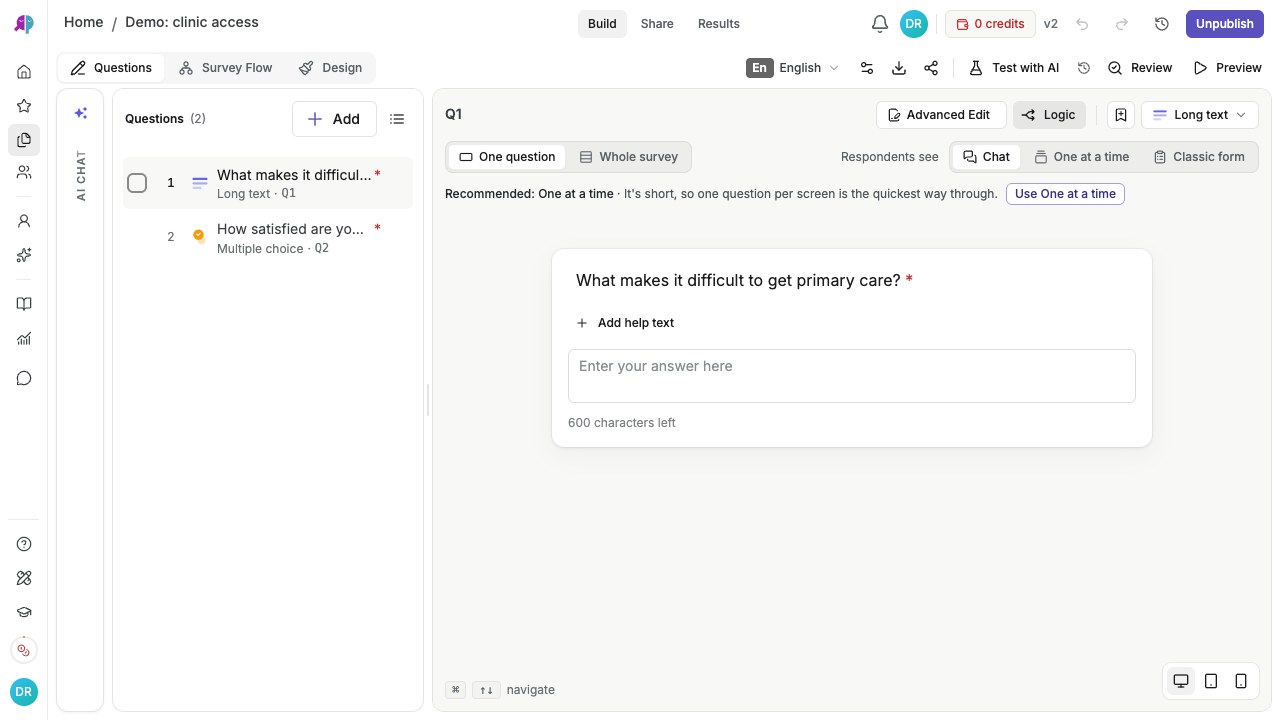
From Home, open Survey and choose Import an existing study. Keep your original questionnaire for comparison. Paste your questions, upload a document, or select Survey export for a Qualtrics or XLSForm file. In Questions, compare the imported wording, answer types, and branching logic against your original questionnaire. Preview every important path before publishing your imported study.
Steps
Open Import an existing study
From the Start a study grid on Home, click Survey (or Voice study or Usability test). Then click Import an existing study below the description box.English interface · Study creation menu. Available methods can vary by account.
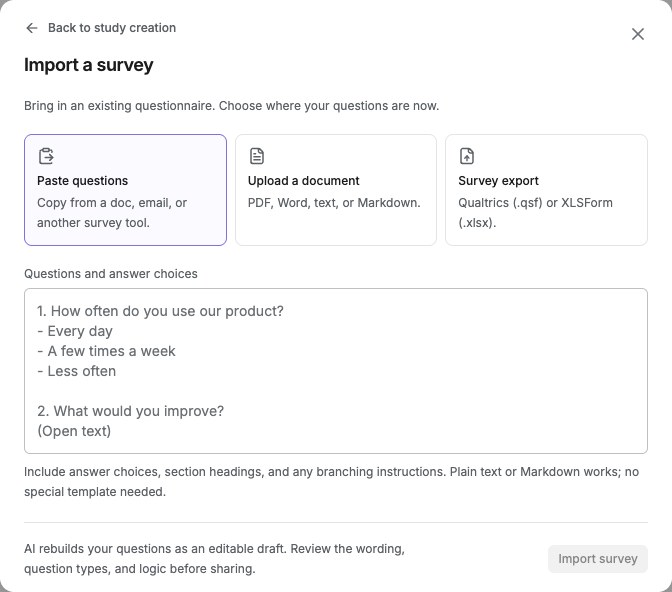
Upload your file or paste your questions
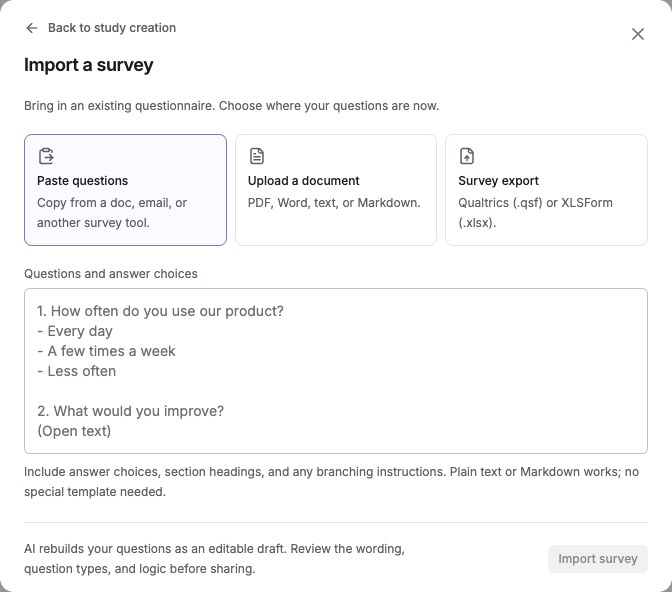
Upload a Qualtrics .qsf export, an XLSForm (.xlsx), a PDF, a Word document (.docx), or a plain-text or Markdown file, up to 3 MB. You can also paste the questions as text.English interface · Import options and example placeholder questions; no file has been imported.
Let AI rebuild the study
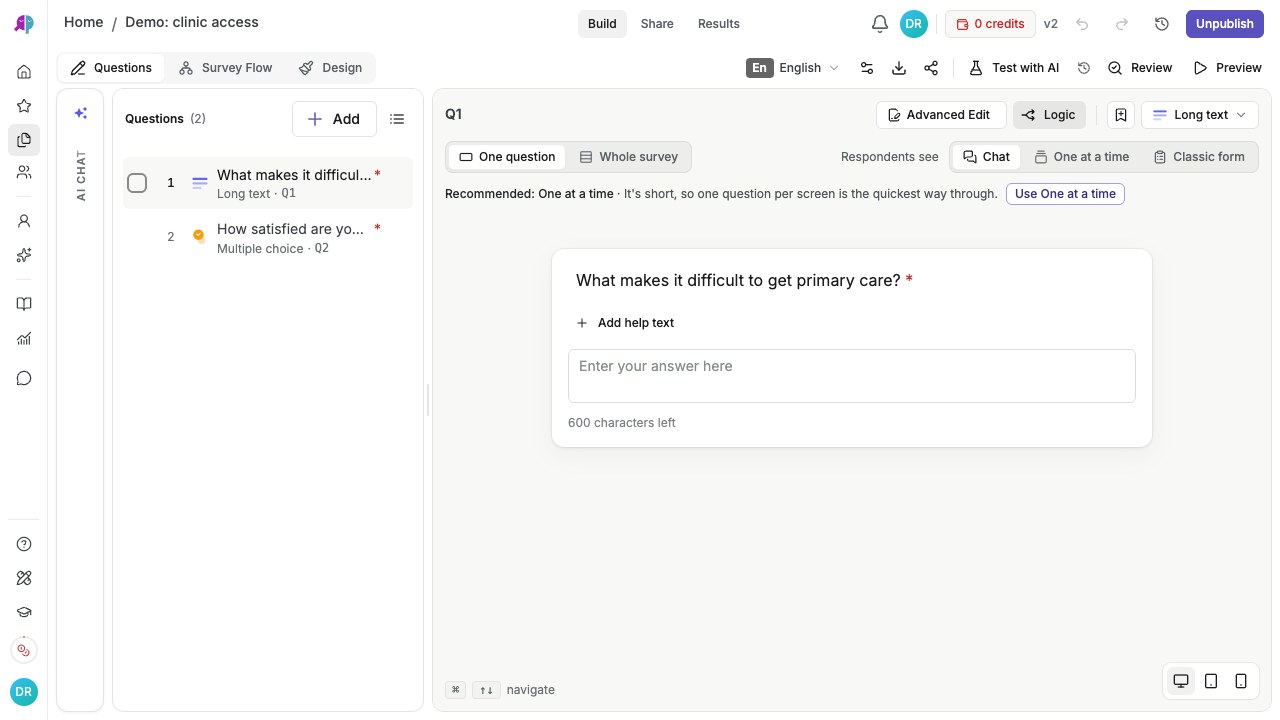
QuestionPunk rebuilds supported questions, answer options, and order as an editable draft. Structured Qualtrics and XLSForm exports preserve more of the original structure. PDF and Word imports depend on text extraction, so compare the draft with your source file. Review any unsupported items or logic before publishing.English interface · Fictional demo questionnaire. This screen does not show participant findings.
Review the draft and finish setup
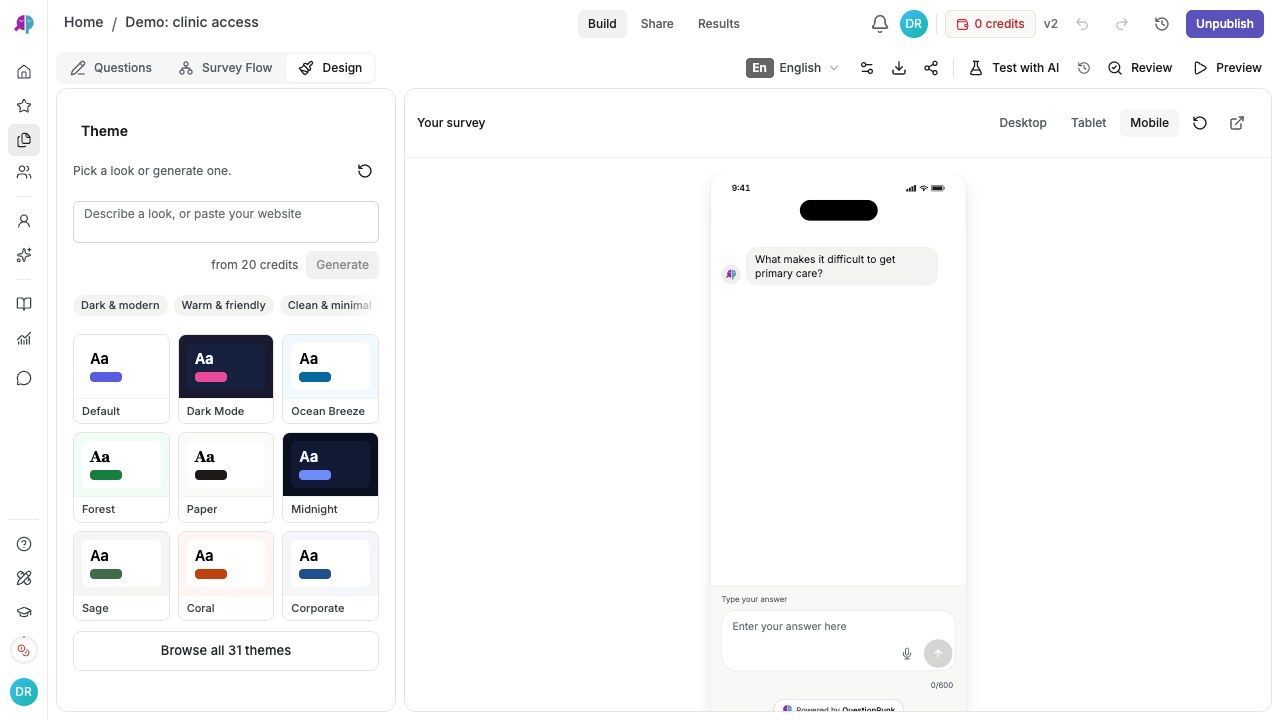
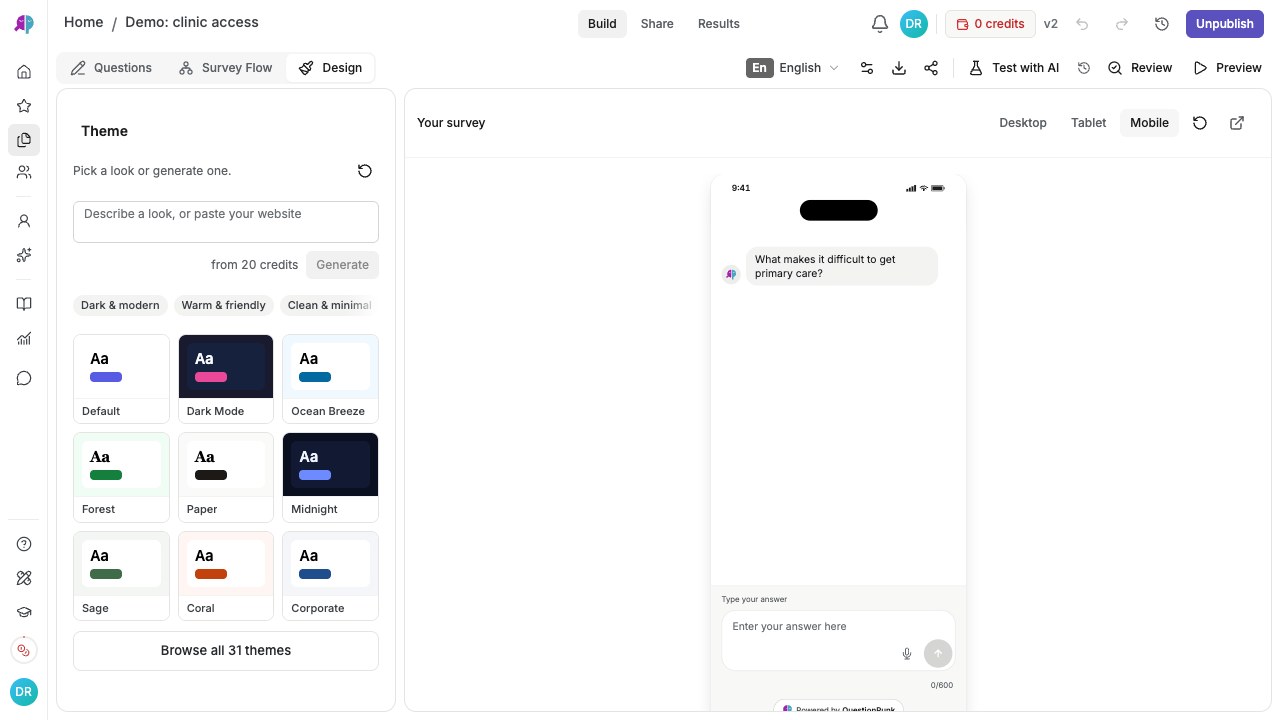
If the file could not be read, QuestionPunk still creates a draft. Open the draft and attach the file there, or describe the study instead. If the import worked, review the rebuilt survey, make any changes you need, and publish as usual.English interface · Built-in Mobile preview of the demo questionnaire; this is not a physical-device test.


Details and limitations
Importing is a fast way to move research from another platform or digitize a paper or Word questionnaire instead of rebuilding it question by question.
Use the original questionnaire to check the draft. Compare each question, answer option, required setting, and branch, and correct anything that is missing or different.
Google Forms: if a Google Forms option is available in Import an existing study, use that guided import and review the imported draft against the original. This option is enabled separately by environment; if it is absent, use the paste or file options described above.
Check the result
You should see an editable draft in the survey editor. Compare its question wording, answer choices, order, and logic with your source, correct any differences, and preview the important paths before publishing.
If something goes wrong
If the import result looks incomplete, open the draft and attach the file there or paste the questions as text so the study can still be rebuilt.