
Survey flow canvas
Visualize your entire survey as an interactive node graph.
The survey flow canvas shows all questions, pages, branching rules, and connections as a visual flowchart. Zoom, pan, and click nodes to edit questions directly from the canvas view.
survey-designflowvisualization5-10 minutesBeginnerResearchersSurvey designers
Steps
- Open the canvas viewIn the survey editor Build tab, switch to the Survey Flow tab at the top (next to the Questions tab). The canvas shows your entire survey as connected nodes with sections grouped together.
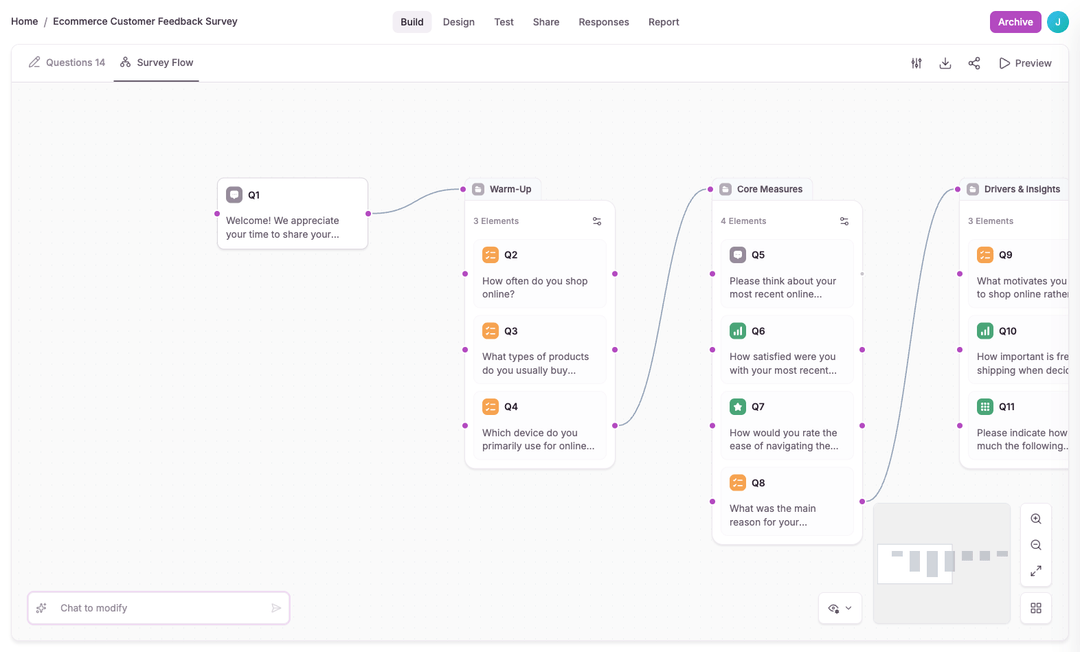
- Navigate the canvasUse scroll to zoom in/out, click and drag to pan around. A minimap in the corner helps you orient within large surveys.
- Edit from the canvasClick any question node to open the edit panel. You can modify question text, options, and logic directly from the canvas view.
- Review branching connectionsEdges between nodes show branching rules and transition logic. This makes it easy to spot dead-ends or unintended paths.
The canvas view transforms your survey into a visual flowchart. Each question appears as a node, and connections show the flow between questions.
Branching rules appear as labeled edges between nodes, making it easy to understand complex survey logic at a glance.
The canvas is especially useful for surveys with multiple branching paths. Use it to verify that all paths lead to a completion point.