
Use version history and restore deleted questions
View saved versions of your survey, compare them with the current version, and restore an earlier version or a deleted question.
QuestionPunk saves a version of your survey each time you publish and whenever you click Save version. You can open version history, compare a saved version with the active version, and restore an earlier version or a deleted question.
Before you start
Open the survey you want to review in the editor. If you need an older state, make sure the survey has been published before or that you clicked Save version earlier.
Review and restore a survey version
A walkthrough using the English interface and demo content. English audio with AI-generated narration; English and Japanese captions are available.
Download videoRead the video transcript
Open Version history from the editor toolbar. Review earlier versions before choosing one to restore. Restore only the intended version, then check questions and logic in Build and Preview. Existing response data needs separate review.
Steps
Open version history
In the survey editor header, click the Version history icon. Review the list of versions and the date each one was captured.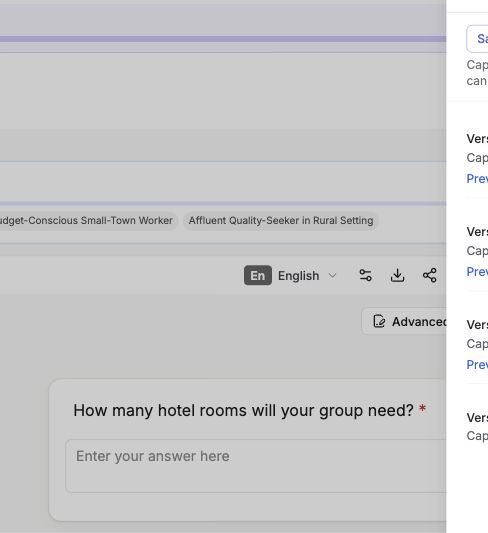
English interface · Demo study. Use the controls described in this step.
Compare versions
Click Preview changes on a version. Review the differences from the active version, including added questions, edited text, updated logic, and removed items.Save a version
Click Save version to capture the survey in its current state. This adds to the versions already saved each time you publish.Restore a previous version
Click Restore on any version to roll the survey back to that point. The current version stays preserved in the history.Recover deleted questions
At the top of the version history panel, open the Recently deleted section. Find the deleted question or section, then click Restore to bring it back. Sections show how many items they contained.
Version history helps you edit with less risk. Each publish and each Save version click creates a version you can return to.
If you want to test changes without affecting a live survey, duplicate the survey and edit the copy.
Preview changes shows a clear diff against the active version, so you can review changes before you restore anything.
The Recently deleted section at the top of the version history panel lists questions and sections you removed. Click Restore on any item to return it to your survey.
Check the result
You should see a version listed, a diff in Preview changes, or the restored question or section back in the survey.
If something goes wrong
If you cannot find the item you need, check the Recently deleted section at the top of version history and confirm you are in the correct survey.