
Exporting results
Export responses as Excel or CSV, the survey as PDF or Word, reports as PDF or Word, and charts as PowerPoint.
Each kind of export lives in its own place: Excel (XLSX) and CSV (standard or expanded layout) for response data; PDF and Word for the survey structure; PDF and Word for the AI report; and PowerPoint (PPTX) for a presentation-ready deck with charts, themes, and AI summaries. Exports use the filters active on the Responses tab.
Steps
- Open the Results tabGo to Survey > Results. You'll see all collected responses listed on the left, the selected response conversation in the center, and response details (language, date, fraud status, events, geolocation) on the right.
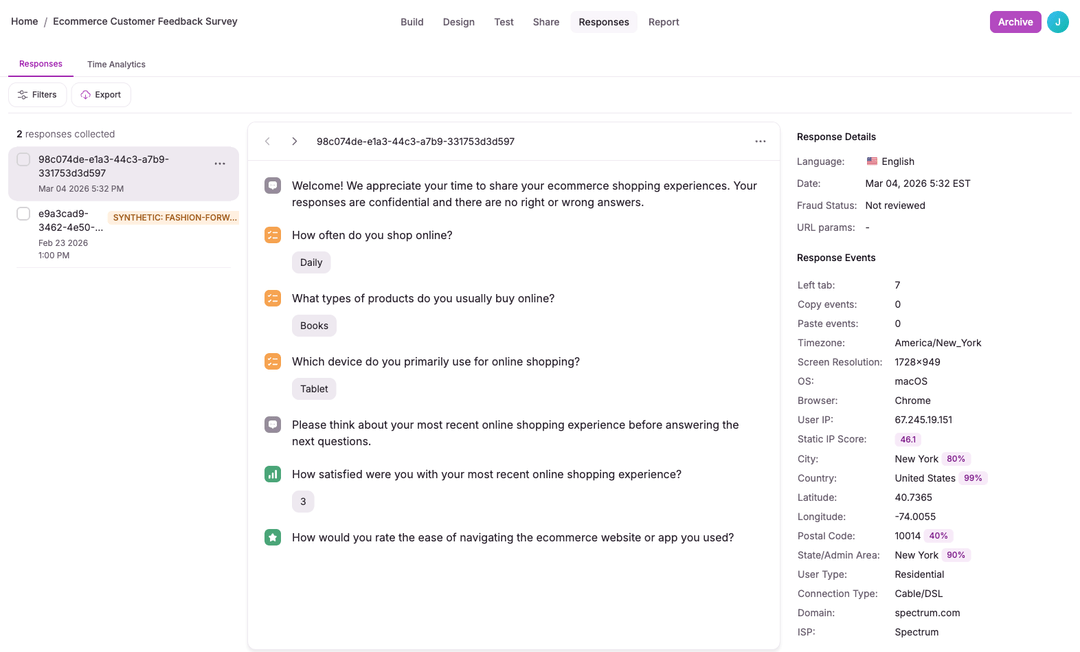
- Choose export formatOn the Responses sub-tab, click Export and choose Excel (XLSX) (the default) or CSV, in the standard or expanded layout. Choose an answer format: Labels (text labels), Numeric (numeric codes), or Both (labels and codes side by side). The survey structure exports as PDF/Word from the builder, and a PowerPoint presentation is under Breakdown > Download.
- Filter before exportExports use the filters active on the Responses tab: status, suspicious level, response type (real vs. synthetic), date, revision, wave, codes, and answers. Fraud columns are included by default, and you can turn them off in the export dialog.
- Include respondent codesTurn on Respondent Codes in the export dialog to add respondent code columns to your CSV or XLSX file. Each code appears as a column so you can filter and analyze by your custom tags.
CSV and Excel exports offer two layouts: Standard (one row per respondent, useful for spreadsheet tools and quick analysis) and Expanded (one row per question/answer, useful for detailed joins and per-question analysis). Choose an answer format (labels, numeric, or both) to control how responses appear in the export. On Free and Pro, responses past your plan's monthly visible-response limit are left out of exports until you upgrade or the next monthly reset.
Excel (XLSX) export provides formatted spreadsheets ready for analysis.
PDF and Word exports capture the survey structure and design, useful for documentation and stakeholder review.
PowerPoint (PPTX) export produces a presentation-ready deck with per-question charts, AI-generated themes, and summary slides for sharing findings with stakeholders.
The Analysis sub-tab exports the full AI-generated narrative report as PDF or Word, including charts, themes, and summaries. The Breakdown sub-tab lets you download the whole breakdown as PDF, PNG, or JPG.
Suspicious level is included in exports so you can filter at the analysis stage.
Respondent codes can be included in CSV and XLSX exports by turning on Respondent Codes. This adds columns for each code, making it easy to segment and filter responses by your custom tags in external analysis tools.